Most of us know Canva as a cool graphics tool that lets you design eye-catching carousels for Instagram, YouTube banners, and more. However, what often remains hidden is that Canva can also be a powerful productivity tool. From letting you schedule your posts directly to helping you create multiple QR codes at the same time, Canva is packed with hidden features.
So, if you are looking for cool ways to make the most out of this tool, here are some Canva tips and tricks you should know.
See Also: Tired of Canva? Try These 6 Powerful Design Tools Instead
1.Post Directly from Canva
Often, it happens that you design something on Canva, save it, and then download it. Next, you upload the same on SM, say Instagram, to publish it. Phew, such a productivity killer. What if we told you that you can post directly from Canva?
Yes, you heard that right. With this free posting tool inside Canva, it feels like having a tiny social media manager. Cool, right? So, here is how to schedule posts on Canva.
Step 1: After you create your design, you will find the See All option (three-button icon) in the Share tab.
Step 2: From there, you can choose your social media platform (taking Instagram here for example), connect your ID to Canva, and add a caption.
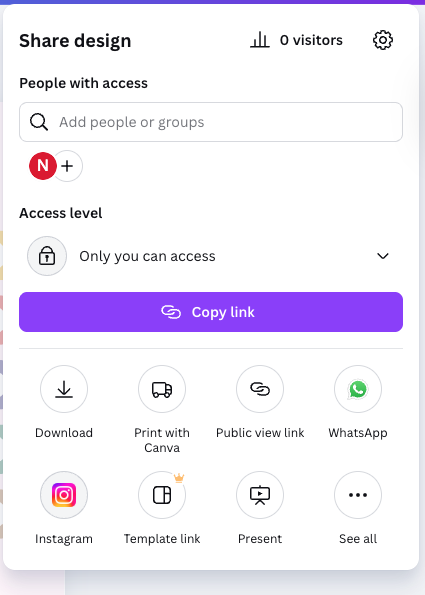
Step 3: Now, all you need to do is click on Publish Now, and you get a direct live post. The only catch is that you will be able to post directly on professional accounts.
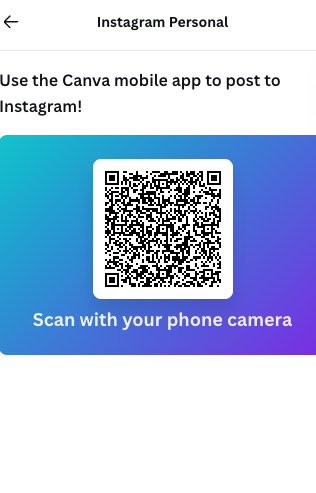
For personal accounts, Canva gives out a QR code, which you need to scan on your phone to get to the infographic directly.
See Also: 6 Best iOS Apps for Productivity
2. Create Bulk QR Codes
If you are still creating QR codes one by one, this is your moment to upgrade. And trust me when I say that creating QR codes using online tools can be a bit of a risk. Not many years ago, I created a bunch of QR codes and published them. And to my horror, I found the website pushing its own ad before redirecting to my link. Imagine the horror.
Canva fixes that and lets you take a whole list of links or text and convert them into separate QR codes for you. Interestingly, it also lets you change the size and design of the codes. From events, menus, product packaging, and certificates, everything becomes faster the second you stop doing it individually.
Step 1: To create a QR code on Canva is simple and easy. All you need to do is navigate over to Apps and search for Read, Bulk QR.
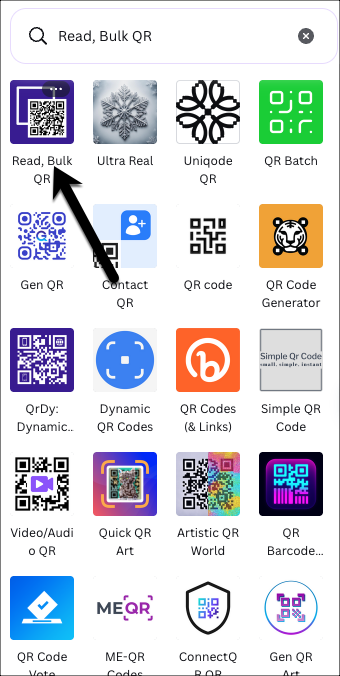

Step 2: Next, paste your data, and Canva will generate the needed QR codes for you.
With Canva, you can even copy an individual QR code as needed. Yes, you can thank me later.
3. Google Maps Integration
Google Maps integration is perhaps one of Canva’s most powerful features. The good thing is that it is available on the free version. So, you can actually bring Google Maps into Canva instead of taking blurry screenshots and struggling with crop tools. This Canva hidden feature is perfect for event invites, real estate listings, direction guides, and even wedding cards.
Interestingly, these maps are clickable, which lets you interact directly from the image. This means your guests do not have to copy the location from the infographic and paste it on maps.
To add Google Maps to Canva infographics, click on Google Maps in the Apps section. Next, type your location and insert the map, and that is it.
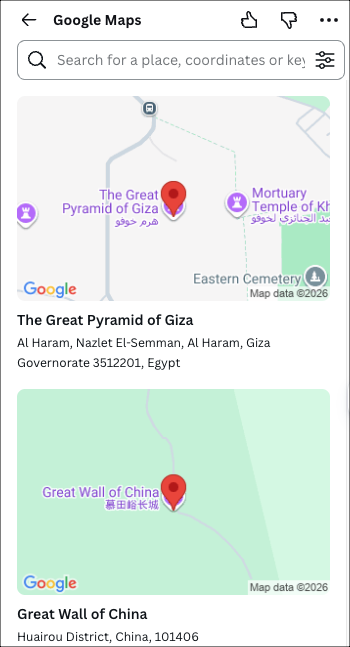
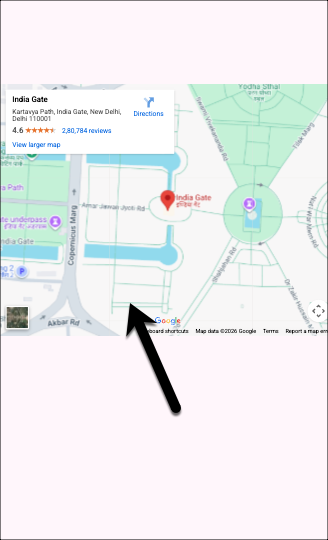
You can customize it as well, such as controlling the angle, view, zoom, etc.
See Also: These 6 Android Apps Helped Me Grow in My Career
4. Voiceover for Podcasts-like Feel
Another cool Canva pro tip is that it lets you transform your designs into podcast-style videos with AI voiceover.
Step 1: To create a podcast-like voiceover, create or open the design and go to the Apps section. Now, search for AI Voiceover.
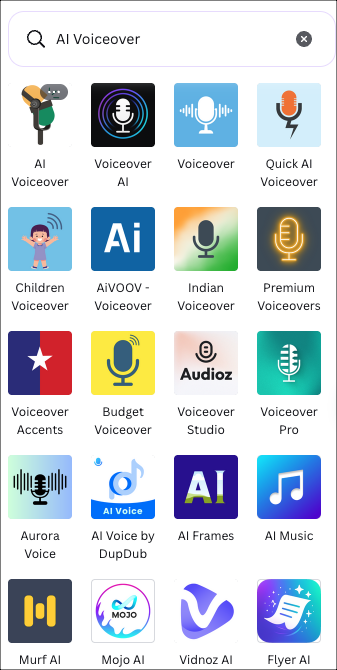
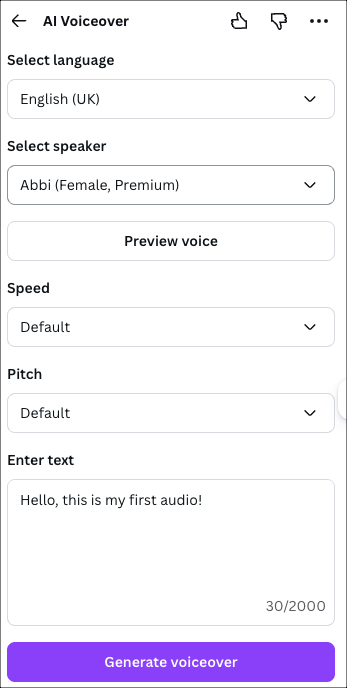
Step 2: Once you add it to your design, type your script and choose the voice and tone you like. Once done, generate the voiceover.
After this, you would need to do additional tasks like adjusting the timing and exporting as a video with audio. And the best part is that you created it on the free version of Canva.
5. Tidy Up
Tidying up infographics and designs may feel time- and energy-consuming. And though it looks like a small task, it may end up taking a lot of your time. To avoid this, you can use Canva’s built-in Tidy Up button. From uneven gaps and crooked clusters to slightly misaligned elements, it fixes everything.
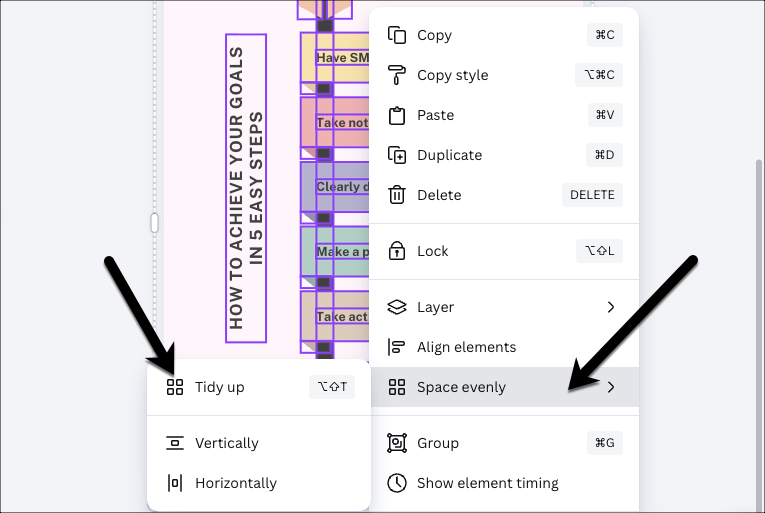
To try this, select multiple elements, right-click, and choose the “Space Evenly” option. Next, hit the Tidy Up button, and you will witness the magic unfold. Time and energy saved, right?
6. Canva Lesser-Known Shortcuts (Free & Pro)
If you want to work smart, it is time you said hi to Canva shortcuts. These Canva productivity tips not only reduce hand movement but also save you time and energy. And more importantly, your designs happen a lot faster than you expect.
These are the top yet time-saving shortcut gems you should start using right away:
- Alt + Drag (Option + Drag on Mac) — Duplicate element instantly while moving
- Shift + — Move element forward or backward one layer precisely
- Ctrl + / — Search any tool or element without leaving the keyboard
- Alt + Shift + Drag — Constrain movement diagonally for perfect alignment
- Ctrl + ; — Show or hide rulers and guides for pixel-perfect placement
- Ctrl + Alt + D — Open design version history quickly
- Shift + Click multiple elements + T — Add the same text style/formatting across all selected
Once you master these, trust me, you wouldn’t want to go the old way again.
Final Thought Before You Rush to Try
These were the best Canva tips and tricks, and the good thing is that these are all available in the free version of Canva. With these, you will all find the nifty tips and tricks under one roof, and needn’t try other apps or complicated tools. You just need to know where the magic is hiding.
Canva Tips and Tricks: FAQs
What are the best hidden tips and tricks for Canva?
In my opinion, the best hidden Canva tips and tricks is the ability to design on PC and transfer the same to your phone in a matter of seconds.
Are Canva’s hidden features available in the free version?
Yes, some of Canva’s hidden features are available in the free version.
What are the best Canva tricks for beginners?
The best Canva tricks are using shortcuts like Alt + Drag to duplicate elements, Shift + [ or ] to move layers, and Ctrl + / to quickly search tools.