
If you use Instagram, then you know how essential it is to make your account secure. Between phishing attempts and the occasional “someone tried to log into your account” notification, a strong password alone is just not enough anymore. hence, it’s essential that you enable two-factor authentication on Instagram.
The good news is Instagram now gives you not one but two different ways to set up 2FA authentication on Instagram.
What is Instagram’s Two-Factor Authentication
Two-factor authentication is an added level of security on Instagram that requires you to enter a code to authenticate. That is in addition to your username and password when you access Instagram on an unrecognized device. You can compare it to double locks on your front door.
At the time of writing, Instagram has three options for two factor authentication — through an Authentication App (such as, Google Authenticator), SMS verification, and WhatsApp verification. In the latter, the login code is sent via WhatsApp.
Needless to say, using an authentication app for 2FA is one of the most secure options. Plus, it works offline as well.
How to secure Instagram Instagram using 2FA Settings
Before we dive into those methods individually, here’s how to get to the 2FA settings.
Step 1: Click the three-line icon in the upper right corner of your Instagram Profile page.
Step 2: Select Accounts Centre and then select Password & Security. Now, simply select, Two-factor Authentication and select the Instagram account for which you want to activate.
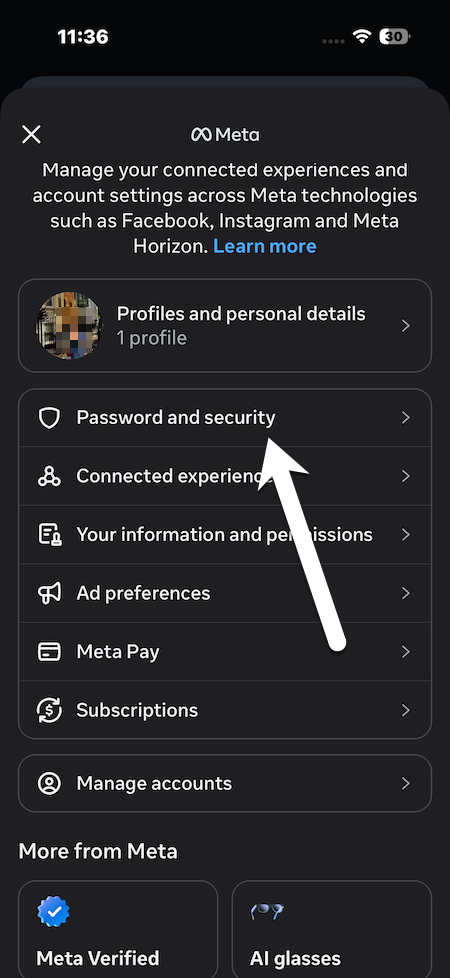
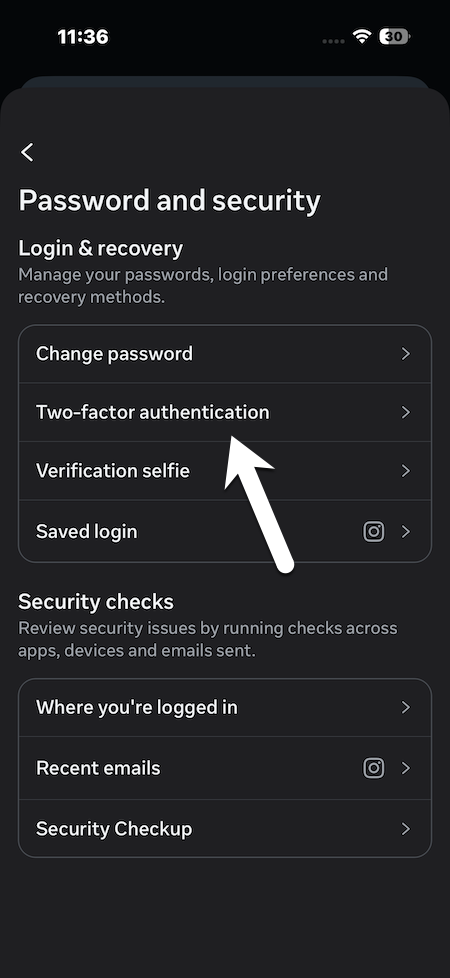
Now there are two options available for you. Choose the one that works better for you.
1. Activate Two-Factor Authentication with an Authenticator App (Safest)
Once on the Two-factor Authentication screen, select Authentication App. For this, we will be going ahead with Google Authenticator.
Step 1: Under the list of methods, select Authenticator App and tap Next. Now, tap Copy Key to copy the key.
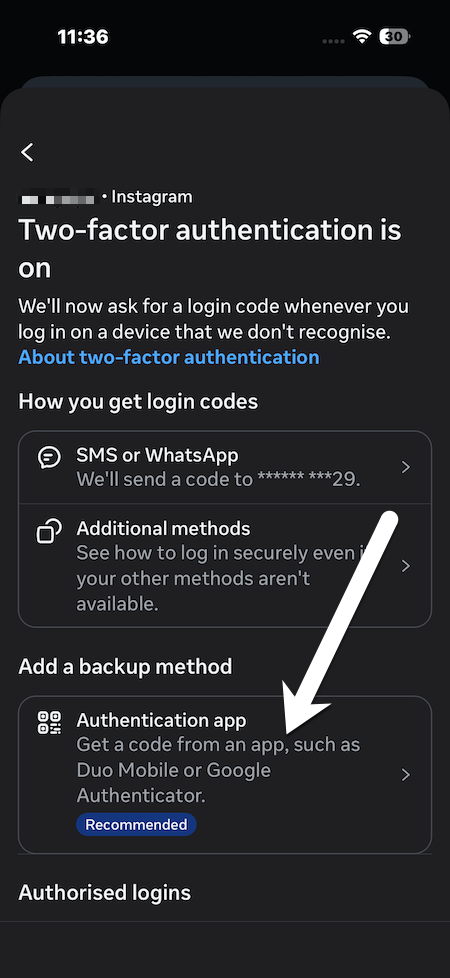
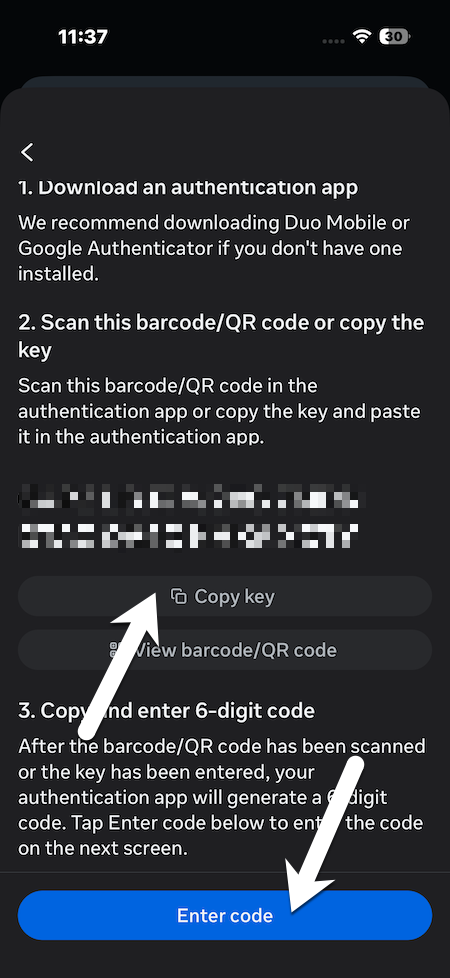
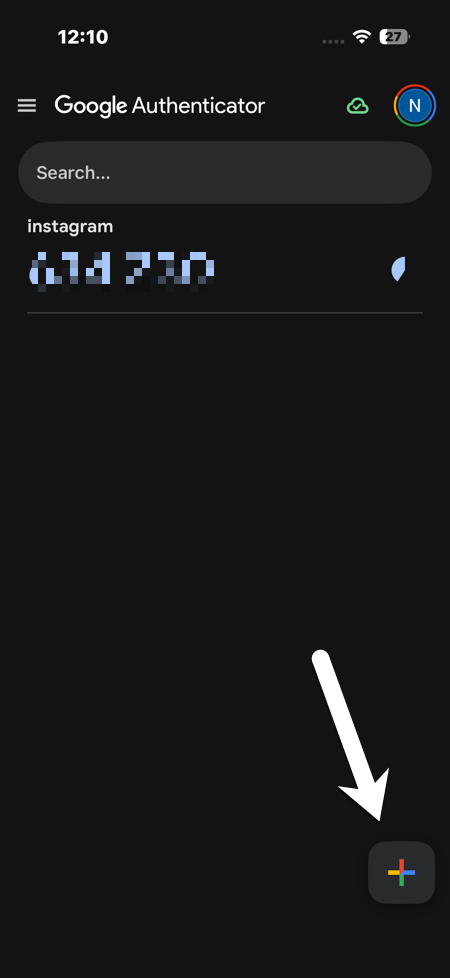
Step 2: Now, open Google Authenticator and tap on the Plus icon at the bottom right corner. Add Instagram as the Account name and under Your key, paste the newly copied key.
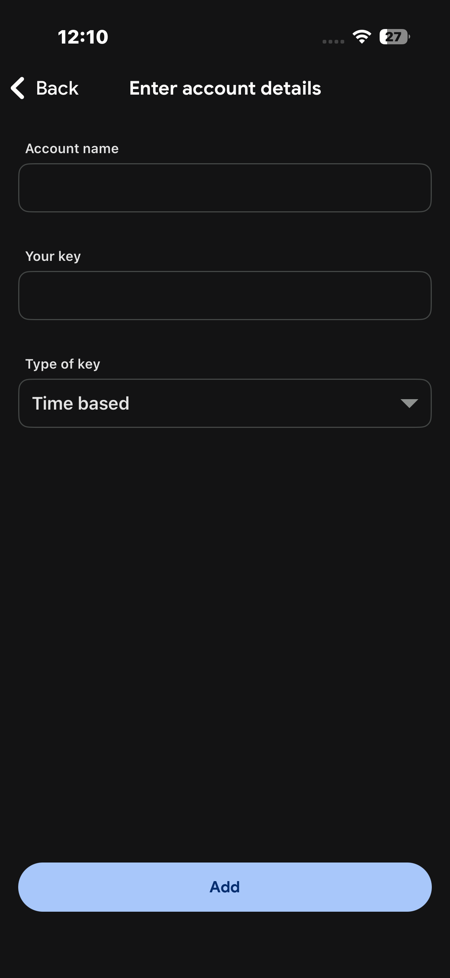
Tap on Add and it will then create a number based code.
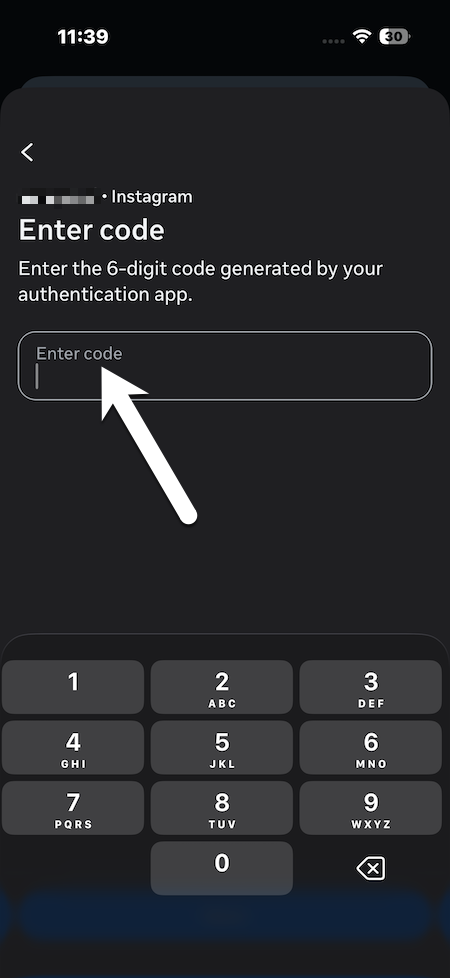
Step 3: Now, head back to Instagram and enter the code that the authenticator app generated. Press Done.
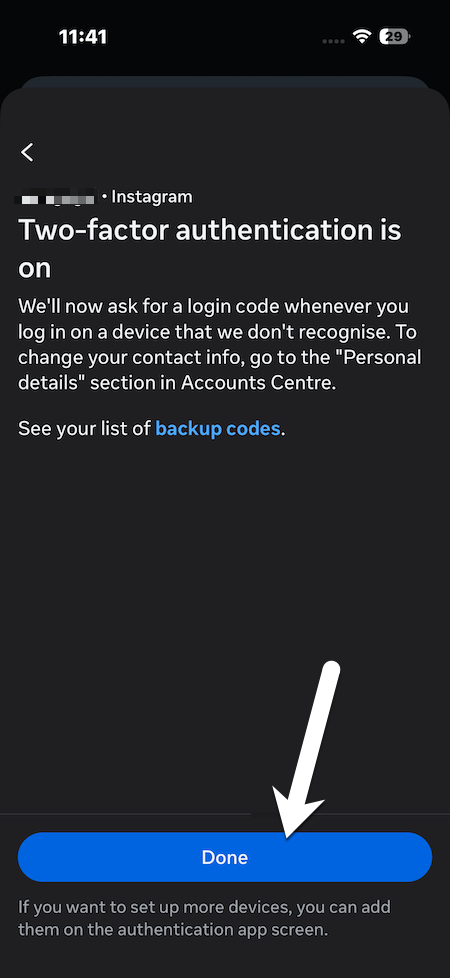
That’s it. You have successfully enabled two-factor authentication on Instagram through Google Authenticator.
2. Activate Two-Factor Authentication with SMS or WhatsApp
If you want to keep things simple and short, using the SMS or WhatsApp method to authenticate is a comparatively easy method. This sends a code directly to the phone number you registered. However, you will need to have your number added to Instagram before you can proceed.
On the 2Fa authentication page, pick the SMS or WhatsApp option and toggle the option.
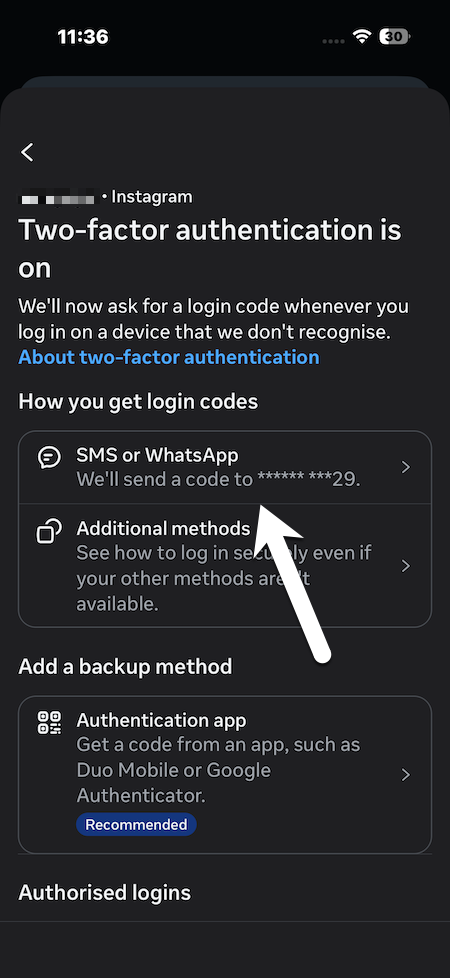
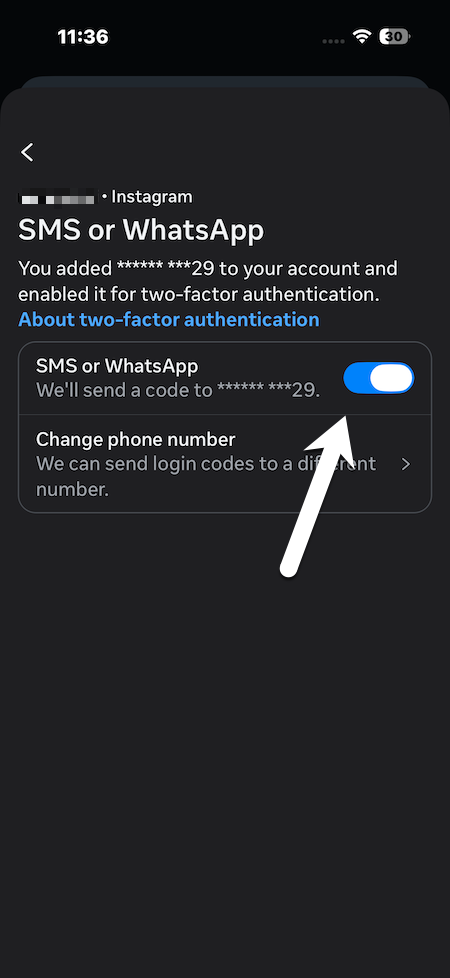
From now on, Instagram will now send a 6-digit code to your number.
Aforementioned, this is less secure than an authenticator app, but easier to implement. That being said, it acts as the additional shield against many hacking attempts.
Cons of Enabling Two-Factor Authentication on Instagram
While enabling 2 FA on Instagram has it own advantages, you will need to be careful about how you handle your phones and other devices. If you are not careful since you may be locked out of your Instagram account.
If you lose your phone and have not saved backup codes or recovery options, getting back into your account can become difficult.
Additionally, when switching to a new phone, you will need to properly transfer your authenticator accounts properly. Else, your login codes may stop working thus logging you out of your Instagram account.
In A Nutshell
This was how you can enable two-factor authentication on Instagram now. Other than that, Instagram releases many security features with its updates almost regularly, so do ensure that you keep the app updated.
FAQs
What is Two-Factor Authentication on Instagram?
Two-factor authentication on Instagram is an additional security layer wherein you need to enter a second verification code to log-in.
What happens when two-factor authentication is on Instagram?
Instagram requires you to enter a one-time code and your password every time you log in from an untrusted device after enabling two-factor authentication.
How can I get my Instagram two-factor authentication code?
The code can be received in the form of an SMS, WhatsApp message, or through an authentication app.