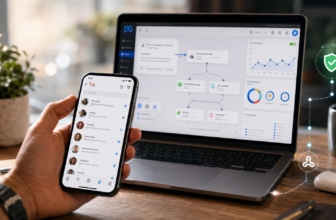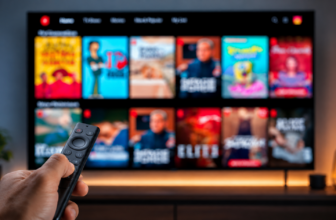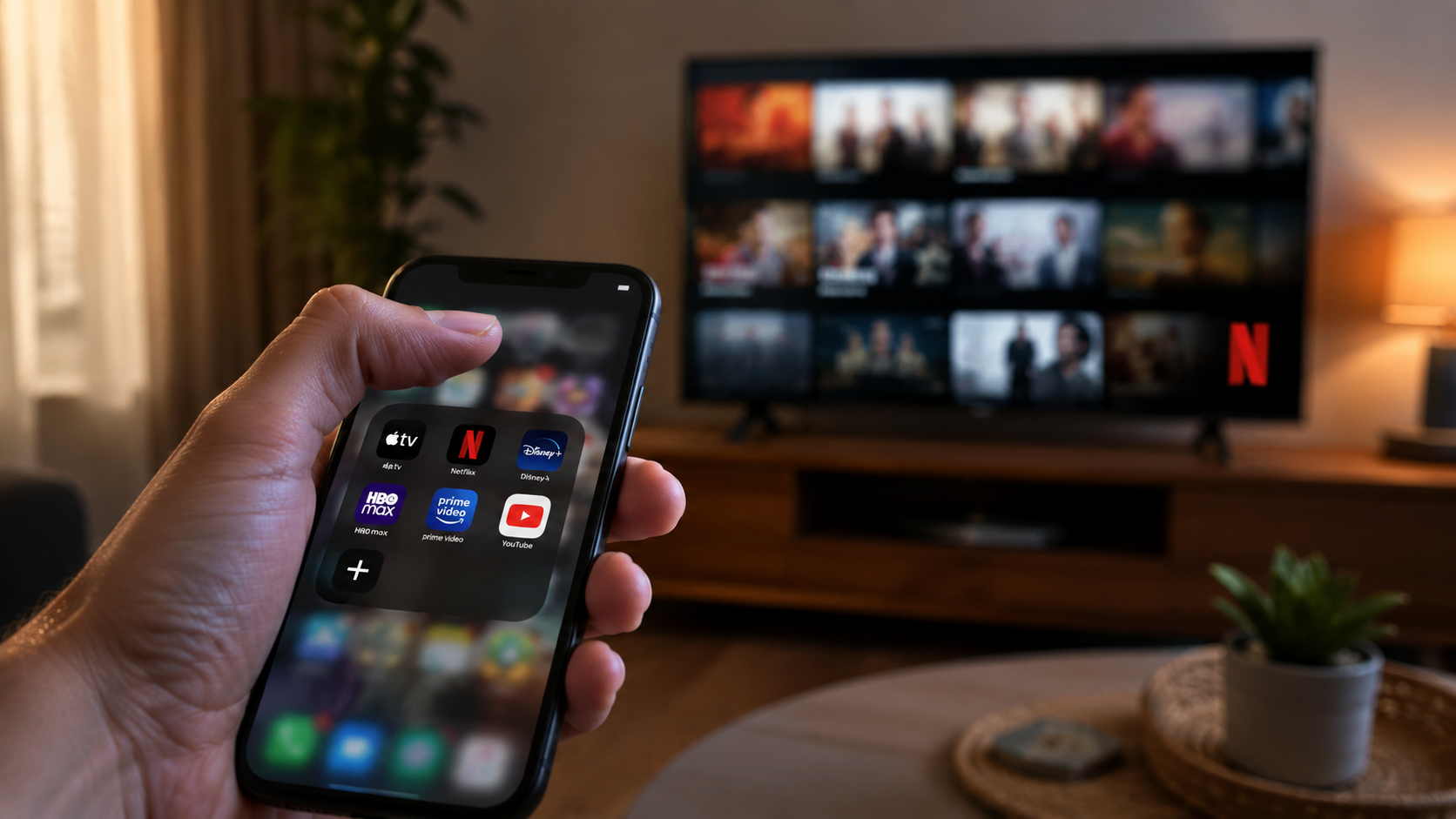
A phone screen is great for a quick episode on the go, but once movie night rolls around, everyone wants the big screen instead. The good part is that you do not need any special equipment or technical knowledge to make that switch. You can connect Netflix to TV from phone in just a few steps, and once you know the method, it takes less than a minute every time.
Method 1: Cast Netflix From the App
Casting is the simplest method, and most smart TVs support it by default. Now first, make sure your phone and TV are connected to the same Wi-Fi network.
Once both devices are on the same network, open the Netflix app and start playing any show or movie. At the top of the screen, you will see a small Cast icon that looks like a rectangle with signal lines.
Tap it, choose your TV from the list, and the video switches over automatically. Your phone now works like a remote, controlling play, pause, and volume, while the video itself runs on the TV.
This is the quickest way to get Netflix on TV from your phone, and it works with Chromecast, Android TV, and most modern smart TVs without needing anything extra.
Method 2: Screen Mirroring
If you are not able to find the cast icon on your TV, don’t worry. Screen mirroring is another reliable backup. On iPhone, open Control Center and tap Screen Mirroring, then select your TV. This uses Apple’s AirPlay feature.
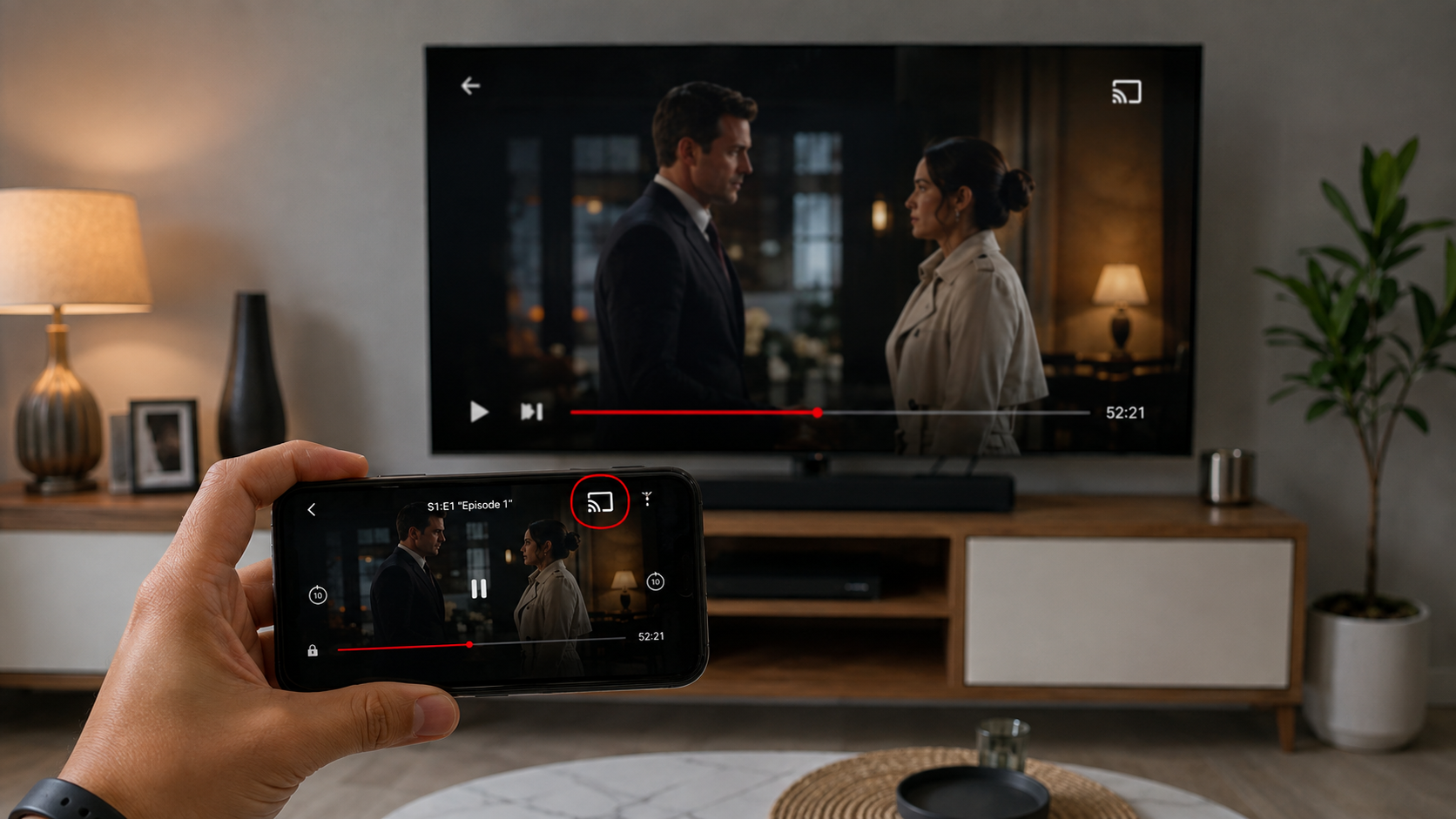
On Android, open Quick Settings and look for an option called Screen Cast or Smart View, then select your TV from there. Screen mirroring copies your entire phone screen onto the TV. It is not as smooth as casting and consumes a little extra battery.
However, it works well if you want to connect Netflix to the TV from your phone without the direct cast option.
Method 3: Sign In Using a QR Code
Some smart TVs and streaming devices give you an easier way to sign in, so you do not have to type your email and password using the remote. When you open Netflix on your TV for the first time, check if you see a “Sign in with QR code” option.
A QR code will appear on the screen. Scan it with your phone’s camera, then follow the instructions to confirm your sign-in. Once you approve it, Netflix will open on your TV with your account, profile, and watchlist ready to go.
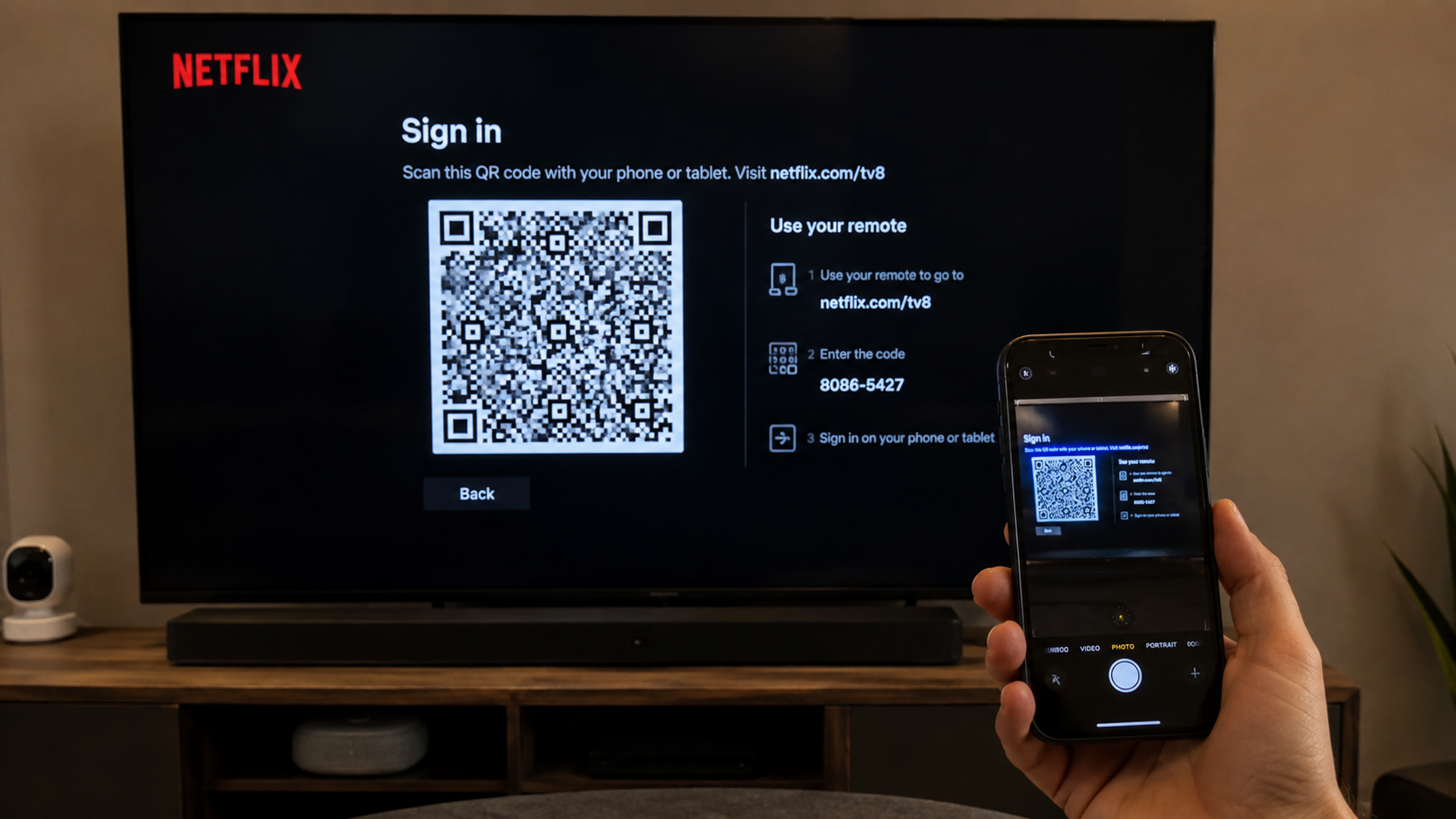
Keep in mind that this method does not stream Netflix from your phone. It simply makes signing in faster, especially when setting up Netflix on a new TV.
Read More – Best Free Netflix Alternatives in India in 2026
Netflix Phone to TV Not Working? Try This
Sometimes, the connection simply doesn’t happen, usually because of a small but easily fixable issue.
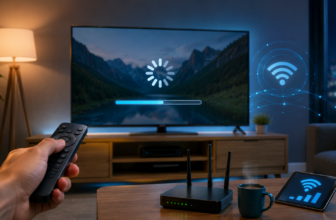
Begin by restarting both your phone and your TV or streaming device, since this clears up a good number of glitches on its own. Next, double-check that both devices are on the exact same Wi-Fi network and not a guest network, which looks similar but blocks the connection.
Moreover, make sure the Netflix app is updated on both your phone and your TV, and turn off any VPN running on your phone. If nothing works, forget the Wi-Fi network on your TV and reconnect it fresh.
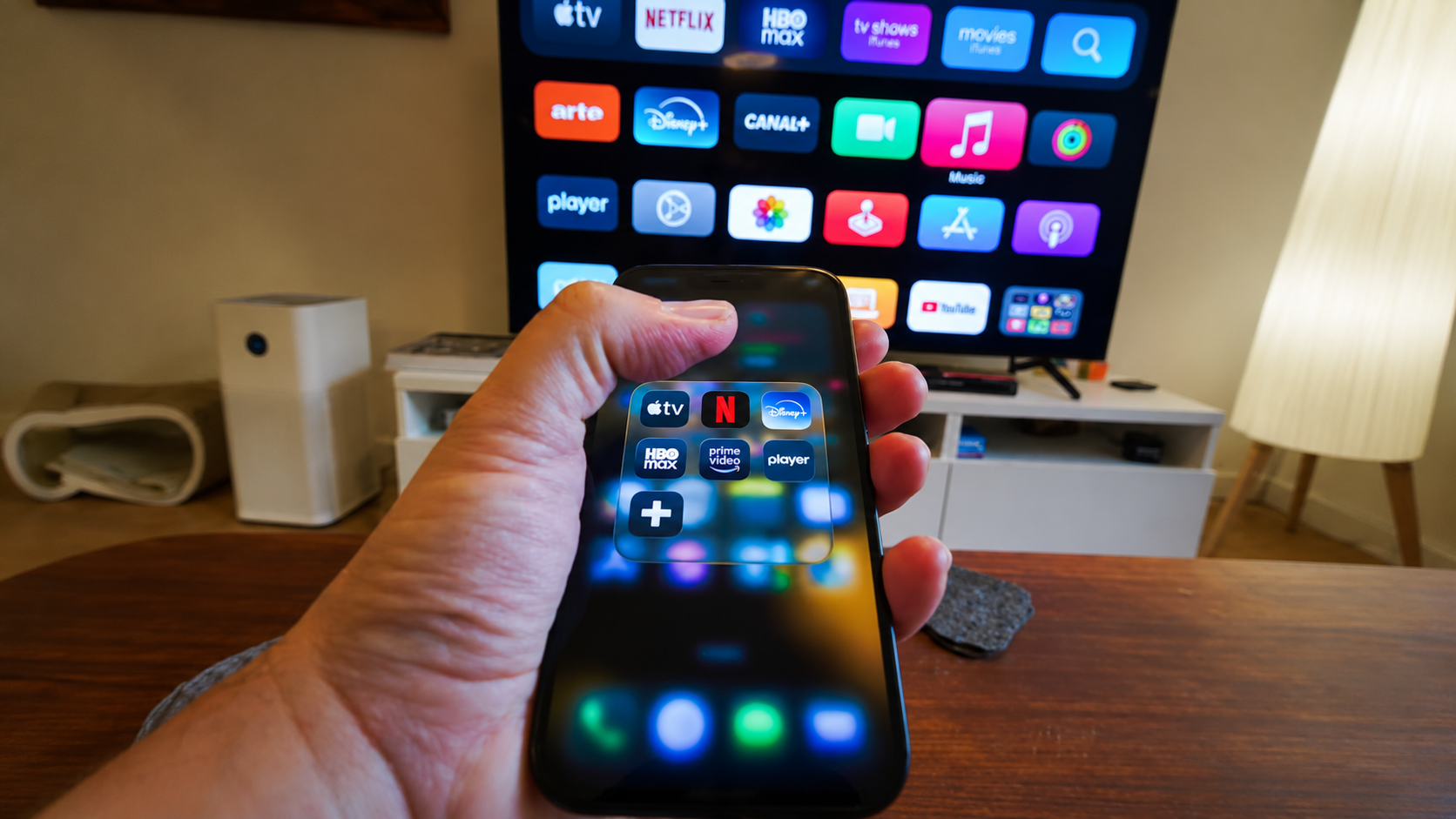
If your Netflix phone to TV is not working, a mismatched Wi-Fi connection or an outdated app is likely to blame. Try the fixes mentioned above to get everything working again and get back to chilling.
No More Squinting at Tiny Screens
Once you connect Netflix to TV from phone for the first time, the process becomes second nature. You skip the remote, skip the on-screen keyboard, and go straight from your phone to your favourite show on the big screen.
Whether you are casting a movie, mirroring your screen, or signing in with a QR code, there is a simple option for almost every setup.
So, pick the method that works best for your TV, follow the steps, and settle in for a better viewing experience.
FAQs
How to Watch Netflix on TV from Phone?
Open Netflix, tap the cast icon, select your TV and hit play.
Can I connect Netflix from an iPhone to a TV?
Yes, you can do so either by the Netflix cast icon or AirPlay through Control Center.
Why is Netflix not connecting to my TV from my phone?
Usually, it is caused by a Wi-Fi mismatch, an outdated app or a VPN blocking the connection.