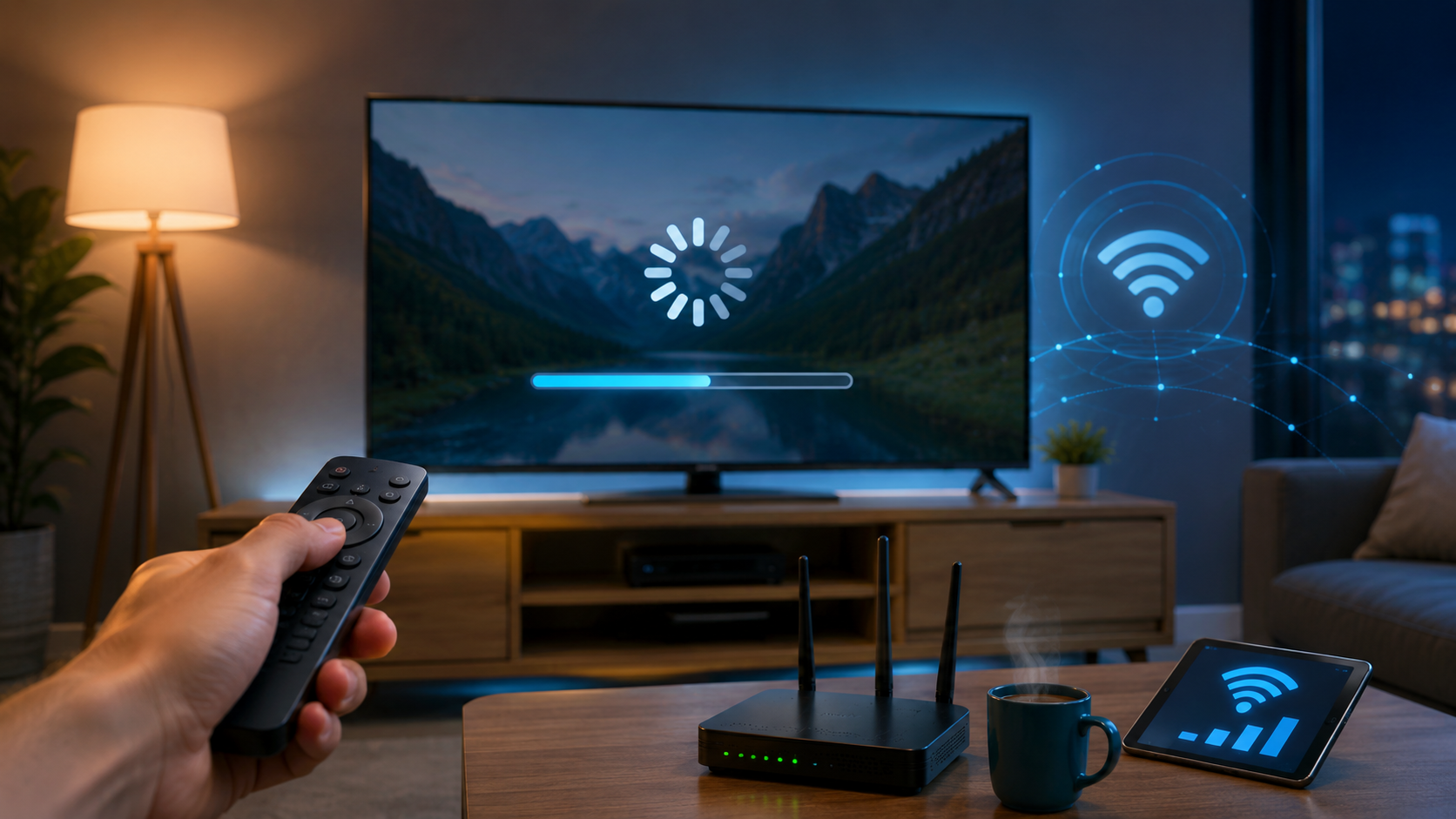
Your phone works fine, your laptop loads pages instantly, but the TV buffers. If that sounds familiar, you are not dealing with a broken device. Smart TV slow streaming is almost always a delivery problem, and delivery problems have a short list of fixes.
Here is how to fix smart TV buffering with just a few steps.
Why Is My Smart TV Buffering Even With Fast Internet?
Streaming apps pull video in short chunks and keep a small reserve ahead of what you are watching. When that reserve runs out, you get the spinning wheel. A fast plan at the modem does not guarantee fast speeds at the TV – walls, distance, and router placement all reduce what the TV receives.
Fix 1: Switch from Wi-Fi to Ethernet
A wired Ethernet connection cuts out the distance, wall, and interference issues that cause Wi-Fi to drop. Consumer Reports confirms Ethernet eliminates the 2-4 second buffering events that commonly affect 4K streams over Wi-Fi. If your router is near your TV, this is the fastest fix on this list.
Fix 2: Move to the 5 GHz Band
If running a cable is not possible, check which Wi-Fi band your TV is connected to. The 2.4 GHz band is slower, more congested, and shared with neighbouring networks. Switching your TV to the 5 GHz band gives you faster, less crowded bandwidth.
Fix 3: Restart Your Router and TV Properly
Switch off your TV first, then unplug your modem and router for 30 seconds. Next, plug the modem back in and wait for it to reconnect completely before turning on the router. Now turn on the TV.
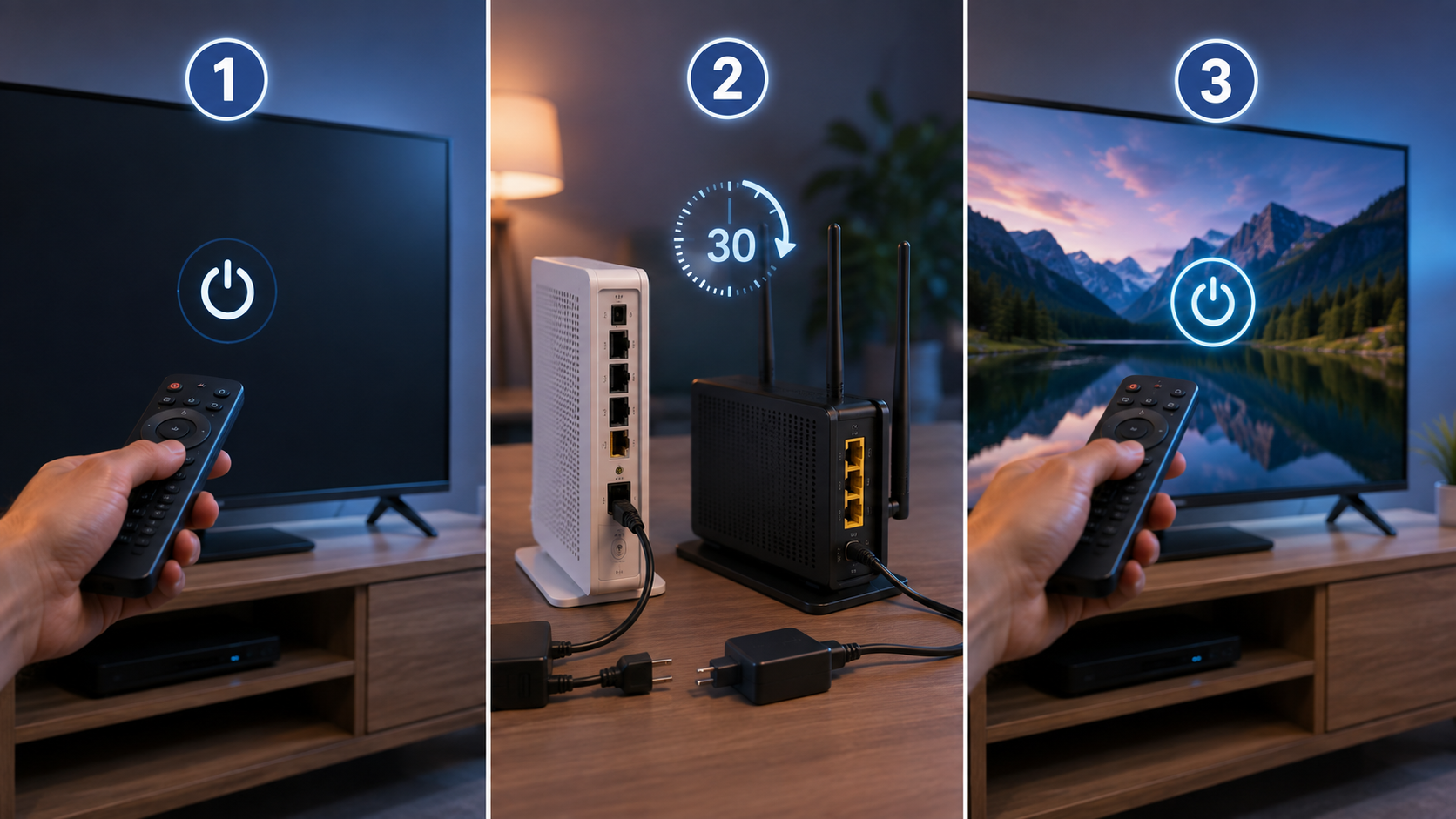
Repeat this process to clear stale connections and make a clean channel selection, often clearing up buffering that appears out of nowhere.
Fix 4: Clear TV Cache
Your TV stores temporary files from each streaming app it runs. Over time, this data accumulates and slows down the app.
Go to Settings > Storage, System, or Application > Clear Cache or Clear Data. Restart your TV after clearing out the cache or data.
Fix 5: Lower the Streaming Quality Temporarily
If you are streaming 4K when many devices are competing for bandwidth, reducing your video quality to 1080p will stop the stream from buffering.
Open the streaming app, go to Settings, and look for Video Quality or Playback Settings. Switch it from Auto or High to Standard. The picture still looks good on most TVs, and you can bump it back up once the network is less congested.
Fix 6: Pause Background Downloads on Other Devices
The buffering that is unnoticeable is often caused by a device downloading updates in the background. It can be due to console updates, phone backups, or cloud sync silently eating bandwidth. Pause everything else for a few minutes and see if the TV settles.
Read More: https://sparknherd.com/best-apps/best-free-netflix-alternatives-india/
In A Few Words
Smart TV buffering is fixable in almost every case without upgrading your plan. If you are wondering how to fix slow internet on smart TV connections, work through these fixes in order. Most people will be able to find the fix before they reach number four.
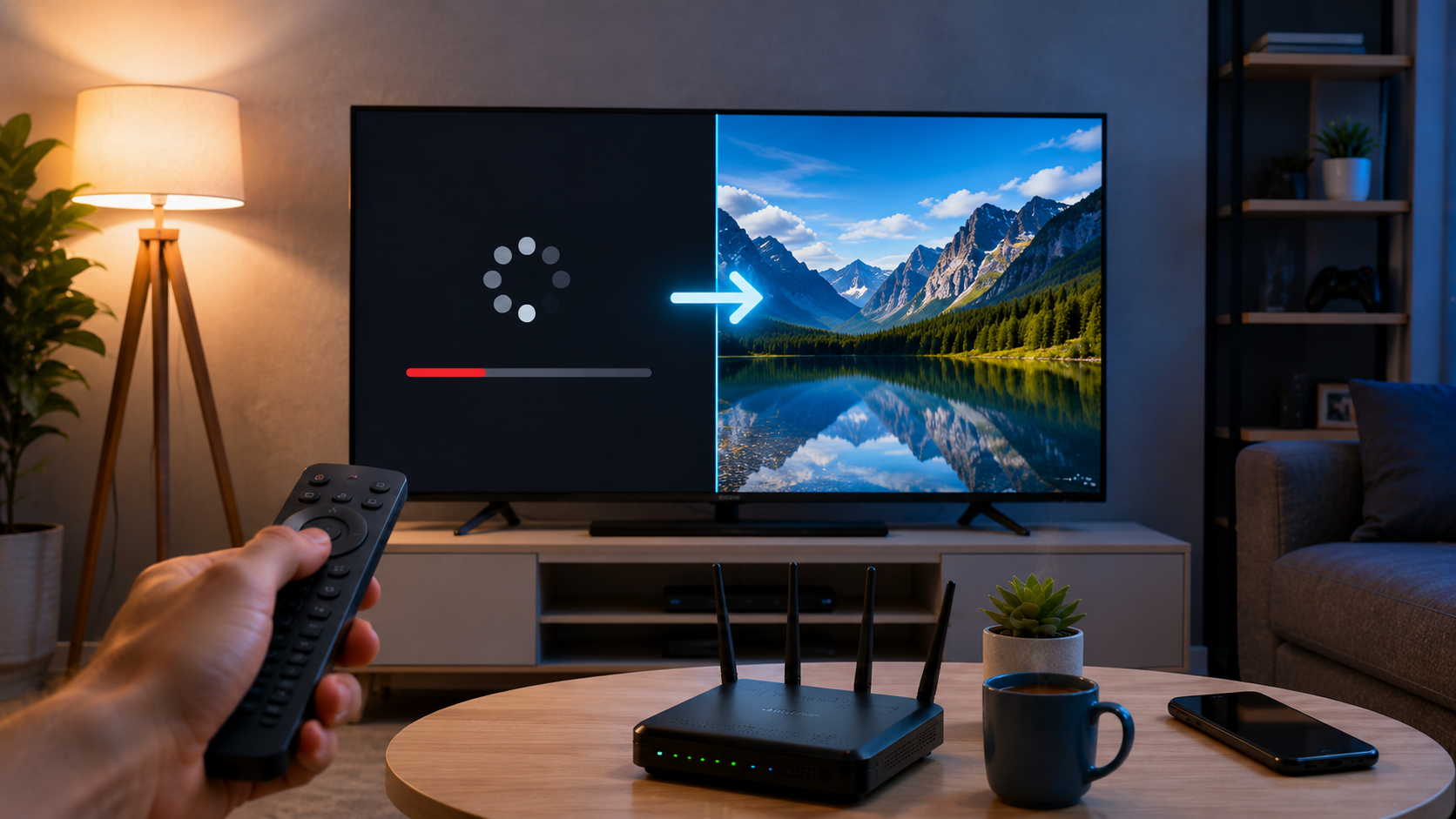
Still have a question about how to improve smart TV streaming speed? Drop it in the comments below.
FAQs
Why is my Smart TV buffering even though my internet is fast?
Walls, router distance, and Wi-Fi band congestion all reduce what the TV actually receives, which is why buffering happens even on high speed plans.
How do I stop my Smart TV from buffering?
Switch to Ethernet if possible, move to the 5 GHz Wi-Fi band, and restart your router and TV in the correct sequence.
How can I improve Wi-Fi on my Smart TV?
Connect your TV to the 5 GHz band instead of 2.4 GHz, move your router into an open position away from walls and appliances, and switch to Ethernet if the TV is within cable reach of the router.