There’s nothing worse than settling in for a movie night and watching the picture turn into a pixelated mess halfway through. If you’ve been having Netflix quality issues lately, the fix is actually simpler than you’d think. Netflix gives you quite a bit of control over your Netflix quality settings; whether you’re on a Smart TV, your phone, or a laptop, you have to know where to look.
If you’re wondering how to change Netflix quality, I’ve got you covered. Before you blame your internet or give up on movie night, here’s exactly what you need to do.
Why Does Netflix Quality Suddenly Look Bad?
Before getting into Netflix playback settings, let me tell you why exactly the picture drops. Most often it’s your internet struggling during peak hours, especially if others in the house are streaming too.
Sometimes it’s data-saving mode switched on, or the playback setting already capped low. And if you’re chasing Netflix 4K, your plan or device might simply not support it.
But hey, the good news? Most of these issues are easy to check and fix.
How to Change Netflix Quality on Smart TV
Most Smart TVs don’t have a separate quality menu inside the app itself. Instead, the setting is available on your profile and has to be changed from a browser or the mobile app.
Once changed, it applies across every device signed into that profile, including your TV.
Step 1 – On a computer or phone browser, go to Netflix.com and sign in.
Step 2 – Click your profile icon, select Account, then choose your profile under Profile & Parental Controls.
Step 3 – Click Change next to Playback Settings, select High, and save.
Step 4 – Restart the Netflix app on your TV so it picks up the change.
For Netflix 4K, you’ll need an Ultra HD TV, the Premium plan (Standard caps at 1080p), and an internet speed of at least 15 Mbps. On top of that, a wired Ethernet connection also helps keep quality consistent.
Read More – Best Google TV Projector in India
How to Change Netflix Quality Settings on Mobile
Phones work a little differently, since Netflix separates mobile data usage from your account-wide setting. This is why people search for how to improve Netflix quality specifically for mobile.
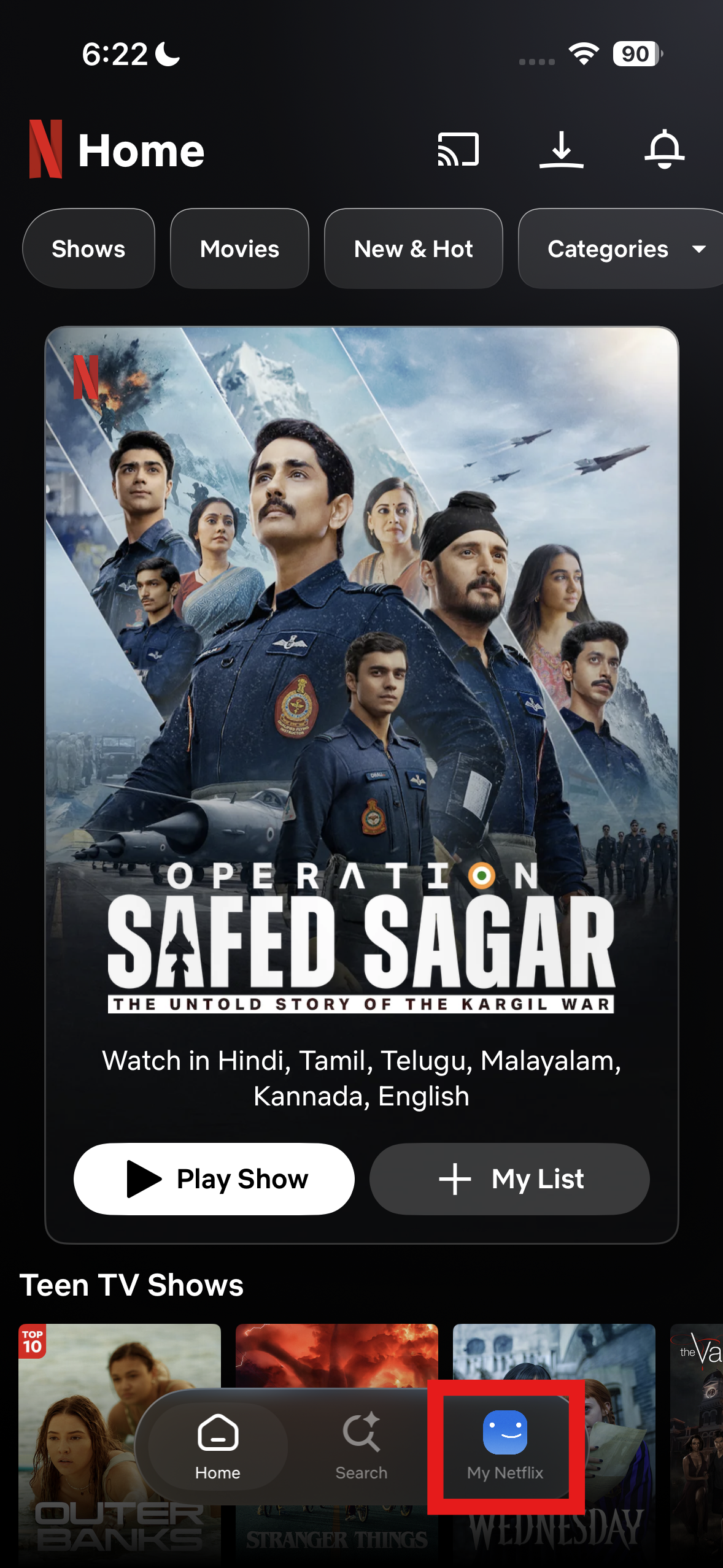
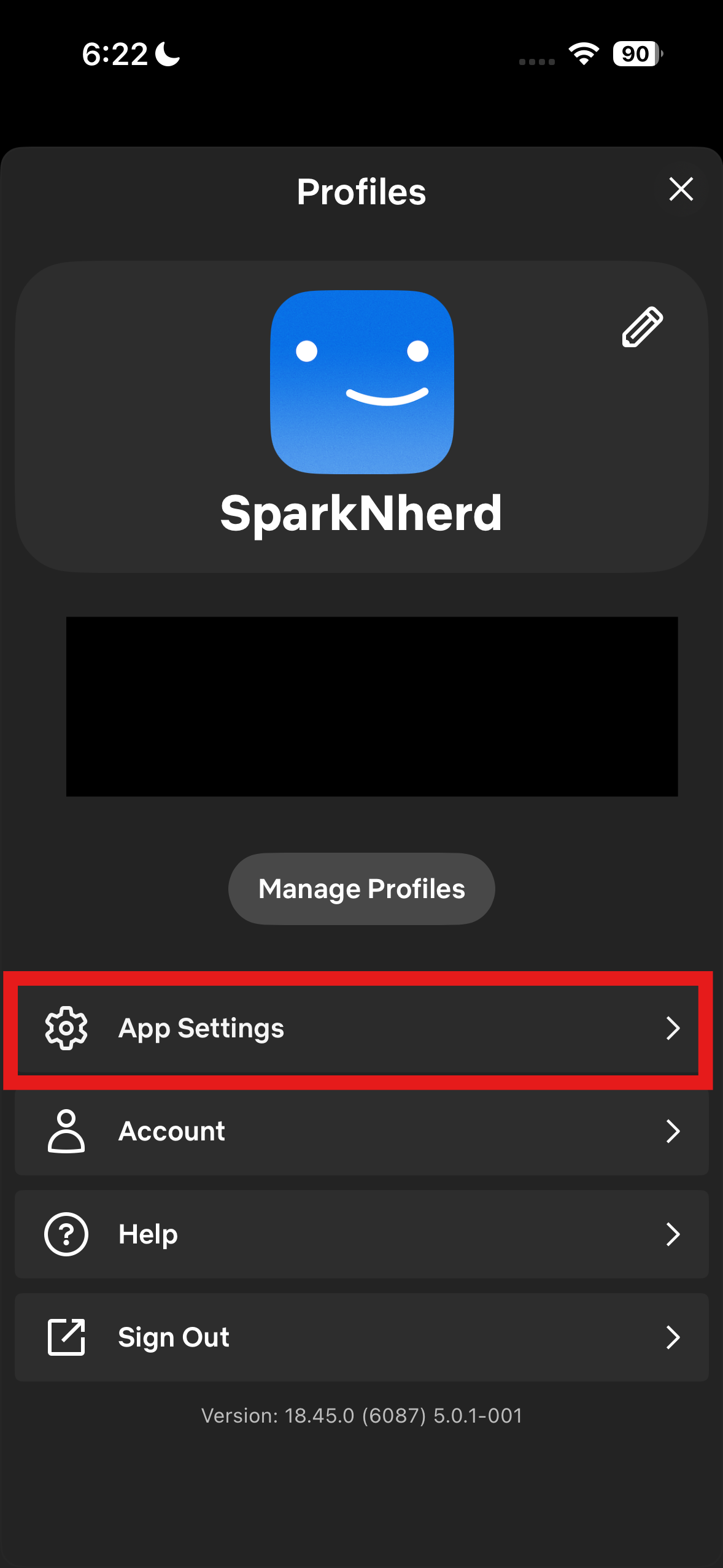
Step 1 – Open the app and tap My Netflix. Then click on your Profile name at the top and go to App Settings.
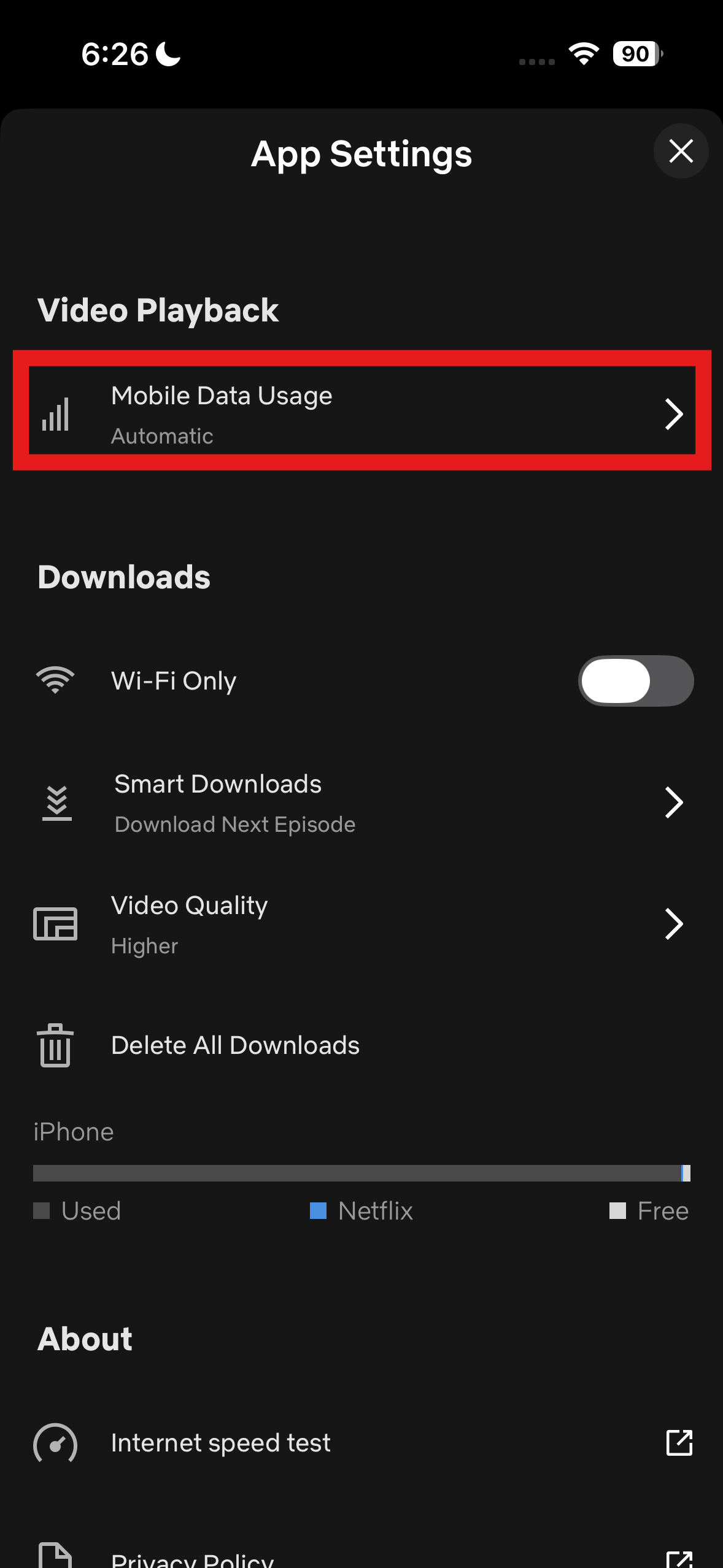
Step 2 – Select Mobile Data Usage under Video Playback.
Step 3 – Choose Automatic, Wi-Fi Only, Save Data, or Maximum Data based on your data plan.
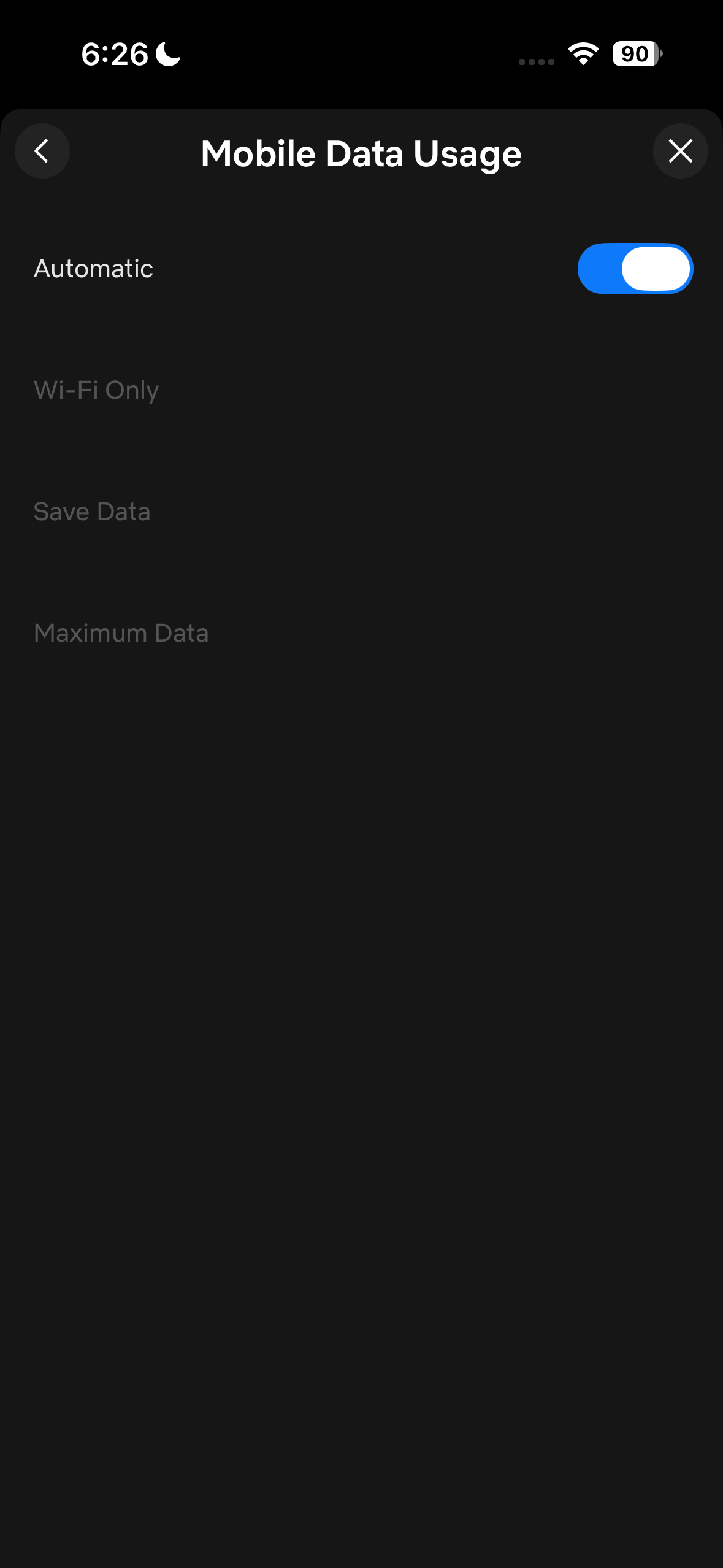
Maximum Data delivers the best picture but consumes data fast, so save it for Wi-Fi.
How to Change Netflix Quality on PC or Laptop
Is your Netflix quality bad on PC too? Do not worry. This is the easiest fix of the three, since your browser pulls quality directly from your account settings.
Step 1 – Log in via your browser, click your profile icon, go to Account, then select your profile under Profile & Parental Controls.
Step 2 – Click Change next to Playback Settings, choose Low, Medium, High, or Auto, and save.
The setting you choose also affects how much data Netflix uses. Low uses about 0.3GB an hour, Medium roughly 0.7GB, and High goes up to 3GB for HD or 7GB for 4K.
So if you’ve been wondering how to change Netflix quality on your computer, this is the setting to check first. Just remember that it works at the account/profile level, while some devices may have their own local settings that can affect playback.
Read More – 6 AI Chrome Extensions Worth Installing
A Few Extra Tips
If you’ve already switched to High and things still look off, it probably isn’t Netflix.
Shut down bandwidth-heavy downloads or tabs, use a modern browser such as Chrome or Edge, and run a quick speed test to make sure your connection meets Netflix’s minimums.
The Two-Minute Fix You Didn’t Know You Needed
Netflix quality problems aren’t random glitches. Nine times out of ten, it’s just a setting stuck on Auto or capped low.
Head into Playback Settings, choose High or Auto, and make sure your plan and equipment can actually support it.
Do that once, and you’re all set for better-quality, uninterrupted movie nights without the blurry picture.
FAQs
How to change Netflix quality on phone?
Open the app, tap My Netflix, then your profile name, App Settings, and Cellular Data Usage. Pick the option that fits your data plan.
How do I change Netflix quality on a PC or laptop?
Go to Account on Netflix.com, open your profile’s Playback Settings, and set Data Usage per Screen.
How to change Netflix quality on TV?
There’s no separate setting on the TV itself. It follows the Playback Settings you set for that profile from a browser or the mobile app.