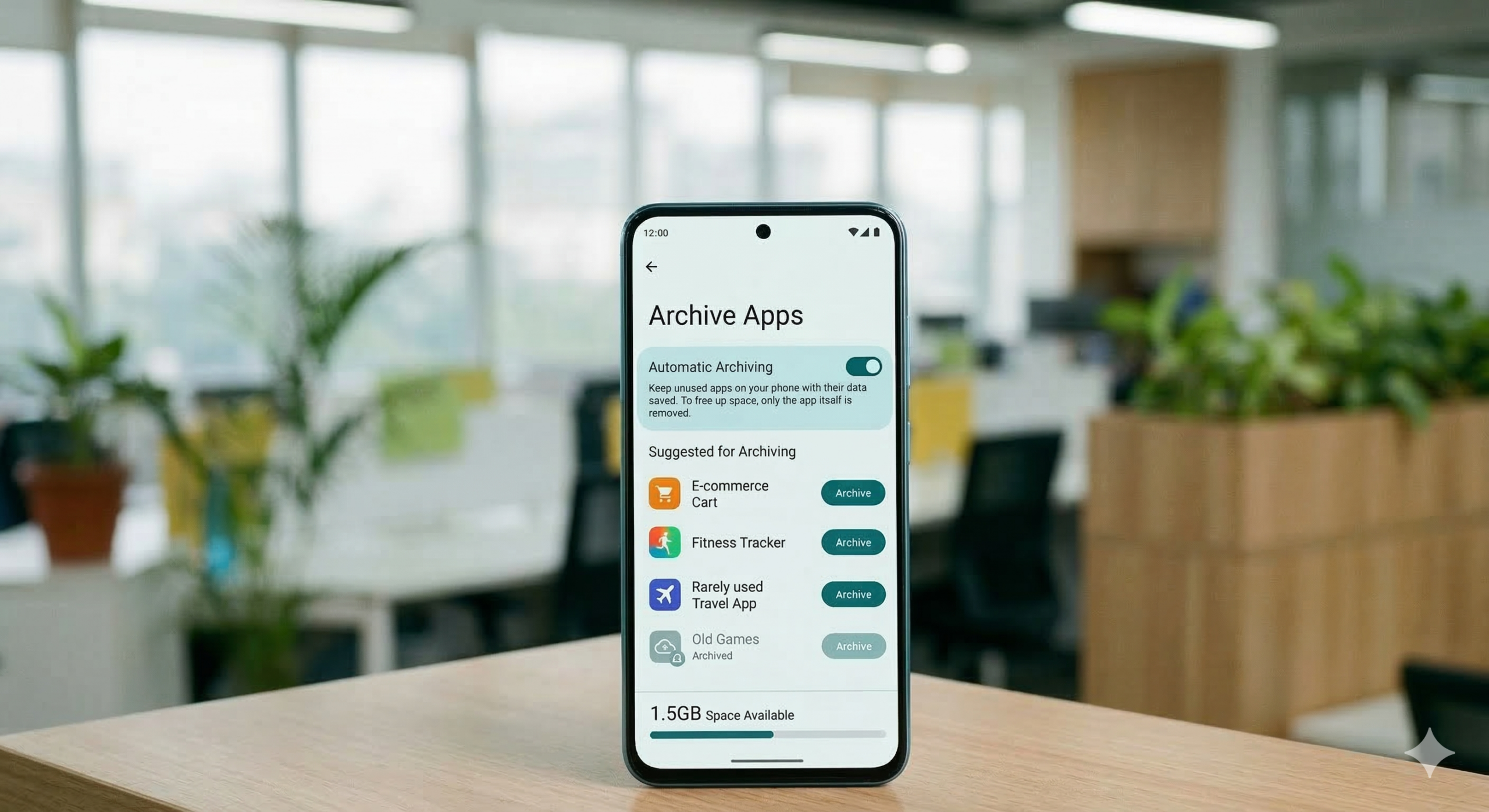
We all have several apps that we have not opened since 2023, yet we can’t bring ourselves to delete them. While downloading and using multiple apps on Android is fun, unused apps can take up a lot of storage and slow down your smartphone over time. Fortunately, Android now has a simple and smarter solution to this problem – Archive Apps.
What Is App Archiving on Android & How Does It Work
Archiving lets you remove an app’s installation files while keeping its data. This means you can free up space without losing access to your favorite apps or their settings. This feature made its debut via the Google Play Store in 2022. And now, it has been built directly into Android 15.
Also See: How to Use Google Gemini in Google Messages
How to Manualy Archive Apps on Android 15
Long-press the app icon you want to archive, and on the menu that pops up, hit the i button. Or, tap on App Info.

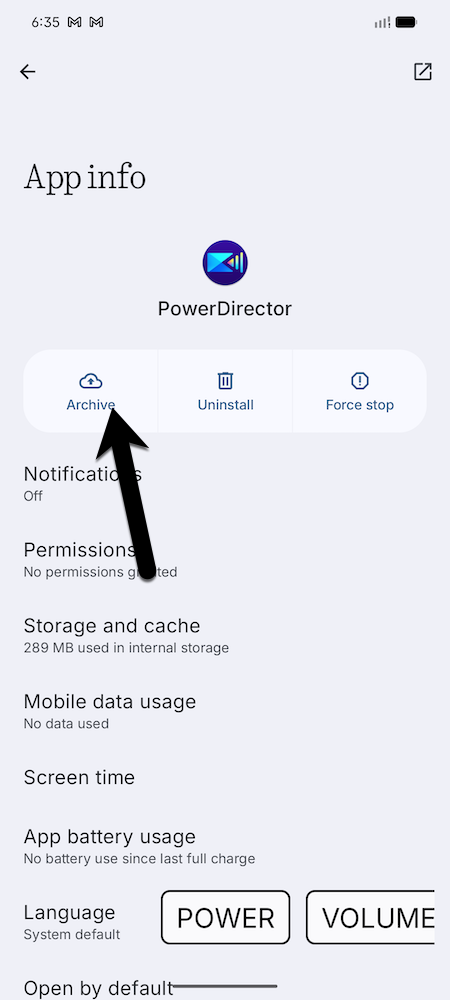
Inside App Info, select Archive. That’s it!
This simple step will remove the app’s installation files but keep all your app data intact. It is a handy way to free up space on your Android phone without losing anything. And when you need it again, just Restore it, and it will be ready to be used again.
Automatic App Archiving through Google Play Store
In addition to manual archiving, the Play Store offers a way to automatically archive apps that are not actively used when your device is running low on storage.
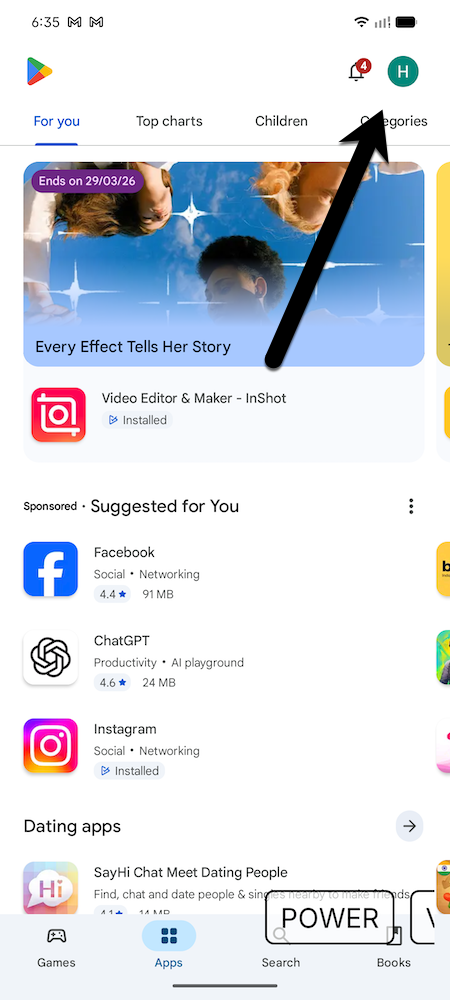
Step 1. Open the Google Play Store and tap your profile picture. Next, go to Settings > General.
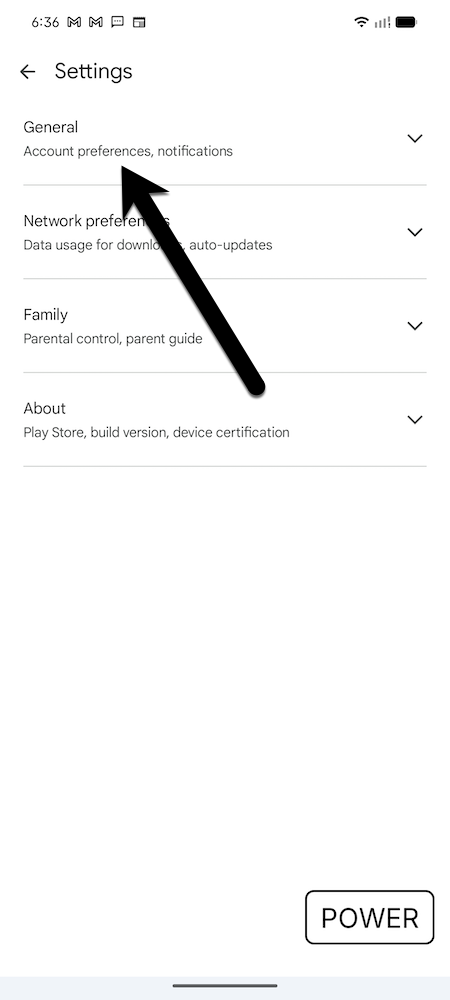
Step 2: Find Automatically Archive Apps and toggle the button as shown below.
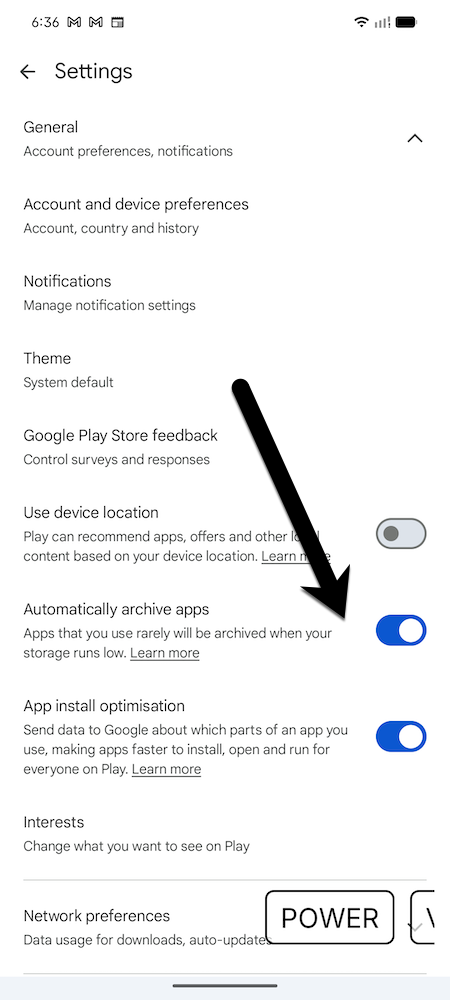
Now, apps you do not use will be archived automatically when your device is low on storage.
To view archived apps on Android, follow the below steps,
Step 1: Open the Play Store on your phone and tap on your profile picture.
Step 2: Now, navigate to Manage Apps & Devices > Manage tab. Now, all you need to do is tap the Archived tab to see all your archived apps.
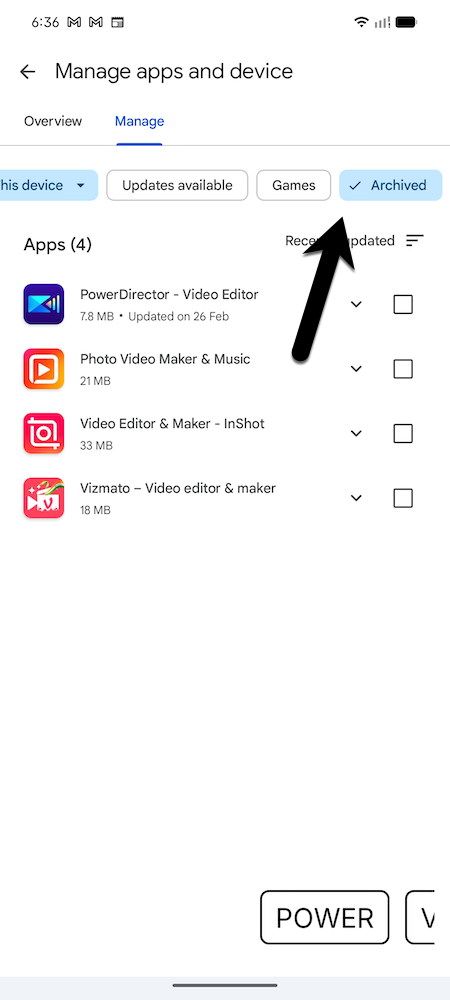
You can reinstall any app from here without losing your data.
Also See: Here’s Why Your Android Phone Is Overheating
Here’s to More Space
So, this was how you can archive apps on Android. If your phone is constantly crying out for more storage, archiving is about to become your new best friend. Instead of being in the dilemma of keeping or removing apps, you can just archive them to free up space. As mentioned above, it keeps your phone running smoothly and holds onto all your app data until you need it again.