If you’ve ever wished your messaging app could help you write better, faster, more thoughtfully and save you time in the long time, Google just made it happen. Say hello to Google Gemini!
Google Gemini is now integrated right into Google Messages, and this AI-powered assistant can help you draft replies, suggest responses, and even write full messages based on the conversation you’re having. Time saver, I told you so.
So, here’s how to enable Gemini and make the most of it on your Android device.
Also See: How to Add Google Gemini Extensions on Android
Step 1: Update Google Messages to the Latest Version
Before we start, ensure that you have the latest version of Google Messages. Gemini is one of Google’s newest features, and it needs the most recent update to work properly.
To do this, search for Google Messages in the Play Store. If you see an Update button, go ahead and tap it.
Step 2: Turn On Google Gemini in Your Settings
Once your app is updated, open Google Messages and tap on your profile picture in the top-right corner. Scroll through the menu and tap on Message Settings.


Tap on the Gemini in Messages option, and toggle the switch for Show Gemini Button. That’s it! From this point forward, the AI is ready to lend a hand in your chats.
Step 3: Start Chatting and Let Gemini Work Its Magic
With Gemini enabled, open any conversation. You can also start a new one if you like. As you begin typing, you will notice that Gemini starts suggesting replies or even drafting full messages for you.
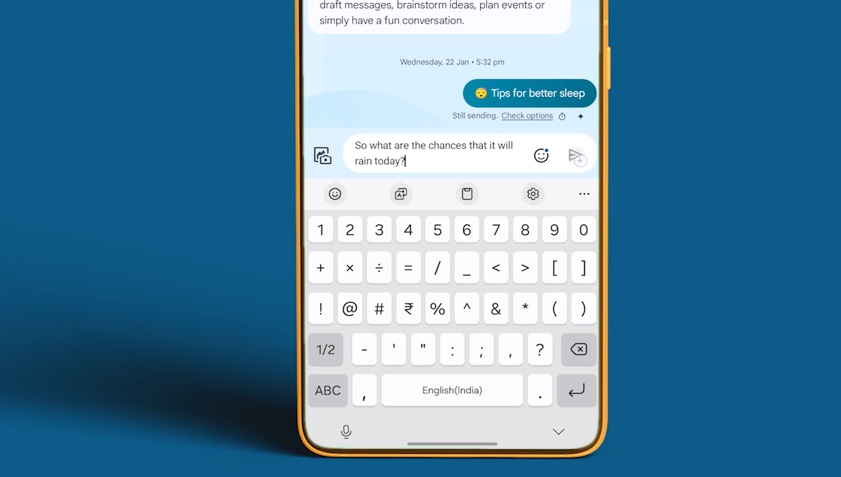
These suggestions are based on the flow of your conversation, so they feel relevant and useful. Think of it as your AI-powered personal texting assistant: helping you write faster and more clearly, thus saving you time in the long run.
Step 4: Ask Gemini to Help You Draft Messages
Now, here’s where things get interesting. You can also directly ask Gemini for help inside your chats. For example, let’s say you’re organizing a birthday party and need to send an invitation. Just type something like, “Draft a polite invitation for my birthday party” or “Write a casual apology for replying late to a message”.
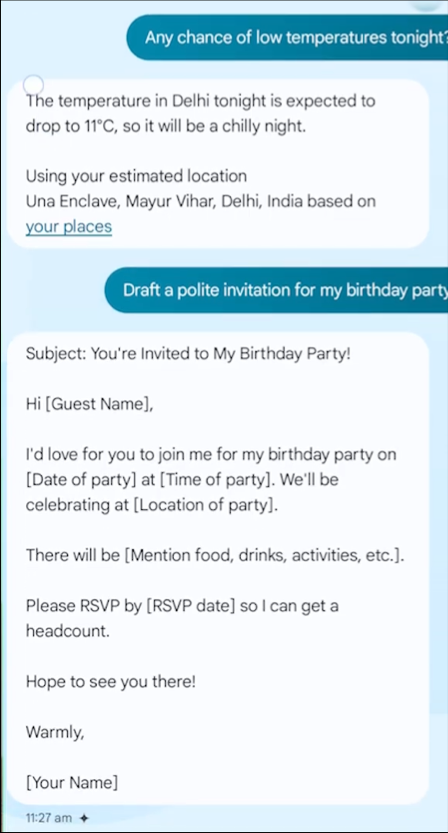
Gemini will instantly generate a complete message that you can tweak and send off with confidence. It’s like having a copywriter built right into your messaging app.
Let Gemini Do the Talking
Google Gemini brings a fresh dose of intelligence to everyday texting. Whether you’re replying to a friend, handling work messages, or just trying to write something thoughtful, Gemini is there to support you, quietly and smartly in the background.
FAQs: Google Gemini in Messages
1. What is Google Gemini in Google Messages?
Google Gemini is an AI assistant built into the Messages app that helps you write better texts. From smart reply suggestions to full message drafts, it makes everyday conversations easier and faster.
2. What should I do if I don’t see the Gemini option?
Double-check that your Google Messages app is fully updated. If you still don’t see it, the feature might not have rolled out to your device yet.
3. Is Google Gemini available for iPhone users?
At the moment, no. Google Gemini in Messages is exclusive to Android devices.
4. Can Gemini understand tone and context?
Yes, and that’s what makes it so helpful. You can even guide it with requests like “make this sound friendly” or “write in a formal tone.”
5. Does Gemini work offline?
Gemini uses cloud-based AI to generate replies and needs an internet connection to work properly.