If you are not being careful, your Gmail inbox can quickly turn into a warzone, with promotional emails mixed with important work emails, and newsletters buried under invoices that need to be addressed. If this has been your dilemma, you need to know how to create Gmail rules or filters.
All you need to do is set the conditions once, and Gmail handles every matching email automatically from that point on. So if you are tired of a messy or cluttered inbox, here’s how to create Gmail rules (filters) in 2026.
What Are Gmail Rules (Filters)
Basically, Gmail rules tell your inbox, “When I see an email like this, I want you to do this with it.” The moment a matching email lands in your inbox, Gmail acts on it automatically. It can label emails, archive them, mark them as read, forward them, star them, or even delete them automatically.
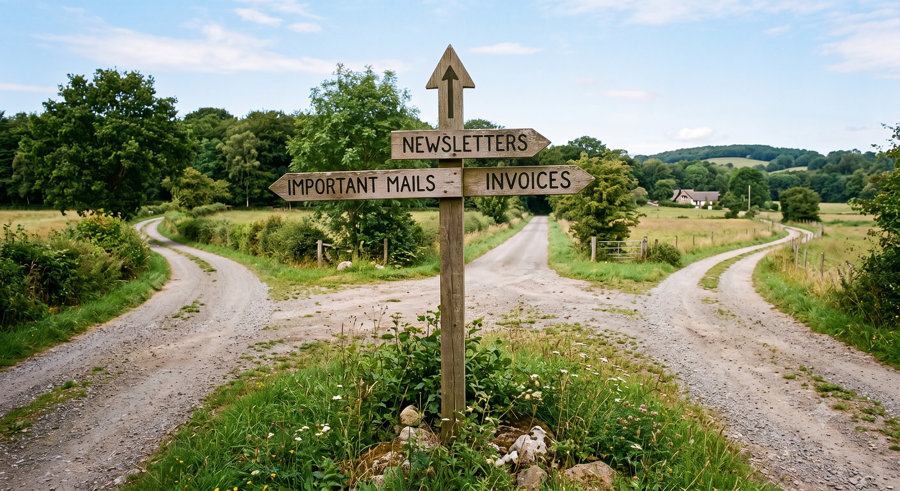
This means newsletters go straight to a reading folder. Automated alerts skip your inbox entirely. Work emails from your boss always get starred and land in the Focused inbox.
The best part is that filters in Gmail are completely free. There’s no price tag associated, and there are no limits on the number of filters you can create.
How to Set up Gmail Rules for New Users (Desktop)
This is the principal approach. Gmail’s desktop version is the full filter builder and gives you plenty of flexibility. This is where you begin if you are a beginner.
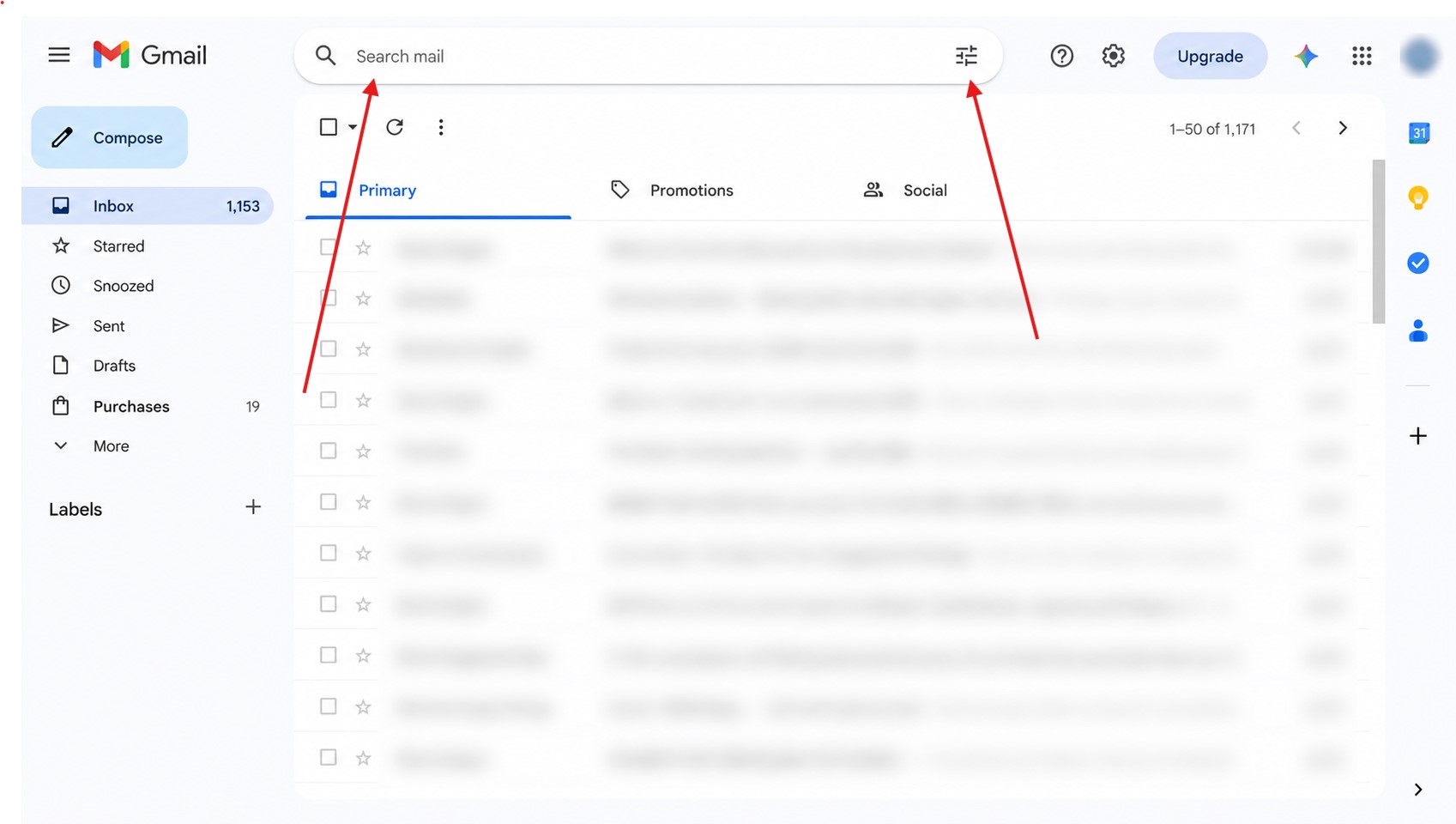
Step 1: Open Gmail on your web browser. In the search bar at the top, click on the three-line icon to open the Advanced search panel.
Step 2: Now, fill in your criteria. You can filter by:
- From – A specific sender/domains (e.g., everyone from the @sparknherd.com domain).
- To – address of a specific recipient
- Subject – emails with certain words in the subject line
- Has the words – Any word that is contained anywhere in the e-mail.
- Doesn’t have – Exclude keywords
- Has Attachment – limit to emails that contain any attachments
- Size – Alongside the size, you can also filter by email size, if necessary.
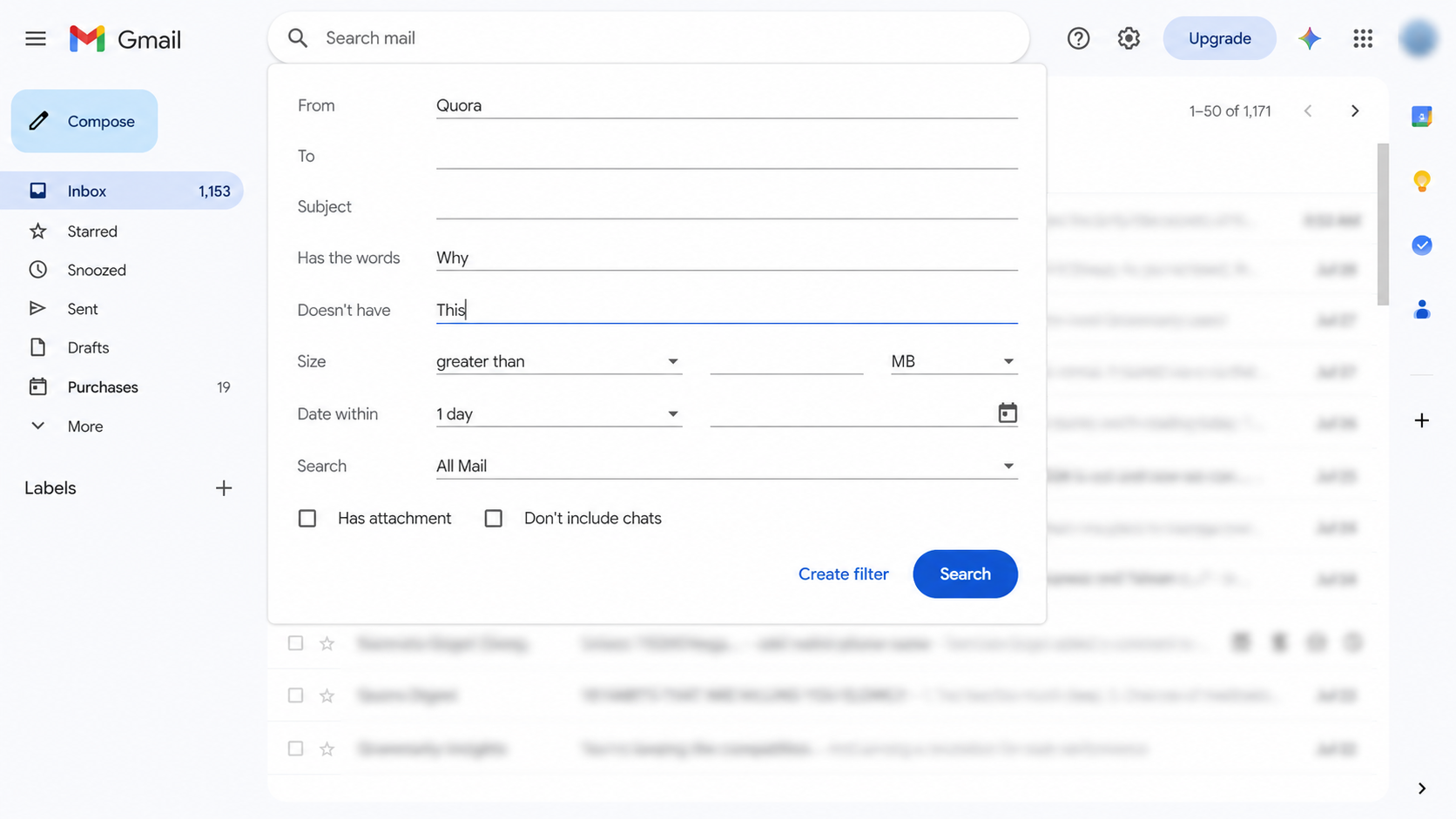
Once you have filled in your filter rules, click on Create filter at the bottom of the panel to create your first Gmail rule.
Step 3: Select what you want Gmail to do with the matching emails. Your options are:
- Skip the Inbox – the email will not appear in your inbox at all, but rather in All Mail
- Mark as read – notifies without bold when not read (no more bold)
- Star it – automatically starred for easy tracking
- Apply the label – sorts it into a label (folder) of your choice
- Forward it to – send a copy to another email address
- Delete it – sends straight to Trash
- Never send it to Spam – whitelists the sender
- Always mark it as important, or Never mark as important
- Categorize as – classify it into a category.
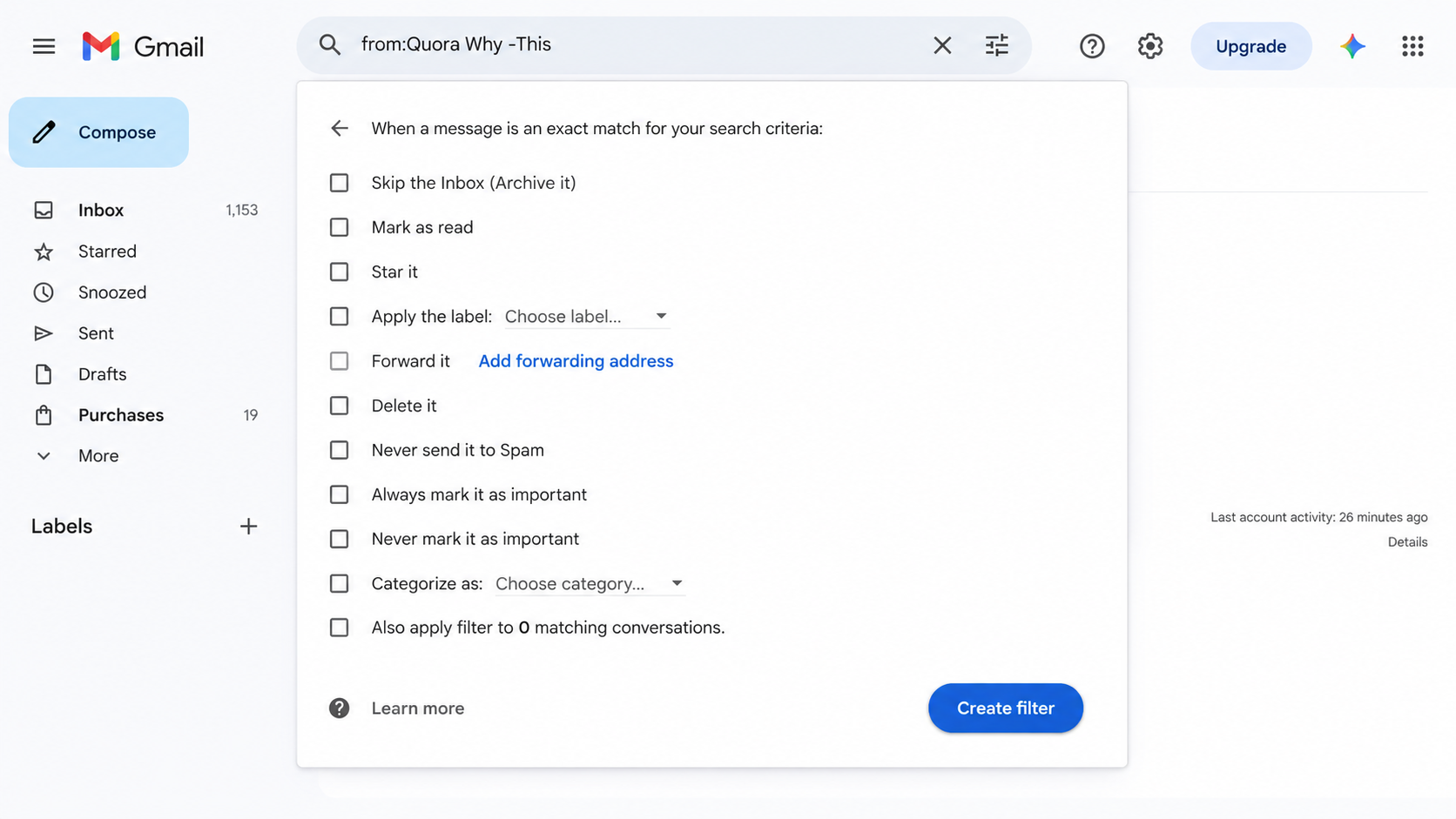
Step 4: Tap Also apply filter to matching conversations if you wish the rule to operate on emails that are already in your Inbox.
Step 6: Tap Create filter to save. Gmail will start applying it immediately.
How to Create Email Rules in Gmail (Mobile)
Here is where most people hit a wall. The Gmail app on Android and iPhone does not have a filter creation screen. It is missing from the app entirely. But the workaround is simple.
Step 1: Open Chrome or Safari on your phone, go to mail.google.com, and switch to desktop mode.
Step 2: To turn on desktop mode on Chrome (Android), tap the three-dot menu and check Desktop site.
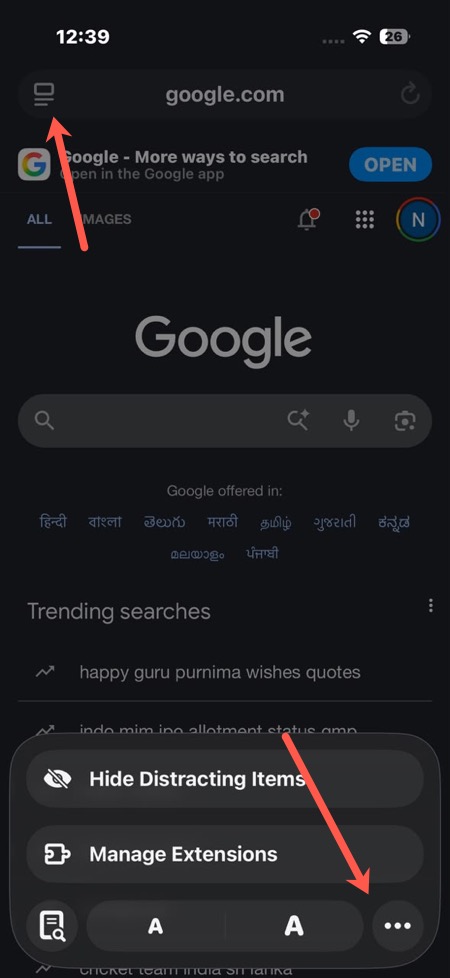
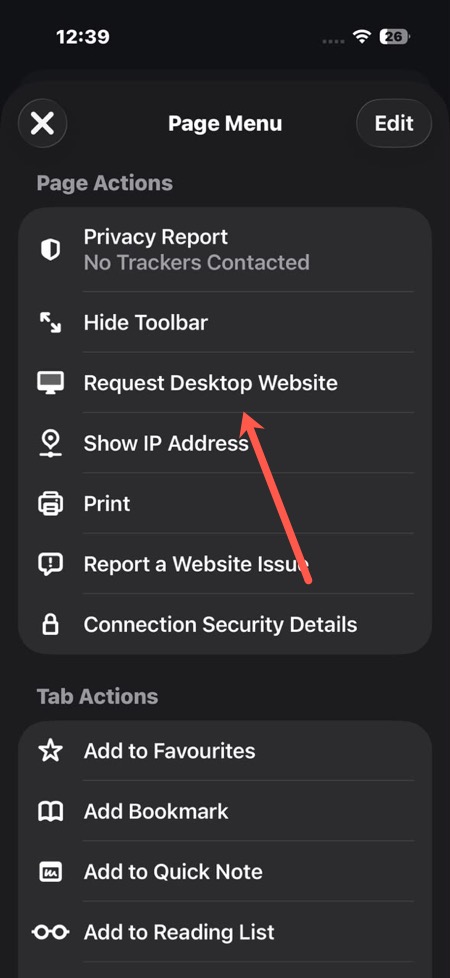
On Safari (iPhone), tap the three dots and select Request Desktop Website.
Once the desktop version loads, follow the same steps as the desktop guide above. Your filter saves to your account and syncs seamlessly across every device.
In A Nutshell
Setting up Gmail filters the first time takes five minutes, even if you create Gmail filters with multiple conditions. Once done, they run entirely on their own. If you have been managing your inbox manually until now, this is the one change that makes the biggest difference.
FAQs
Are Gmail filters free to use?
Yes, completely. Gmail filters are available on every account, including free ones.
Can I create Gmail filters on my phone?
Not directly through the Gmail app, as the feature is not available in the mobile interface. The workaround is to open Gmail in a mobile browser.
Can I edit or delete a Gmail filter?
Yes. Go to Settings > See all settings > Filters and Blocked Addresses in Gmail. You will find every filter you have set up, with options to edit or delete each one.