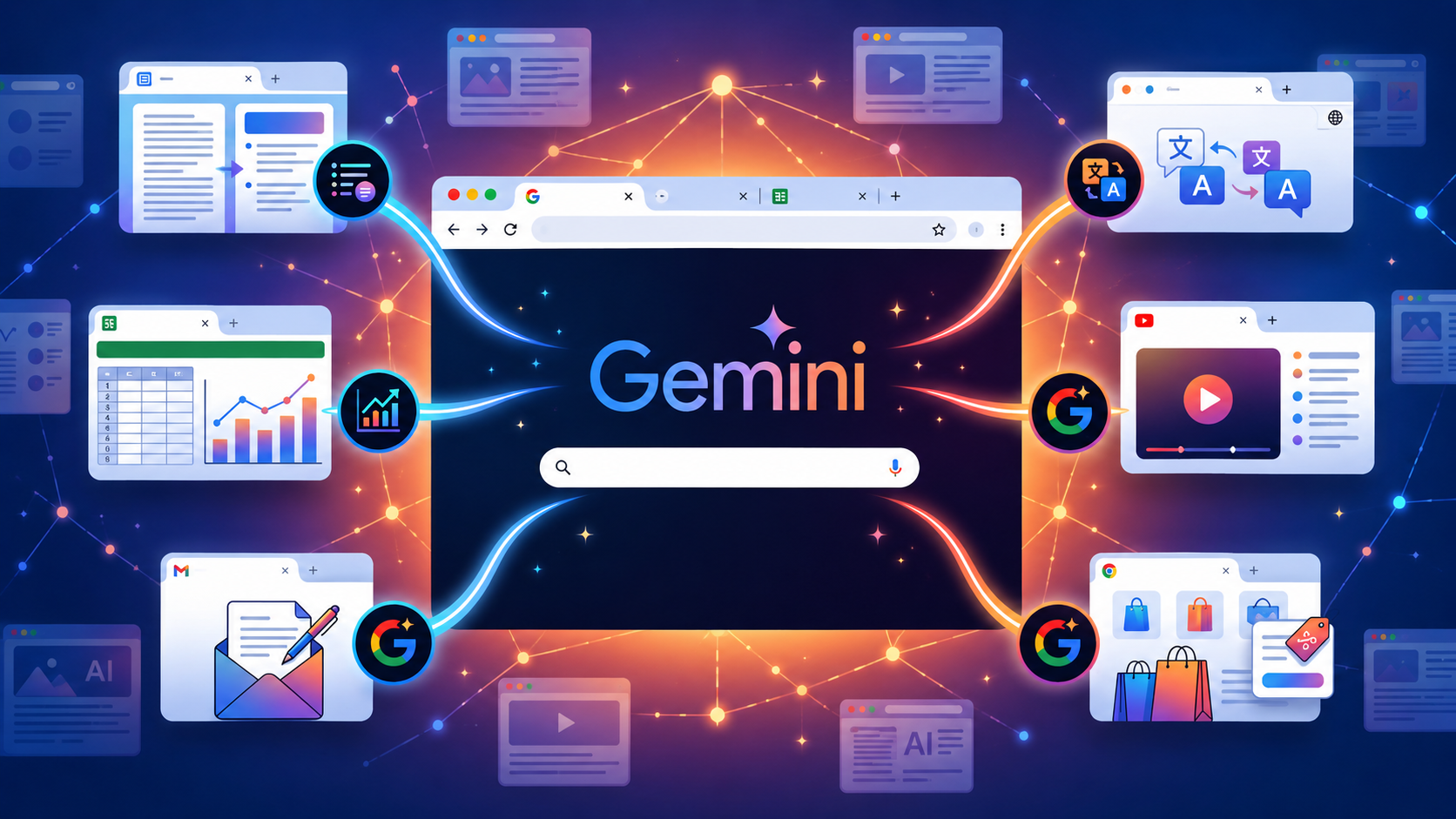
Browsing the web often means juggling multiple tabs, searching for information, and switching between pages to get things done. That’s where Gemini in Chrome comes in. Google’s built-in AI assistant can do much more than answer questions. If you’ve only used Chrome Gemini for basic prompts, you’re missing some of its most useful features. Here are six things Gemini in Chrome can do across tabs to make browsing smarter and quicker, and more importantly, super productive.
So without further ado, let’s get into these cool Gemini Chrome hidden features.
1. Read Up to 10 Tabs at Once
This is probably the most underused feature in Google Chrome productivity tricks. You are not limited to the tab you are currently on. You can share up to 10 open tabs with Gemini at the same time, and it will pull context from all of them to answer your question.
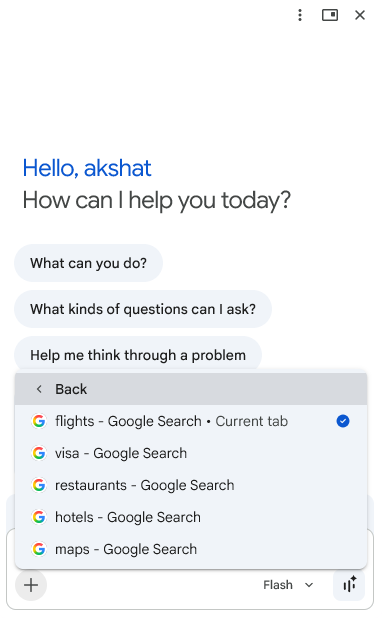
So, if you have flight options, hotel deals, and a restaurant guide open, you do not have to copy and paste anything or jump between tabs. Just ask Gemini to pull all the tabs together with Add Tab in the “+” icon, and it will. Super cool, right?
2. The Side Panel View
Gemini Chrome shortcuts used to appear as a small floating window that would bob around your screen and block content. Thankfully, now it can open a dedicated side panel on the right side of the browser, which stays docked no matter which tab you switch to.
This means Gemini is always there, without getting in your way. You can keep your main content front and centre while the assistant works in the panel alongside it. Interesting, right?
3. Compare Products Across Multiple Tabs Automatically
If you have ever opened twelve tabs while shopping online and then forgotten which site had the better deal, Gemini in Chrome can now solve your problem. Trust me, I am not exaggerating!
Open the pages you want to compare, share them with Gemini in the Add Tab section, and ask it to put together a comparison.
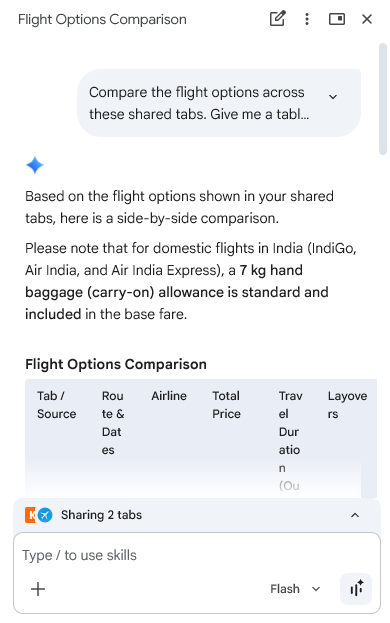
Gemini will organise the specs, pricing, pros, and cons into a clean and easy-to-read format. With this, you can make a decision instead of just staring at a pile of open tabs.
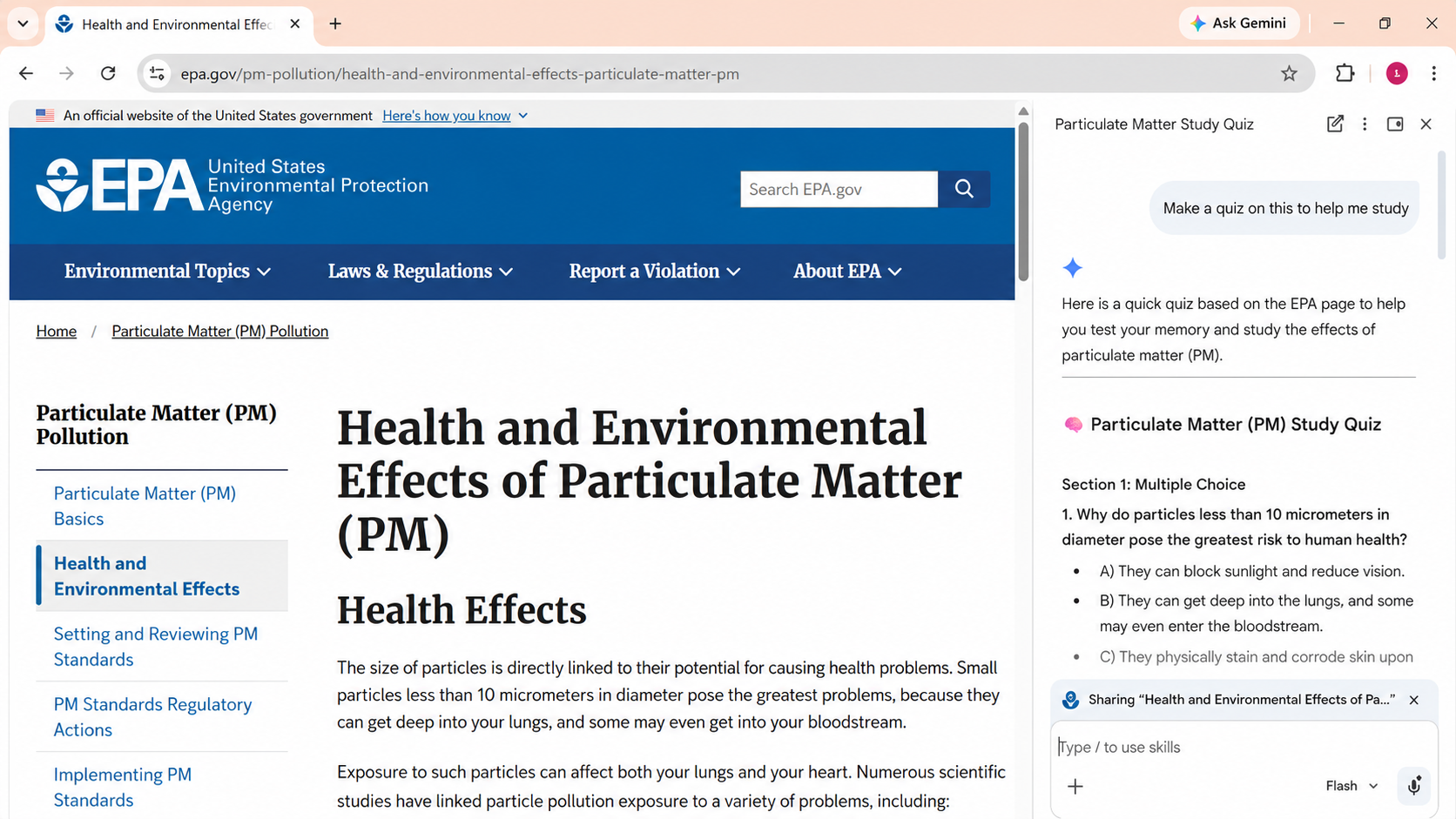
4. Turn Any Page into a Quiz
This one is genuinely clever if you use Chrome for studying or research. Ask Gemini to turn the content of any page into a quiz, and it will generate questions based on the material in front of you. It is a surprisingly effective way to test whether you have actually retained what you just read, rather than just scrolling past it.
5. Edit Images Directly in the Browser
Gemini in Chrome now has Nano Banana – Google’s image generation model – built right into the side panel. This means you can edit, transform, or generate images without downloading files, switching tabs, or opening a separate tool.
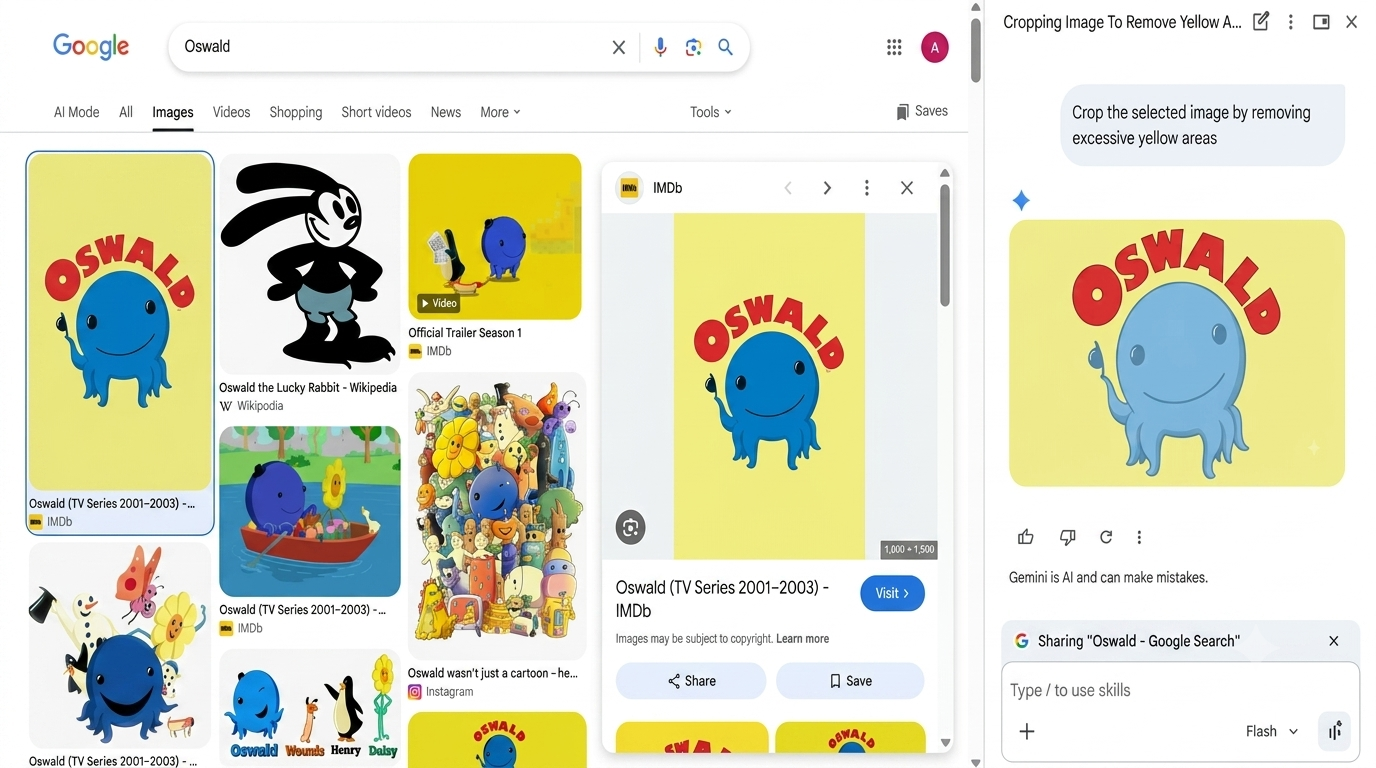
Right-click any image on a webpage, tap Ask Gemini, and the side panel opens. Type in what you want to change, and you get a live preview before you commit. Whether it is removing a background, changing a colour, or generating a new visual entirely, it all happens inside Chrome.
6. Draft and Send Emails from Gmail Without You Leaving the Tab
Gemini in Chrome is connected to Gmail through the Connected Apps feature, and the integration is so cool.
So, if you ask Gemini to send a summary of what you are researching to a colleague, a Gmail compose window opens inline. You can write, edit, and send the email without switching to your Gmail tab at all.
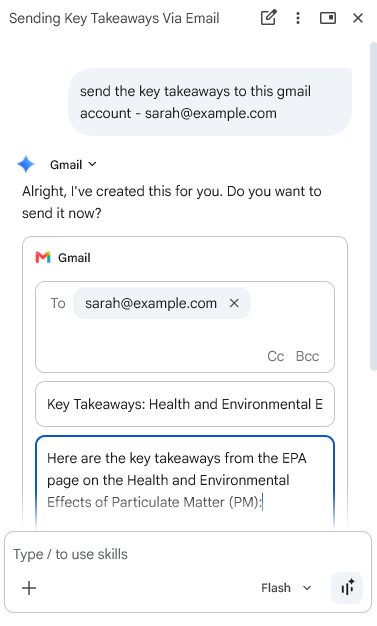
This is especially handy if you are mid-research and want to fire off a fast update without losing your place.
Final Thoughts
This was how you can get the most out of Gemini in Chrome. Now, it’s no longer just a chatbot bolted onto a browser. Between tab-wide context, app integrations, Auto Browse, and in-browser image editing, it is shaping up to be a full-on productivity booster for Google Chrome users.
FAQs
Is Gemini in Chrome free to use?
Yes, core features are free for users aged 13 and above. Auto Browse is limited to Google AI Pro and Ultra subscribers.
Does Gemini in Chrome work on mobile?
It is primarily a desktop feature. On Android, hold the power button to invoke it. On iOS, use the separate Gemini app instead.
Will Gemini in Chrome get Personal Intelligence features?
Yes. Google has confirmed Personal Intelligence is coming to Gemini in Chrome, though a firm rollout date has not been announced.