If you are someone whose work often revolves around Google Chrome, you know how annoying it can be to switch between multiple tabs. While you can split your Chrome tabs into separate windows and snap them vertically, that was not always a practical solution. Thankfully, Google has officially introduced the Split View feature, which, as the name suggests, lets you view two tabs side by side within the same window.
And well, it is a game-changer. So far, I had always relied on the virtual desktop feature on my Mac, where I had to jump between different screens/desktops to get my work done. With this new feature, I no longer have to worry about shifting my open tabs to different Chrome windows. Google Chrome takes care of the same.
Also See: The Easiest Ways to Hide Shorts From YouTube Feed That Actually Work
What is Chrome’s Split View
Google Chrome’s Split View is a new feature that lets you open two tabs side by side within the same window. All you need to do is right-click on an open tab and select Add tab to new Split View. The tab will automatically shift to the left, and the browser will then prompt you to choose the second tab to fill the empty space on the right.
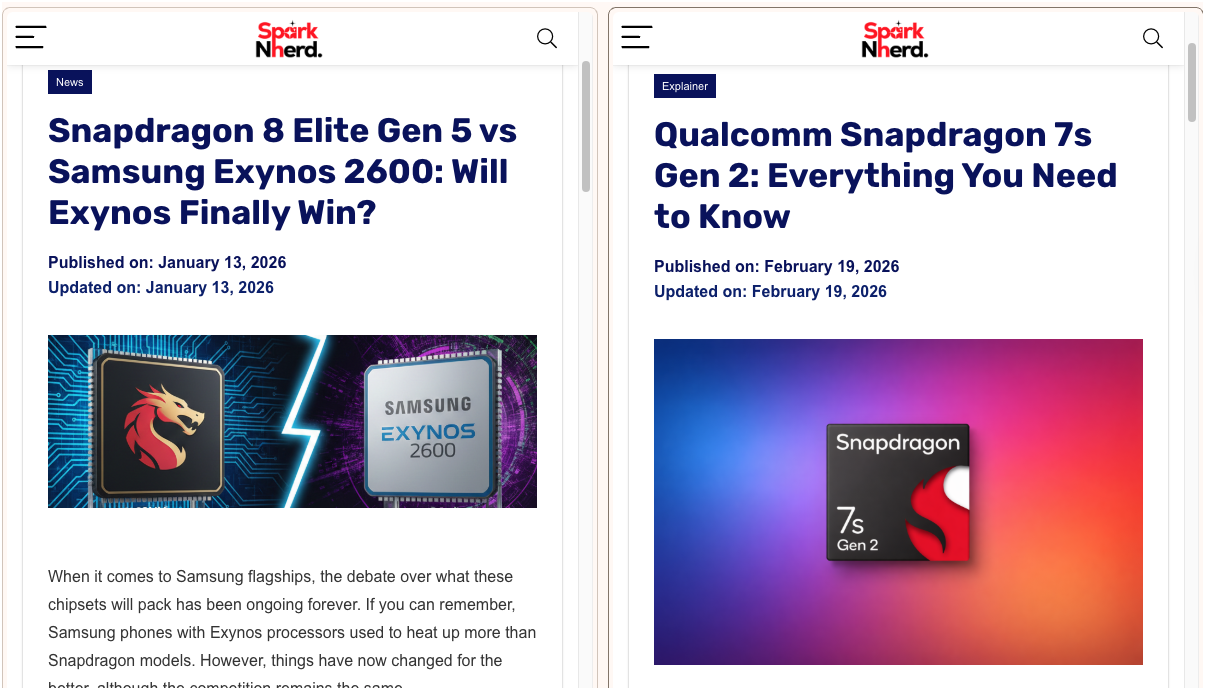
And there you have it, you can now multitask like a pro.
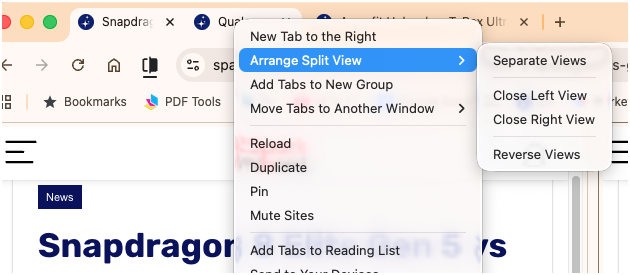
And when you need to close the Split View, simply click on the option at the bottom. Plus, depending on what you would like in each pane, you can reverse the pages or resize the panes as per your requirement.
One of the best parts of this Split View feature is that you can also open a link from the article you are currently reading on the left. Once you activate Split View, simply right-click on the link and choose the option to open it in the split screen. This lets you see and view the contents of that page without getting distracted. Simple, no?
This feature comes in handy when you are researching or comparing products.
Also See: Best iOS Apps for Productivity in 2025
Another Productivity Hack: Tab Groups
Another cool productivity hack is Chrome’s built-in Group Tabs feature. Tab Groups can seriously clean up the chaos. Instead of letting your tab bar turn into a cluttered mess, Chrome lets you organise related tabs into neat, colour-coded groups. It is a simple feature, but once you start using it, there is no going back
What is Tab Groups and How it Works
Using Tab Groups is fairly straightforward. Right-click on any open tab and select Add tab to new group. You can then give the group a name and choose a colour to identify it easily.
To add more tabs to that group, simply right-click on another tab and select Add tab to group, then choose the group you created.

You can also drag and drop tabs directly into a group. Once grouped, you can collapse or expand the entire set with a single click on the group label. This makes it much easier to switch between different tasks without closing anything.
It is especially useful when you are researching or managing multiple projects at once. It gives off a clean, organised, and far less overwhelming look.
Also See: Best Online PDF Editors to Annotate and Edit PDFs
Hello, Productivity
Using Split View changed the way I work on Chrome. Owing to the nature of my job, I often need to open dozens of tabs for research, and there are moments when the tab bar becomes so crowded that I can barely read the titles. As such, switching back and forth not only breaks the flow but also slows down my writing process.