Today, our phones and laptops hold more than just apps. They store contacts that we can’t afford to lose, precious photos, important screenshots, and documents that matter for both work and personal use. And if you are someone like me, regularly syncing contacts, photos, and documents with your Google account is one of the simplest habits. Not only does it save you from a lot of panic later, but it also ensures that everything is being saved automatically.
So, in this post, we’ll see how to regularly sync contacts, photos, and documents with your Google account. We will also see why the Google account sync sometimes stops without us noticing, and a few tips to make sure that your data is always safe and up to date.
With that said, let’s get going, shall we?
Also See: How to Add Signatures in Google Docs on Your Phone
Why Google Sync Matters More Than You Think
Google Sync works like a silent safety net. Once it’s on, your data is continuously backed up to the cloud and linked to your Google account. So, even if your phone gets lost, damaged, or reset, your information isn’t gone. You simply sign in on a new device, and everything comes back.
One thing that you need to understand is that sync is account-based and not device-based. So, as long as you’re logged into the same Google account, your files will be backed up on Google.
See Also: Google AI Plus And Its Benefits: Everything You Need To Know
How to Keep Your Contacts Always in Sync
Contacts are usually the easiest to protect, but only if they’re saved correctly. When contact sync is turned on, every new phone number you save is backed up automatically to Google Contacts. So, even when you change your device, you will get access to all your previously saved contacts.
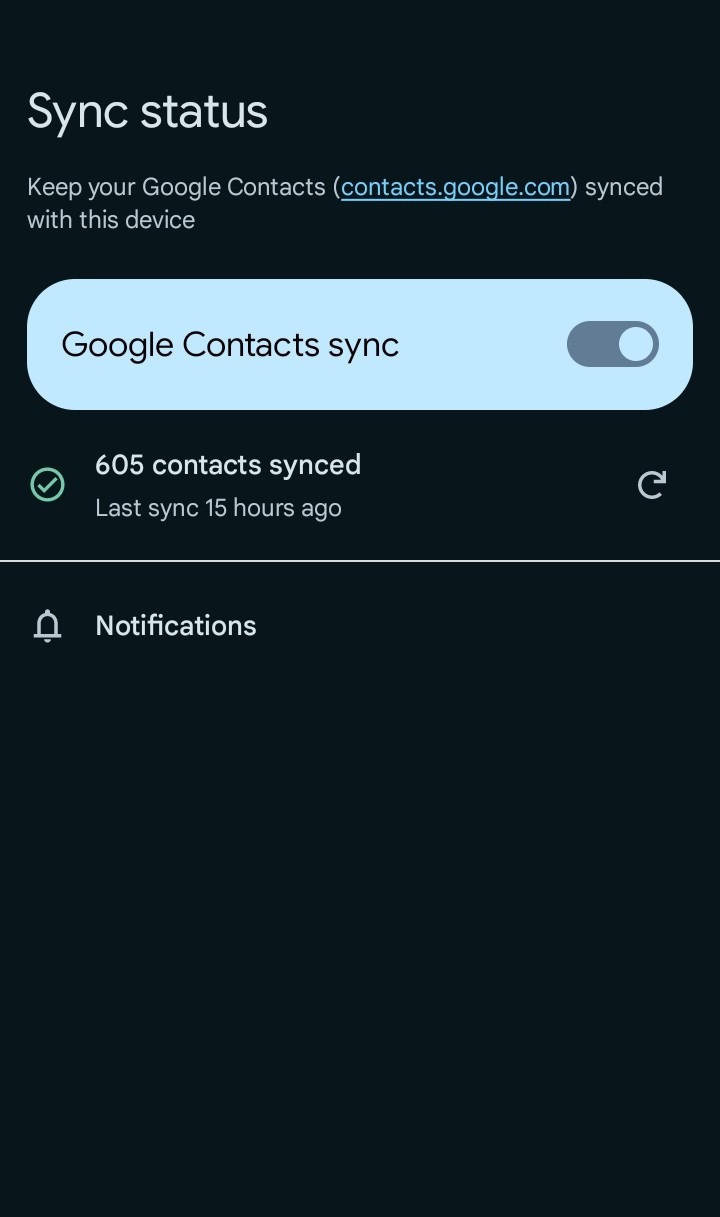
Here, you should make it a habit to always save contacts to your Google account instead of your phone storage or SIM. This ensures that your contacts are safely backed up and never lost if you switch phones.
Sometimes opening Google Contacts on a browser helps too. You just need to merge duplicates, fix missing details, and confirm that syncing is working properly.
How to Keep Your Photos Always in Sync
Google Photos, at times, often stops syncing without us realizing it. This happens because of a myriad of things, like battery saver mode, low storage, a poor internet connection, or changing over to a cellular connection from Wi-Fi.
So, you need to open the app once in a while to resume syncing your Google photos. Also, Google Photos handles backup smoothly.
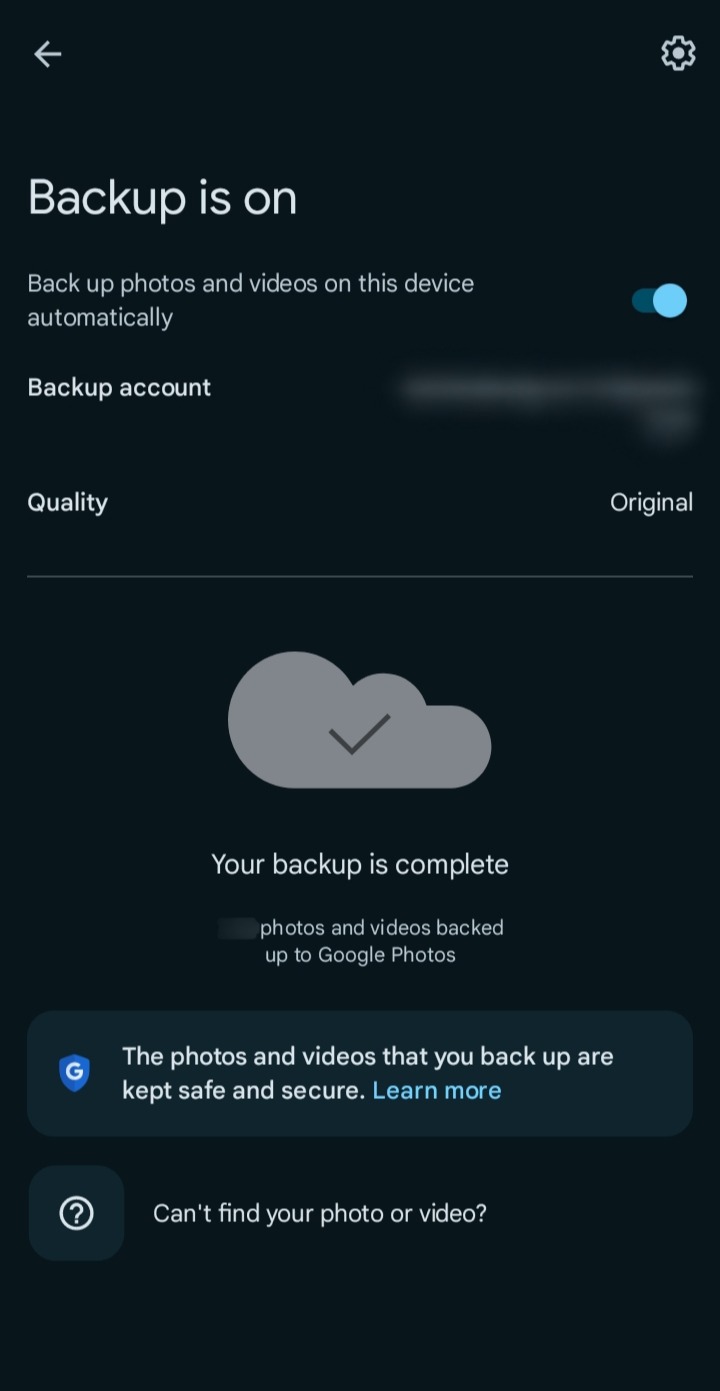
Choosing the right backup quality is important, too. When it comes to Google Photos, use Storage Saver if you want to save space. On the other hand, Original Quality will keep your photos at full resolution. That said, it does take up more storage space.
How to Keep Your Documents Always in Sync
For documents, Google Drive is your best friend. Files you upload to Drive can be instantly synced across all your devices.
On computers, installing Google Drive for desktop makes things even easier, as files sync automatically in the background. This keeps your important documents organized in one folder and saves time, avoiding any confusion later.
See Also: How Pairing Google Docs and Gemini Completely Rewired My Productivity
Final Thoughts
This is how you can regularly sync contacts, photos, and documents with your Google account. Regularly syncing is not about adding extra tasks to your day. It is about setting things up once and just checking in occasionally. When done right, Google sync quietly keeps your contacts, photos, and documents safe without needing your attention.
Google Sync FAQs
How do I automatically sync photos to Google Photos?
You will have to turn on Back up & sync in Google Photos to automatically sync all your photos across devices.
Can you auto-sync contacts with Gmail?
For contacts, your phone will auto-sync contacts with your Google account (and not Gmail).
How do I transfer all my contacts to my Google account?
To transfer all your contacts to a Google account, you will need to enable contact sync to transfer all your contacts and keep them backed up automatically.
Will photos stay in Google Photos if I delete them from my phone?
Yes, once all your photos are backed up to Google Photos, they will stay in that account even if you delete them from your phone.