YouTube has one of the best libraries for videos and music. And it so happens that I would find a lovely music video (such as this one from Heavn) and then I would want to play it on a loop. But it also happens that YouTube for desktop does not have a dedicated button to loop. If you ever find yourself in this situation, do not despair, because we know how to help you loop YouTube videos and playlists easily and safely.
Apart from built-in options, we will also show you how to loop videos on desktop, mobile, and smart TVs.
Also See: 4 Best Video Players for Google TV
How to Loop a YouTube Video on Desktop
To loop a YouTube video on a desktop, simply play it in your browser, then right-click anywhere on the video and select Loop.
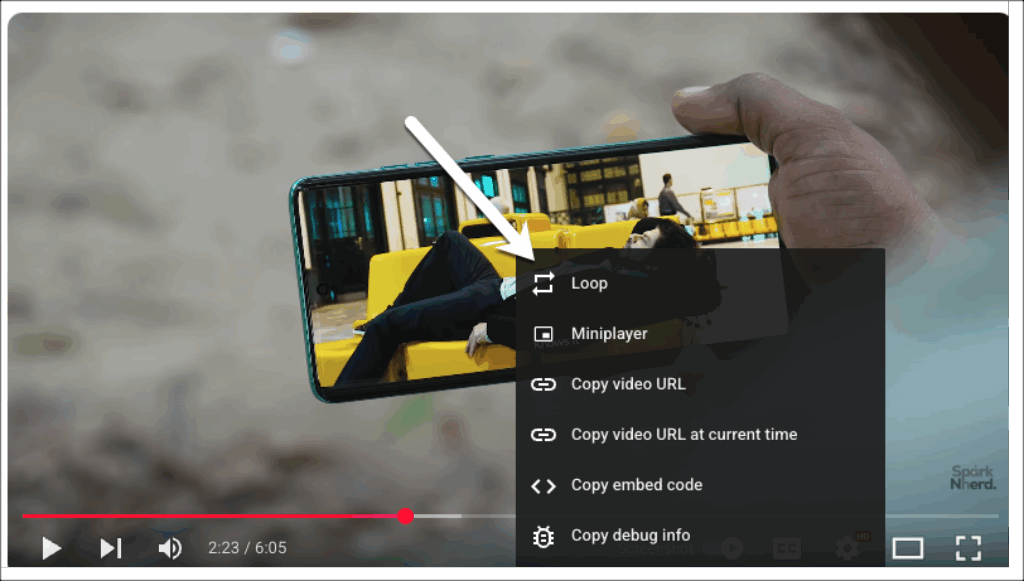
The video will continue to repeat until you stop it. Magic!
How to Loop a Video and Playlist on Desktop
To loop a whole YouTube playlist or the video, open it on YouTube. Now, all you need to do is click the Loop icon (two arrows forming a circle) next to the video player.
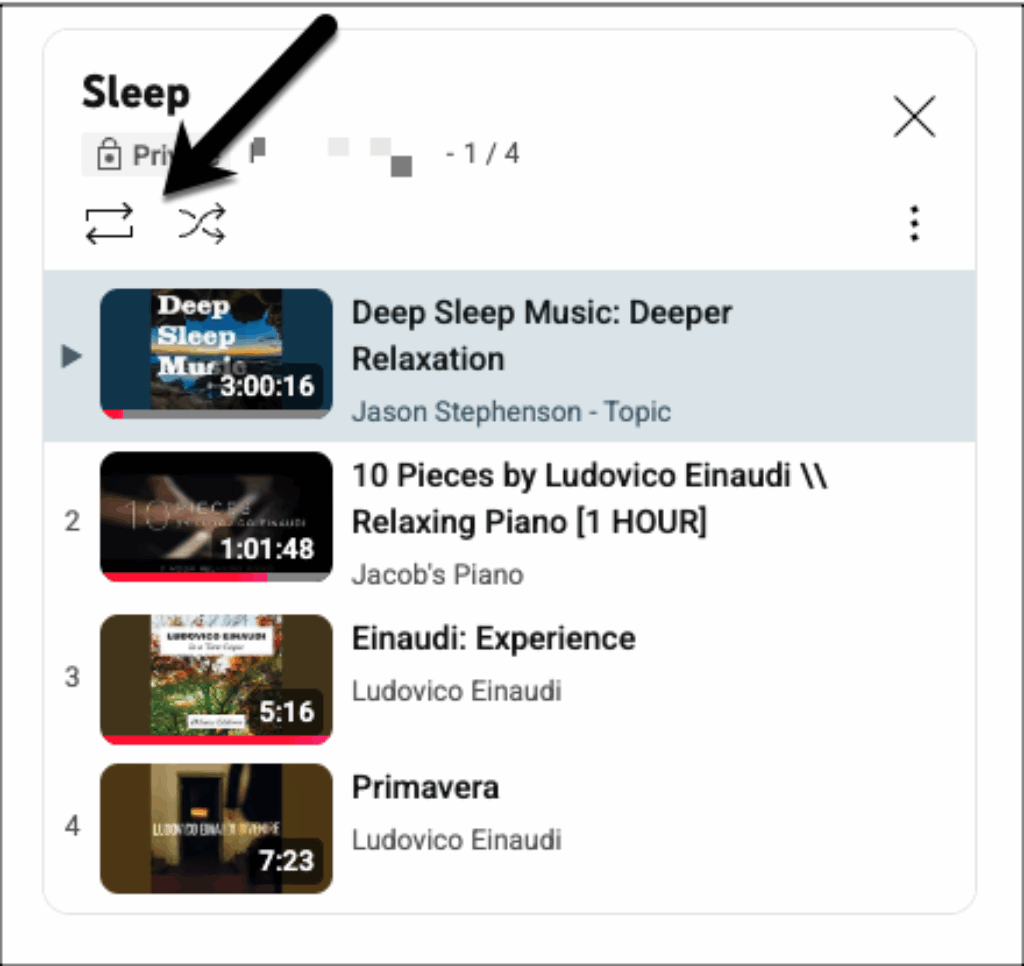
Click it once to repeat the entire playlist, or a second time to loop only the current video. Yes, you can thank us later.
How to Loop a YouTube Video on Phone (iOS & Android)
Method 1: Looping a Single Video
Step 1: Open the video on the YouTube app that you’d like to play.
Step 2: Next, tap on Settings > More, and turn on Loop video. The video will now repeat until you exit or play something else.
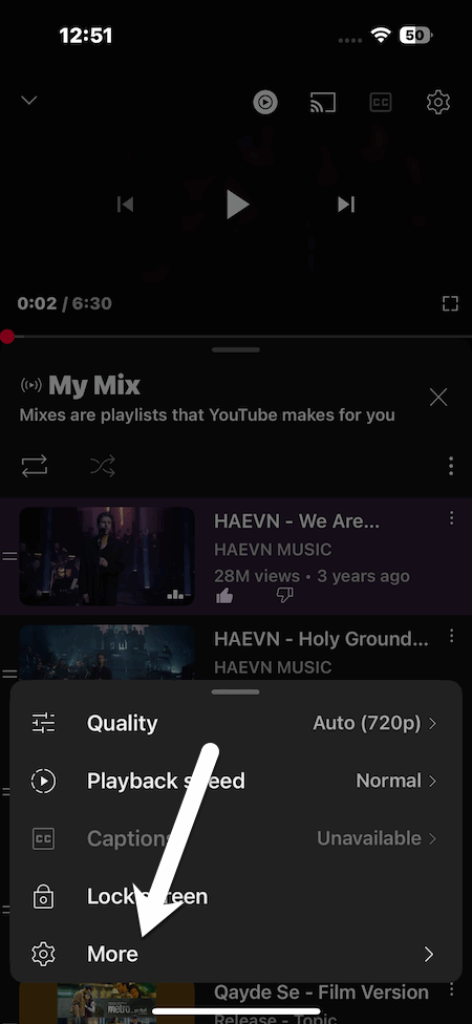
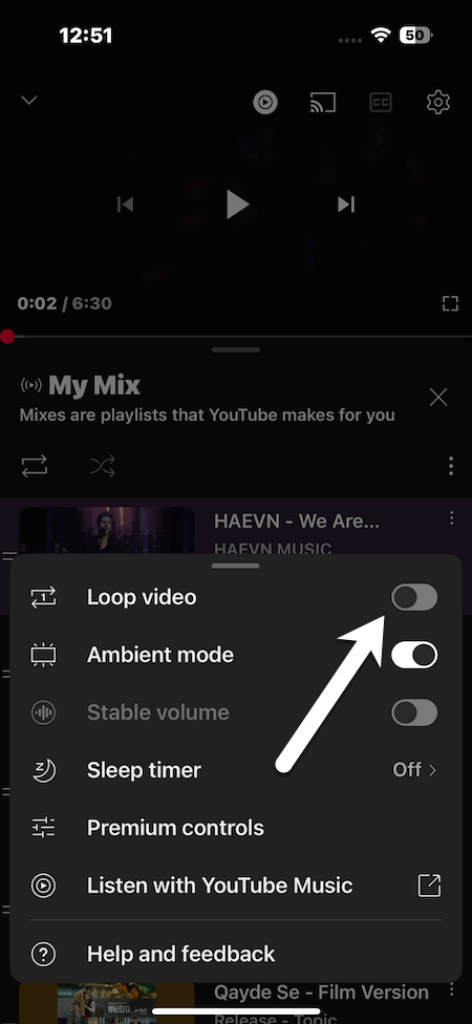
Also See: How to Add Extension Support on Microsoft Edge for Mobile, and the Best Extensions
Method 2: Repeat YouTube Playlist
Step 1: Open the playlist on YouTube that you’d like to loop and tap Play All.
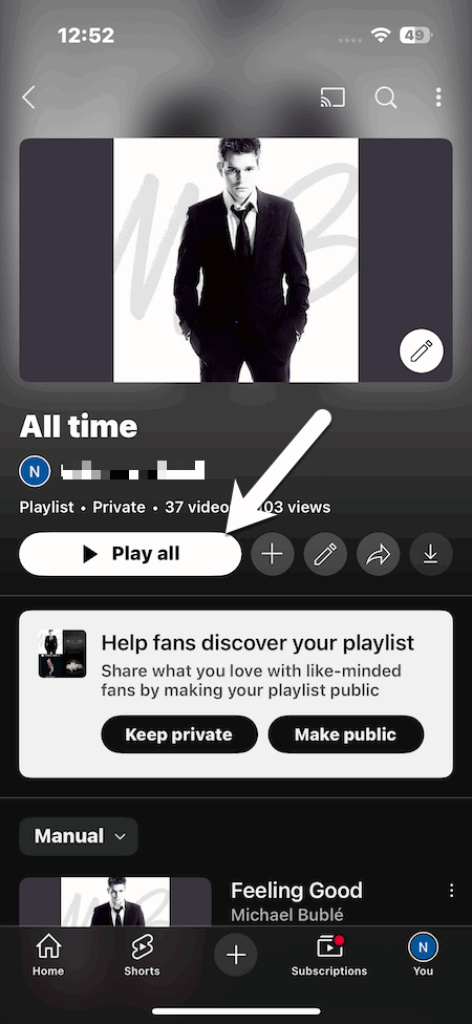
Step 2: Once done, tap the Loop icon above the video. Like the one above, tapping it once loops the playlist and tapping again loops just the current video.
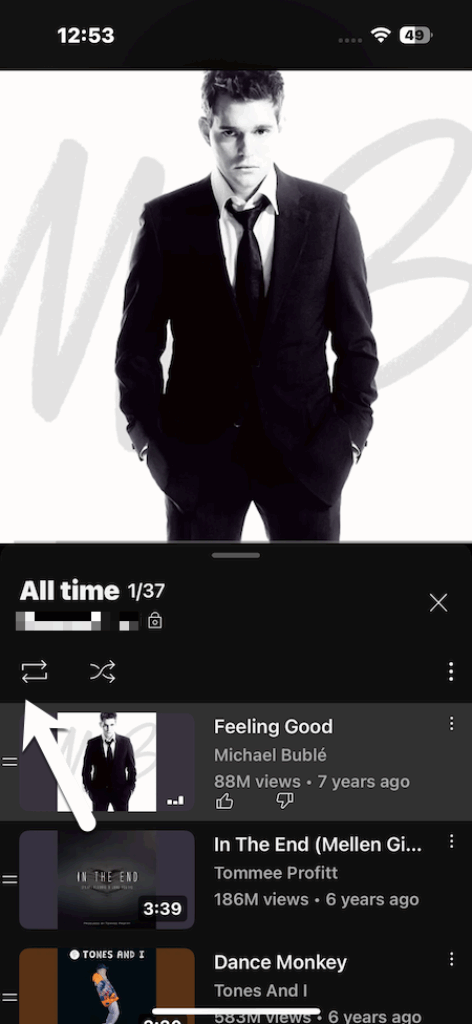
Pro Tip: If your playlist includes only one video, it will automatically loop that video.
How to Loop a Specific Section of a YouTube Video Using Browser Extensions
If you want to repeat a specific part of a video, such as a music chorus or a workout routine, you can also do that. After all, we all have that favorite part of a song that we can listen to over and over again.
In such cases, YouTube extensions come to the rescue. In this method, we are using Chrome. However, you can also use Firefox.
Step 1: Download and install a browser extension like Looper for YouTube or Enhancer for YouTube. Here, we have shown the steps for Looper for YouTube.
Step 2: After installing, hit the refresh button and play the video on YouTube.
Now, you’ll see new loop controls below the player, usually labeled Loop or marked with an A-B icon.
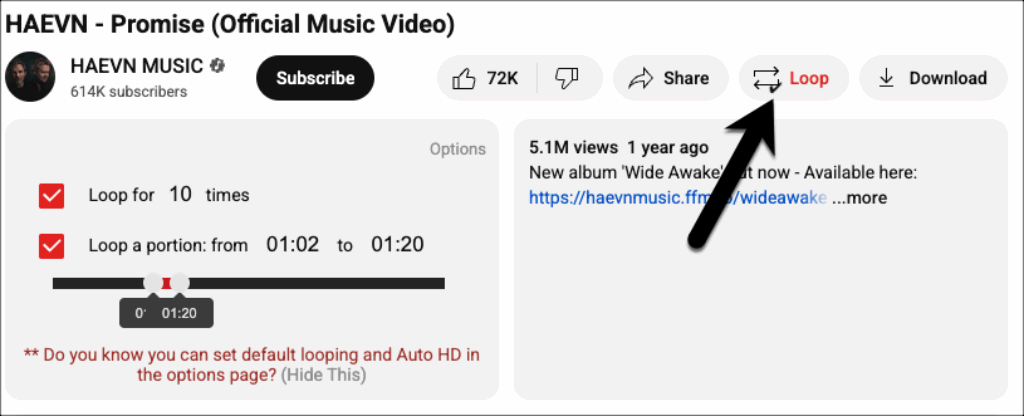
Set the start and end points, choose how many times you’d like that part to repeat, and that’s about it. Just press Play to listen to the most-liked parts of your favorite song over and over again.
The good thing is that you can also adjust playback speed or assign keyboard shortcuts for convenience.
Take Control of Your YouTube Experience
Looping videos and playlists on YouTube doesn’t have to be complicated. Whether you are on a desktop, mobile, or even your smart TV, you can easily set your favorite content to play continuously without interruptions. And if you want even more control, like looping just your favorite chorus, browser extensions have you covered.
So, the next time you’re powering through a workout, relaxing with meditation sounds, or streaming a live performance you can’t get enough of, you won’t need to lift a finger. Just set it, loop it, and enjoy endless playback.
Looping Youtube Videos: Frequently Asked Questions
1. Can I loop YouTube Shorts?
No, shorts loop by default, as for now. Hence, no manual setting is required.
2. Is looping content allowed on YouTube?
Yes, looping videos and playlists is officially supported.
3. Can I loop videos on a Smart TV?
Yes, you can use your TV remote to access the Repeat setting.
4. Can I loop without adding a video to a playlist?
Yes, just right-click or use the settings within the app.