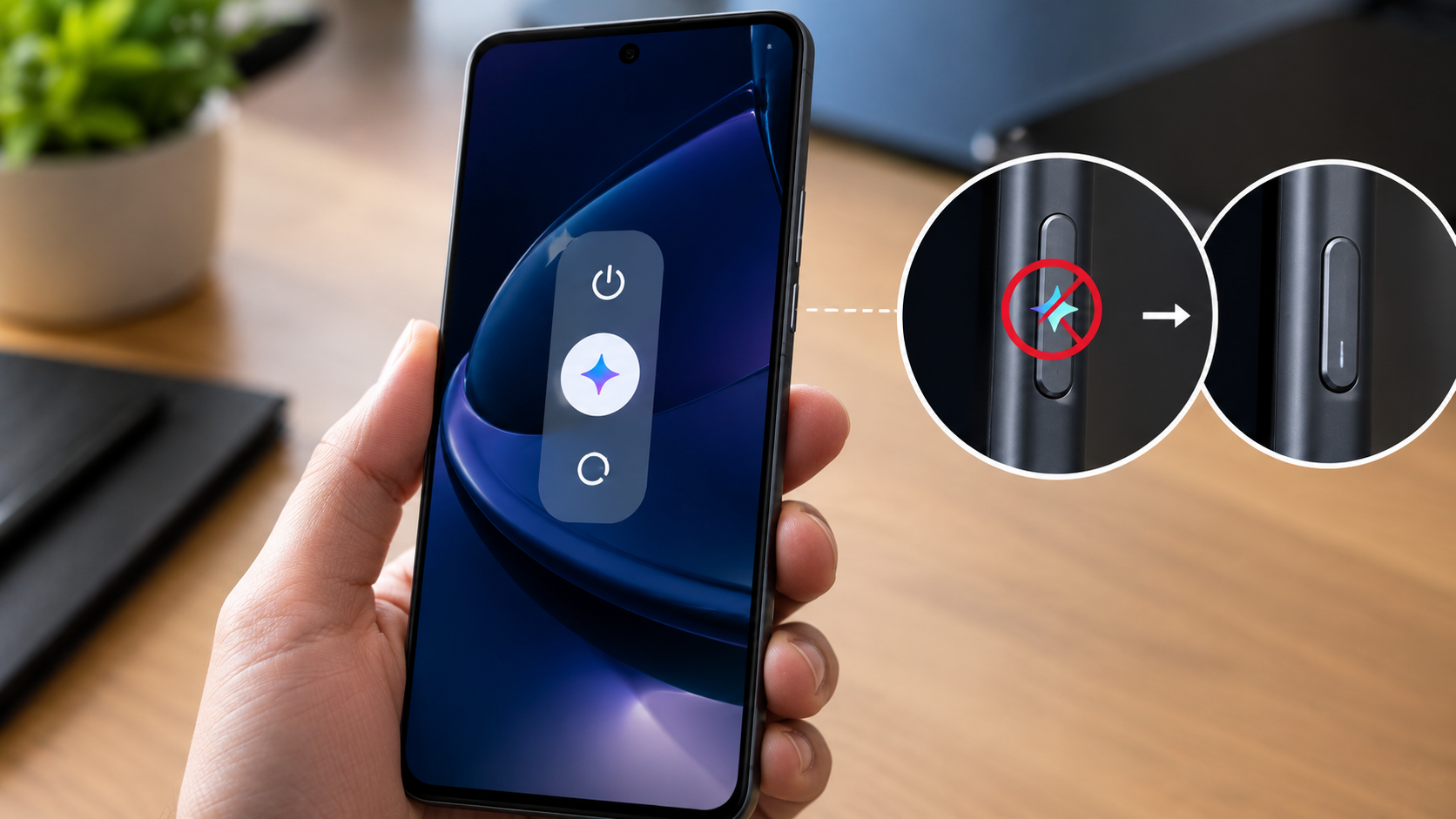
Holding down the power button on your Motorola used to bring up the shutdown menu. At some point after an update, it started opening Gemini instead.
You are not imagining it. Google now requires manufacturers to integrate Gemini into power button behaviour as part of its Android certification requirements. The good news is that Motorola does give you a way to change it back.
Here is all you need to know about how to disable Gemini on Motorola.
Why Does Gemini Open When You Hold the Power Button?
Google has been pushing Gemini as the default assistant across all Android devices, and part of that rollout involves tying it to the long-press power button gesture. After a system update on most Motorola phones running Android 13 and above, this behaviour kicks in automatically without your input.
Do note that you cannot remove Gemini from your phone entirely. It is a system component. What you can do is remove it from the power button and change what happens when you hold it down.
How to Remove Gemini from Power Button on Motorola
Step 1: Open the Settings app on your Motorola phone.
Step 2: Tap Gestures.
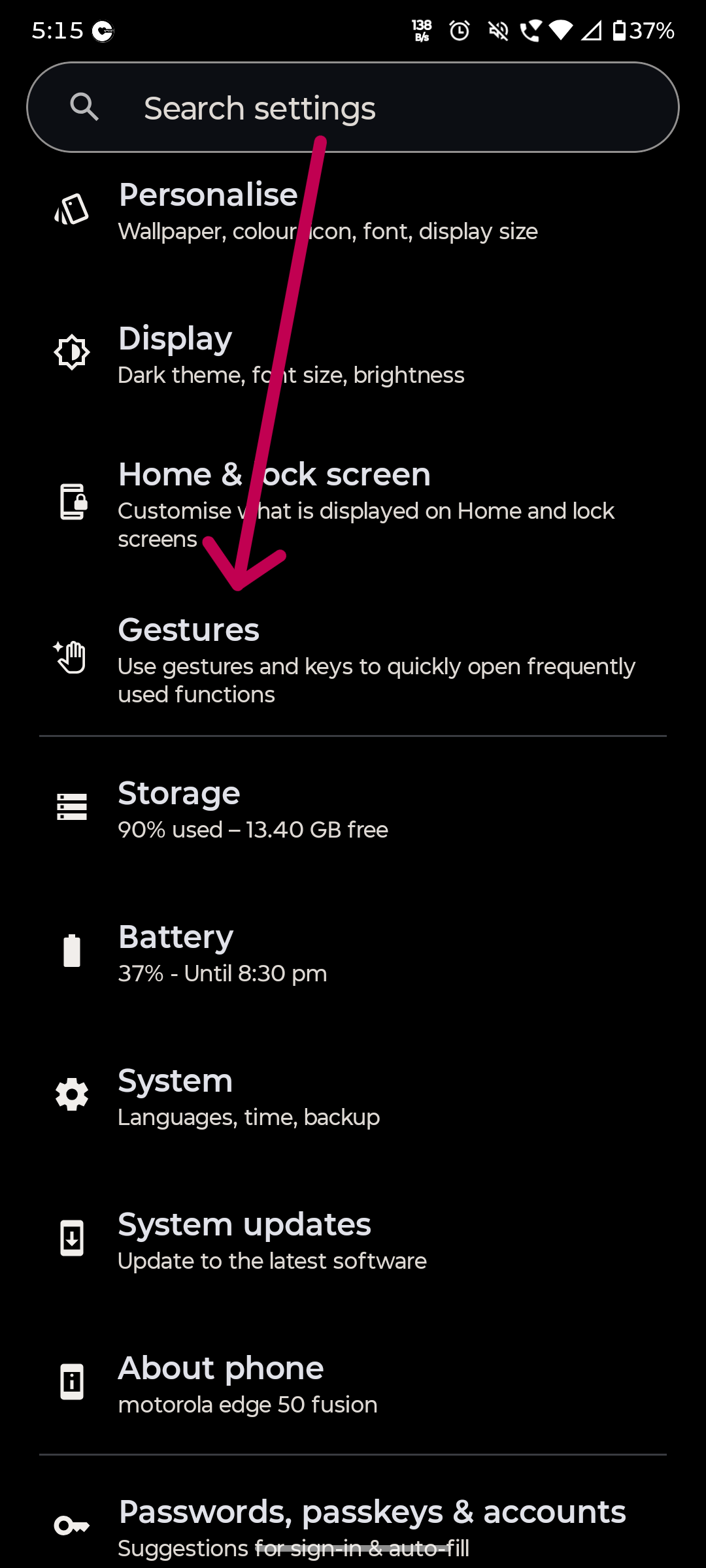
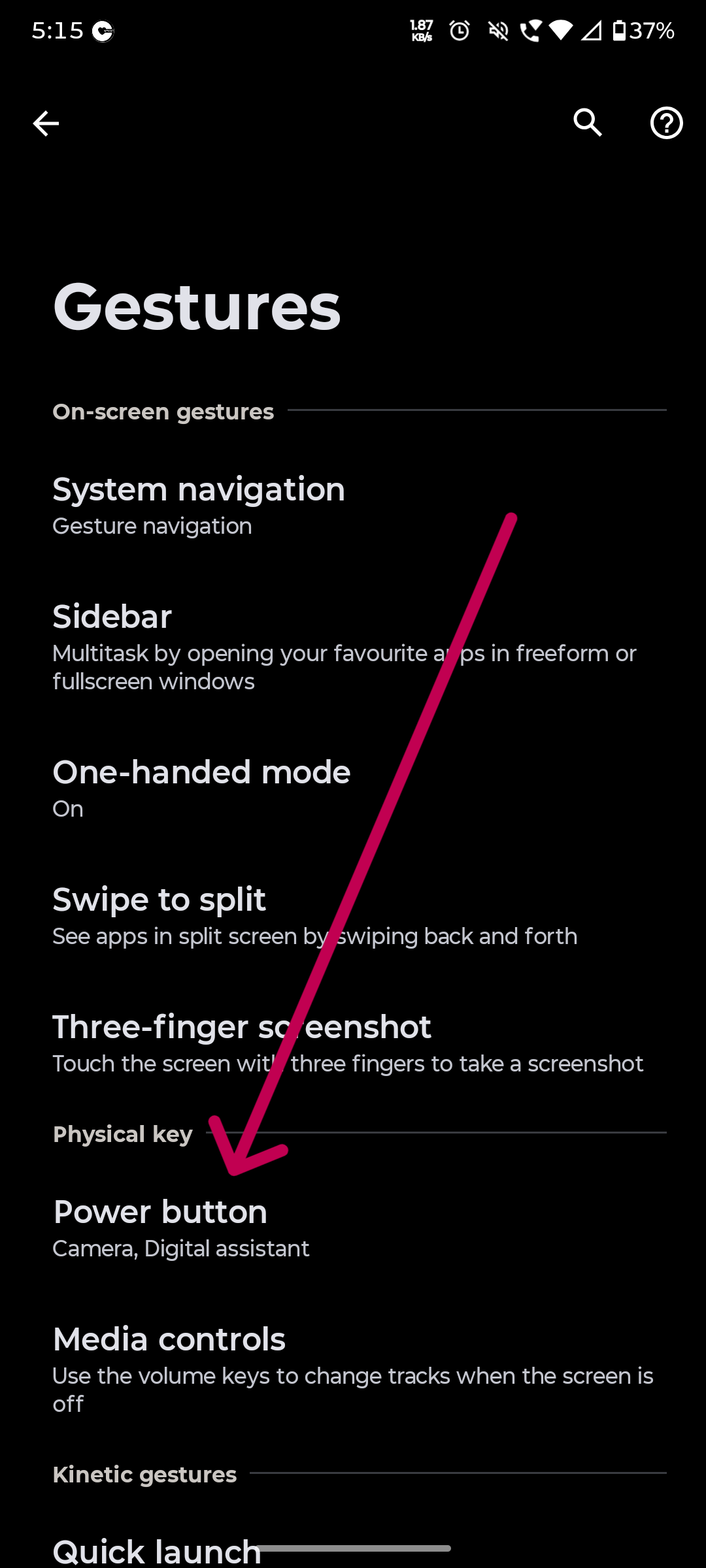
Step 3: Tap Power button option in the menu
Step 4: You will see an option that controls what the long press on the power button does. Switch it from Digital Assistant to Power menu.
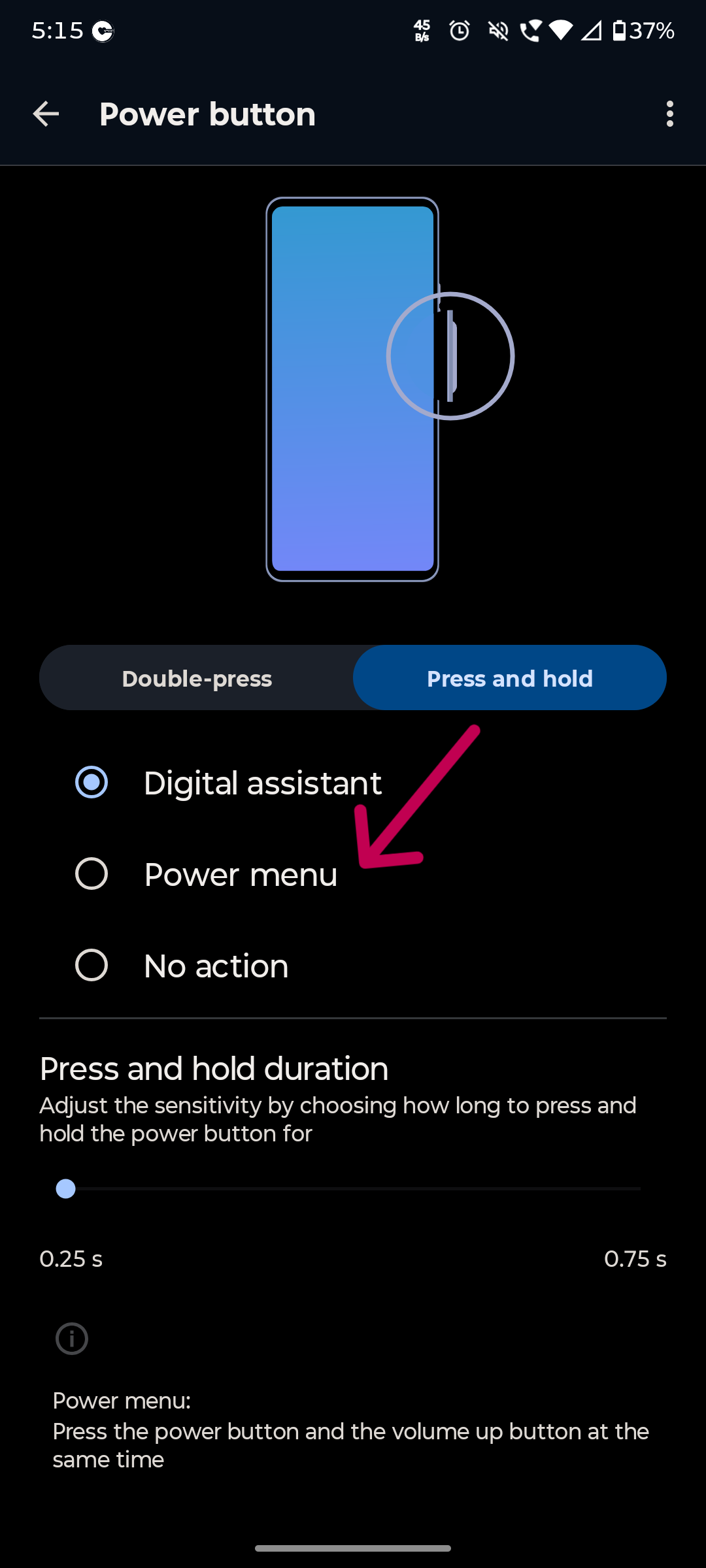
That is it to remove Gemini from the Motorola power button. From now on, holding the power button will bring back the classic shutdown, restart, and emergency options menu instead of launching Gemini.
Alternative: Change the Default Assistant App to Disable Gemini Power Button on Motorola
If the steps to disable the Gemini power button on Motorola above do not show on your specific model, changing the default digital assistant is the next best approach. This stops Gemini from being invoked by the button gesture at the system level.
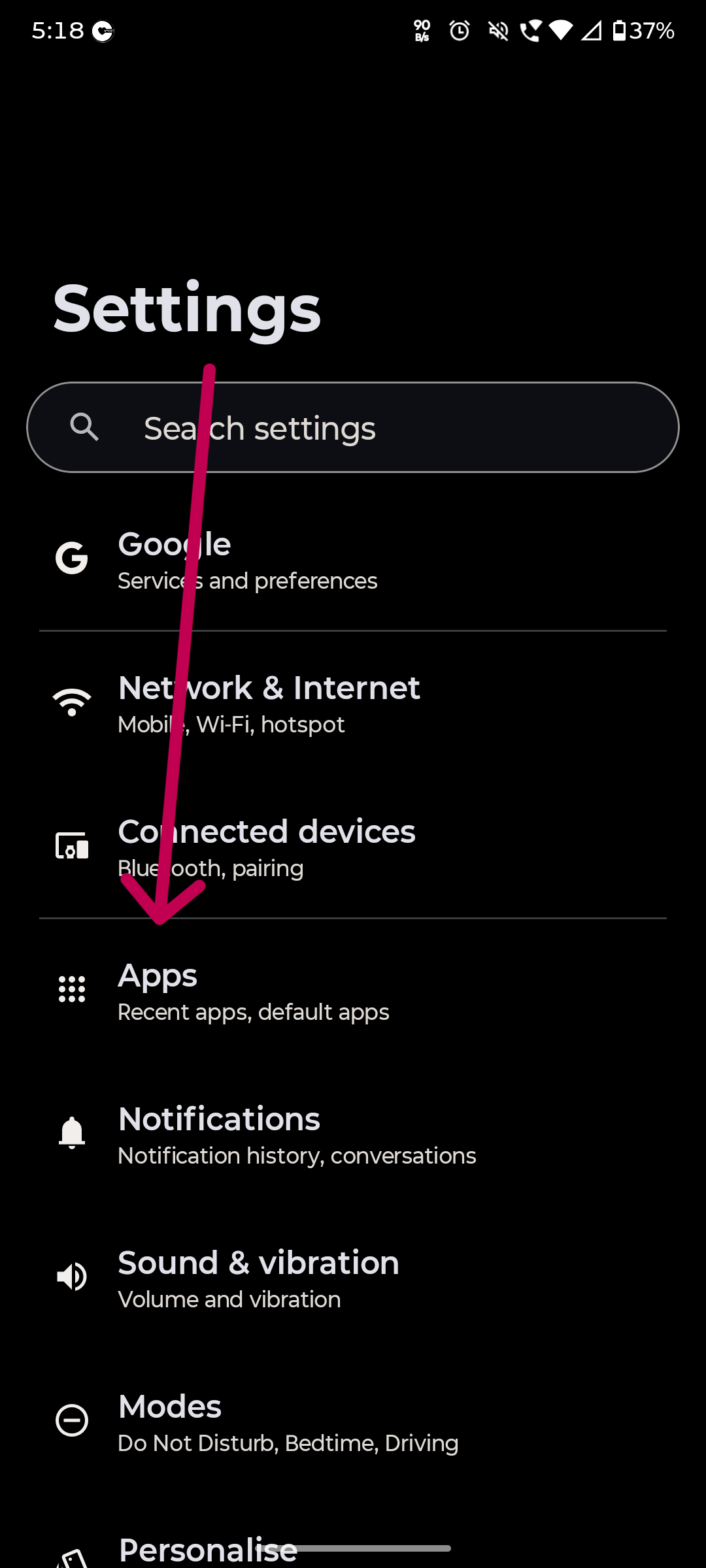
Step 1: Go to Settings and tap Apps.
Step 2: Tap Default apps.
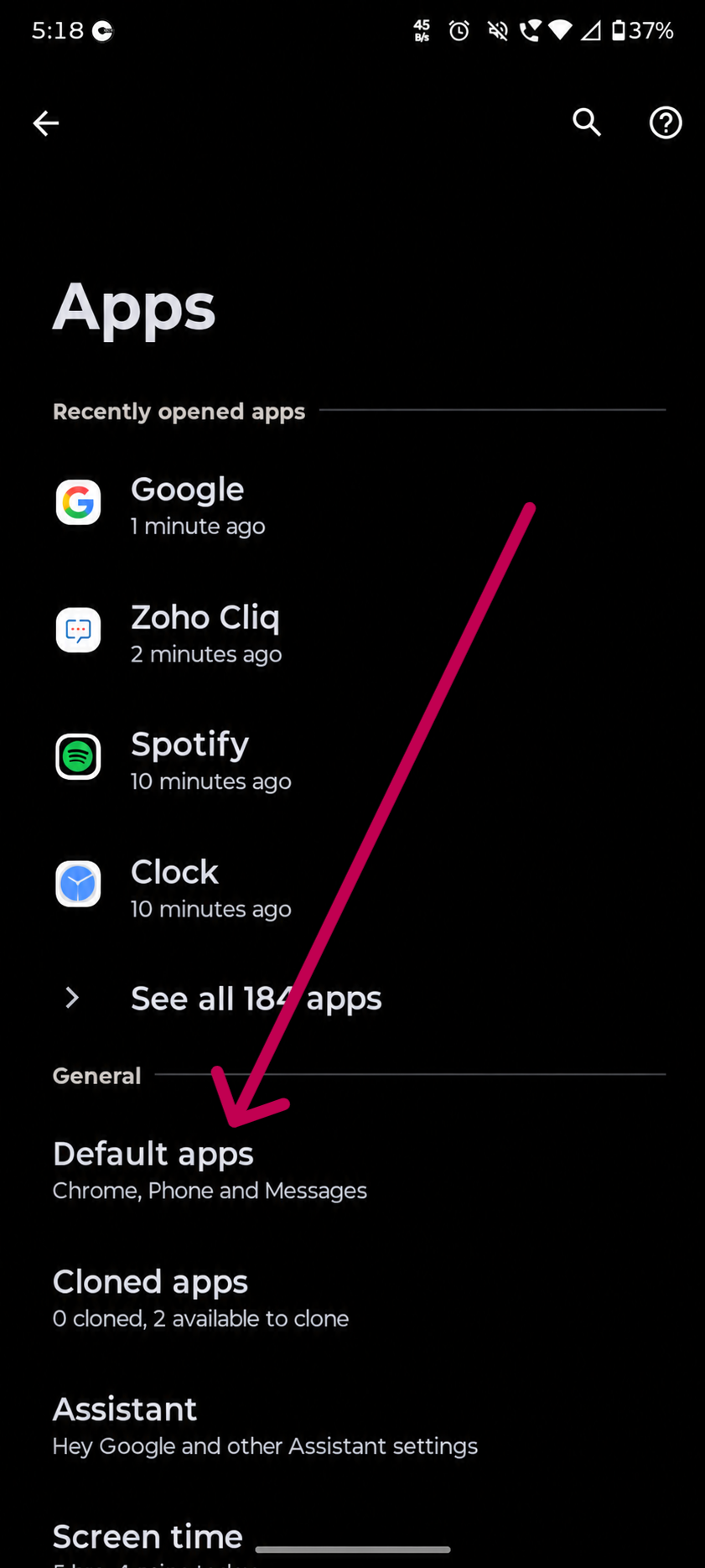
Step 3: Tap Digital assistant app.
Step 4: Change the default from Gemini to Google Assistant or None.
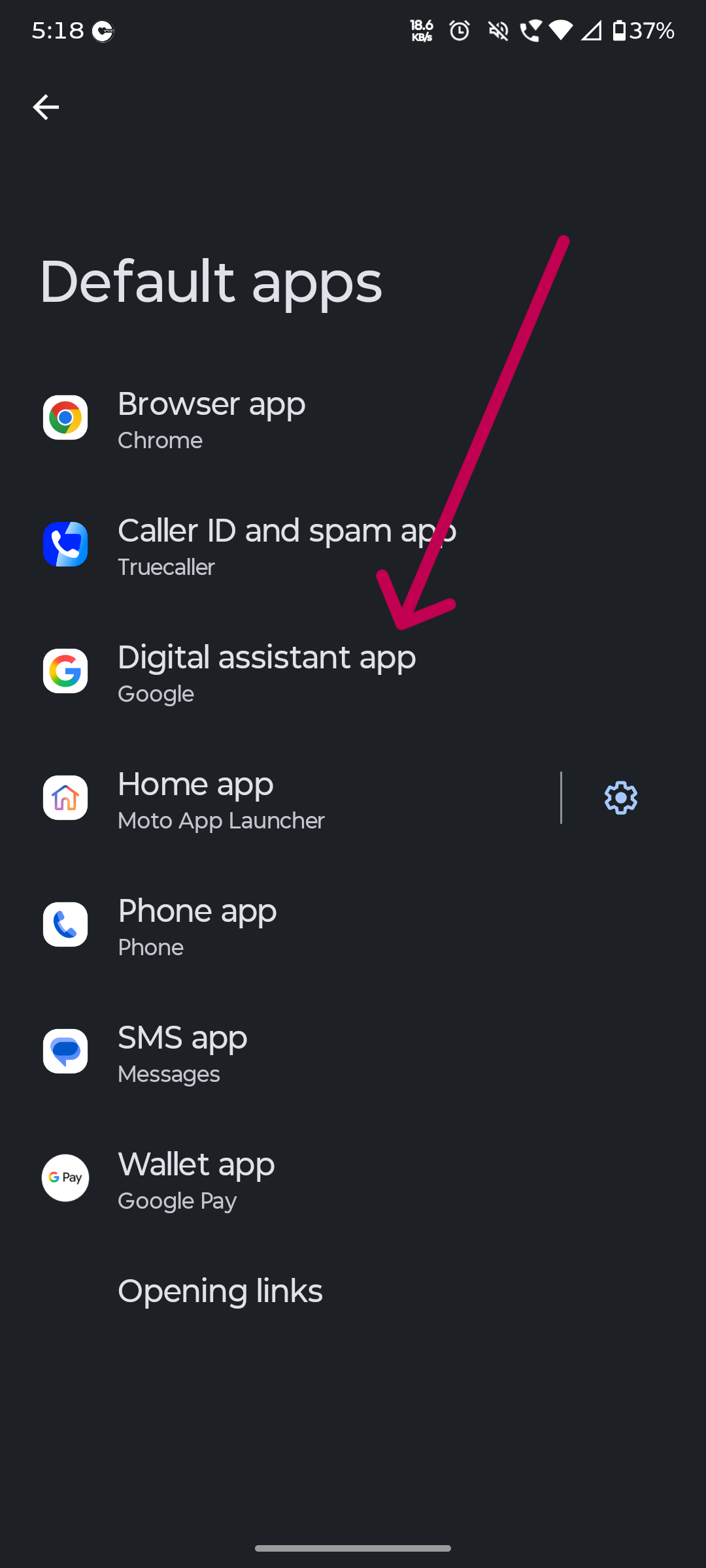
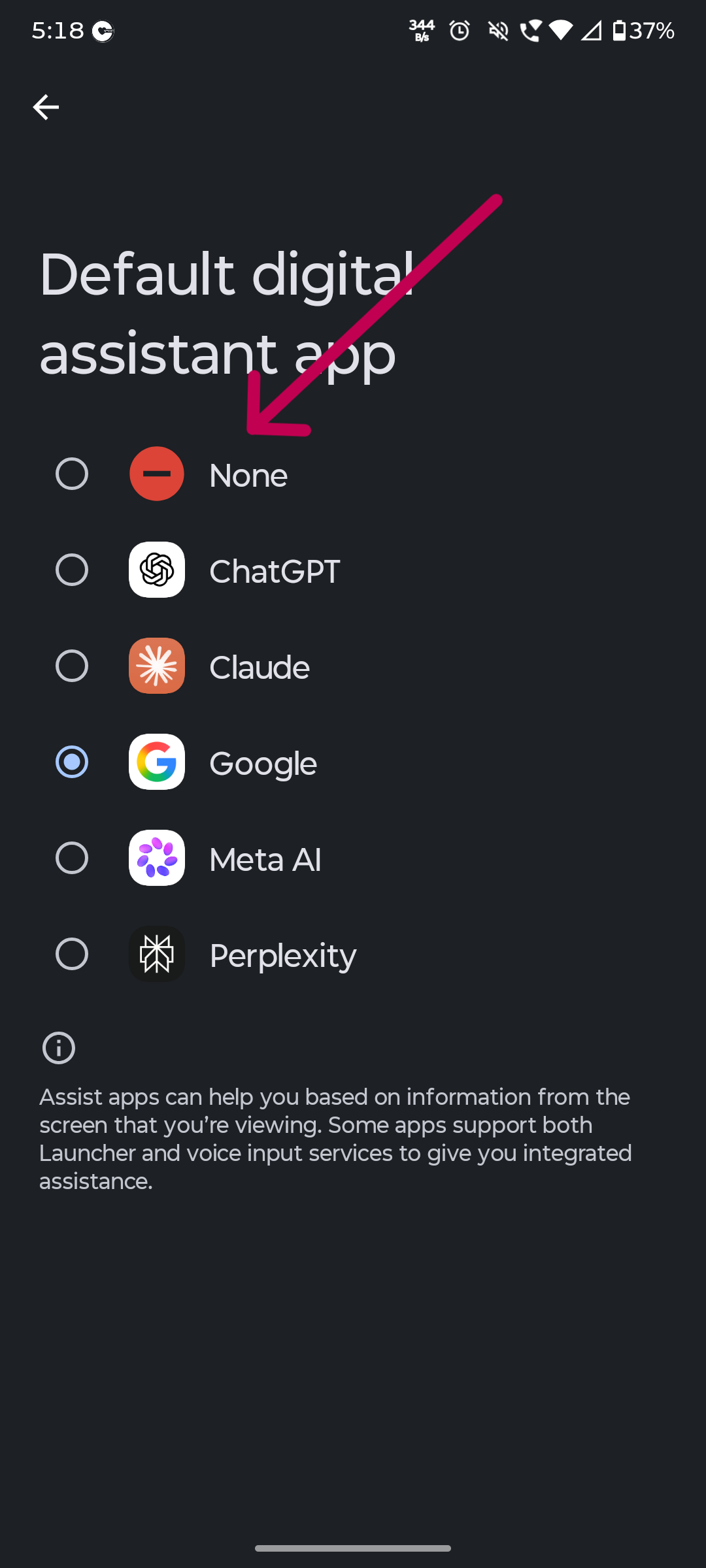
Setting it to None means no assistant launches when you long-press the power button, just the standard power menu. Setting it to Google Assistant brings back the older, lighter assistant instead of Gemini.
Quick Fix to Remove Gemini Assistant from Motorola Power Button
If you are in a hurry and the above steps to remove Gemini Assistant from the Motorola power button have not been done yet, pressing Power + Volume Up simultaneously on most Motorola phones forces the classic shutdown menu to appear even when Gemini is set on the power button. Useful to know in the meantime.
Why Can’t I Find the Power Button Settings on My Motorola?
A few things can make the settings to remove Google Gemini from the power button on Motorola harder to find.
Motorola has rolled out the Gestures path above on most phones running Motorola’s own software. However, on some models or after certain updates, the label changes slightly.
It may appear as Hold for Assistant instead of Power menu under Gestures, or the setting may sit under System > Moto Actions rather than System > Gestures. Try both paths if the first one does not show what you are looking for.
On older Motorola models running Android 12 or below, the power button behaviour is controlled through Settings > Accessibility > Accessibility Menu, where a long press shortcut can be reassigned.
If none of these paths work to change the power button shortcut for Motorola on your specific device, updating the phone to the latest software version sometimes surfaces the option, since Motorola has been adding more granular power button controls in recent updates.
In A Nutshell
On most Motorola phones, the fix to remove Google Gemini from the power button is to go to Settings, System, Gestures, and switch the long press action from Digital Assistant to Power menu.
If that path does not show up, changing the default assistant app to None or Google Assistant gets the same result. Either way, you get your power button back without Gemini getting in the way.
FAQs
Why does Gemini open when I press the power button on my Motorola phone?
Google requires Android-certified manufacturers to map Gemini to long-pressing the power button, so it activates automatically after system updates on most Motorola phones (Android 13+).
How do I remove Gemini from the power button on a Motorola phone?
Go to Settings, tap System, then Gestures, then Power menu, and switch the long-press action from Digital Assistant to Power menu. Alternatively, change the default assistant to None under Settings, Apps, Default apps.
Why can’t I find the power button settings on my Motorola?
The path varies by model; try Settings, System, Moto Actions if the Gestures path does not show it, or look under Accessibility on older models running Android 12 or below.