If you often work on browsers, you probably know that extensions add extra features that aren’t built into the browser by default. While mobile browser extensions have been rare, Microsoft Edge has finally introduced support for them. And because it’s based on Chromium, Edge can now run many of the same extensions as Google Chrome, even on mobile.
In this post we will explain how to enable extension support in Microsoft Edge and recommend several useful extensions to start with.
How to Enable Extensions in Edge for Android
Step 1: First, install the Microsoft Edge browser on your Android phone. Note that extension support is currently exclusive to Android devices. If you already use Edge, ensure it is updated.
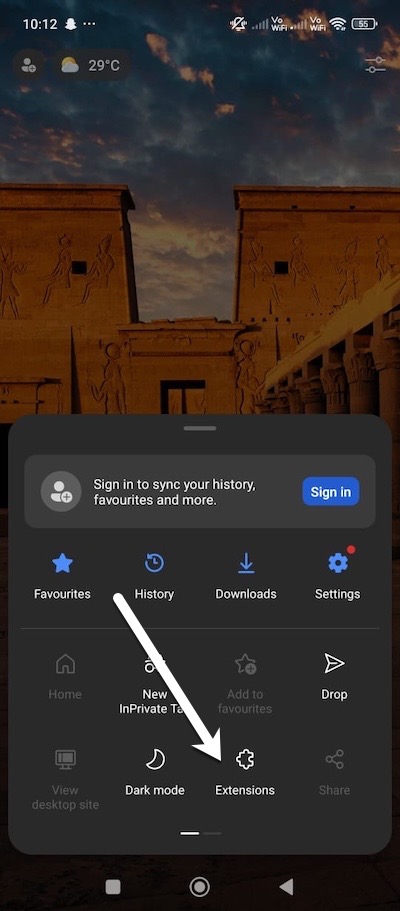
Step 2: Now, tap the menu icon located at the bottom right, then select Extensions.
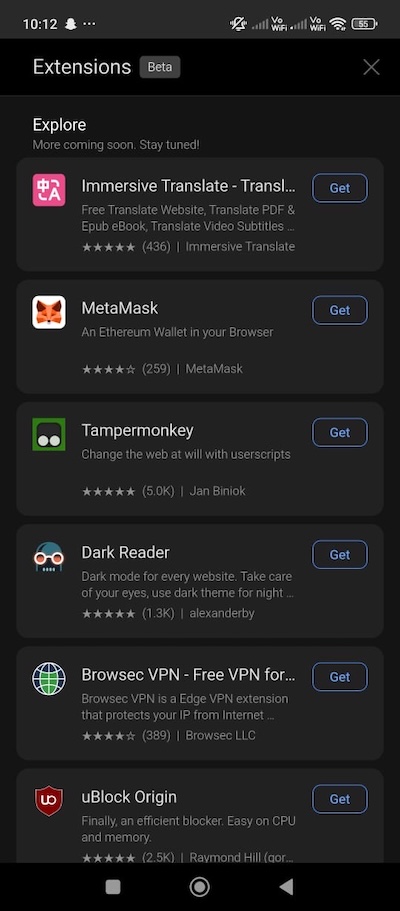
You will now see a catalog of available extensions. You can search and install multiple extensions to boost browser functionality. Choose your preferred extension, tap Get to add to the browser.
Step 3: To manage or adjust extension permissions, such as enabling it to run in Incognito mode, go to the Installed section, choose the extension, and then click on the three-dot menu.
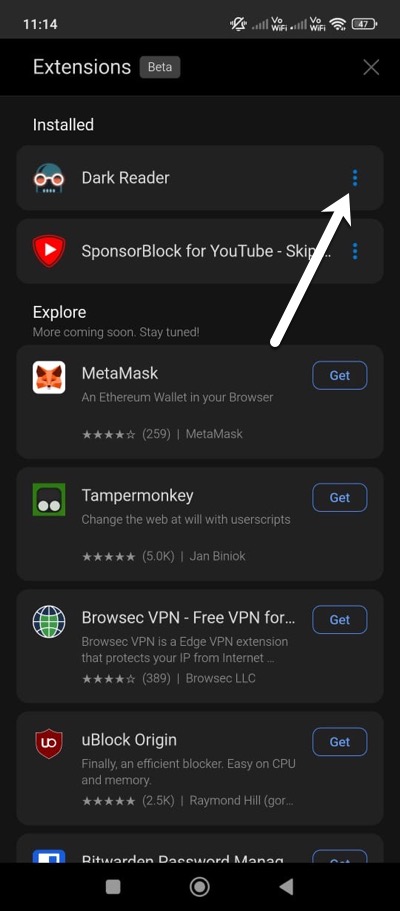
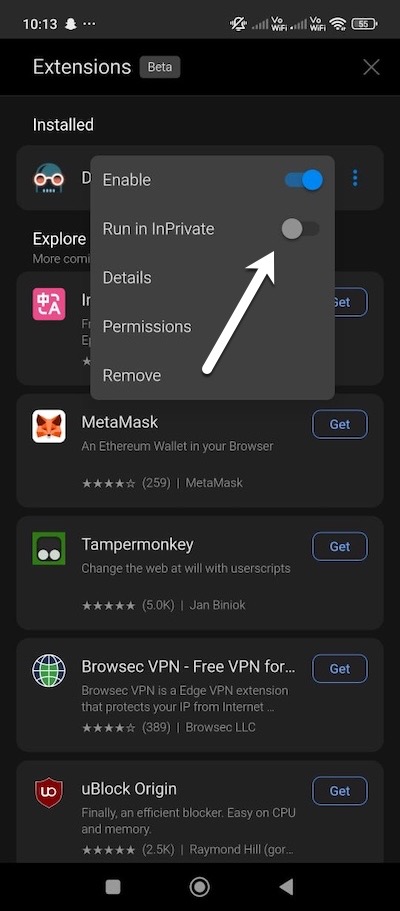
From this page, you can deactivate or remove the extensions you do not need.
Must-Have Extensions for Edge Mobile
1. AIX Downloader
AIX Downloader is among the most effective tools for downloading photos, audio, videos, and other media directly from web pages. You do not need to leave the site to download content as you can do everything within the browser
It also comes with a built-in media player so you can preview files before downloading. The extension supports a wide variety of websites, including popular platforms like YouTube, Facebook, and TikTok. This makes it possible to save videos and other content quickly and efficiently.
AIX Downloader supports a variety of files, including MP4, MOV, WMV, MKV for video, MP3, WAV, WMA, OGG, FLAC for audio, and all standard image formats.
2. Built-in VPN Access
With the new extension support in Microsoft Edge, you can install a VPN add-on directly in the browser to eliminate the need for a separate VPN app.
One of the most well-known VPN extensions for Microsoft Edge is AdGuard VPN. It offers up to 3GB of monthly data and more than 70 server locations. However, you must create an account to use it.
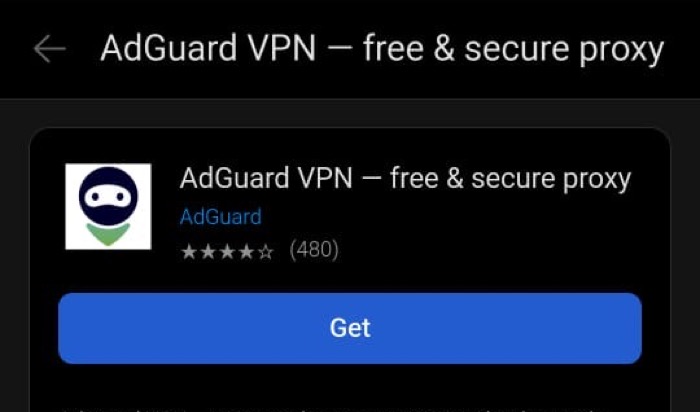
For users who prefer not to sign up, Browsec VPN provides an easy, no-registration option. Or, if you have already subscribed to NordVPN, you can simply install its extension, log in, and begin using it.
To activate a VPN on Edge, open Extensions and tap on the VPN icon.
3. Sponsored Block for YouTube
With Sponsored Block for YouTube extension, you can eliminate regular ads, skip in-video sponsorships and intros. And the good thing is that it works on nearly all videos.
Once downloaded and set up, all you need to do is open a YouTube video on the Microsoft Edge browser on your phone, and the extension should work as expected.
These were some of the best browser extensions that you can get for Microsoft Edge on mobile. Currently, Microsoft Edge supports only a limited set of extensions on mobile. Hopefully, things will change soon and we will see other extensions soon.
4. Dark Reader: Enhanced Reading Experience
The Dark Reader extension adds a dark theme to web pages, which can reduce eye strain and improve readability during nighttime browsing. It allows adjustments for brightness, contrast, and sepia tones, letting you tailor the appearance to your liking. This extension comes into the picture especially if you read a lot of articles or posts online.
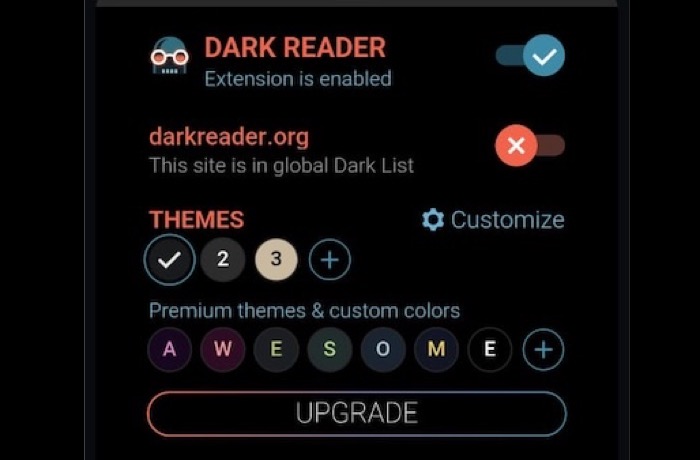
Another useful add-on is the Web Highlighter, which enables you to highlight text directly on web pages. This can be particularly helpful for students, researchers, or anyone who needs to make quick annotations while reading. Both of these extensions work together to enhance your reading experience, and neither requires third-party tools to function.
Final Thoughts
Microsoft Edge now offers a well-rounded experience on Android, thanks to its support for mobile extensions. Although the feature is still in its early stages, it provides access to useful tools like VPNs, download managers, and content savers. With a few settings tweaks and the right extensions installed, Microsoft Edge becomes a powerful browser that competes well with its desktop counterpart.
More extensions are expected to be added over time. Until then, the current tools and settings offer more than enough functionality to make the Microsoft Edge mobile browser a compelling option for anyone who wants performance, privacy, and personalization on the go.