You take a gorgeous, crystal-clear photo. You post it to your Status. But somehow, it comes out looking like it was taken through a foggy window. Annoying right? I get it. But don’t you worry, I found some pretty amazing hacks to fix blurry pictures on WhatsApp.
Here’s why this happens and how to stop it for good.
Why Your WhatsApp Status Photos Look Blurry
WhatsApp shrinks every photo you upload so it loads faster and uses less data. That’s good for your phone, but it means some of the sharpness gets lost along the way.
A few other things make it worse. If your original photo is already small or low quality, WhatsApp has even less to work with. On top of that, a weak internet connection can also mess with how your photo uploads.
And if your phone settings are set to save data instead of quality, your photo gets compressed twice over.
Best Photo Size for WhatsApp Status
Size matters more than most people think. The best image size for WhatsApp Status is 1080 x 1920 pixels, a tall shape that fills your whole screen.
A photo that’s too small gets stretched to fit, and that’s what makes it look blurry. A photo that’s way too big just gets shrunk down harder than it needs to be. Sticking close to 1080 x 1920 gives WhatsApp a clean file to work with, so it doesn’t need to cram it as much.
Moreover, keep anything important, like text or a face, near the middle of the photo. WhatsApp’s buttons and icons cover the very top and bottom of the screen.
Read More – 5 Prompts to Create Authentic Film-style Photos
Quick Ways to Fix Blurry Pictures on WhatsApp
Here’s the easiest fix, and it works the same way on any phone.
Step 1: Open WhatsApp and tap on your profile icon in the corner.
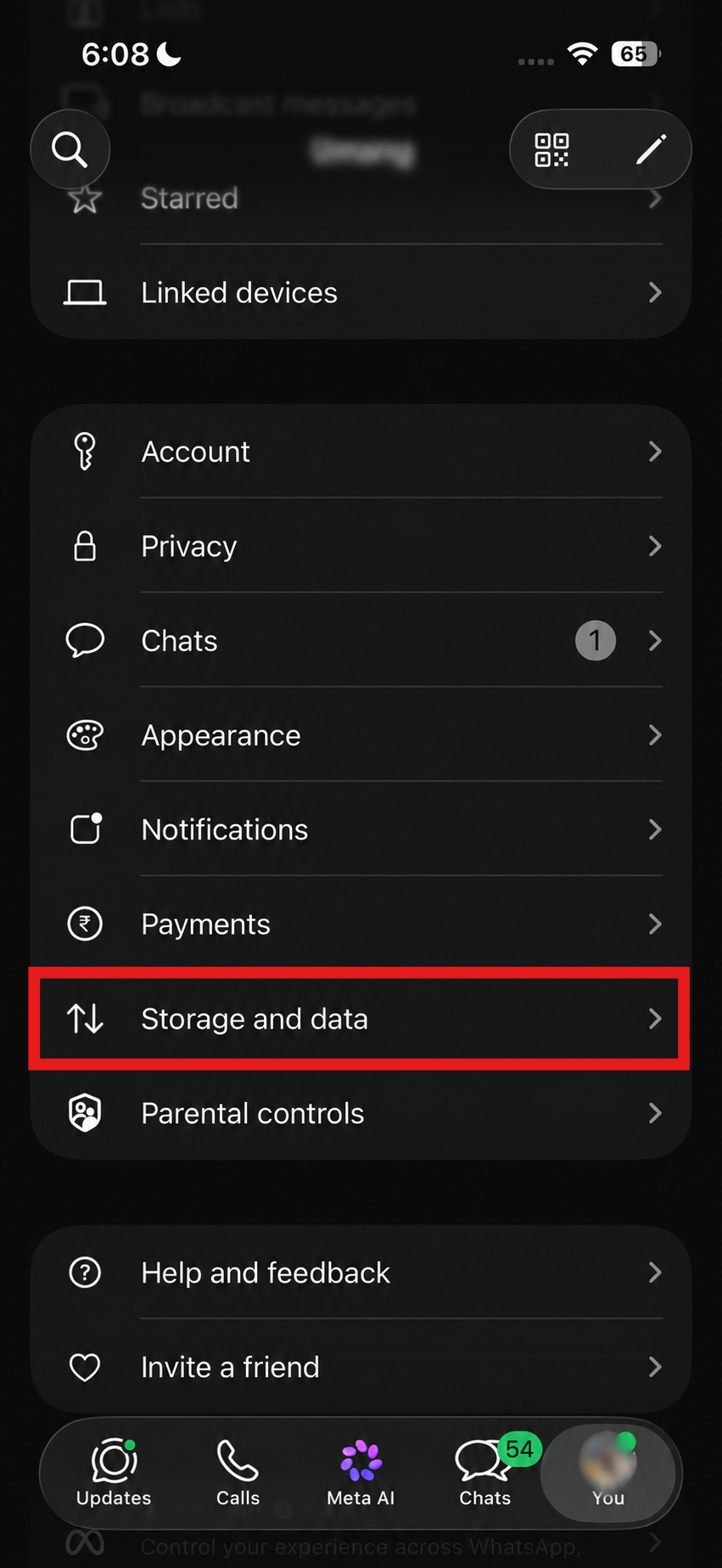
Step 2: Scroll down and click on Storage and Data.
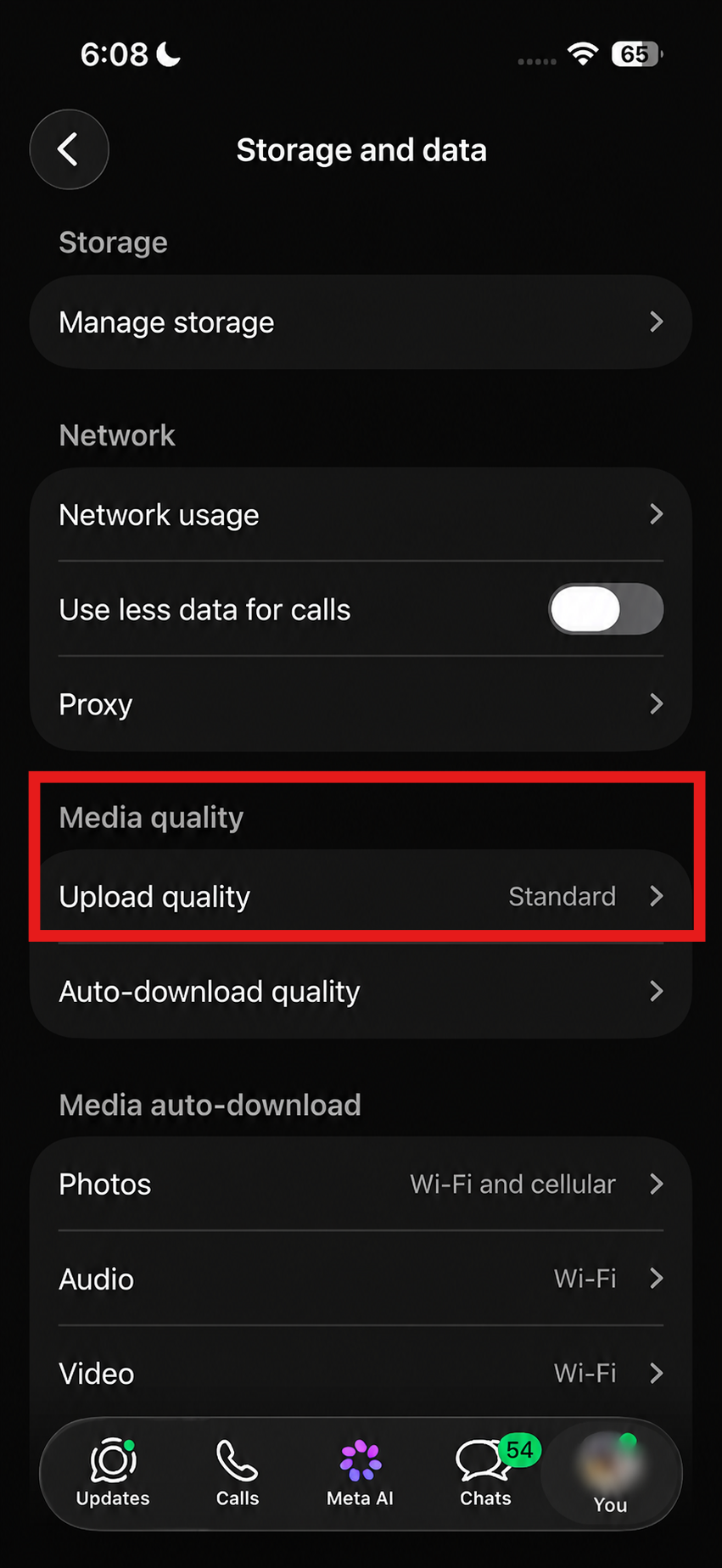
Step 3: Tap Upload quality under the field – Media quality.
Step 4: Pick HD quality.
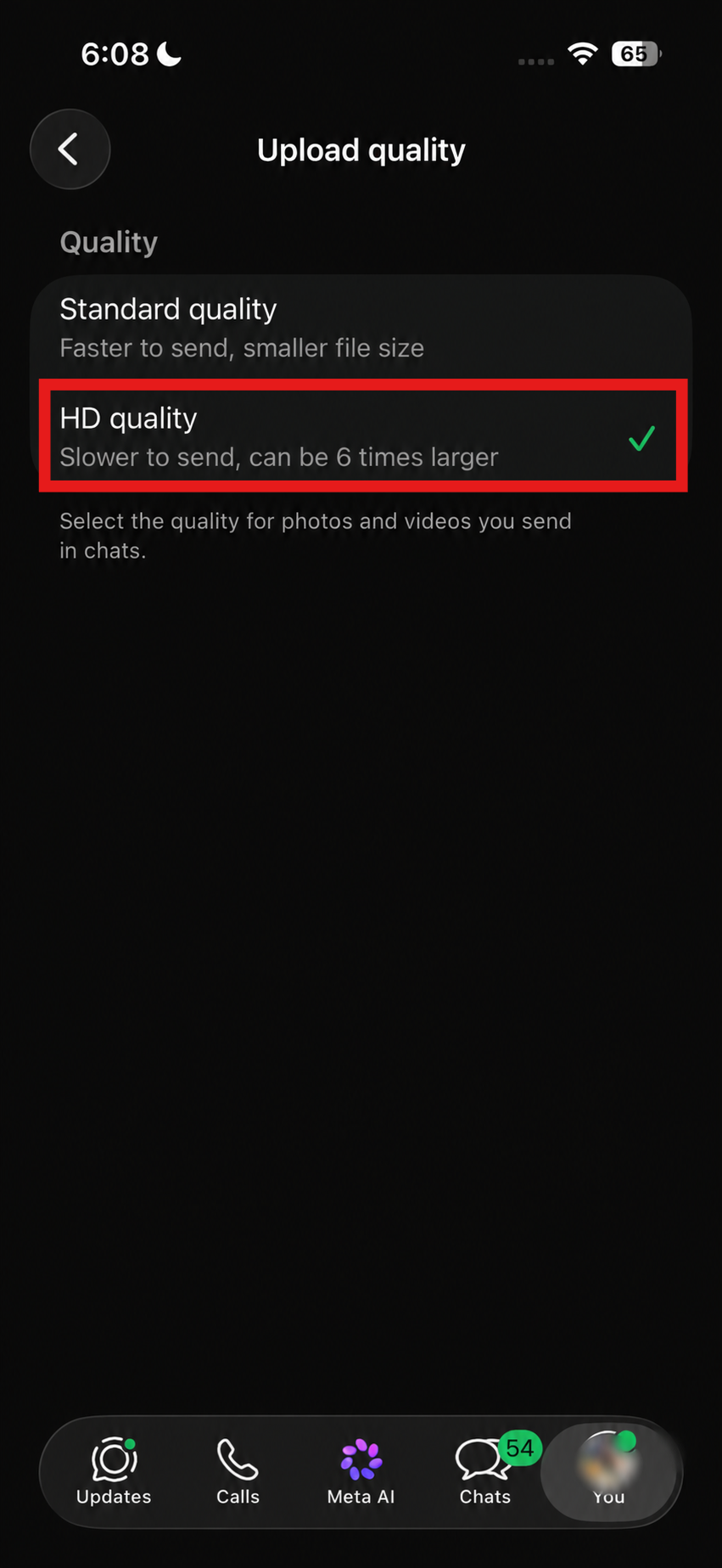
That’s it. These WhatsApp status photo quality settings are behind most blurry Status complaints, and it makes a real difference right away. Just know your photos will take a bit longer to upload, since better quality means bigger files.
If you’re still seeing blur after that, check one more thing.
Open your phone’s Wi-Fi settings, tap the network you’re connected to, and make sure Low Data Mode isn’t turned on. This setting limits how much data WhatsApp can use, which compresses your photos even harder before they upload.
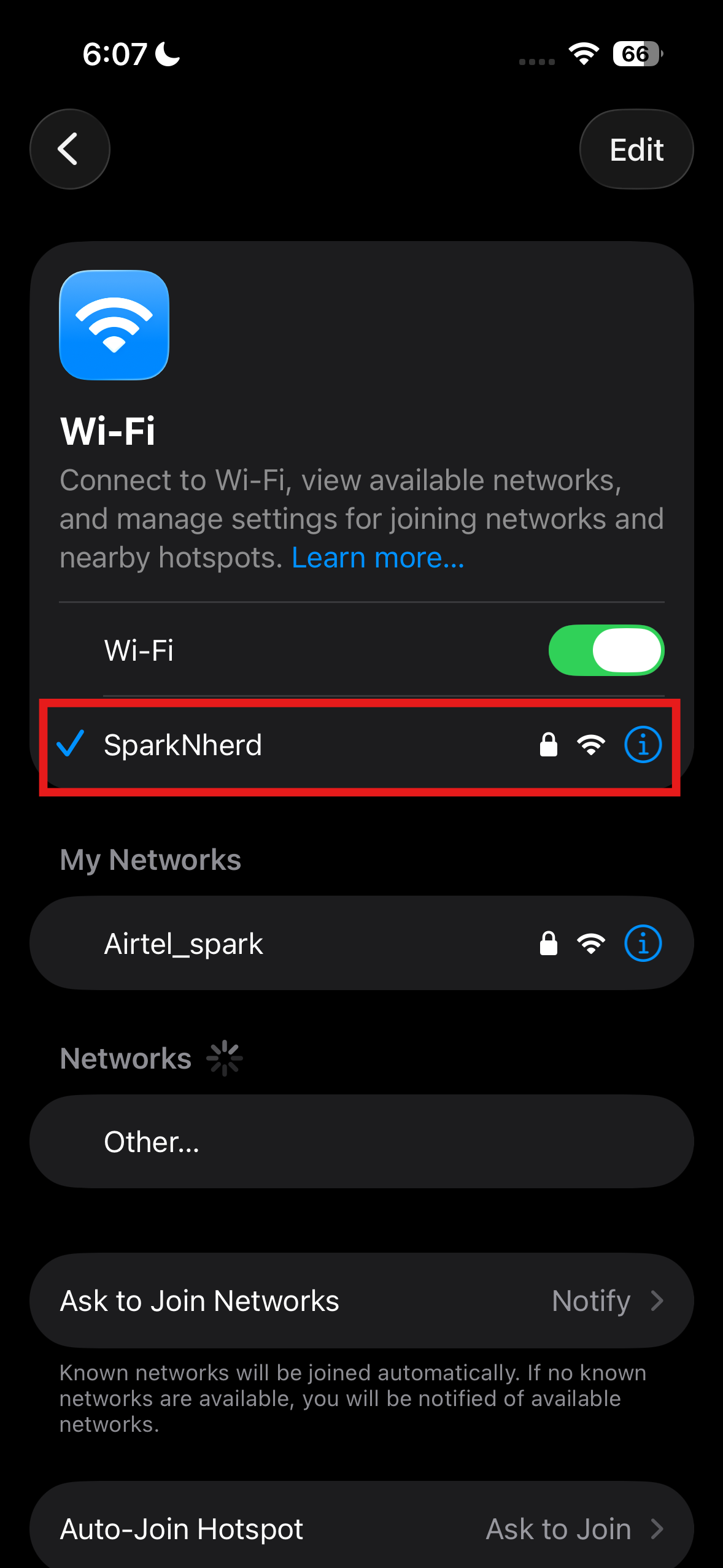
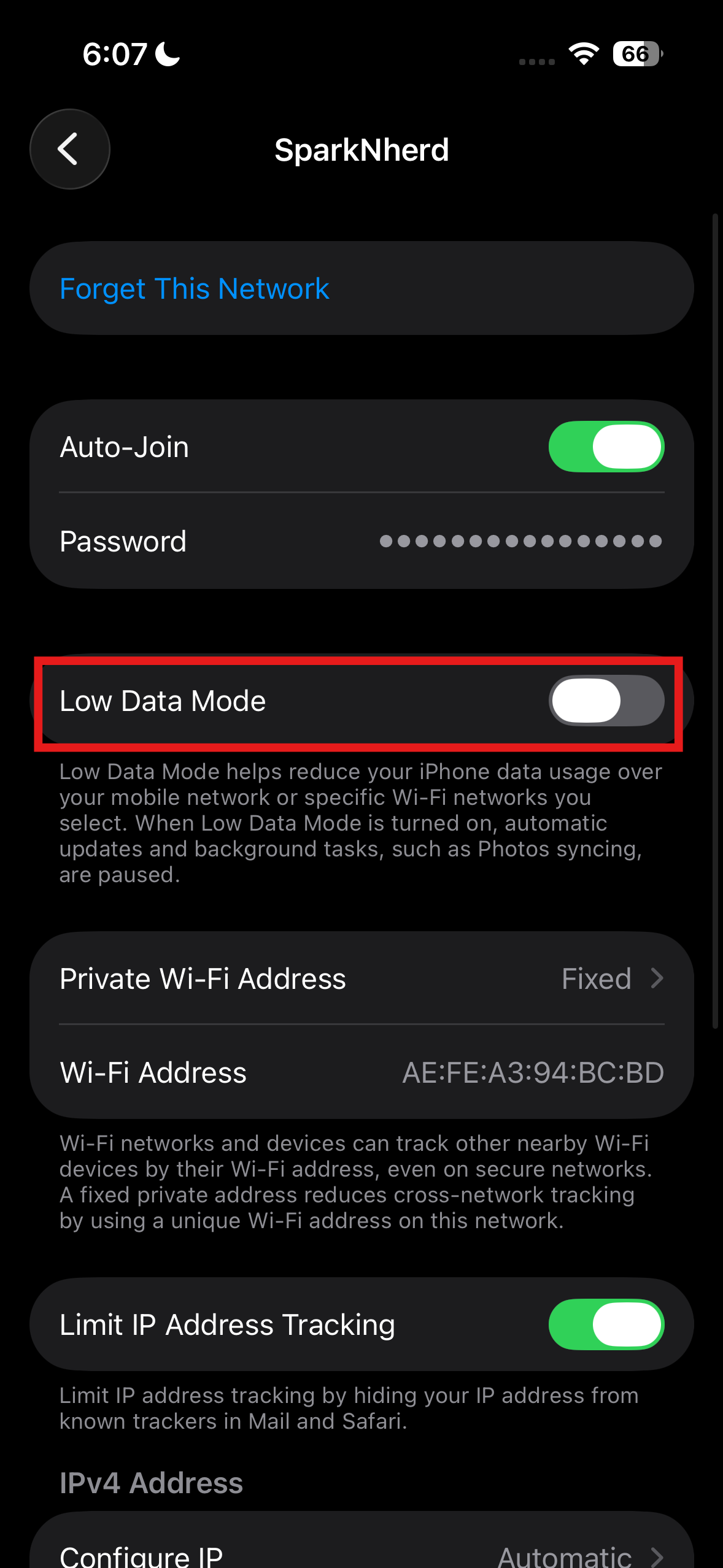
Turning it off, along with switching Media Upload Quality to HD, usually clears things up completely.
How to Upload HD Photos on WhatsApp Status
Want your Status to look genuinely sharp, not just “a little better”? A few small habits help a lot.
Start with the clearest version of your photo you have, since WhatsApp can’t bring back detail that isn’t there. Try not to take a screenshot of a photo and save it again before posting, since each save makes it a little blurrier.
If quality really matters, like for a product photo you want to look extra sharp, send it as a file instead of a regular photo. Files skip most of WhatsApp’s compression, though your Status will still get some light processing.
Clear as Day
At the end of the day, if you want to fix blurry pictures on WhatsApp for good, it comes down to two things: the right size and the right settings.
Fix both, and your photos will finally look like the ones sitting in your camera roll. It takes less than two minutes to set up, and you won’t have to think about it again.
FAQs
Why is my WhatsApp Status picture blurry?
WhatsApp shrinks every photo to save data, and a low-quality photo or weak internet makes it even blurrier.
How do I fix a blurry picture on WhatsApp Status?
Go to Settings, then Storage and Data, then Media Upload Quality, and switch it to Best Quality.
How do I upload HD photos on WhatsApp Status?
Use a clear, high-quality photo close to 1080 x 1920 pixels, turn on Best Quality, and avoid saving the image over and over before posting.