
With iOS 26, Apple has made group chats both smarter and more enjoyable. The highlight is a built-in polling feature that lets you create polls directly in iMessage. No more juggling between different apps or sending a flood of texts just to get everyone’s opinion. Whether you are choosing a dinner spot, planning a weekend outing, or trying to settle a lighthearted debate, you can now get answers quickly and easily without ever leaving the conversation.
In this post, we will show you how to create and manage polls in iMessage. So let’s get going, shall we?
Also See: Can Your iPhone Really Catch a Virus
Why Poll in iMessage Group Chats?
If you’ve ever been in a group chat, you know how quickly things can get messy when it’s time to make a decision. Ideas bounce around, the same points keep popping up, and somehow, nothing actually gets resolved. That’s where polls come in. They cut through the noise and make it easier to land on a decision without all the back-and-forth.
Apple didn’t just add polls to iMessage for convenience. They designed them to work naturally with the way you already use your devices. Here are the key features,
- No third-party app downloads: Polls are built right into iOS, iPadOS, and macOS 26, and so you don’t need to install or rely on any extra apps. Not only does this integration keep your experience seamless, but it also ensures that polls feel like a natural part of iMessage.
- Safe and secure: Just like your messages, all poll data is protected with end-to-end encryption, thus making your votes and results private and visible only to the people in the group.
More importantly, polls make conversations more interactive, whether you are chatting with family, friends, or your team. That said, do note that everyone in the group must be using iOS 26 and the chat must be an iMessage group.
How to Create a Poll in iMessage Group Chats on iOS 26
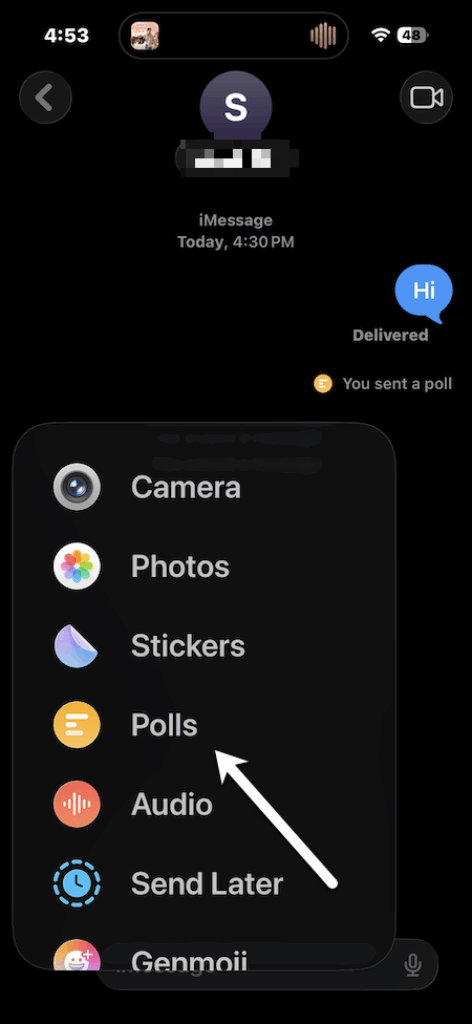
Step 1: Open the Messages app on your iPhone and go to an existing one. Tap the “+” button next to the message field and select the Poll icon as shown below.
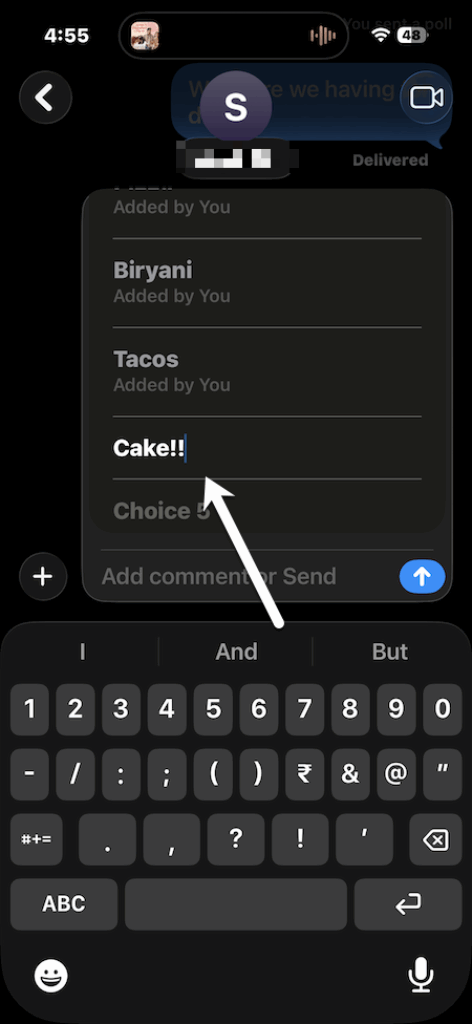
Step 2: Next, type your poll question. For example, “Should we have pineapple pizza for dinner?” You will need at least two choices for the poll to be active. Now, add in your options.
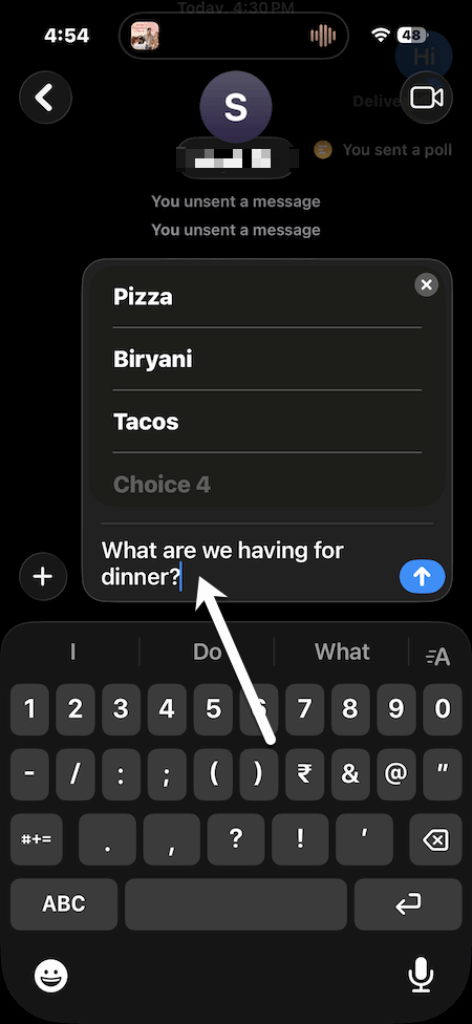
As you add more responses, additional boxes will appear automatically. For now, polls allow up to 12 options.
Step 3: Once everything looks good, just tap Send to share your poll with the group and start collecting votes instantly.
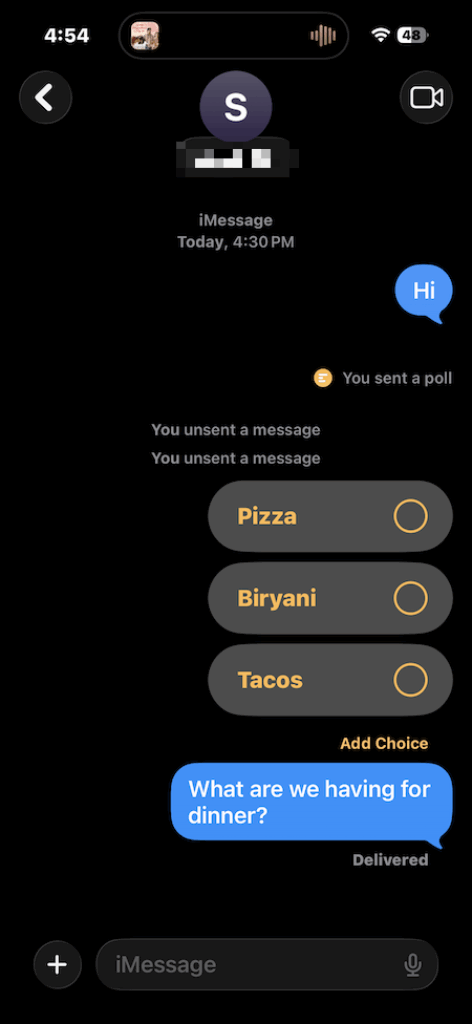
When you create a poll, it shows up right in the chat as an interactive message with your name at the top. Everyone in the group can vote, choosing one or multiple options depending on the settings. Each response is displayed with the person’s profile photo next to it, so it’s easy to see who voted for what. Cool, right?
How to Edit Polls in iOS 26
The good news is you can still make changes to a poll even after it’s been shared. For instance,
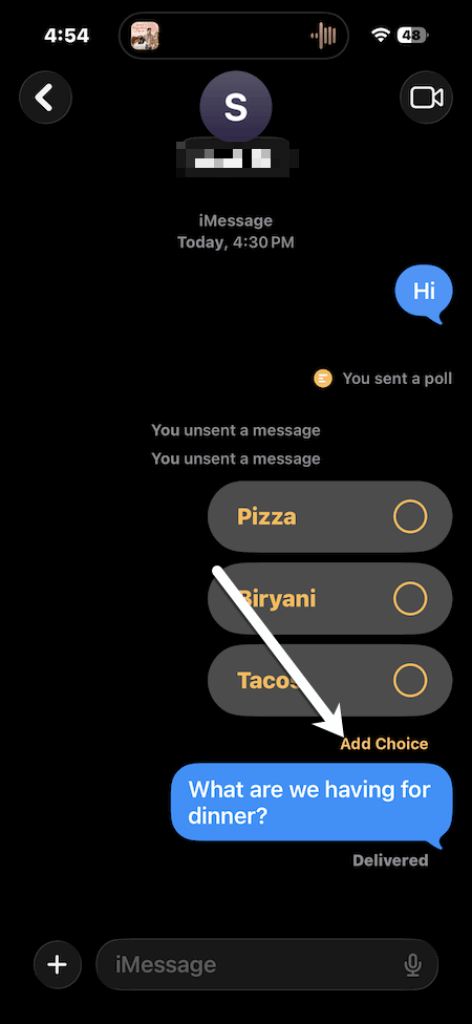
- Add new options: Tap the poll, select Add Choice, and type in your answer.
- Check details: Long-press the poll and select Poll Details to see who voted for what.
- Delete a poll: Long-press the poll message and choose Undo Send.
Polls update in real time, so as votes come in, you’ll instantly see names or profile photos appear next to each choice. That way, it’s clear what the group is leaning toward without any extra confusion.
Interestingly, iMessage in iOS 26 can now suggest polls based on what is being discussed. For example, if someone types, Board games or movie marathon?, you might automatically see a prompt to create a poll right above the keyboard. This makes organizing even quicker and requires fewer steps.
Take Superfast Decisions
The new polling feature in iOS 26 makes group chats much easier to manage. Instead of wading through endless messages, you can quickly set up a poll to decide on dinner plans, choose an activity, or make team decisions without the usual back-and-forth.
With Apple Intelligence suggesting polls based on the flow of your conversation, the process is smoother and quicker than ever. Since the feature is built right into iMessage, it’s secure, private, and effortless to use, unless you’re working with older devices.