Your Apple devices, be it your iPhone or your MacBook, hold more than just photos. From private videos and special moments to sensitive documents, your iPhone and MacBook (or even your iPad) are full of personal things you would want to keep just for yourself. Thankfully, Apple gives you built-in ways to how to hide photos on iPhone.
In this post, we will show you how to hide photos on iPhone and other Apple devices, like your iPad or Mac. Plus, we have also added a few smart tips to help keep your content private and secure. Read on to know more!
See Also: Can Your iPhone Really Catch a Virus
How to Hide Photos on iPhone (or iPad)
Hiding photos (and videos) on your iPhone or iPad is quick and easy. Thanks to the built-in Photos app, you can move any image or video to a hidden album. It’s a simple way to keep private moments out of sight while still keeping them close
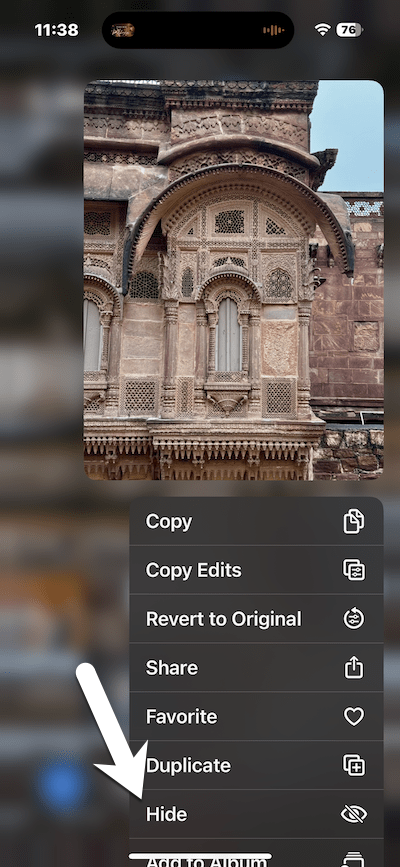
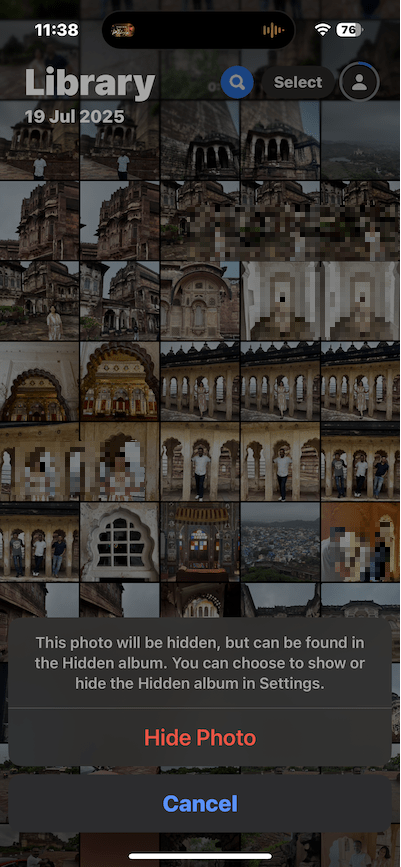
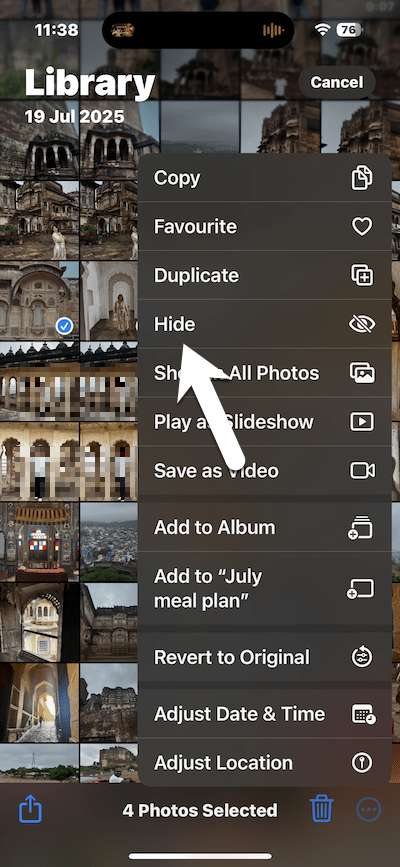
To hide a single photo or video, open the Photos app, long tap on the item, choose Hide, and confirm.
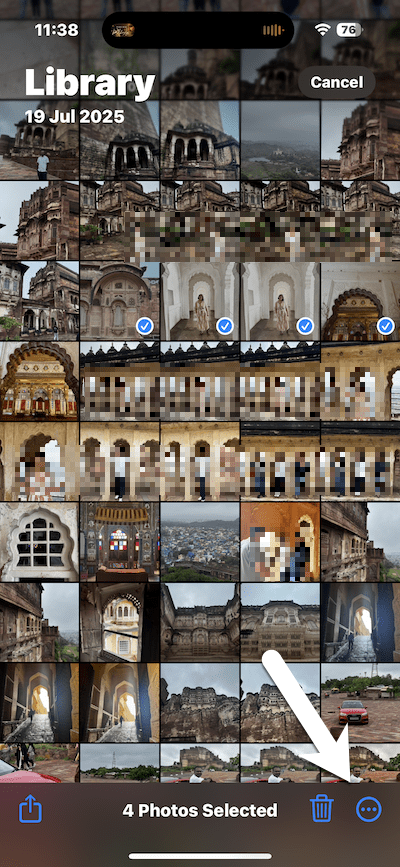
Alternatively, you can hide multiple items. Just tap Select on the top-right corner and choose the media you want to hide. Tap on the More icon on the lower-right corner and choose Hide.
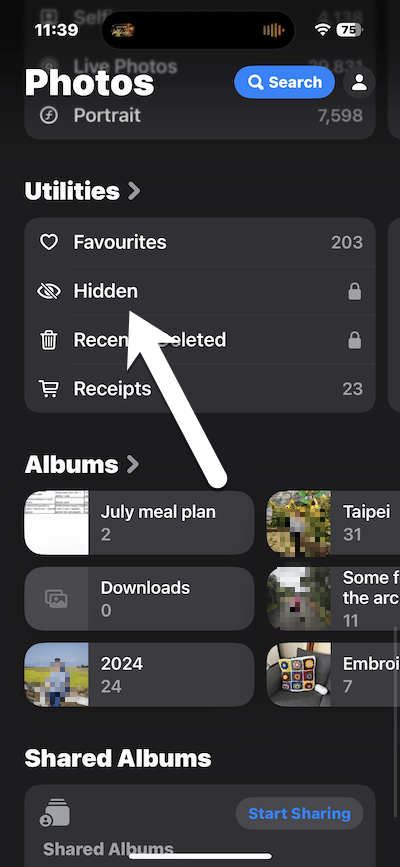
To access the hidden content, all you need to do is open Photos, scroll down until you see Utilities, and then tap on Hidden. Next, simply authenticate using Face ID or passcode to view the hidden content.
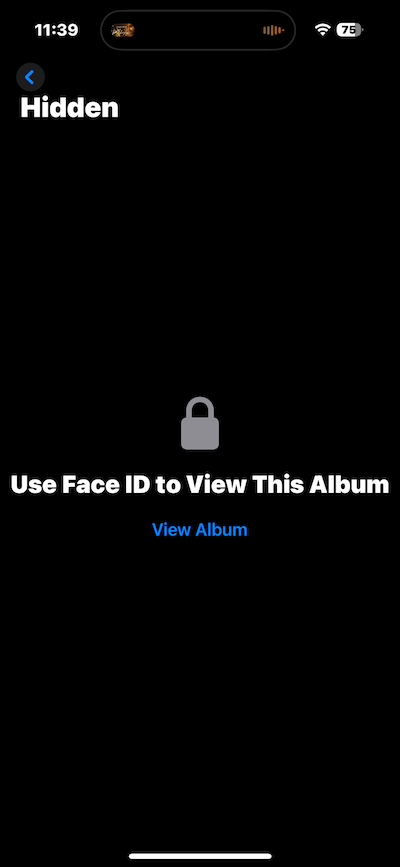
If you want to unhide something, all you need to do is go to the Hidden album, tap Select, choose the media, tap the More icon, and select Unhide. It’ll return to your main Photos library.
To delete an item from the Hidden album, open it, tap the Trash icon, and confirm deletion.
How to Hide Photos and Videos on MacBook
If you’re using a Mac, you can hide photos and videos on a MacBook just as easily with the Photos app. It works just like it does on your iPhone or iPad. All it takes is a couple of clicks, and your private media is moved to the Hidden album, out of view but still safely stored.
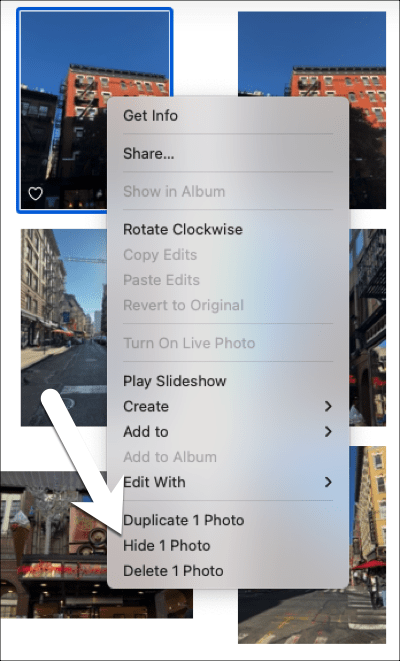
To hide a single item, open the Photos app, double-click the photo or video, then control-click (or use the Image menu) and choose Hide.
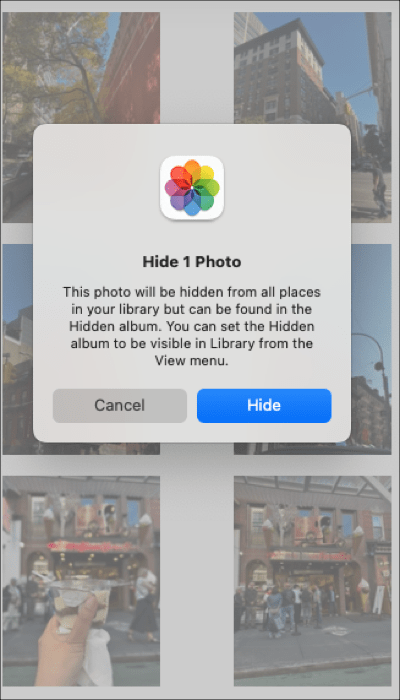
The good thing is that hidden items do not appear in search results unless accessed directly.
Similarly, you can also hide multiple items by holding the Command (⌘) key and selecting multiple files. Then, control-click any selected item or use the Image menu, choose Hide Photos/Videos, and confirm.
To access hidden items on your Mac, click on View and select Show Hidden Photo Album.
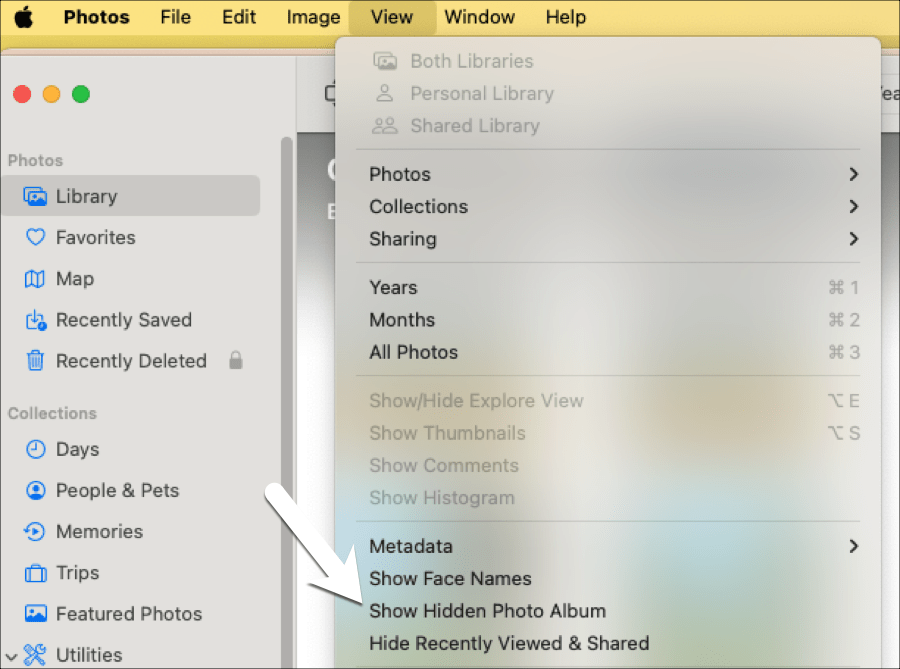
Now, you will see the Hidden option in the sidebar under Utilities. Click View Album and authenticate with Touch ID or your Mac password.
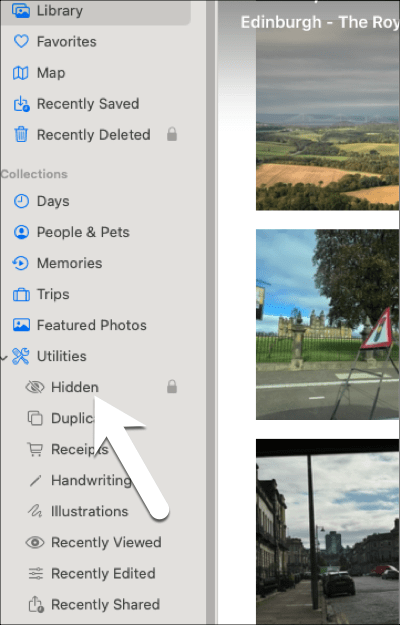
To unhide an item, open the Hidden album, select the photo or video, Control-click, and choose Unhide, or use the Image menu to do the same.
How to Lock and Hide the Hidden Album on iPhone
It’s Apple we are talking about, and we know that they take privacy very seriously. Not only do they let you lock the Hidden album using Face ID, Touch ID, or your passcode, but you can also make it completely disappear from the Photos app if you want extra peace of mind.
On iPhone or iPad, go to Settings > Apps > Photos and make sure Use Face ID is turned on to secure your Hidden album.
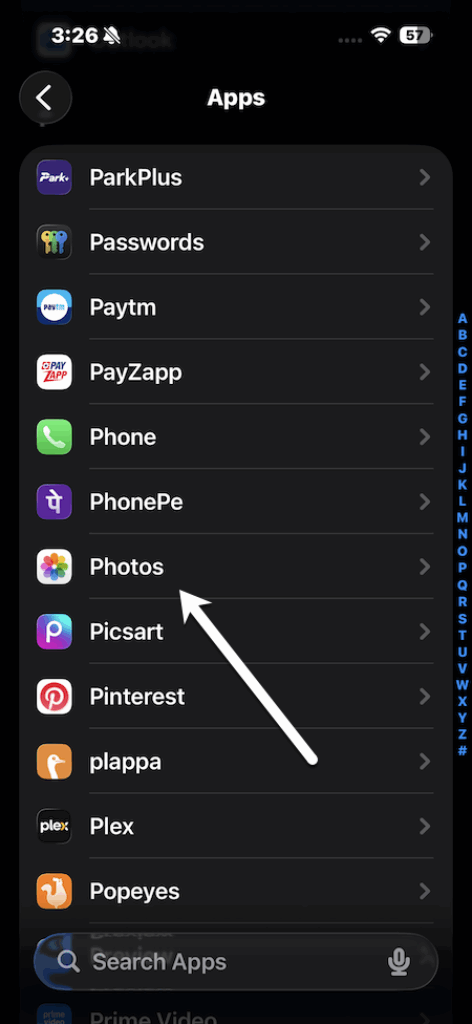
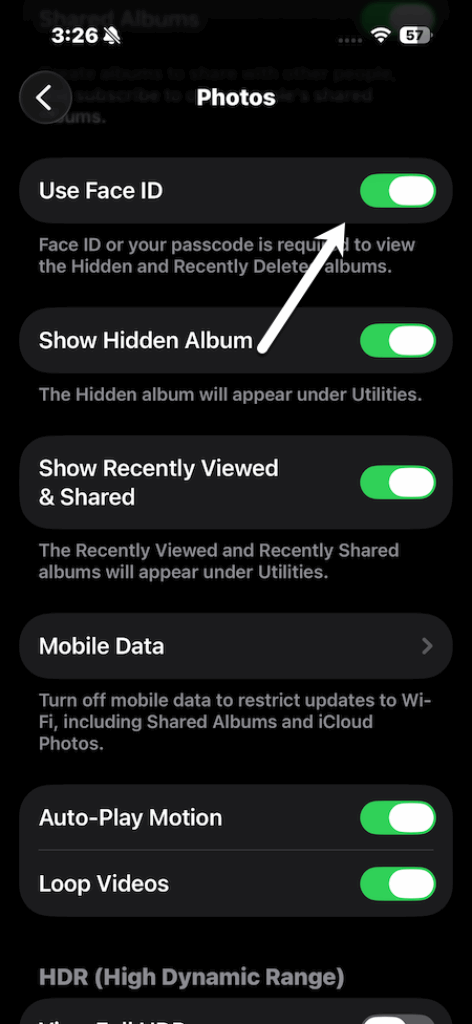
If you want to hide the album completely from the Photos app, turn off the Show Hidden Album toggle. You can enable it again later if needed.
On Mac, the Hidden album is protected by your Mac password or Touch ID. It stays out of view in the sidebar unless you enable it manually via the View menu in the Photos app.
Tip & Tricks to Keep Photos Truly Private
1. Adjust Settings
When you move photos or videos to the Hidden album, they are removed from your main photo library. However, the Hidden album itself remains visible in the Photos app by default.
To ensure complete privacy, you must manually hide the Hidden album through your device settings.
2. iCloud Sync Issues
If you use iCloud Photos, any photos or videos marked as hidden will automatically sync across all of your Apple devices.
While they stay hidden across devices, it is important to secure your iCloud account using a strong password and two-factor authentication to prevent unauthorized access.
3. No Encryption
It is important to understand that hiding a photo does not mean it is encrypted. Without encryption, hidden content can still be accessed through certain tools or methods. If you want to enhance privacy further, you can consider storing sensitive media in locked Notes.
At the same time, you can also enable two-factor authentication for your Apple ID to enhance your security further.
Smart Privacy
This is how you can hide photos and videos on a MacBook and iPhone. These solutions may seem simple, but are a powerful way to keep your private photos and videos out of view. The best part is that Apple makes the entire process easy to manage. Whether you are hiding a single photo or locking the entire album, it only takes a few steps to add an extra layer of privacy.
FAQs: How to Hide Photos and Videos on iPhone and MacBook
Q1. Can you lock hidden photos on iPhone
Yes, you can lock hidden photos on an iPhone by using Face ID under the Photos settings.