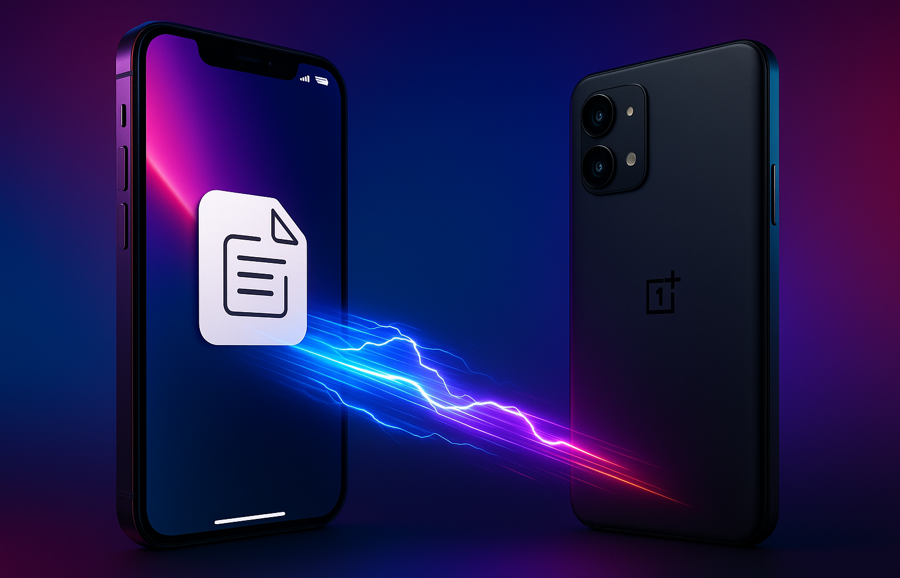
File transfers between iPhone and Android users have been a challenge since the very beginning. Messaging apps make the process slightly easier, but you often lose quality or run into restrictions with specific file types. There is still no universal method that works seamlessly across both platforms. Thankfully, the situation is finally improving. If you are a Samsung user, this guide will show you how to share files easily and reliably between Samsung devices and iPhones.
The best part is that this method works not only for Samsung phones but across the entire Android ecosystem. So, is this the best solution available today? Well, let us fin
See Also: Best Samsung 5G Smartphones Under INR 20,000
How to Share Files Between Android and iPhone
Before we get started, it is important to mention that iPhone users will need to install the LocalSend app. In our defense, this requirement removes the need to install any other third-party apps on both the iPhone and the Samsung device. You only need to ensure that both phones are connected to the same Wi-Fi network.
With that said, let’s see how to share files between Samsung phones and iPhones.
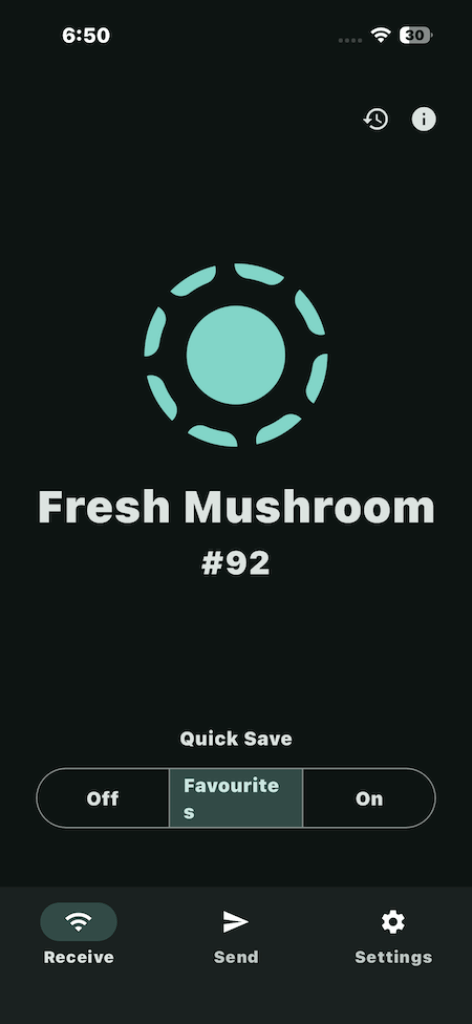
Step 1: On your iPhone, open the LocalSend app and allow all the required permissions. Once done, tap on Receive at the bottom, and you will see the alias name of your phone. Yes, the names are super cute.
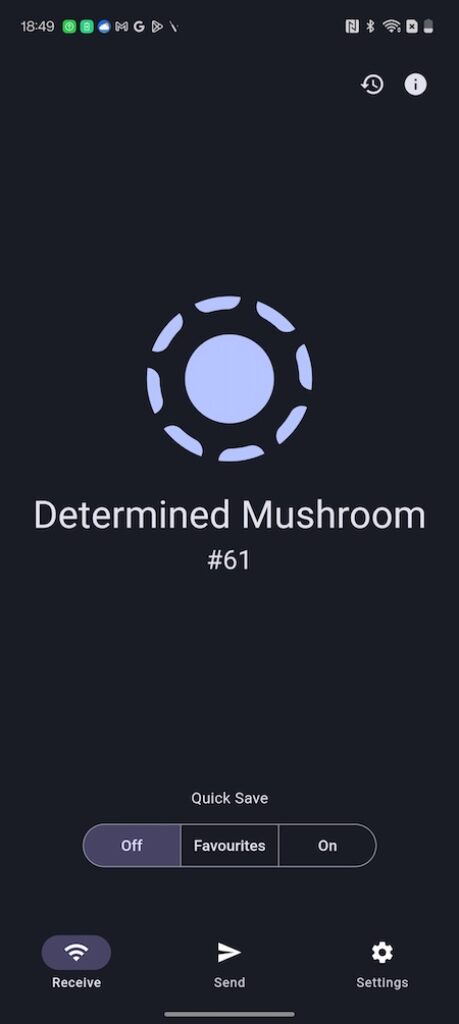
Step 2: Meanwhile, on your OnePlus device, open the LocalSend app and, like the one above, enable all app permissions. Now, tap on Send.
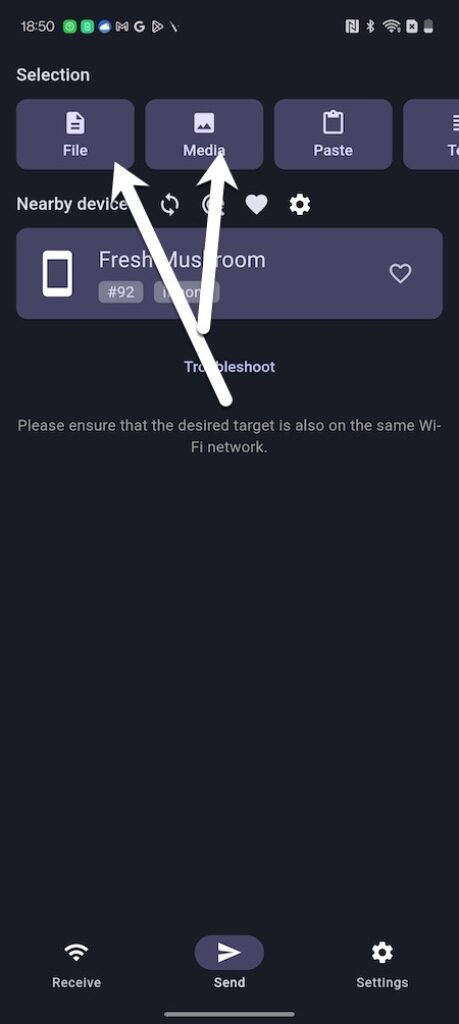
If the iPhone is connected to the same Wi-Fi network, you should be able to see the iPhone’s alias name on the screen.
Step 3: Now, all you need to do is tap on Media (or file or folder) and choose the files you want to share. Once done, tap on the alias name to select it, and that’s it.
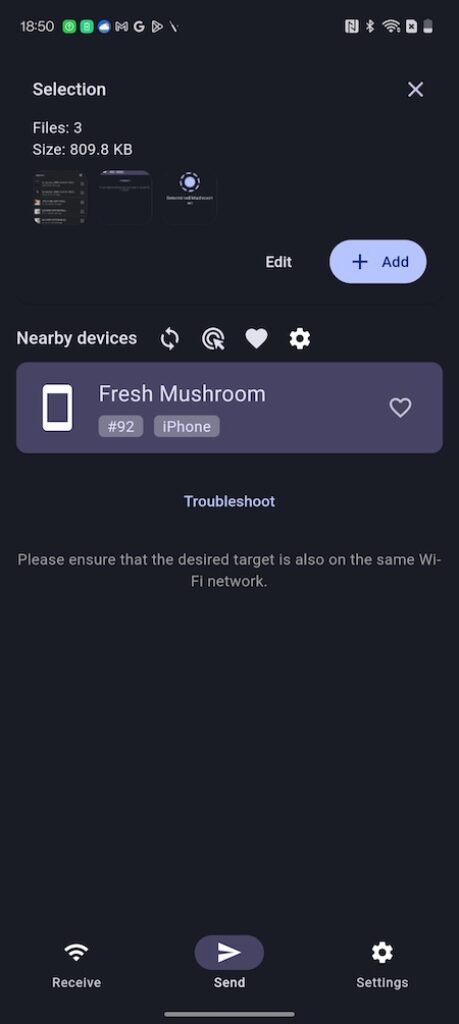
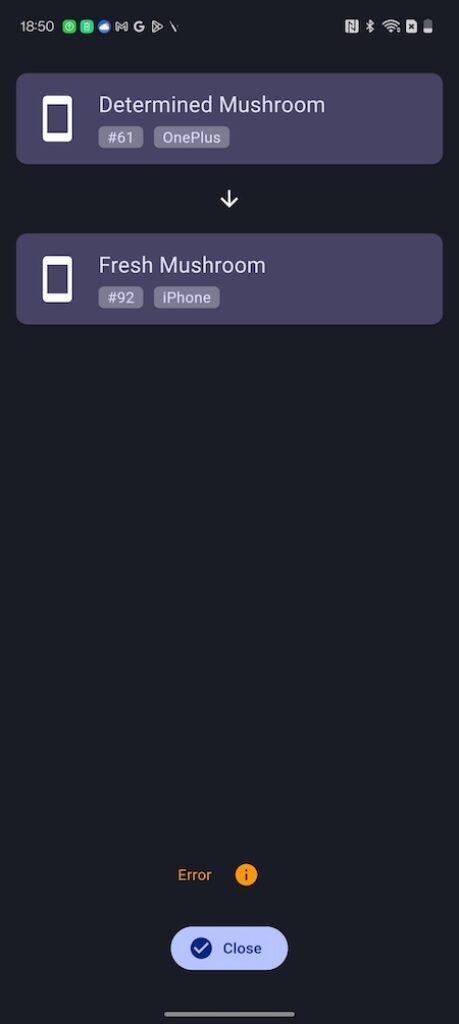
The files will be transferred via the local Wi-Fi network in a jiffy. Choose the files you want to send to your iPhone. Since the feature works system-wide, it allows file transfers from apps, file managers, photo galleries, and other built-in tools across both Android and iOS.
The good thing about this method is that there are no secondary steps involved. At the same time, the transfer speed is usually faster. Just ensure that both devices need to be connected to the same Wi-Fi.
Sharing Files Between Samsung and iPhone: FAQs
1. Can Android and iPhone share files directly?
Yes, Android and iPhone can share files directly via apps like LocalSend.
2. Is there a Samsung version of AirDrop?
Yes, Quick Share is Samsung’s native file-sharing feature that lets you send photos and documents to nearby Samsung or Android devices.