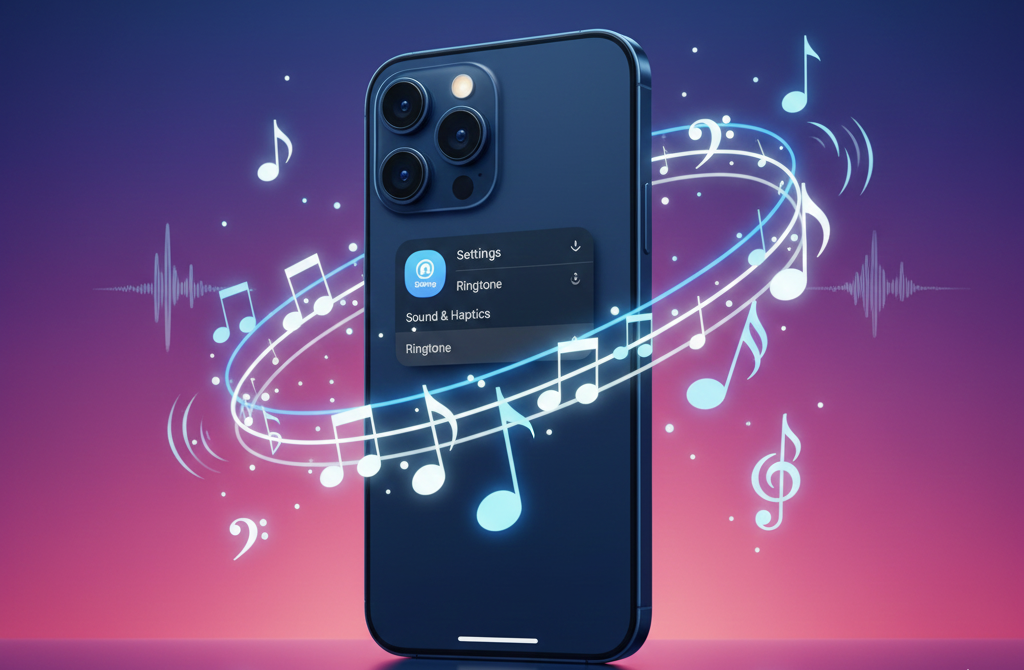
Apple devices are known for their smooth performance, but when it comes to customization, especially setting a custom ringtone, users cannot do it with ease. Unlike Android, iPhones do not allow you to directly set any audio file as a ringtone, which often confuses users. However, with a few simple steps, you can still create and set a custom ringtone on an iPhone without using a computer.
See Also: Can Your iPhone Really Catch a Virus
How to Setup a Custom Ringtone on iPhone
Apple has a simple four-step process so that people can set their own ringtones using the Files app on the iPhone. Using this tool is simple and easy, and all you need is an MP3 or M4A audio file that is less than 30 seconds long.
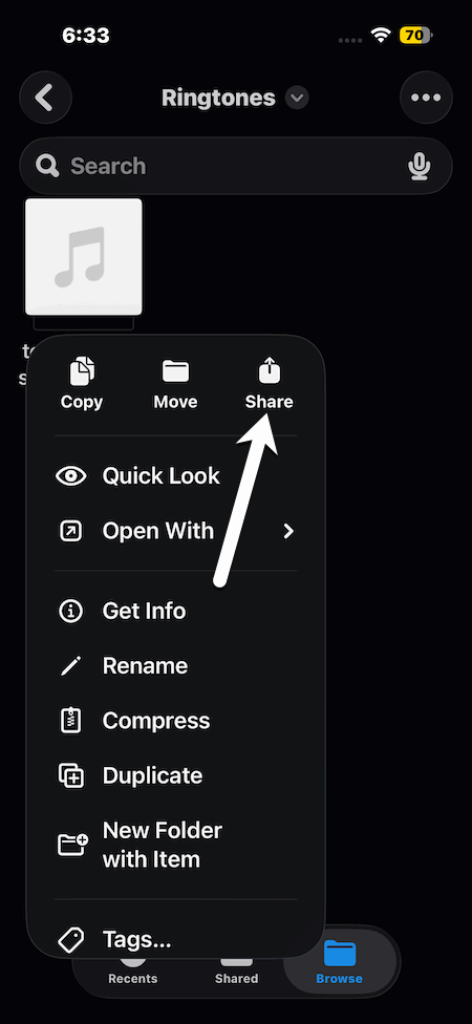
Step 1: Open the Files app on your iPhone, and locate and long-press an MP3 or M4A audio file. Do note that the audio file should be less than 30 seconds in length.
Step 2: Here, in the pop-up menu, select Share. Now, scroll down in the actions menu and tap Use as Ringtone.
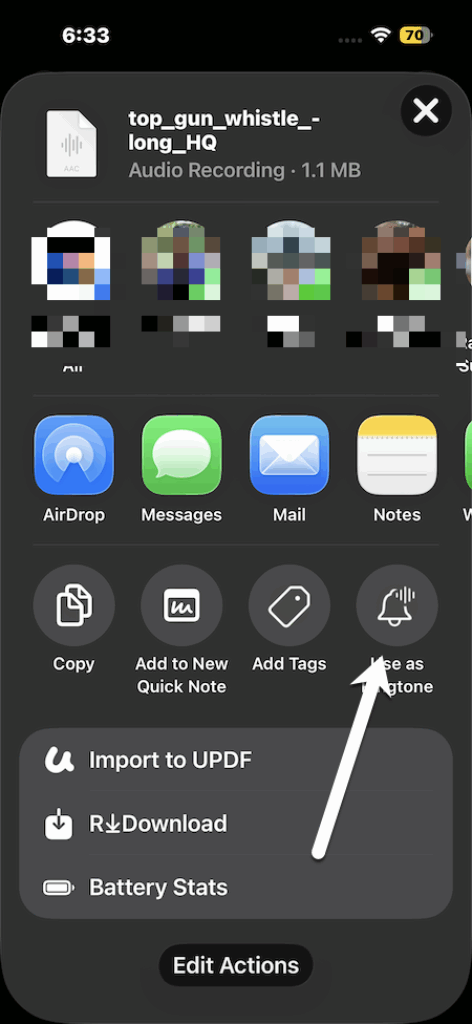
It supports all the standard audio formats, such as MP3 and M4A.
How to Edit and Delete Custom Ringtones
To remove a particular ringtone, head over to Settings > Sounds & Haptics > Ringtone to see all your ringtones.
All you need to do is swipe to the left on one of the ringtones, and tap on “Delete” to delete the ringtone name.
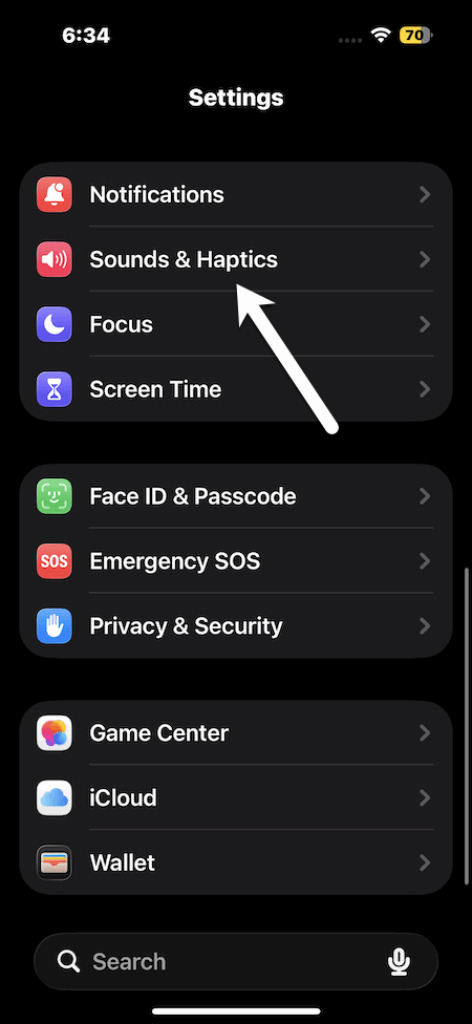
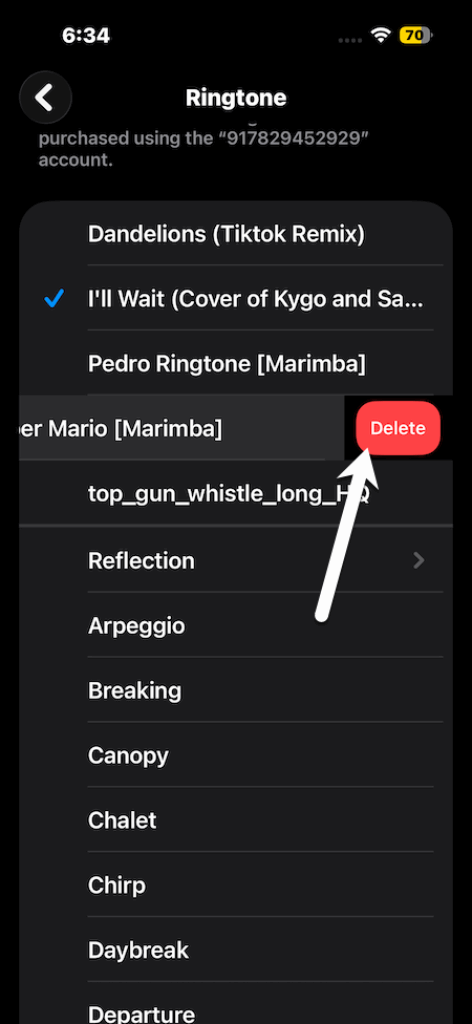
At the same time, you can choose any other ringtone from the list to change the ringtone.
Benefits of Setting Custom Ringtones on iPhones
This process is simple and thus avoids complicated software or syncing through iTunes. Plus, you can create and apply a ringtone in just a few taps. What’s more, you can enable personalization of the ringtone experience on iPhone with any preferred short audio clip.
See Also: How to Share Files Between Samsung and iPhone
Here’s to Custom Ringtones on iPhones
Setting a custom ringtone for the iPhone is easier than ever before. The integration with the Files application for the ringtone settings provides a good user experience. It is great for those users who want to customize their iPhone sounds.