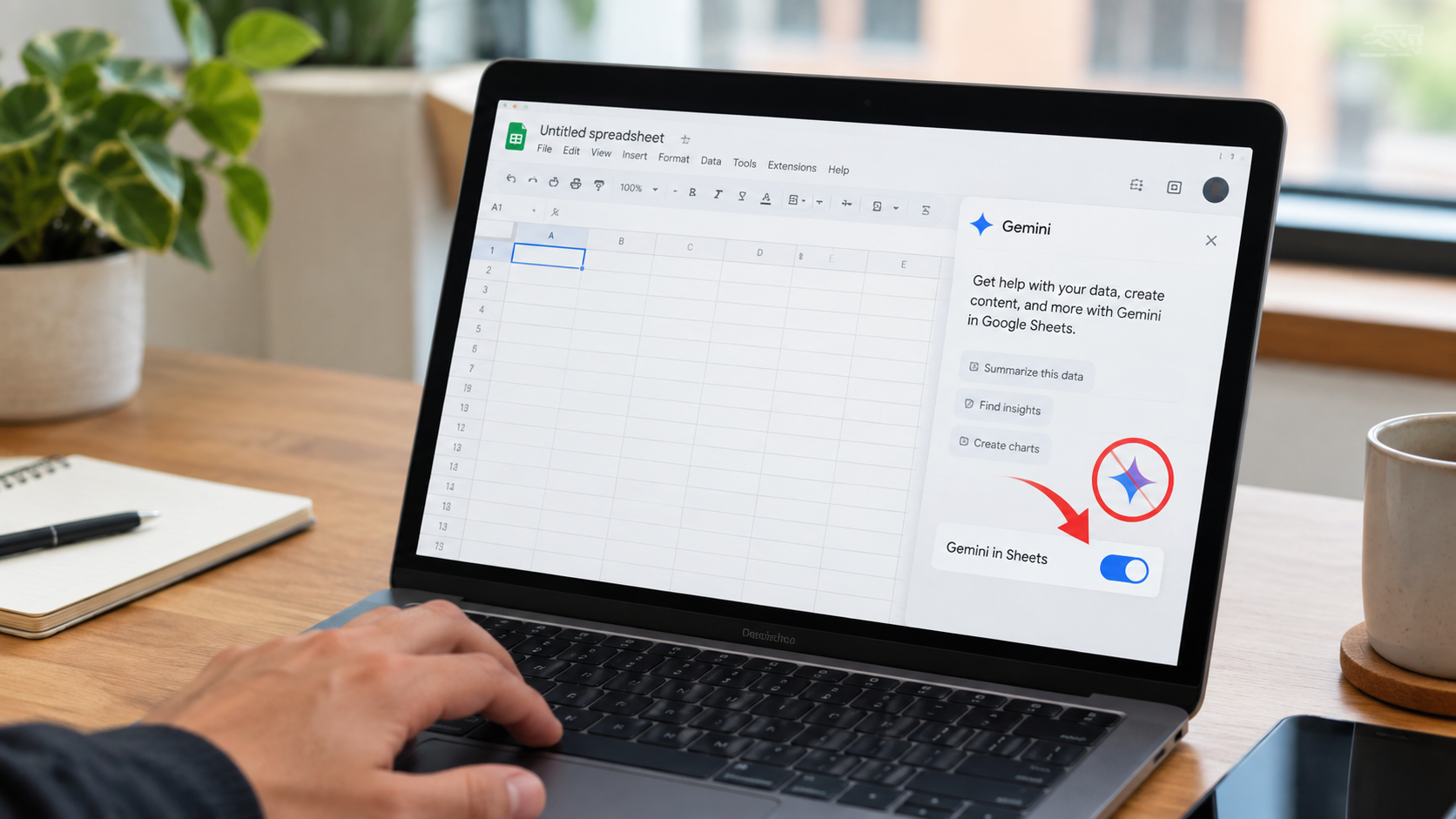
If you are a person who works on Google Spreadsheets, you might have noticed a little Gemini sparkle sitting in your Sheets toolbar that you never asked for.
If yes, then you are not alone. A lot of people just want a plain spreadsheet without an AI assistant popping in.
Good news: you can turn it off, and it only takes a minute or two. Here are the steps that can help you disable the feature.
The Easy Way, Right Inside Sheets
Open any Google Sheet. At the top, you’ll see Gemini in the menu bar. Click it, go to < bottom bar preferences < Uncheck all the settings.
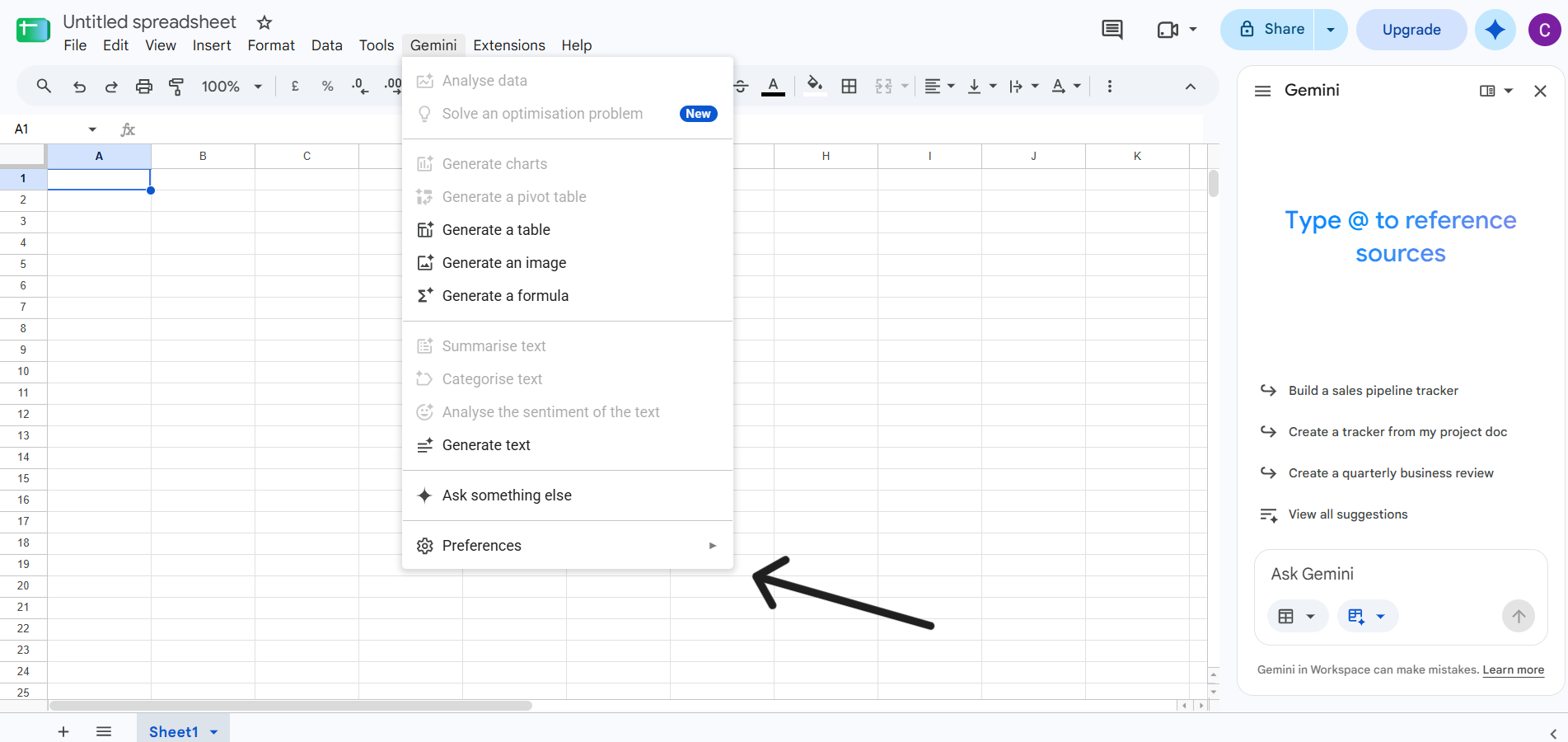
One thing to know: this isn’t a per-sheet setting. Once you switch it off, it’s off for every Google Sheet you open, not just the one you’re currently in.
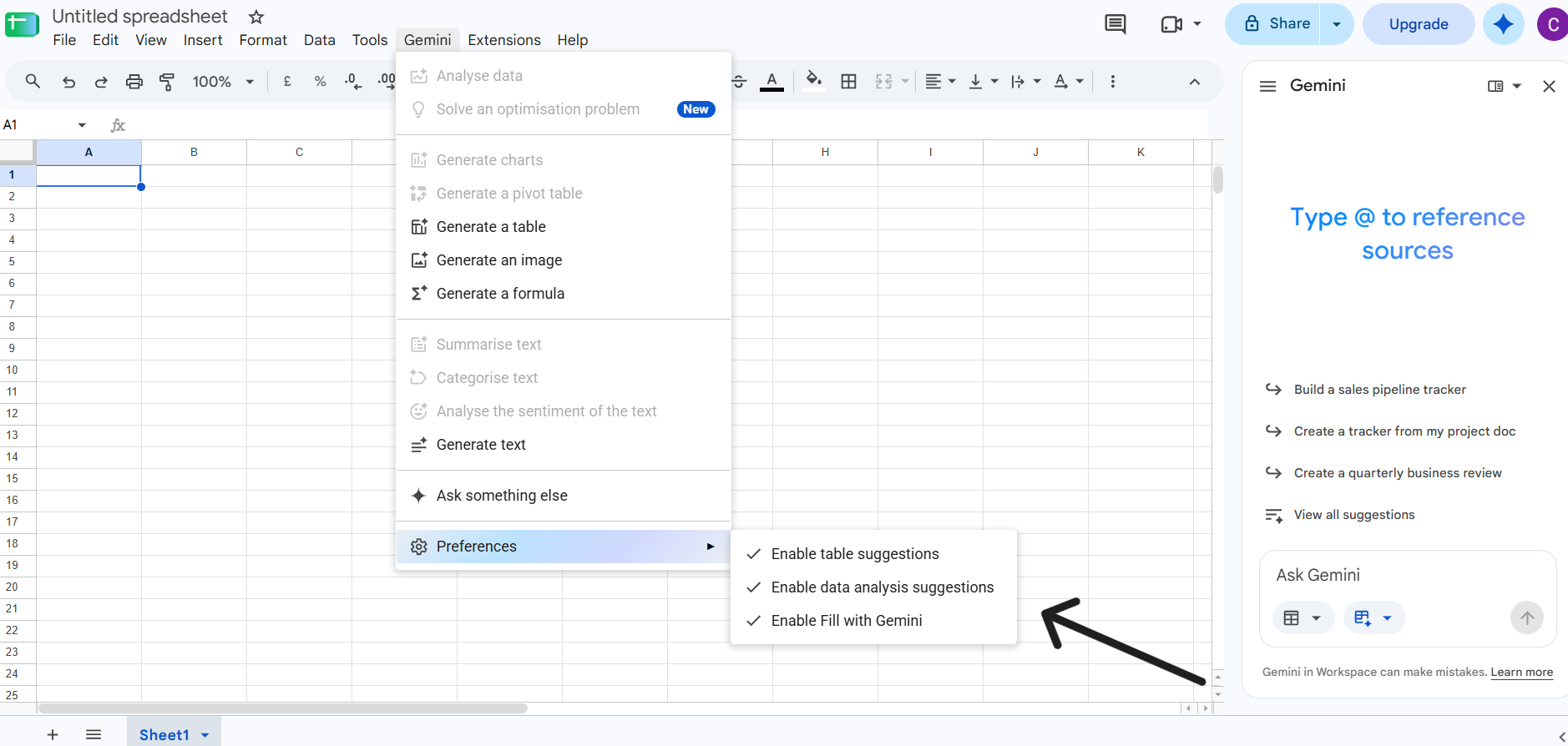
If you want more control instead of an all-or-nothing switch, click Gemini in the menu again, but this time choose Preferences. You’ll see a list of specific features you can uncheck one by one, rather than killing everything at once.
Why the Sheets Toggle Sometimes Isn’t Enough
Here’s the part that trips people up. Gemini in Sheets isn’t really its own separate thing. It runs on the same Smart features switch that also controls AI in Docs, Drive, Calendar, and Maps.
So even after you turn it off inside Sheets, you might still see AI stuff creeping in from other Google apps.
To shut it down more completely, go to Gmail instead.
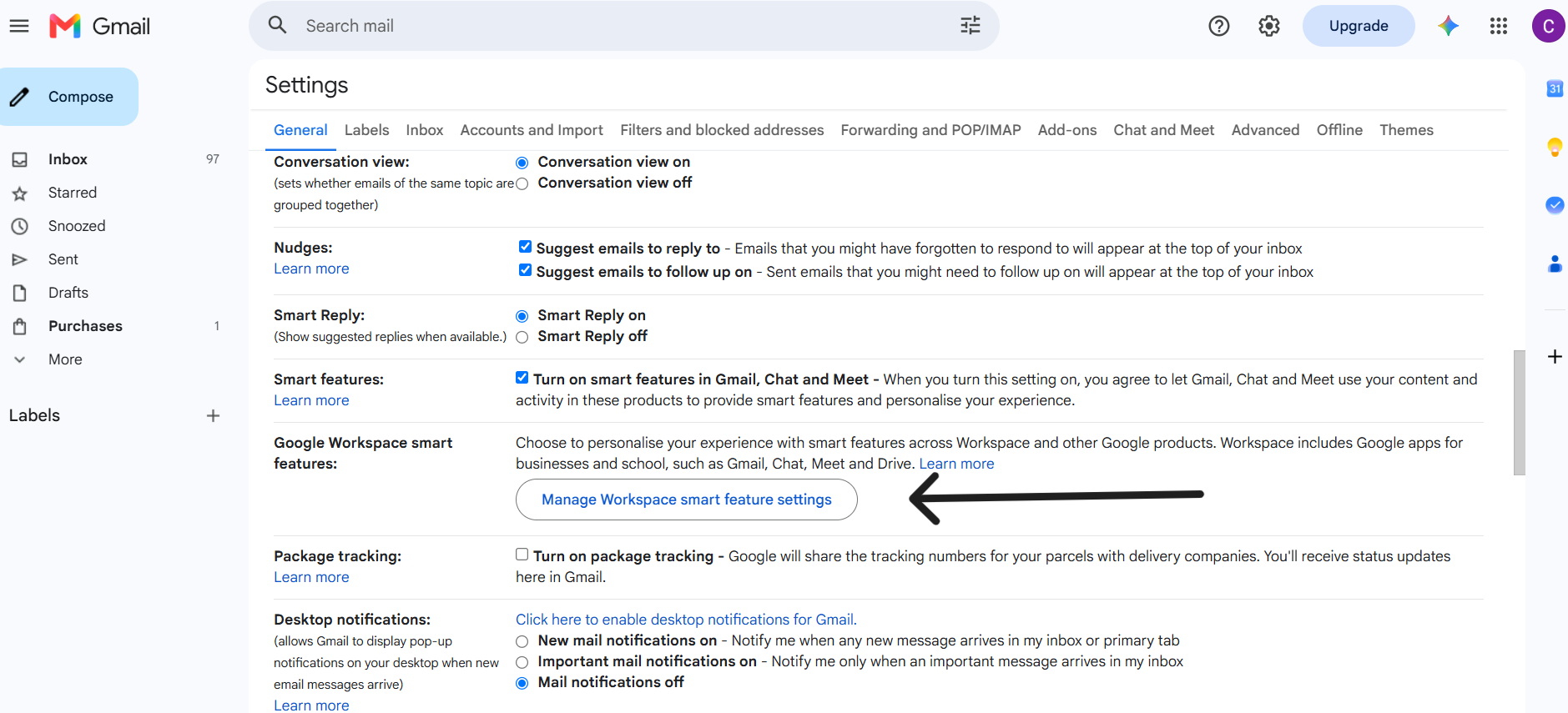
Click the gear icon < See all settings. Stay on the General tab and scroll down until you find Smart features and personalization. Uncheck that box.
Then click the link for Workspace smart feature settings. You’ll find two more toggles there: one for Smart features in Google Workspace, and one for Smart features in other Google products.
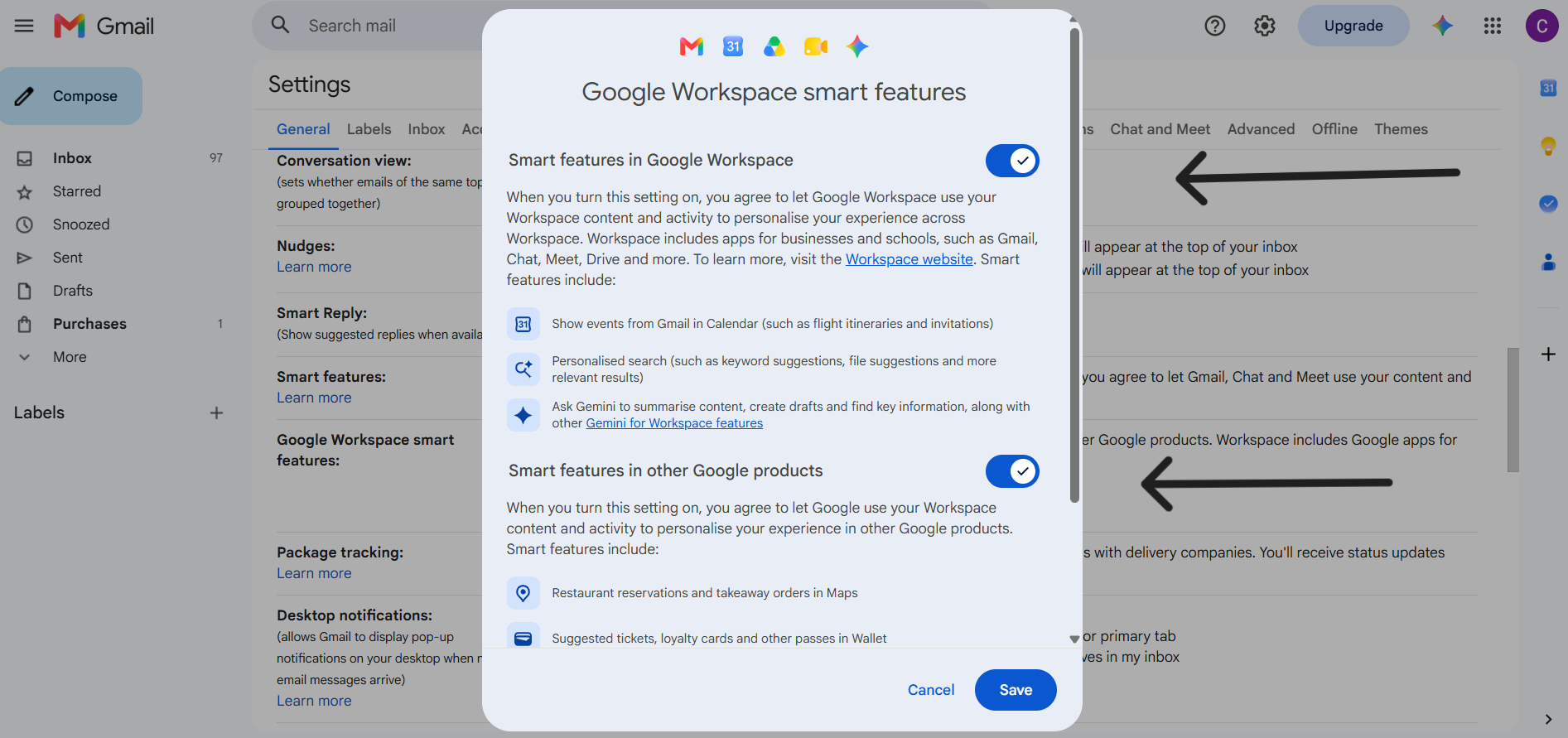
Turn both off and save. This is really the master switch, and it covers Sheets along with everything else.
A Small Catch to Know About
Turning off Smart features isn’t purely a Gemini decision. That same setting also controls a few non-AI things in Gmail, like spellcheck and priority inbox.
Some people find this annoying, since there’s no way to keep the basic writing helpers while dropping just the AI part.
It’s an all-or-nothing bundle. This won’t change anything inside Sheets itself, but it’s worth knowing before you flip the switch.
Read More: https://sparknherd.com/how-to/change-name-on-youtube/
If You’re on a Work or School Account
If your Google account comes through your company or university, things work differently. You probably won’t have full control yourself. That’s because Workspace accounts let admins manage Gemini access for the whole organization.
If you are the admin, you’d go into the Google Admin console, open Generative AI, then Gemini for Workspace, and click into Features access. Find Sheets in the list < click Edit < and toggle it off. That turns Gemini off for everyone on the domain at once.
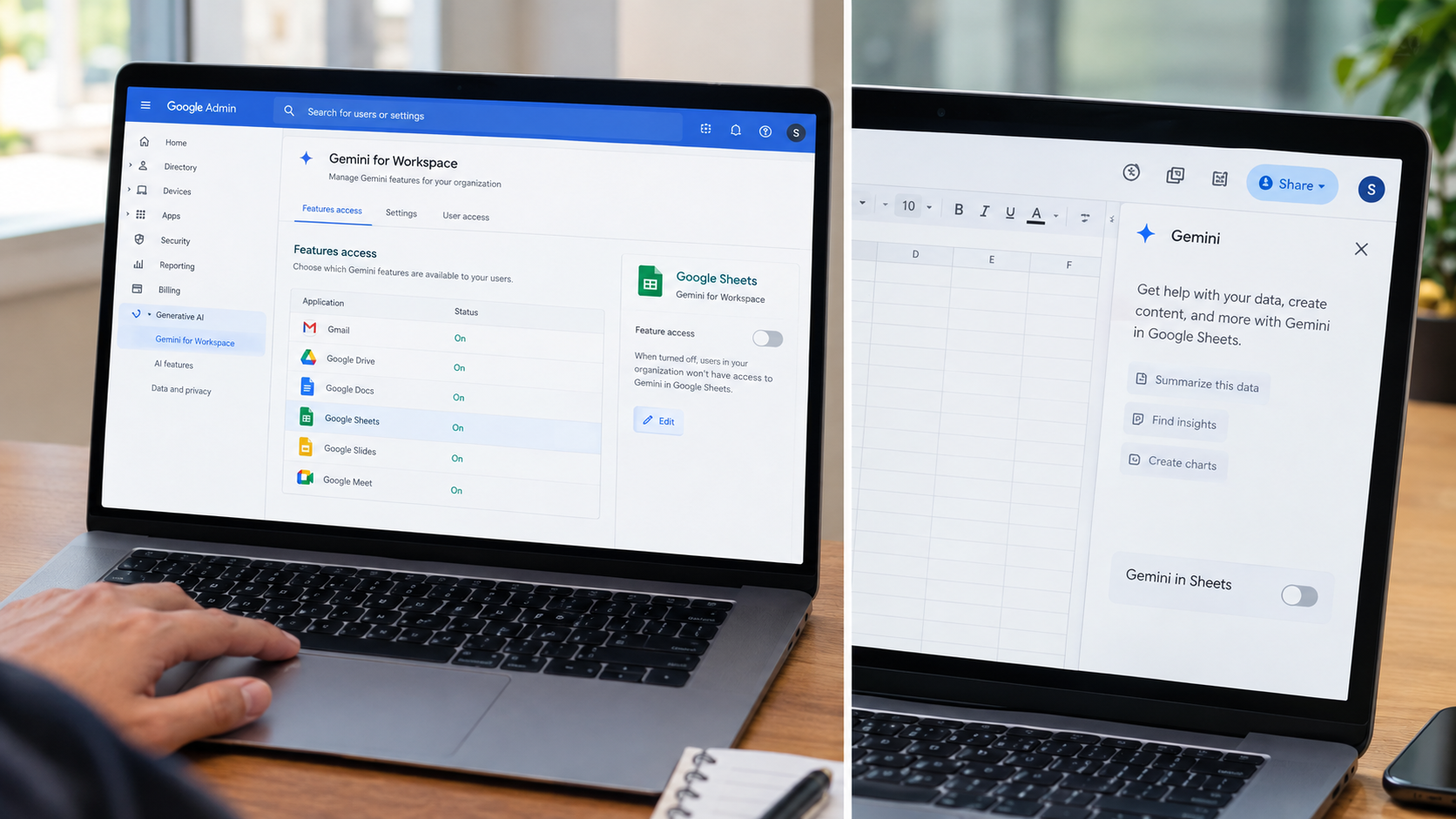
If you’re just a regular user and your organization already has Gemini switched on, you still have a smaller option. Inside any Sheet, click the Gemini icon and turn it off just for your own account.
This hides it from your view, but it doesn’t change the setting for anyone else, and your admin could technically turn it back on later.
Why People Want to Turn It Off
The reasons vary. Some people are cautious about how their spreadsheet data gets used once AI features are active.
Others notice their computer slowing down when Gemini runs alongside other Google tools. And honestly, plenty of people just find the icon and sidebar distracting when all they want is a clean, quiet spreadsheet.
FAQs
Does turning off Gemini in Sheets affect my other Google apps?
Not by itself, but if you also turn off Smart features in Gmail, it switches off Gemini in Docs, Drive, Calendar, and Maps too.
Will disabling Gemini delete my past Gemini chats or suggestions in Sheets?
No, turning off the feature just stops new AI activity; it doesn’t erase anything from before.
Can I turn off Gemini for just one spreadsheet?
No, the toggle applies to all your Google Sheets at once, not a single file.