It’s no secret that Android phones (or any smartphone for that matter) have dozens of apps syncing data, tracking location, refreshing content, and sending notifications in the background. While this eases our lives, these actions also drain your phone’s battery far more quickly than it should. Thankfully, Android 17 introduces smarter power management designed to keep background activity under control. With just a few simple tweaks, you can stop apps from draining battery in Android 17.
In this guide, we will tell you how to take control of your Android’s battery life.
Android 17 Battery Drain Fix: Find Real Culprits
First of all, before fixing anything, you need to know what is actually causing the drain. Guessing rarely helps here, so let the phone show you the data.
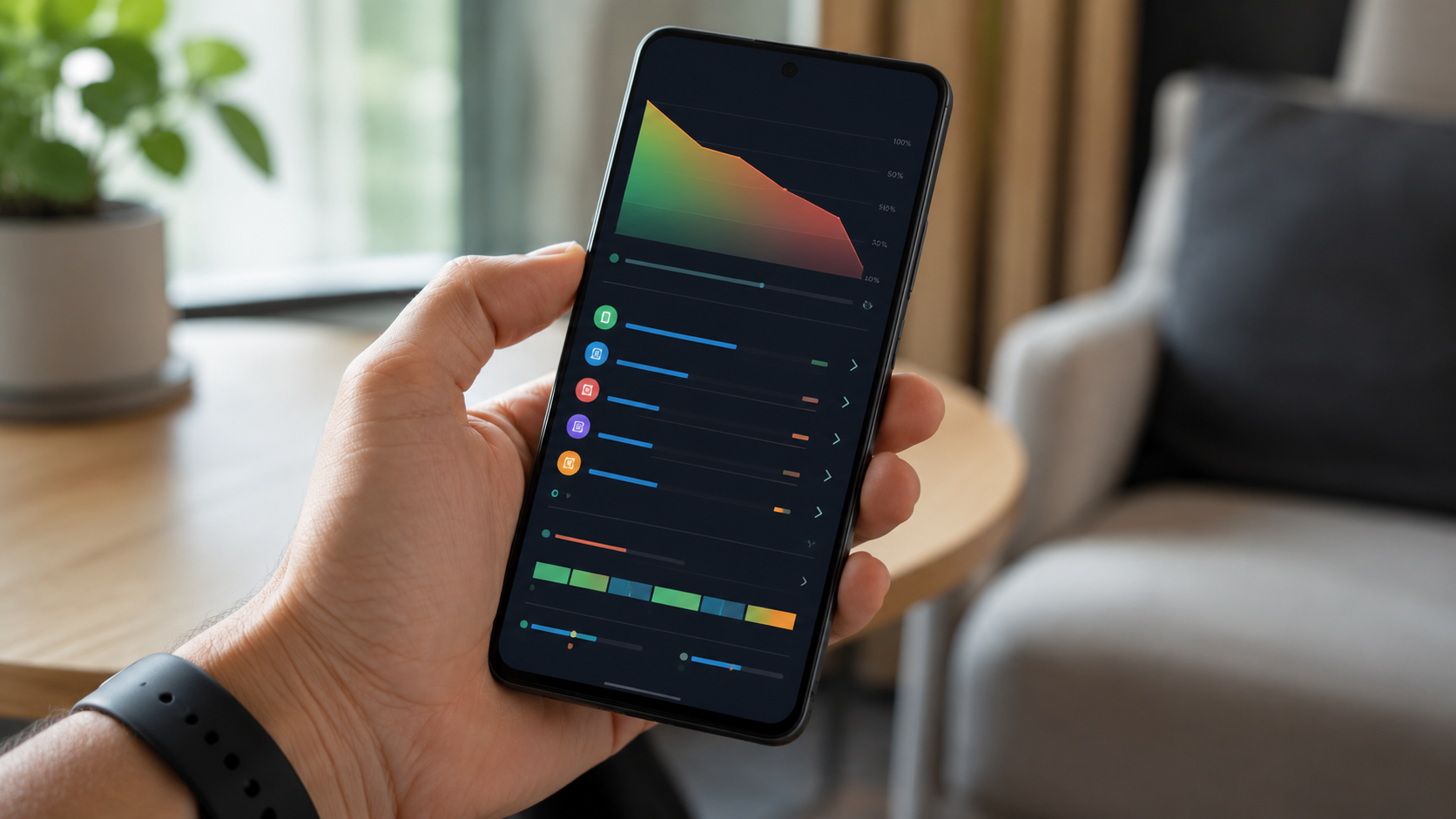
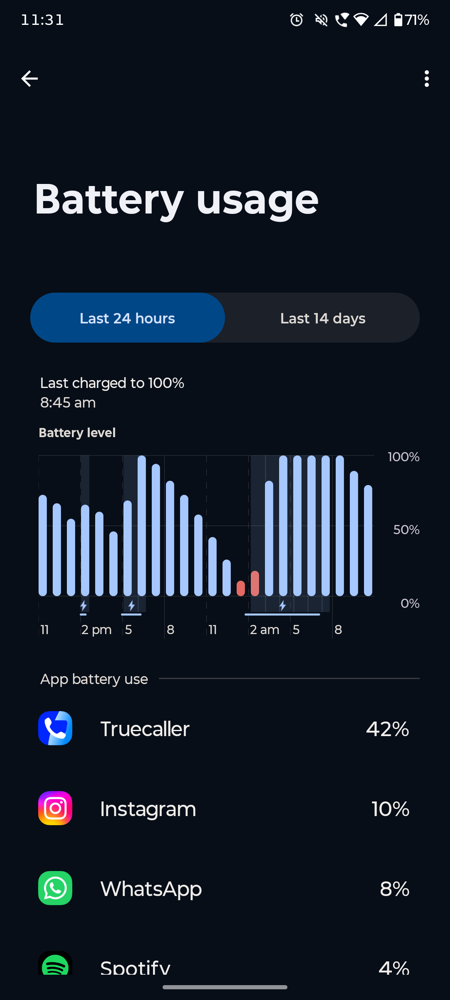
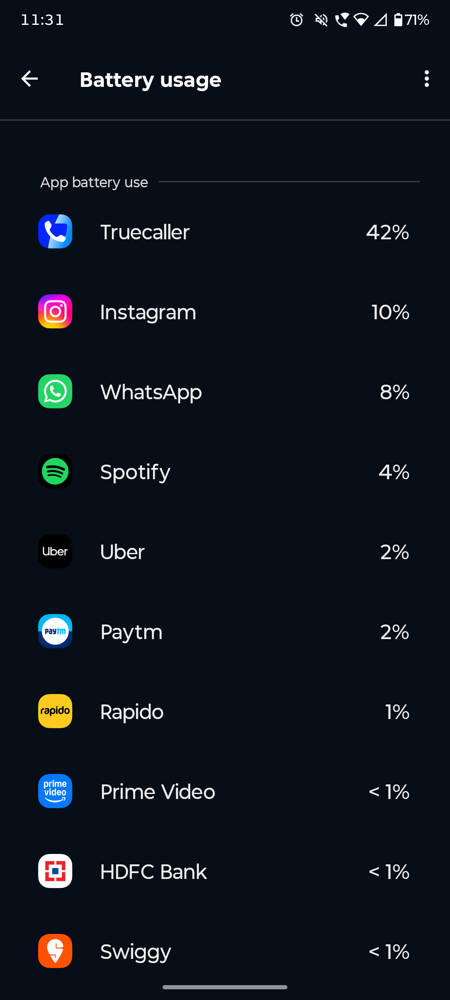
Step 1: Open Settings and tap on Battery. Next, select Battery Usage.
Step 2: Now, all you need to do is look through the list and note which apps are using power in the background versus the foreground.
If you spot an app you barely open sitting near the top of that list, you have found your first target.
Turn Off Predictive Preloading
Android 17 introduces a feature called Predictive Preloading, which tries to guess what you will do next and loads content in advance so it feels ready the moment you tap it.
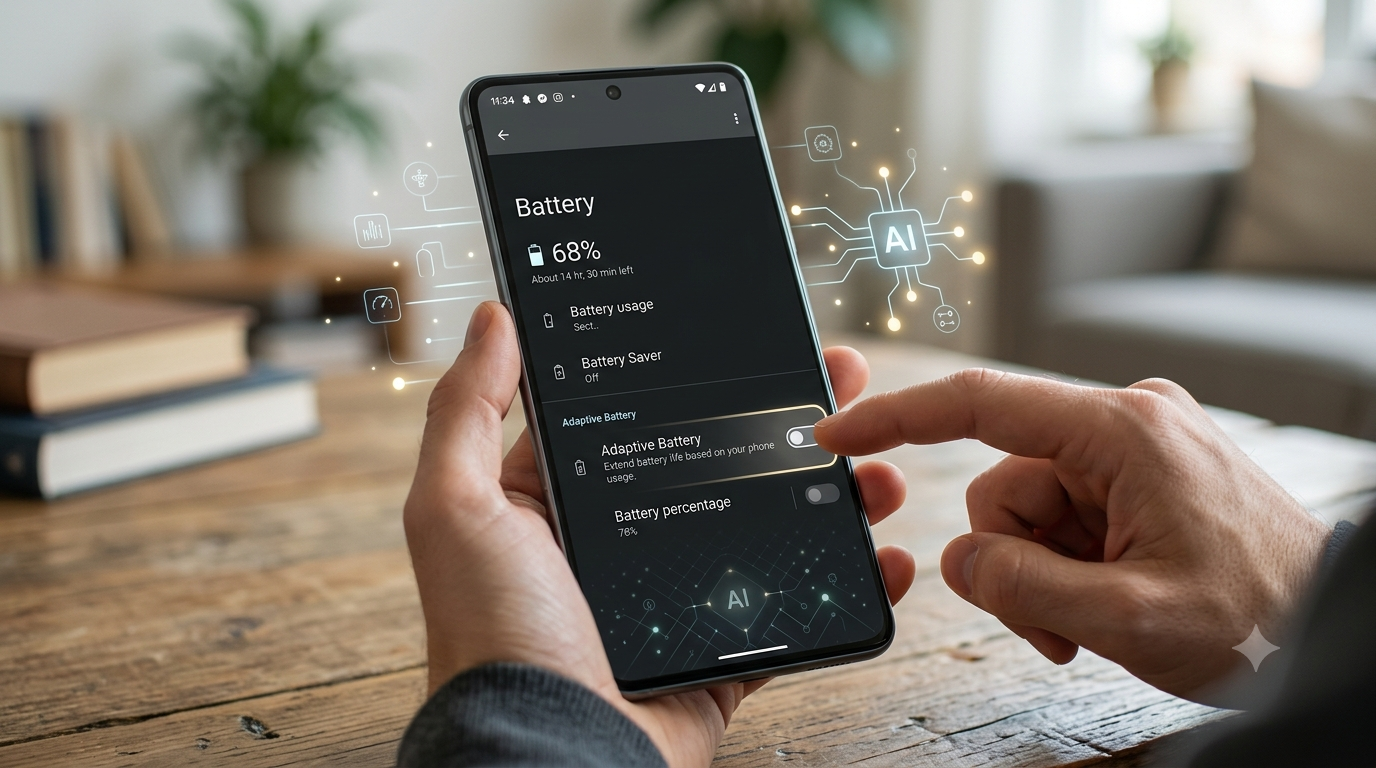
For some users, it sounds helpful, but for people like us, it just runs in the background all day, eventually becoming the cause of battery drain.
Step 1: Open Settings, go to Battery, and tap on Adaptive Features.
Step 2: Now, find Predictive Preloading and switch it off.
Your phone will still feel just as fast day to day, but you should notice standby battery drain drop over the next day or two.
Manage Your Home Screen Widgets
The new interactive widgets in Android 17 look great, but many of them refresh constantly, even when you are not looking at them.
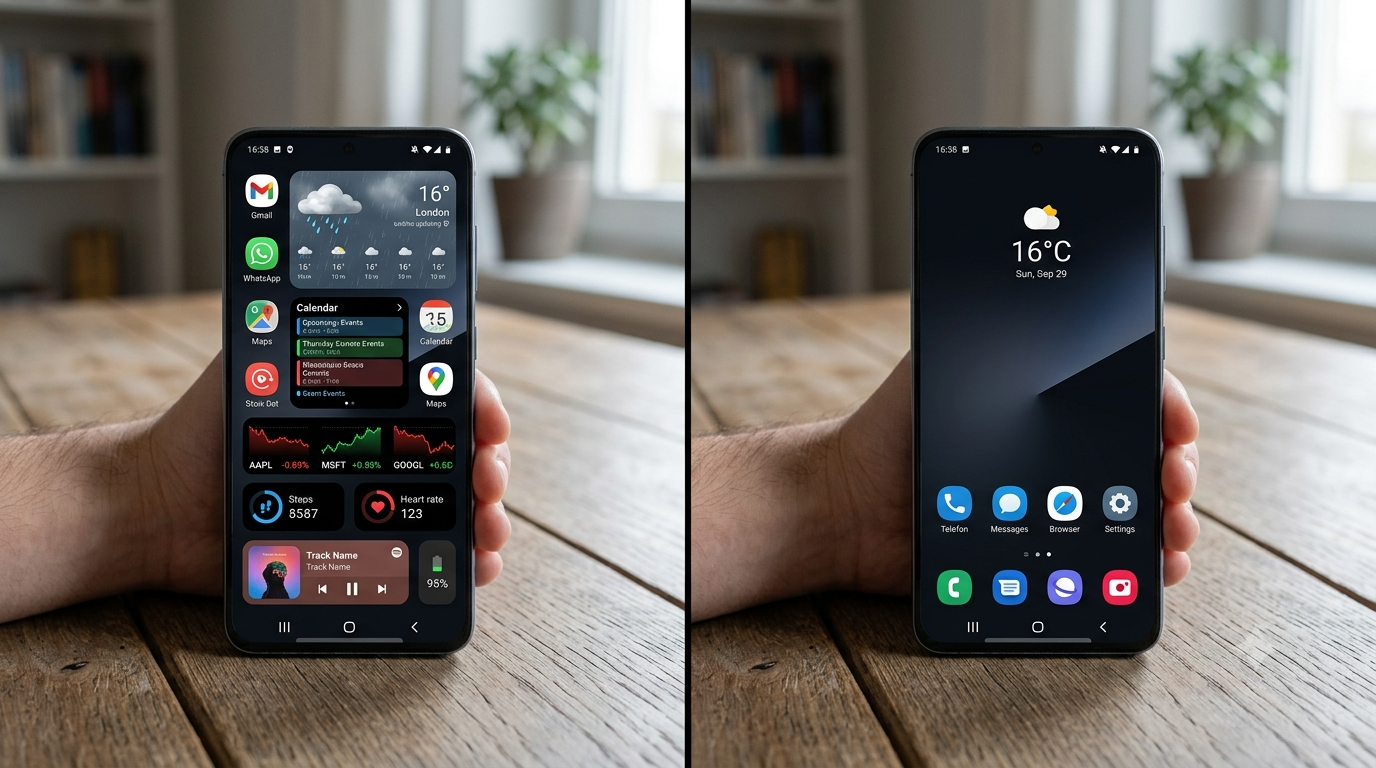
Weather widgets, stock tickers, and live activity cards are common offenders. So the trick is to keep the Android home screen simple.
Restrict Background Data for Heavy Apps
Did you know that the new Privacy Dashboard in Android 17 is a good place to catch battery hogging apps?
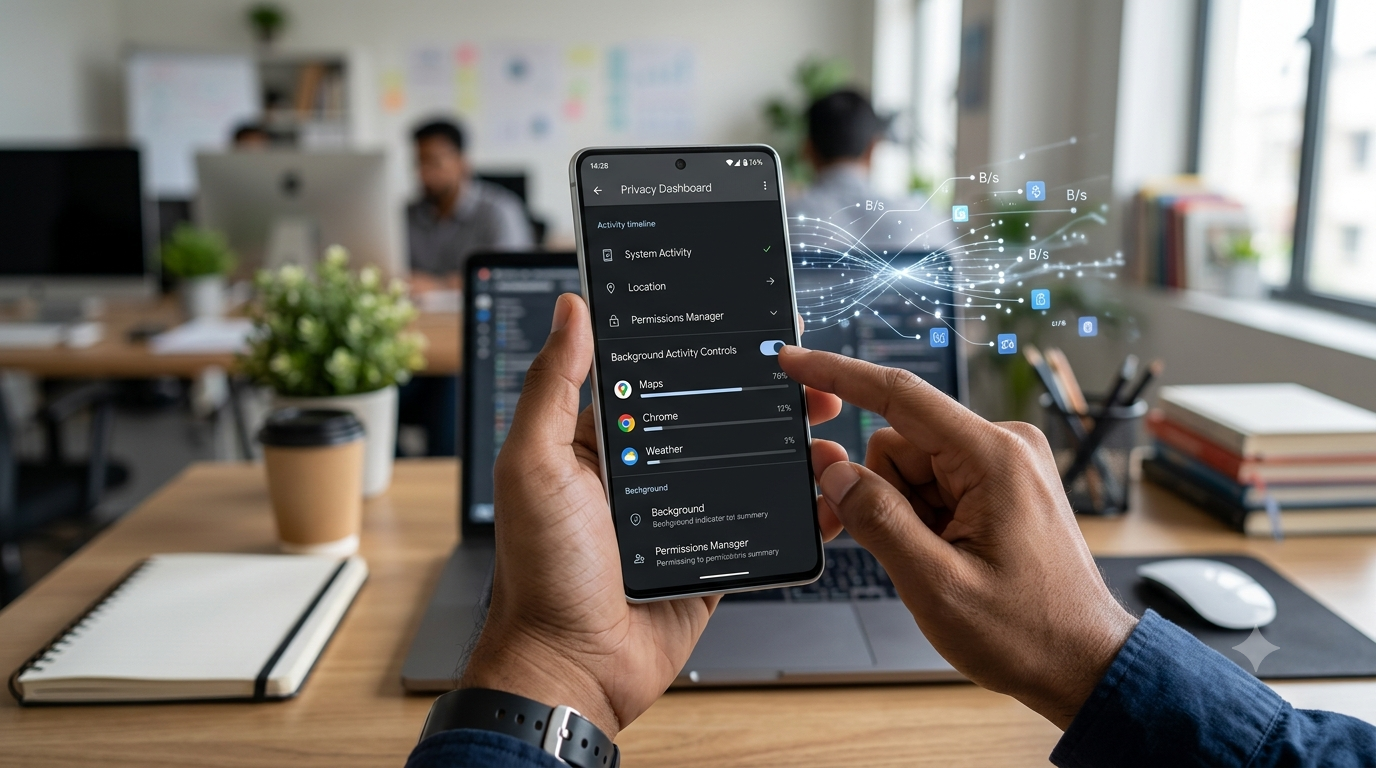
Step 1: Open Settings and then go to Privacy Dashboard to check which apps have been using your screen or data while your phone was idle.
Step 2: Tap on the app that stands out the most, then simply choose Restrict Background Data.
Once you do this, the app stops syncing constantly in the background, and you will usually notice a real difference by the end of the day.
Use Adaptive Battery and Battery Saver Together
Battery tech is smart these days in a way that it learns your habits and limits power to apps you rarely use. Hence, make sure it is switched on under Settings, and pair it with Battery Saver mode when your charge gets low.
Check App Permissions for Location and Sensors
Another reason for the battery drain is apps that constantly track your location or use motion sensors in the background, which are some of the biggest hidden battery drains, and most people never think to check this.
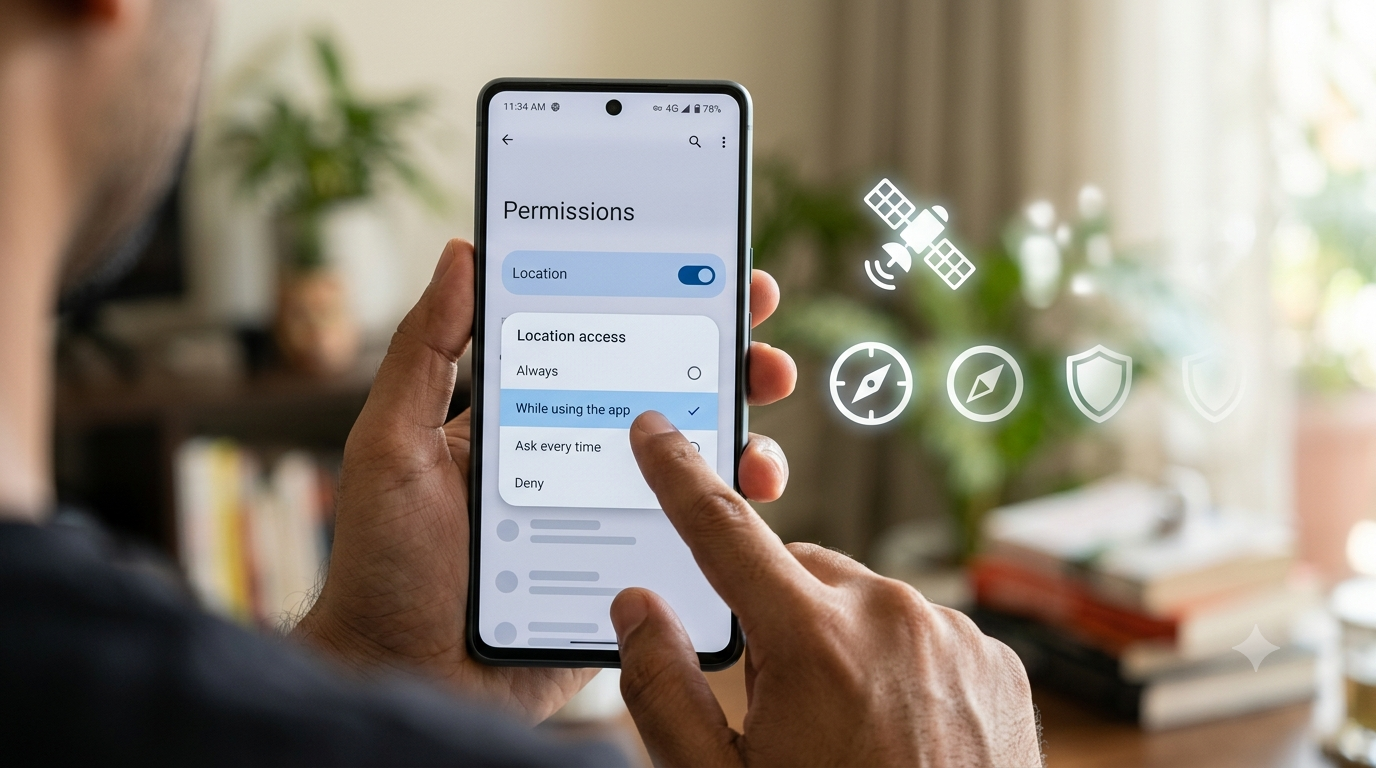
Step 1: Open Settings > Privacy, and tap on Permission Manager.
Step 2: Select the Location tab and see which apps have Allow All The Time permission.
Now, all you need to do is change the permission to Only While Using the App for anything that does not need constant access.
Try Priority Charging for Long-Term Battery Health
Additionally, a new feature introduced with Android 17 is known as Priority Charging. This can help save your battery’s health in the long run.
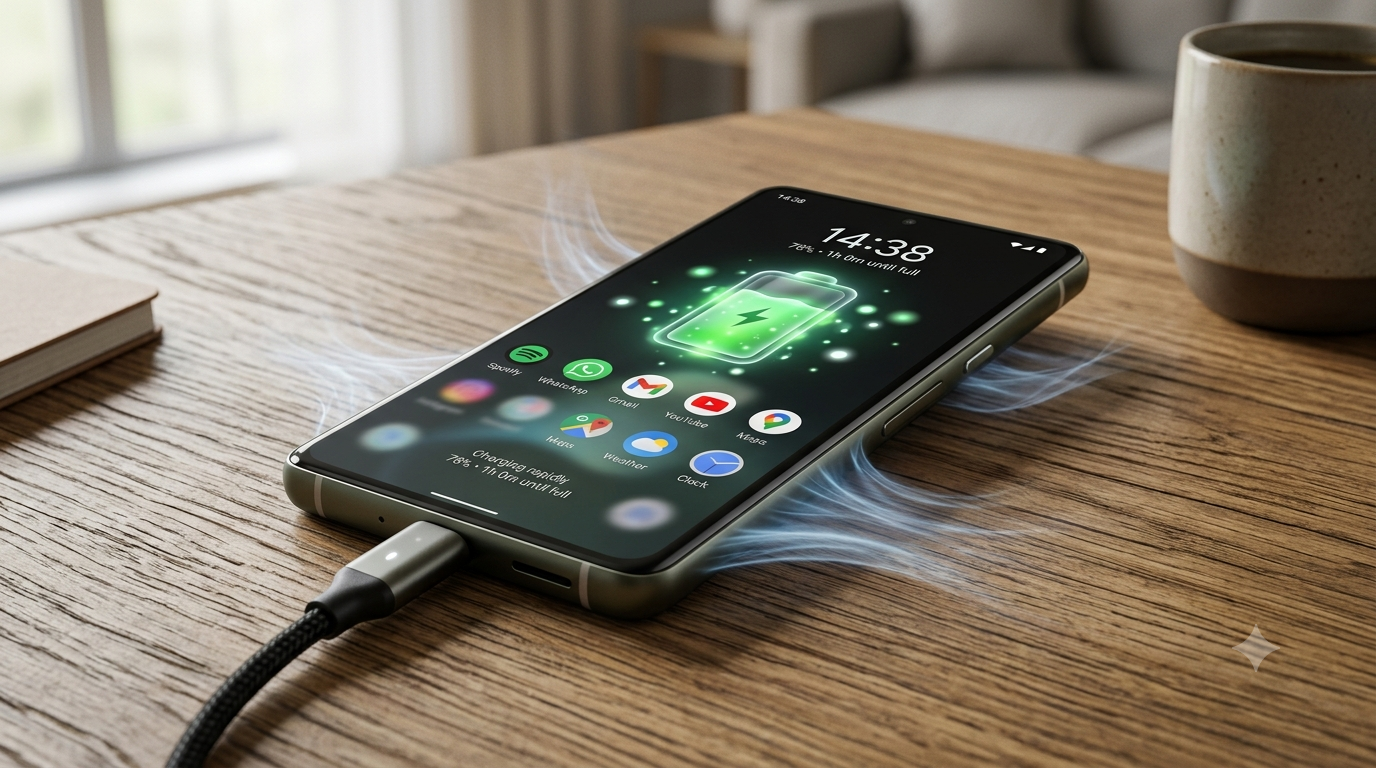
This feature pauses non-essential background processes while your phone charges, which helps your battery charge faster and reduces heat stress.
Keep Your Apps Updated
You should always keep your apps updated, as outdated apps often run less efficient code that can quietly result in battery drain; this is the reason developers regularly release updates that fix background bugs.
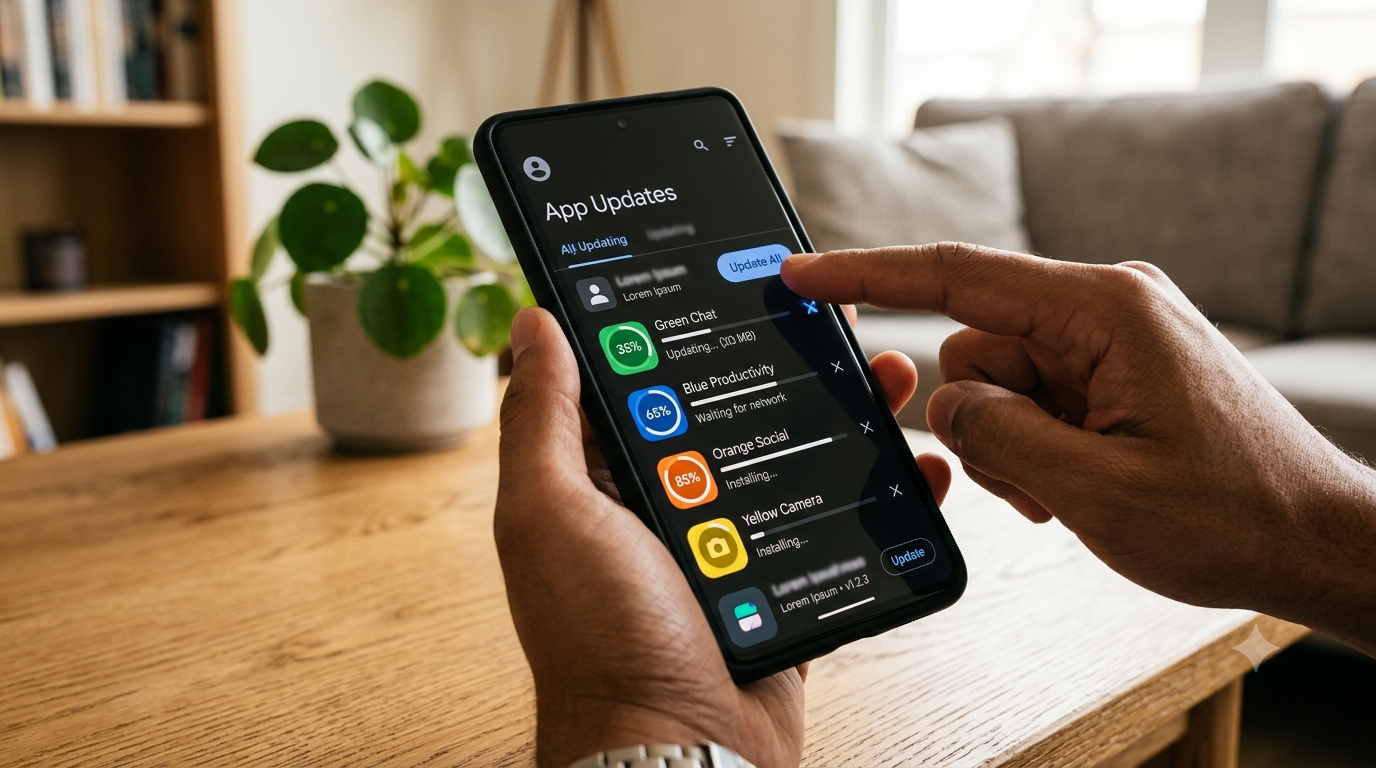
The best way to keep your apps updated is to make sure automatic updates are turned on in the Google Play Store settings, so you always have the most battery-friendly version of every app.
Save Battery and Enjoy the Experience
This is how you can stop apps from draining your battery in Android 17. It usually comes down to several habits. Knowing the actual reason can add hours of extra battery life to your day.
FAQs
Why is my battery draining so fast on Android 17?
It is usually new background features like Predictive Preloading and live widgets, combined with apps that still have full-time access to your location or data.
How do I check which apps are draining my battery in Android 17?
Go to Settings, then Battery, then Battery Usage, and you will see exactly which apps are using the most power.
How can I stop apps from running in the background on Android 17?
Go to Settings, then Privacy Dashboard, pick the app, and tap Restrict Background Data to stop it from syncing on its own.