Slow downloads can be frustrating, especially when you are downloading large files from the internet. Whether it’s a software installer, a video file, or a document, waiting for downloads to complete can take a lot of time. The good news is that you can speed up downloads in Google Chrome.
Also See: Up Your Productivity on Chrome with These Tips
What Is Parallel Downloading in Chrome?
Chrome has an experimental feature called parallel downloading, which allows the browser to download a file from multiple sources at the same time. Instead of downloading a file in a single connection, Chrome splits the file into multiple parts and downloads them simultaneously from the source.
Chrome parallel downloading can improve download speeds, especially when downloading larger files. Many users are unaware of this feature because it is hidden inside Chrome’s experimental settings page, also known as Chrome Flags.
How to Enable Parallel Downloading in Google Chrome?
Enabling this feature is simple and only takes a minute. Follow these steps:
Step 1: On your browser, type chrome://flags and hit Enter.
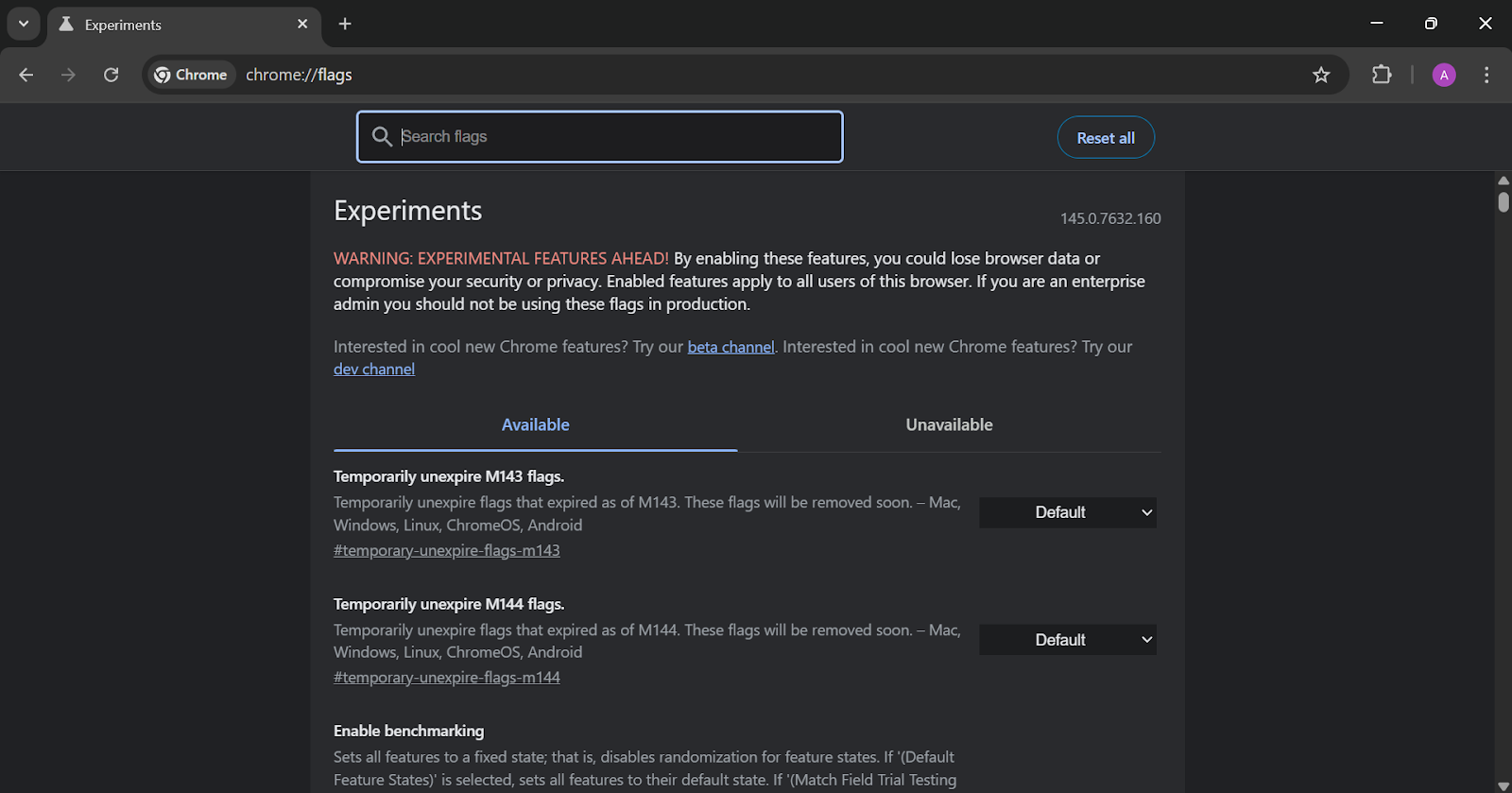
This will open the Chrome experiments page, where Google stores experimental browser features.
Step 2: Once the experiments page loads, use the search bar at the top and type parallel downloading, then Chrome will highlight the feature in the list.
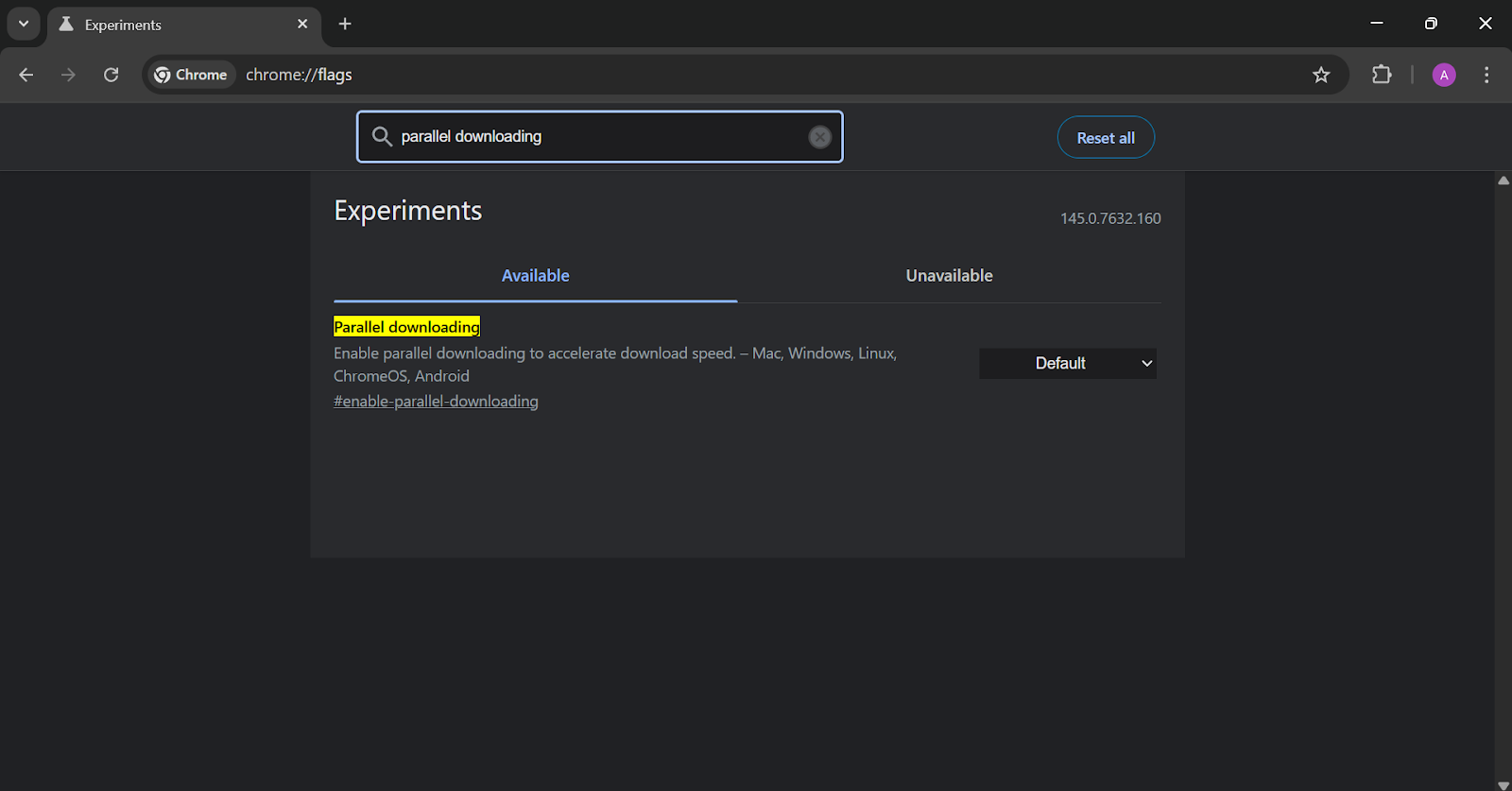
Step 3: When the option appears, click the drop-down menu next to it and change the setting from Default to Enabled.
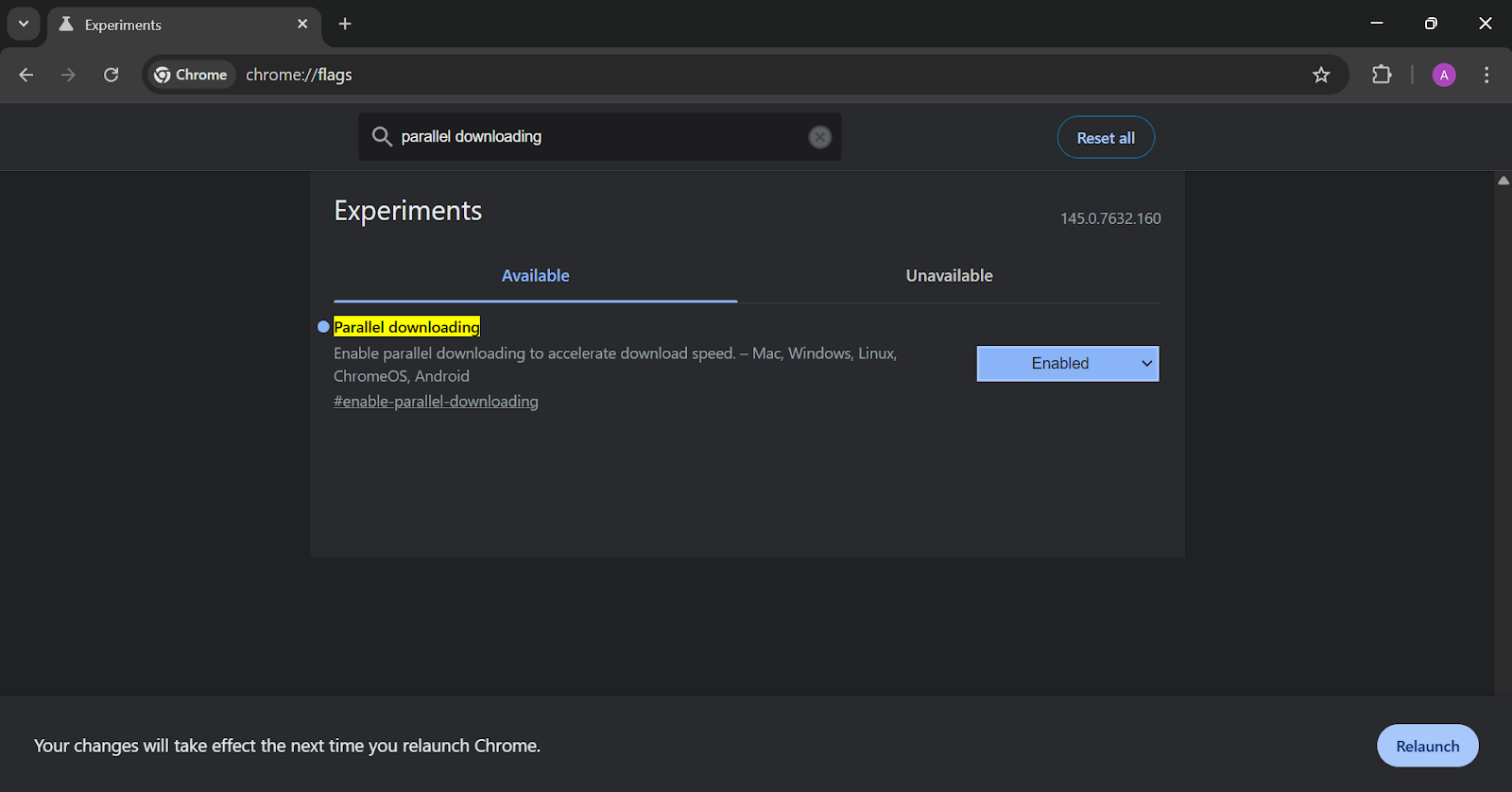
Step 4: After enabling the feature, Chrome will ask you to relaunch the browser. Now, click the Relaunch button to restart Chrome to apply the changes.
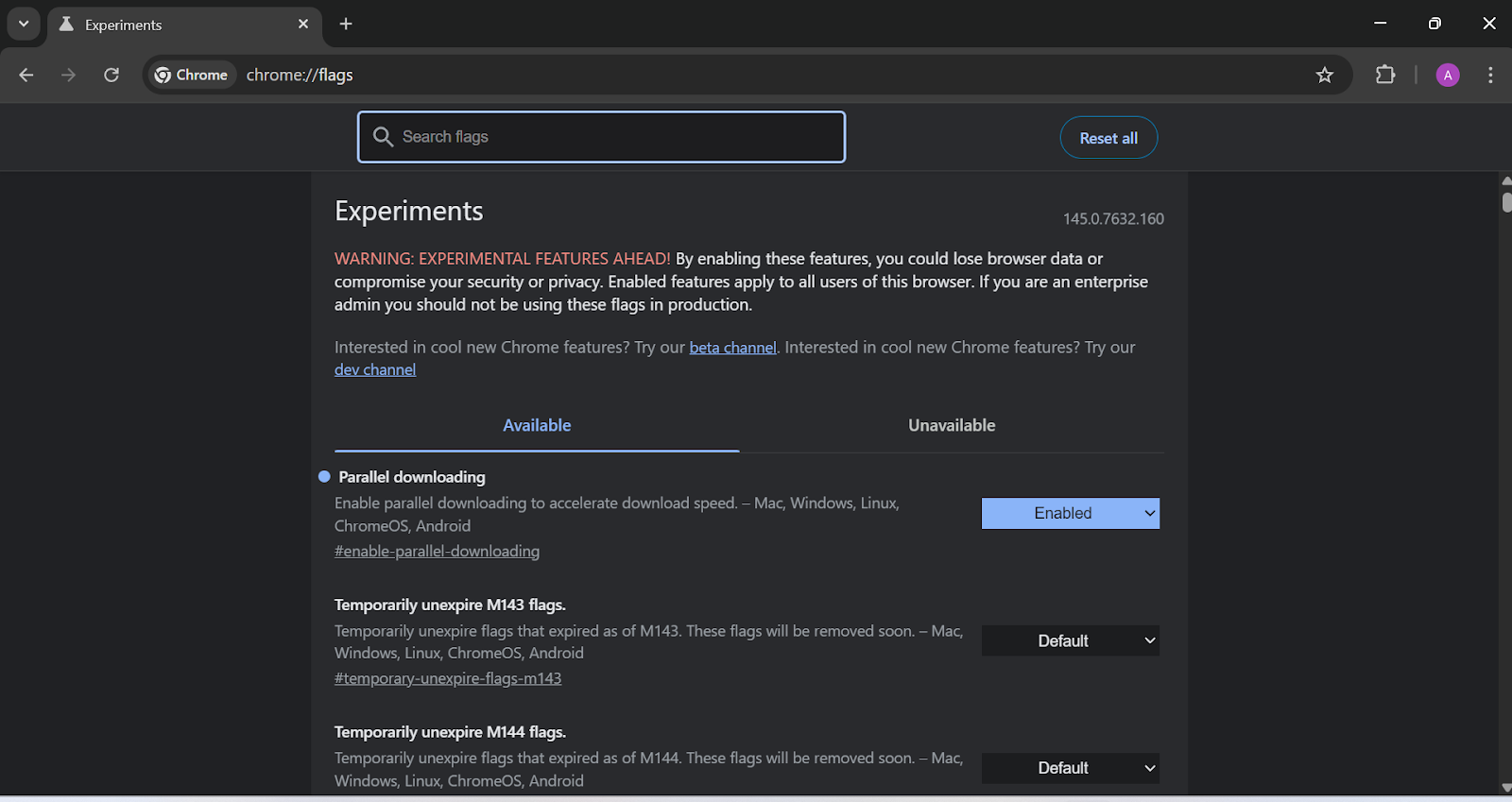
Once Google Chrome restarts, the parallel downloading feature will be active.
Test Your Google Chrome Download Speed
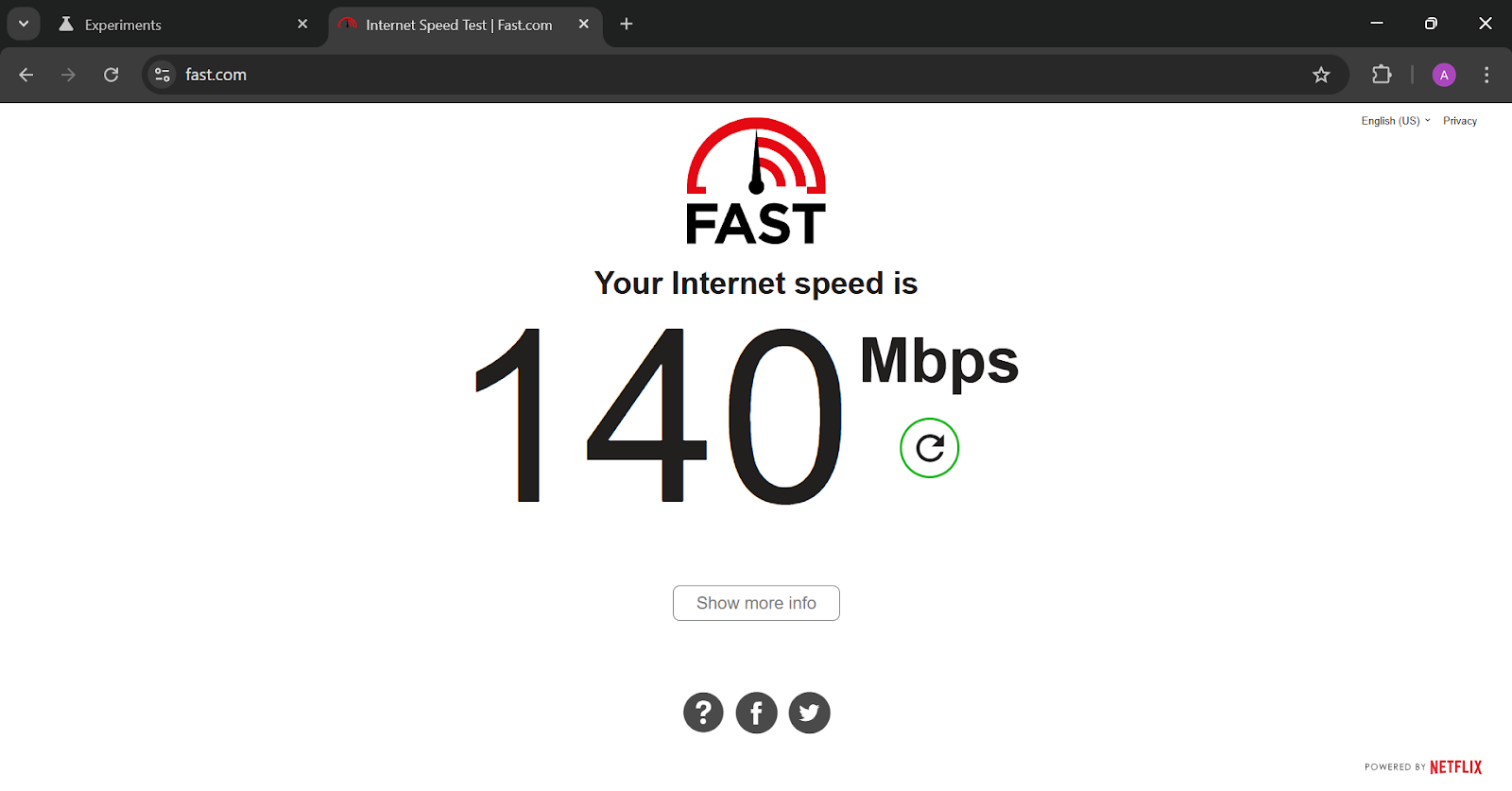
After enabling Chrome parallel downloading, try downloading any file again. You should notice faster download speeds, especially for large files like software, videos, or large documents.
Parallel downloading works by opening multiple connections to the server and downloading different parts of the file at the same time. This helps Chrome complete downloads more efficiently.
Tips to Improve Chrome Download Speed Even More
- Use a stable internet connection: A strong and stable connection helps Chrome maintain multiple download streams.
- Avoid downloading too many files at once: Running multiple downloads can divide your bandwidth and slow things down.
- Keep Chrome updated: Make sure you are using the latest version of Google Chrome, as updates often improve performance and security.
- Close unnecessary tabs: Too many open tabs can consume system resources and affect download performance.
Speed Up Chrome Downloads
This is how you can make Chrome downloads faster. If you often download large files, enabling parallel downloading in Google Chrome is one of the easiest ways to boost download speeds. With just a small change in Chrome’s experimental settings, you can make downloads faster and more efficient. Try this simple tweak today and see the difference in your download performance.