When you sign up for Threads, your account is public by default. But if you switched it to private at some point and now want to open it back up, the setting is tucked away in a spot that is not immediately obvious.
Today, we will get into where to find it on both iPhone and Android in a couple of different ways.
Why Is My Threads Account Private?
A few things can flip your Threads account to private without you realizing it. The most common one is your Instagram settings.
Threads and Instagram share the same privacy configuration. So if your Instagram account is private, your Threads account inherits that setting automatically. Henceforth, changing one changes the other.
On the other hand, the other possibility is that you (or someone with access to your phone) switched it on manually at some point and forgot about it.
How to Make Threads Account Public on Android and iPhone
The steps are the same on both platforms.
Step 1: Open the Threads app and head to your profile by tapping your picture at the bottom right.
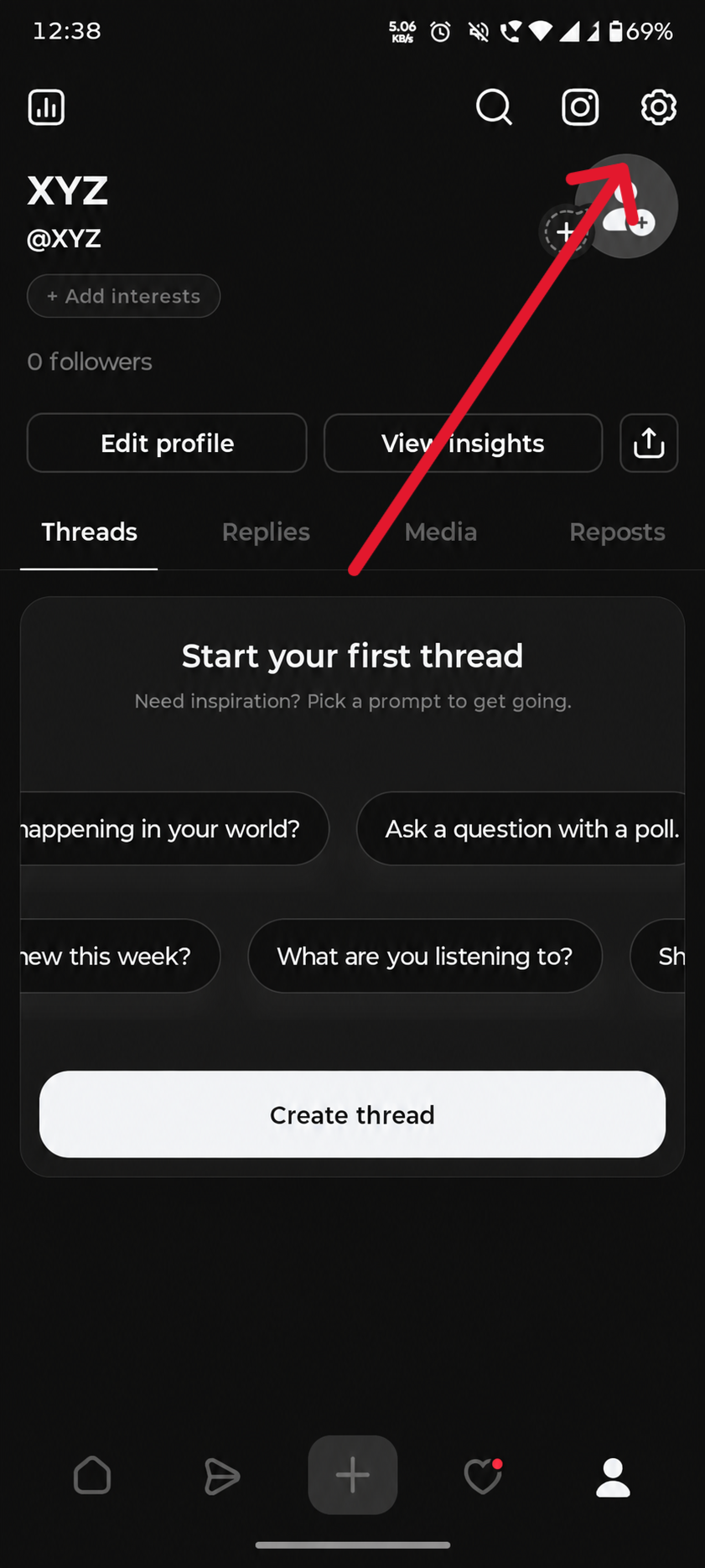
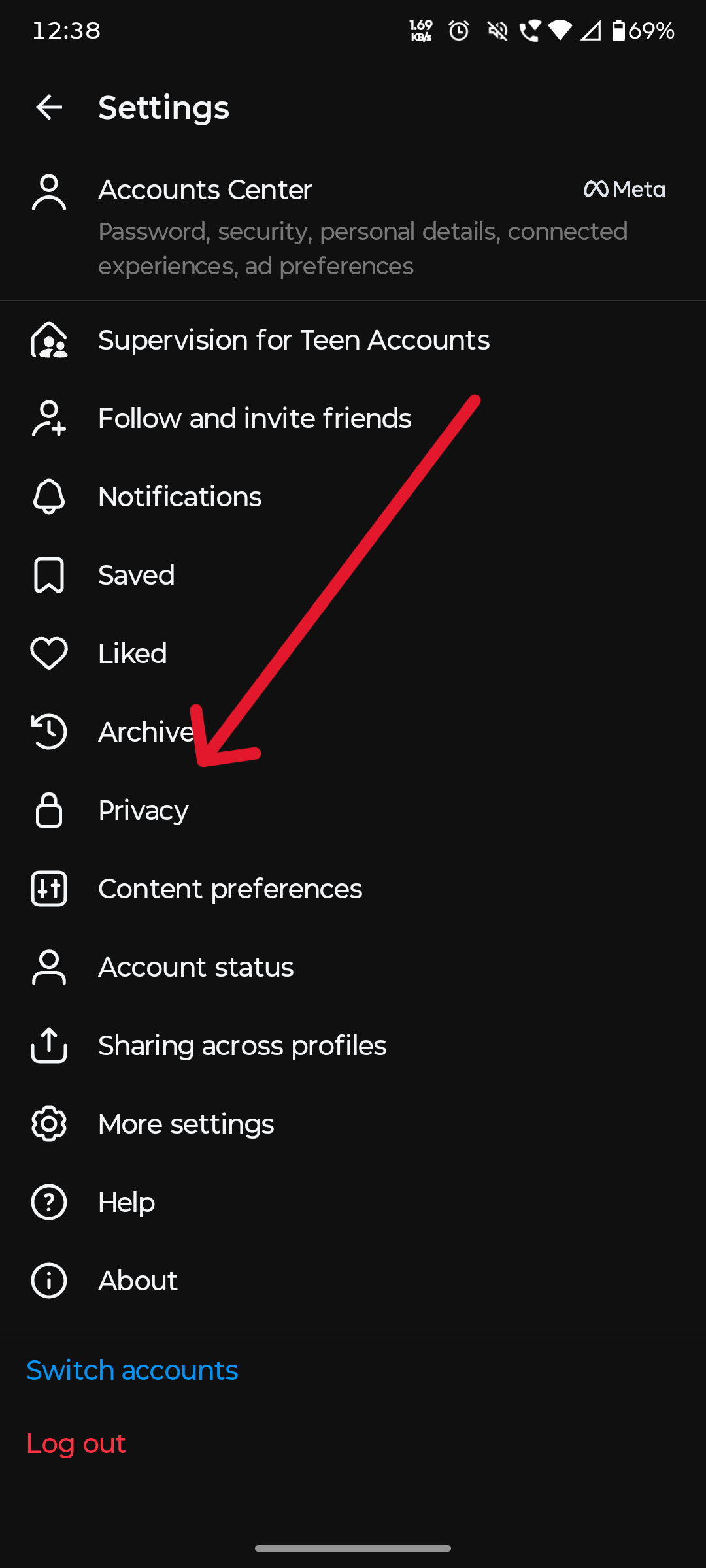
Step 2: Go to the Settings menu sitting at the top right of your profile page.
Step 3: Tap Privacy.
Step 4: Look for the Private Profile toggle. If it is on, your account is set to private right now. Tap it once to switch it off.
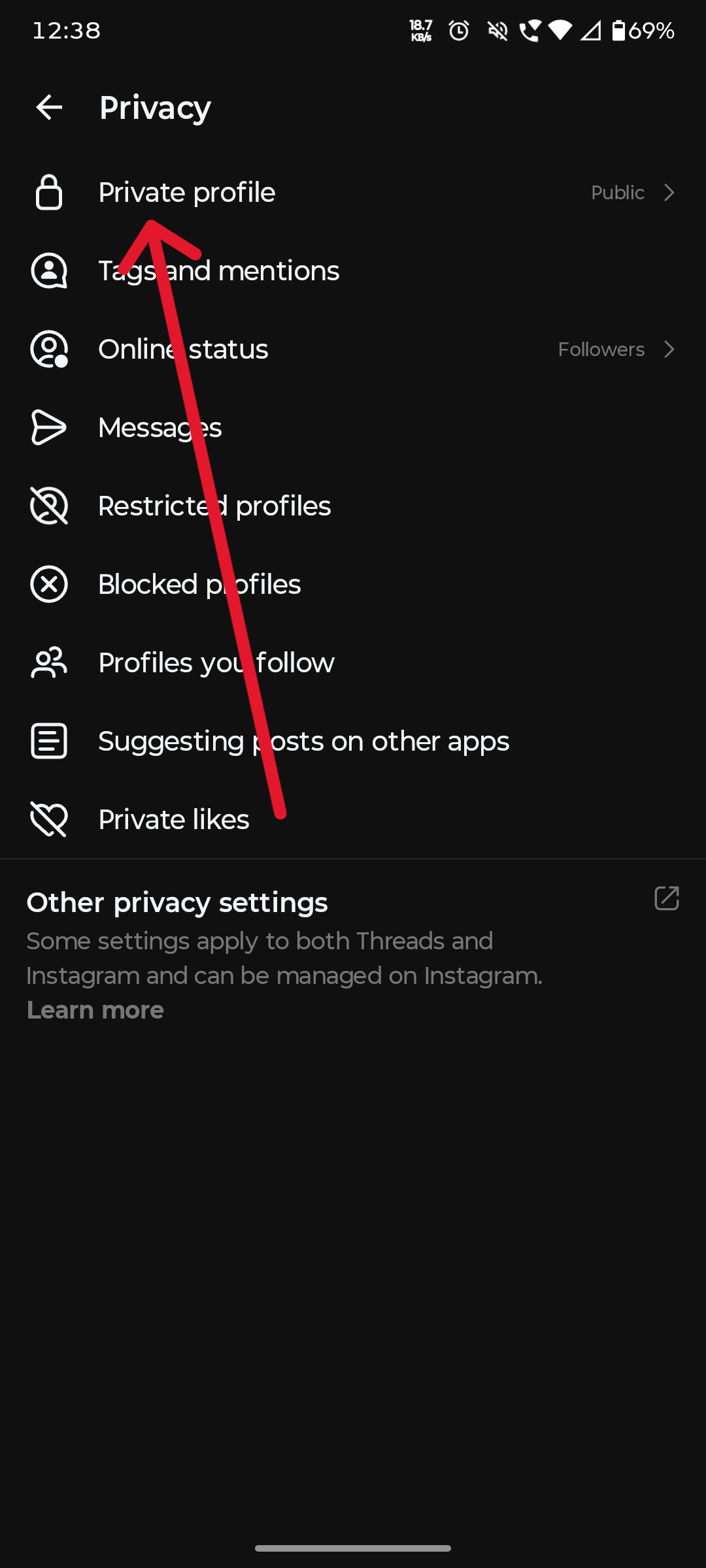
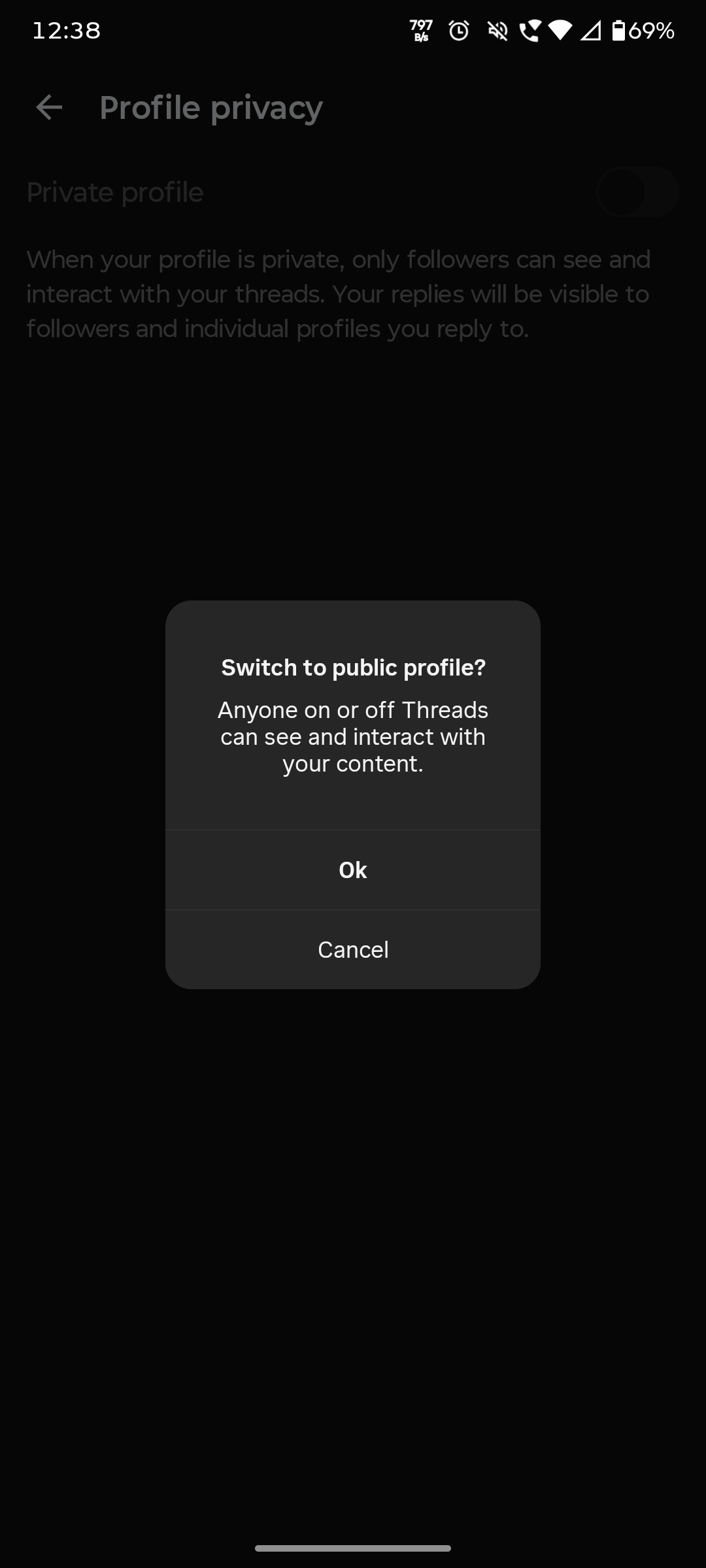
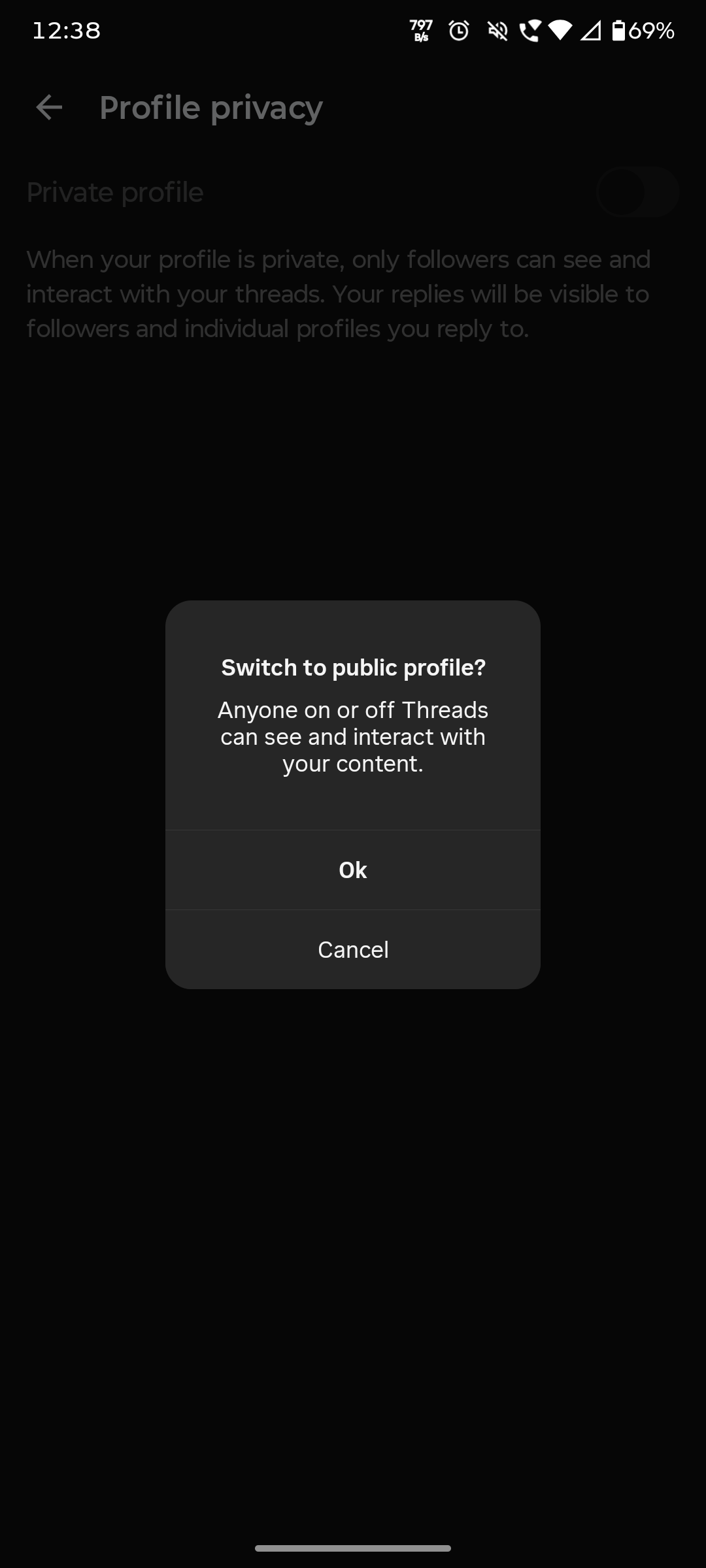
Step 5: Threads will ask you to confirm. Tap OK, and you are done.
Your Threads account public settings are now open to everyone. People can look you up, read your posts, and follow you without waiting on your say-so.
Alternative Method: Change It Through Edit Profile
Not seeing the Privacy option right away? There is another route that gets you to the same place.
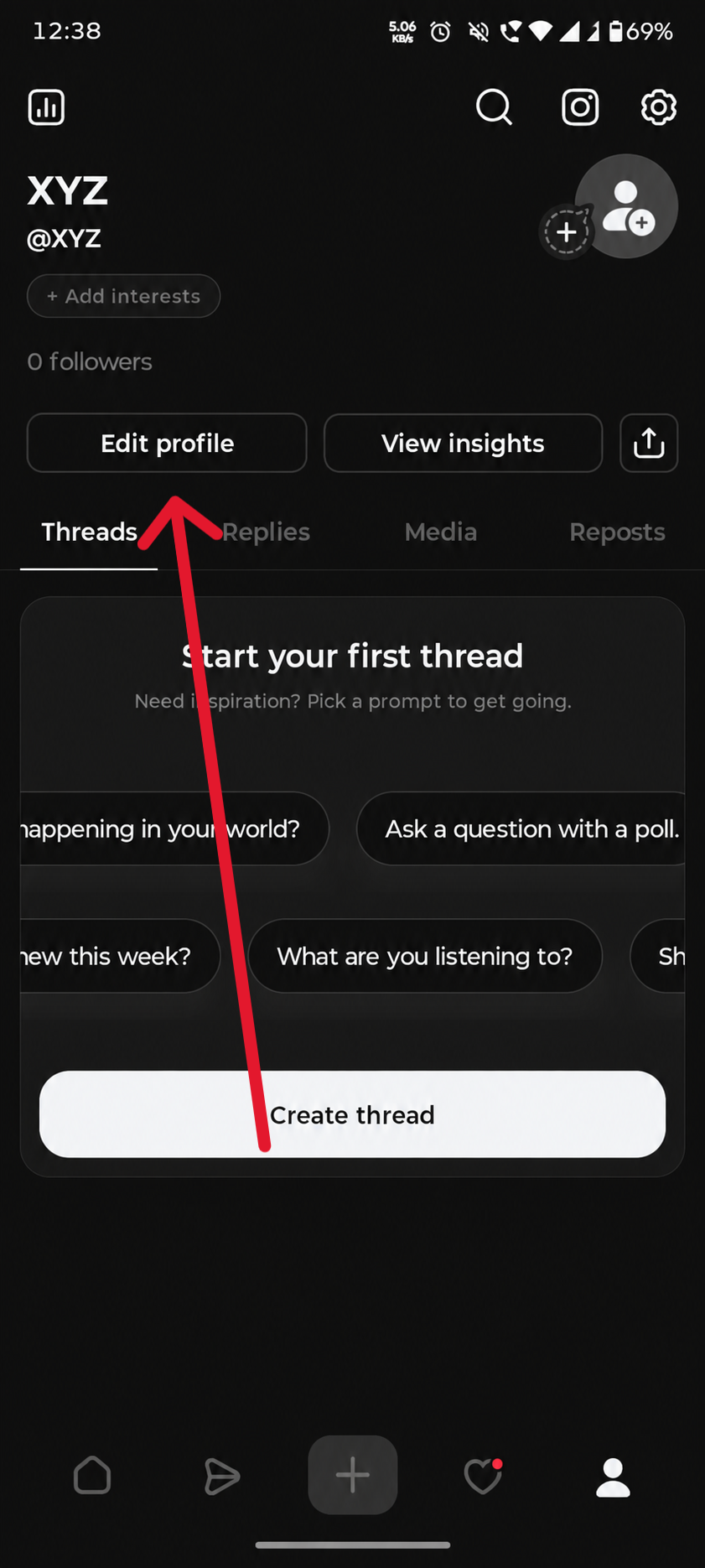
Step 1: Head to your Profile and tap Edit Profile.
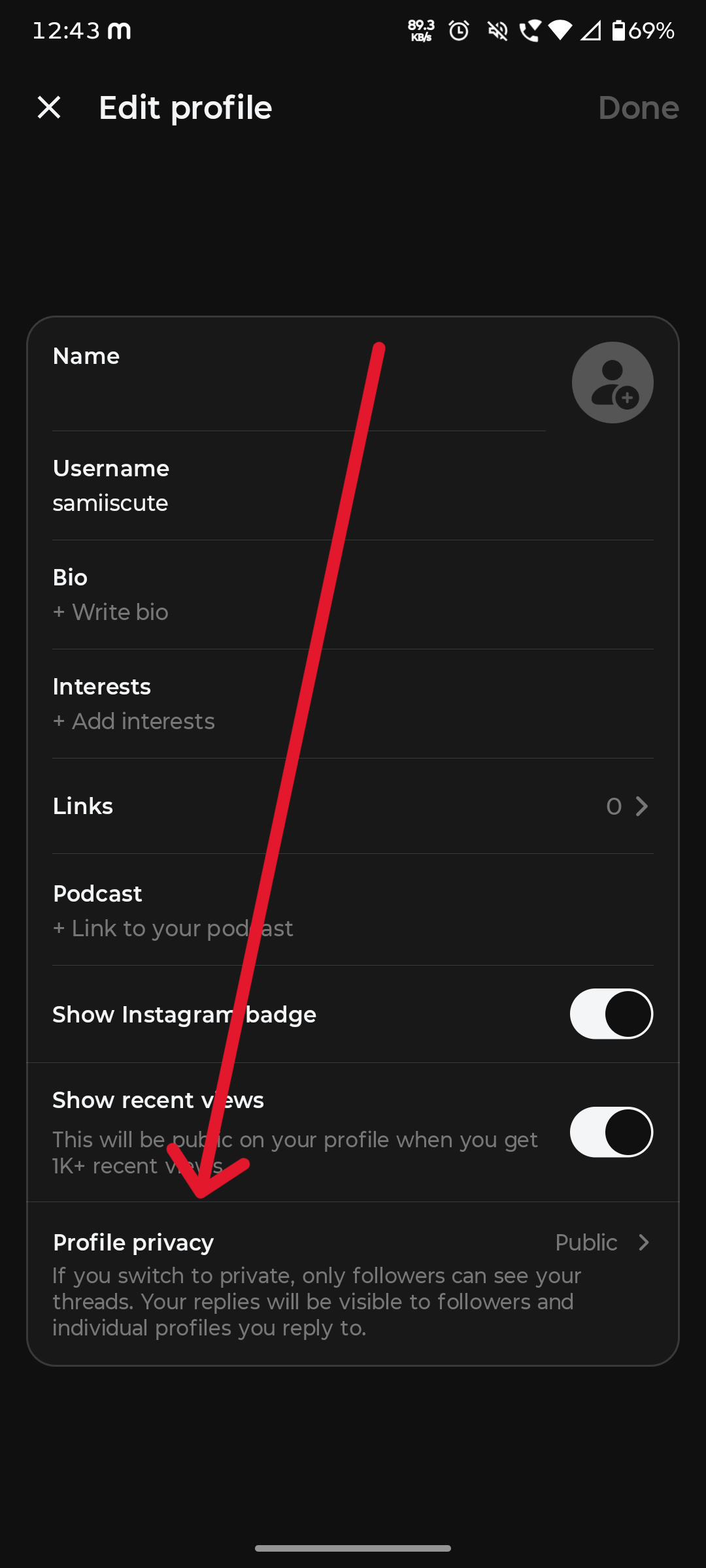
Step 2: Scroll down to find the Private Profile switch.
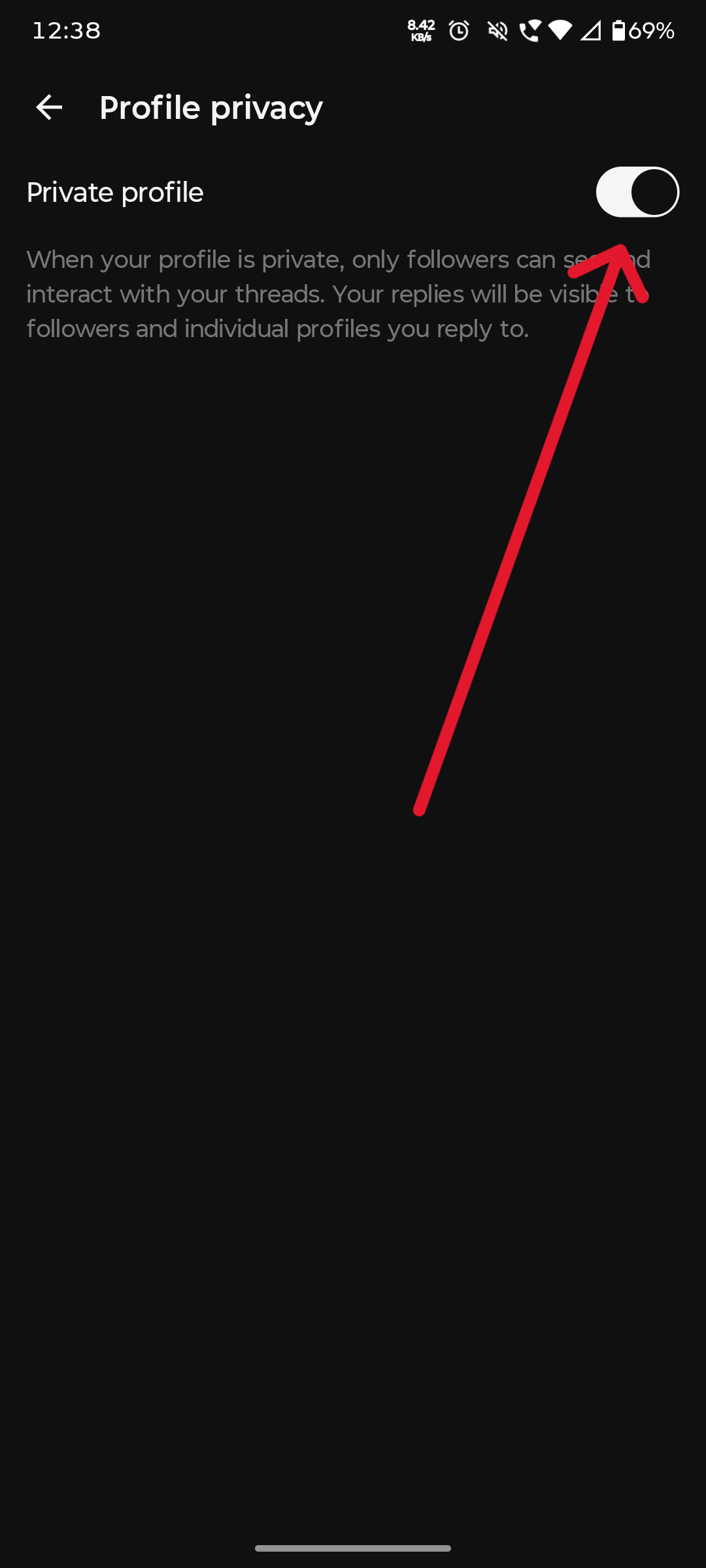
Step 3: Tap it off and confirm when it asks you to.
Now you know how to make your Threads account public on iPhone or Android in two ways. Both routes lead to the same setting. This one just gets there through a different door.
What Changes When You Switch Threads Private to Public?
A few features change once your Threads account privacy changes to public.
People outside your follower list can now pull up your profile in search and read what you post there. And no follow request needed now – they just tap follow, and they are in.
Everyone already following you stays put. Threads private to public does not touch your existing follower count or reset anything.
Read More: https://sparknherd.com/how-to/how-to-add-new-threads-account/
Wrapping Up
Four taps and your Threads account is open: Profile, Settings menu, Privacy, toggle off.
But remember that Threads and Instagram read from the same privacy setting. Flip one and the other moves with it, unless you go back and sort them out separately.
FAQs
Can I change my Threads account from private to public?
Yes. Head into Settings < Privacy, and switch the Private Profile toggle off. The change kicks in the moment you confirm.
How do I make my Threads profile public?
As told above, go to your profile, tap Settings < Privacy, and turn the Private Profile switch off. You can also get there through Edit Profile if that path feels easier.
Why can’t I find the public account option on Threads?
It can be an update or app issue. But since both apps run on the same privacy setting, if Instagram is still private, Threads will be too. Hence make Instagram public first, and Threads should sort itself out automatically.