Ever found yourself staring at your phone screen and trying to recollect the lock pattern or PIN? It generally happens when you have rushed through the setup process without properly processing it. The good news is you don’t have to stay locked out for long.
In this post, we will walk you through quick and easy ways to unlock your Android phone.
Also See: What Is a USB Data Blocker and Why You Need One
Use Google’s Find My Device
One of the simplest and most effective methods of regaining access is through Google’s Find My Phone. This built-in Android security tool is designed to help locate, lock, or reset your device in case it is lost.
In order for this to work, you must enable Find My Phone beforehand and it needs to be online (either via mobile data or Wi-Fi).
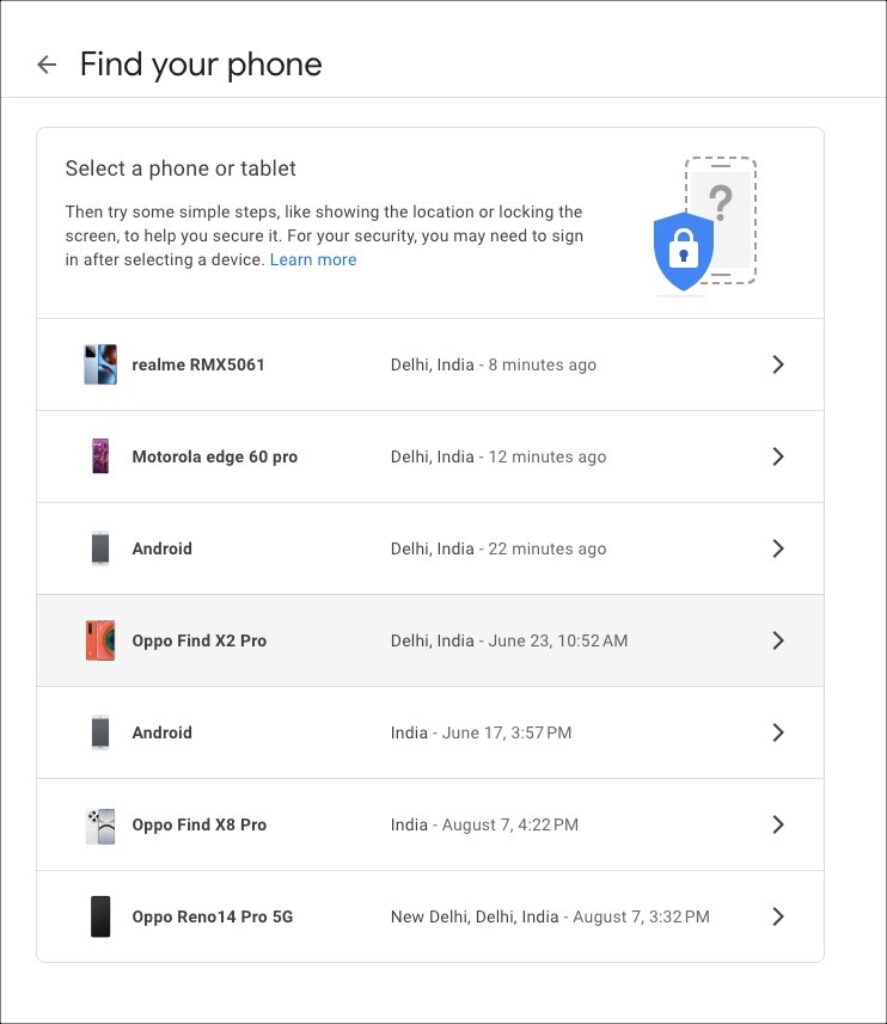
Step 1: To proceed, open the Find My Phone website on a desktop browser and log in using the Google account associated with your locked Android phone.
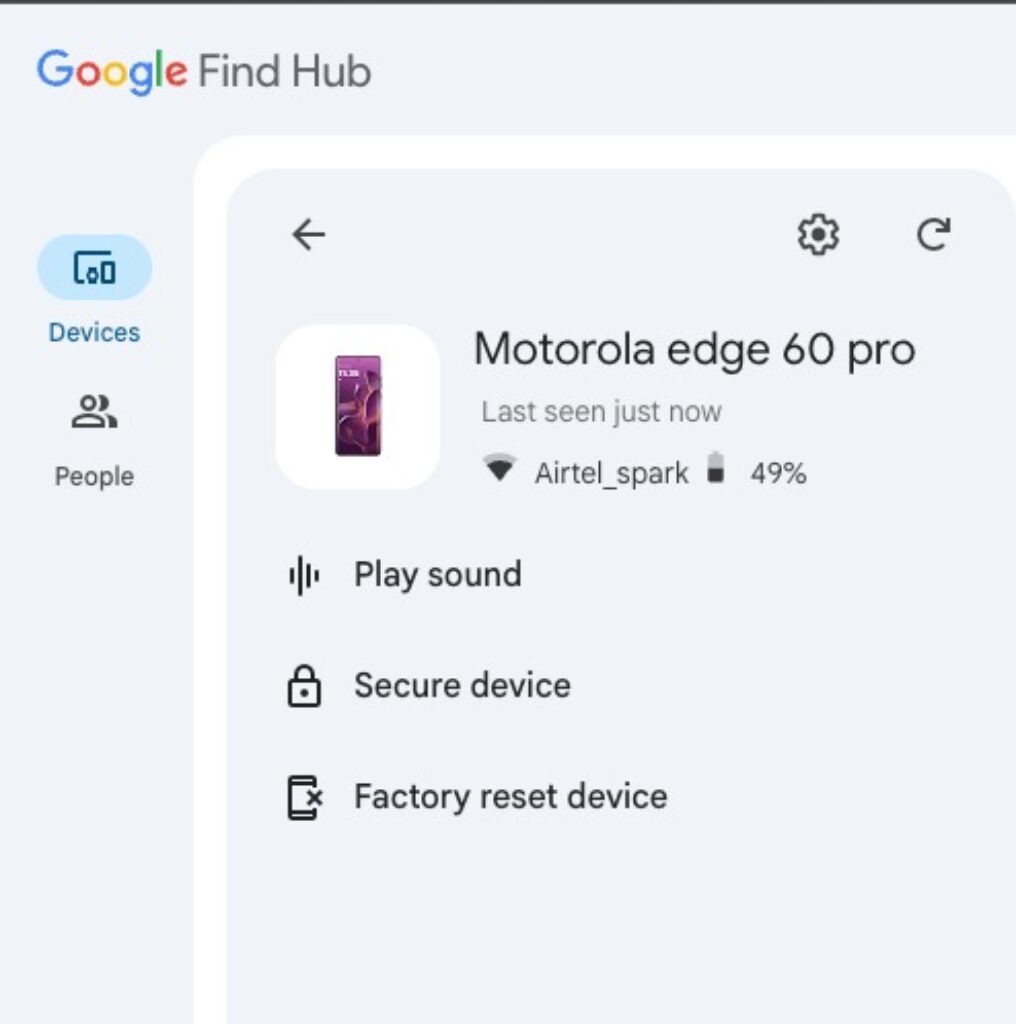
Step 2: Once signed in, you should see a list of devices connected to that account. Pick the one you want to unlock and select Factory reset device.
Click Next on the pop-up.
Step 3: Follow the on-screen instructions and wait for the system to complete the reset. Afterward, you can set up the device from scratch.
If your account was previously synced, you will be able to retrieve contacts, photos, videos, and other data linked to your Google account.
Reset the Device Using the Hardware Buttons
If the Find My Phone method is not available, your alternative is to reset the device manually. This involves entering the Android Recovery Menu by pressing a combination of the volume and power buttons. Do note that this will depend on the make of your phone.
Once the recovery menu appears, navigate through the options using the volume buttons and confirm selections using the power button.
Once inside the recovery menu, use the Wipe data/factory reset option to erase the phone and remove the lock screen password.
Use Samsung’s Find My Mobile for Remote Unlocking
For Samsung users, there is a built-in solution, that allows remote unlocking or wiping of your device. This method requires you to create a Samsung account and enable the necessary settings during the device setup process.
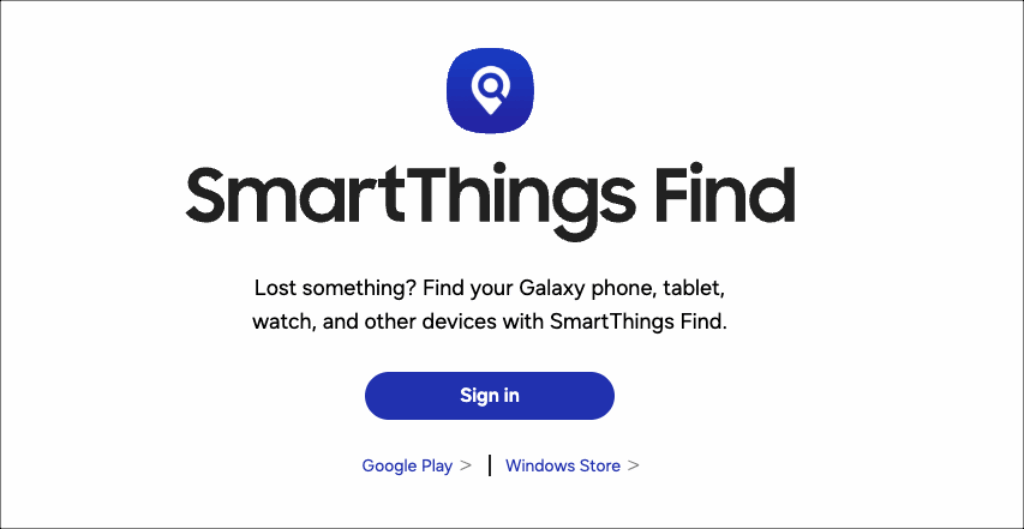
As with other remote methods, your phone must be connected to the internet.
Step 1: Open SmartThings Find from another device and log in with your Samsung account. You will see a list of registered Samsung devices.
Step 2: Select the locked device and click Unlock. If that does not succeed, choose Backup and then click Erase data to restore the phone to factory settings.
Regaining Access to Your Android Without a Password
Unlocking an Android phone without a password is difficult and often involves data loss. If your device is offline, there is no option to remotely reset or unlock the phone. The only way forward is a factory reset, which removes the password but deletes all local data in the process.
Hence, we always recommend that you always enable Find My Device on your Android device. This feature provides access to tracking tools, remote lock, and wipe functionalities that can turn out to be lifesavers. At the same time, do remember to regularly sync important data, such as contacts, photos, and documents, with your Google account or your preferred cloud service so that you can recover the majority of your digital content without much hassle.

Team SparkNherd
Multiple authors in the SparkNherd team contributed to this article. SparkNherd's team is an experienced group of geeks who combine deep passion for tech with genuine expertise.