Are you struggling to share your screen during an important Microsoft Teams meeting? Well, you are not alone. Screen sharing is perhaps one of the most important tools in Microsoft Teams, especially if you work remotely. And when it stops working, it can be incredibly disruptive.
In this guide, we will walk you through the effective solutions to fix Microsoft Teams screen sharing not working on Windows.
Fix 1: Check Your Internet Connection
Before diving into complex fixes, it is important to start with the basics. A slow or unstable internet connection can easily disrupt screen sharing.
Open your preferred browser and visit Fast.com to check your upload and download speeds.

If the speed is unusually low or the test fails altogether, try restarting your router. You can also switch to a different Wi-Fi network or use a wired connection if available. A stable connection is essential for smooth performance in Microsoft Teams, especially during screen sharing.
Fix 2: Restart Microsoft Teams Completely
Sometimes, all it takes to fix the problem is a fresh start. Restarting Microsoft Teams can help resolve minor glitches that may be interfering with screen sharing.
Make sure the app is fully closed, not just minimized. On your Windows system, press Ctrl + Shift + Esc to open the Task Manager. Look for Microsoft Teams in the list of running applications, right-click it, and choose End Task.
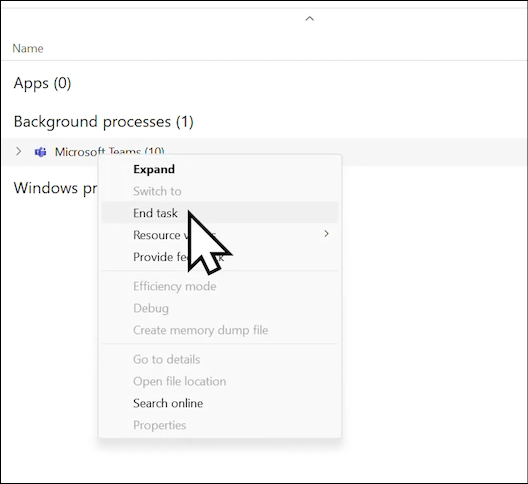
Once the app has been closed completely, relaunch it and check if screen sharing is working properly again.
Fix 3: Lower Your Display Resolution
High screen resolutions might look great, but they can also sometimes interfere with Teams’ screen sharing feature. Microsoft recommends using a resolution of 720p or lower to ensure compatibility.
To change this, press Windows + I to open Settings. Navigate to System > Display, and scroll down to the Display Resolution section.
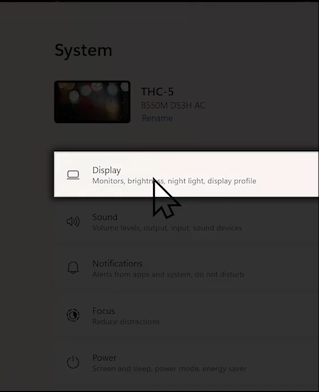
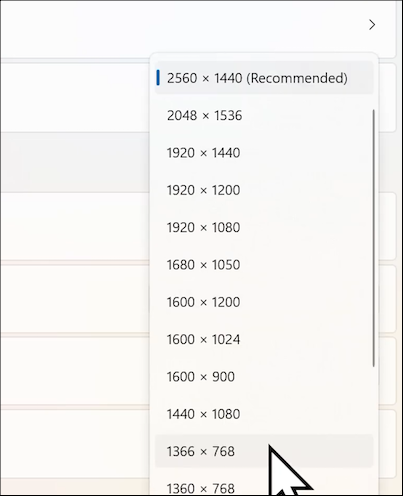
Click on the drop-down menu and select a lower resolution, preferably 1280 x 720 or below. After making the change, try relaunching Teams and test the screen sharing feature.
Fix 4: Repair the Microsoft Teams App
If none of the previous steps work, the issue could be related to corrupted cache files or internal app glitches. Instead of reinstalling the app, try using the built-in repair option in Windows.
Step 1: Start by closing Microsoft Teams completely. Then, press Windows + I to open Settings.
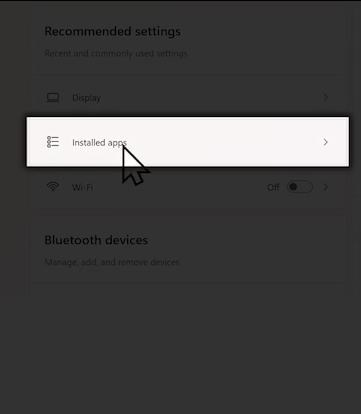
Step 2: Navigate to Apps > Installed Apps, and search for Microsoft Teams. Now, click on the three-dot menu beside it, and select Advanced Options.
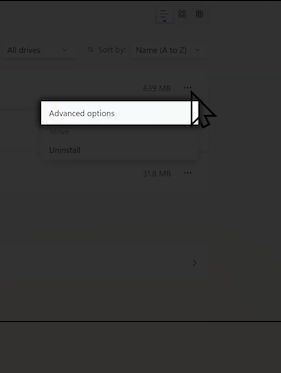
Scroll down and click on Repair, to clear cached files and repair any background issues without affecting your messages or settings. Now, reopen Teams and try sharing your screen again.
Back to Seamless Sharing
Screen sharing issues can show up at the worst times, but most of them are easy to fix with a few simple tweaks. From checking your internet speed to adjusting display settings and repairing the app, these steps cover the most effective ways to get Microsoft Teams screen sharing back on track.
Frequently Asked Questions (FAQs)
1. Why does screen sharing stop working randomly in Microsoft Teams?
Screen sharing may stop working due to network instability, high display resolution, outdated app versions, or temporary glitches in the system. It is best to go through the troubleshooting steps to identify the root cause.
2. Will repairing the Teams app delete my data or conversations?
No, using the Repair option does not delete your Teams messages, settings, or user data. It only resets the core app files and clears the cache.
3. Can display resolution affect Teams screen sharing?
Yes, if your display resolution is higher than 720p, it might affect screen sharing on certain systems. Lowering the resolution can help Teams function more efficiently.
4. How much internet speed is needed for smooth screen sharing in Teams?
For a smooth experience, Microsoft recommends at least 1.5 Mbps upload and download speed. Anything below that may result in lag or sharing errors.
5. Is there a mobile fix for Teams screen sharing not working?
Mobile devices may have different solutions. Try restarting the Teams app, updating it via the App Store or Play Store, and checking if your device has screen recording permissions enabled for the app.