Most people don’t think about their YouTube name until it starts to sound weird or wrong. Maybe you picked it as a teenager, or it was a random string of words that made sense for one video and not for the next fifty. The good news is that you can actually change name on YouTube as many times as you want, at no cost, with no approval process.
What people usually get confused about isn’t where to change the name. It’s what actually happens after you do. Will your videos disappear? What about your subscribers, channel URL, or comments? That’s the part most tutorials gloss over, and it’s exactly what we’ll clear up here.
The Part Most Guides Skip
Your channel name and your handle aren’t the same thing. The name is the display text under your videos, like “XYZ.” The handle is the @username in comments and your URL, like @xyz.
Change one and the other stays as it was, so if you want both to match, update them separately in Customization.
Then there’s your Google Account. On a Brand Account, which most creator and business channels use, your name is independent of your personal Google name. On a personal account, a rename can spill into your Gmail and other Google services.
Worth checking your setup under YouTube Studio’s Advanced Settings before you save, especially if that account handles anything professional.
Change YouTube Name on Desktop
If you’re on a computer, changing your YouTube name only takes a minute or two.
Step 1 – Sign in to YouTube.com with the account connected to your channel.
Step 2 – Click your profile photo, then open YouTube Studio.
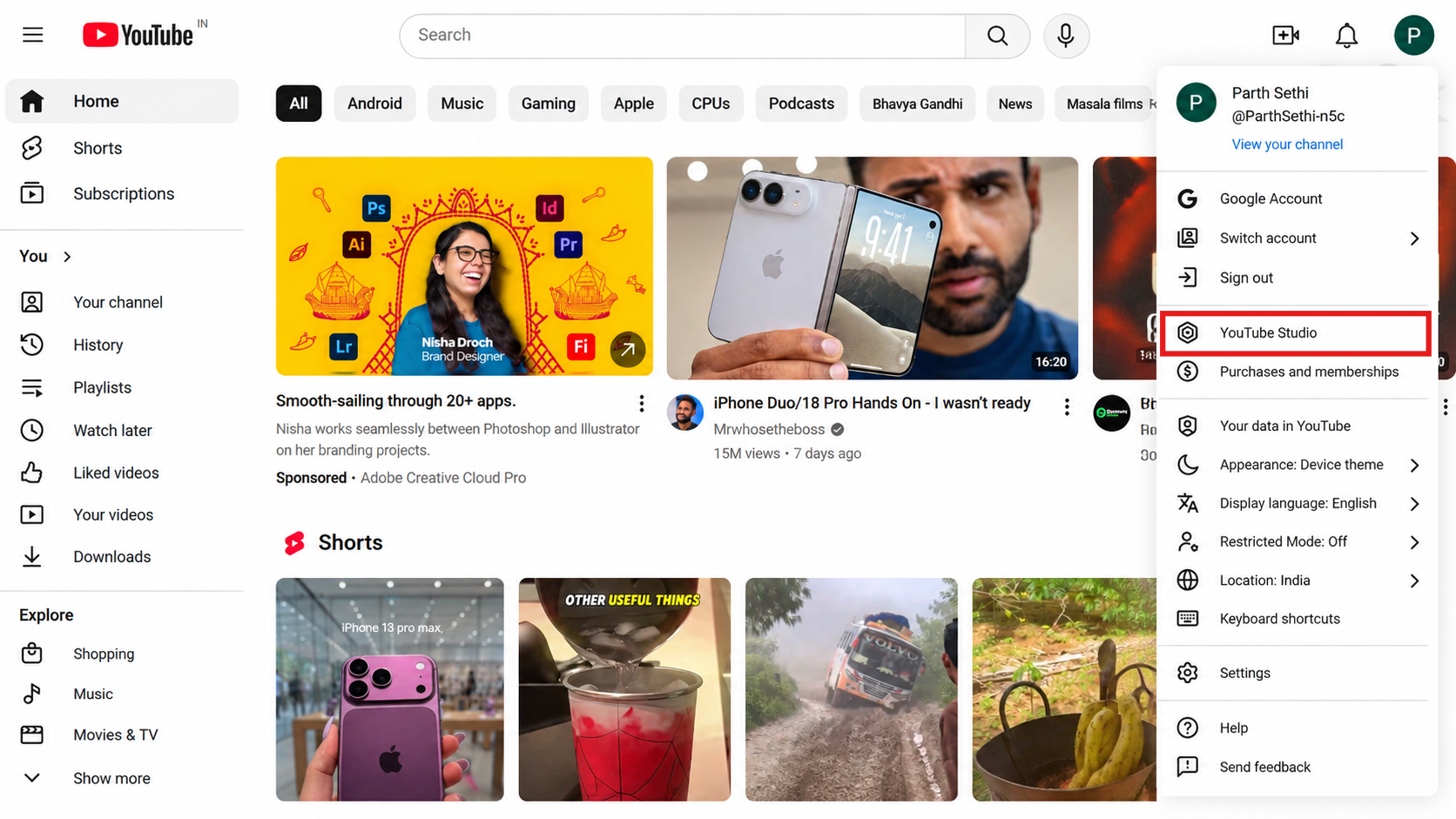
Step 3 – Go to Customization, then the Name field, where you see your name.
Step 4 – Click on the field and type your new name.
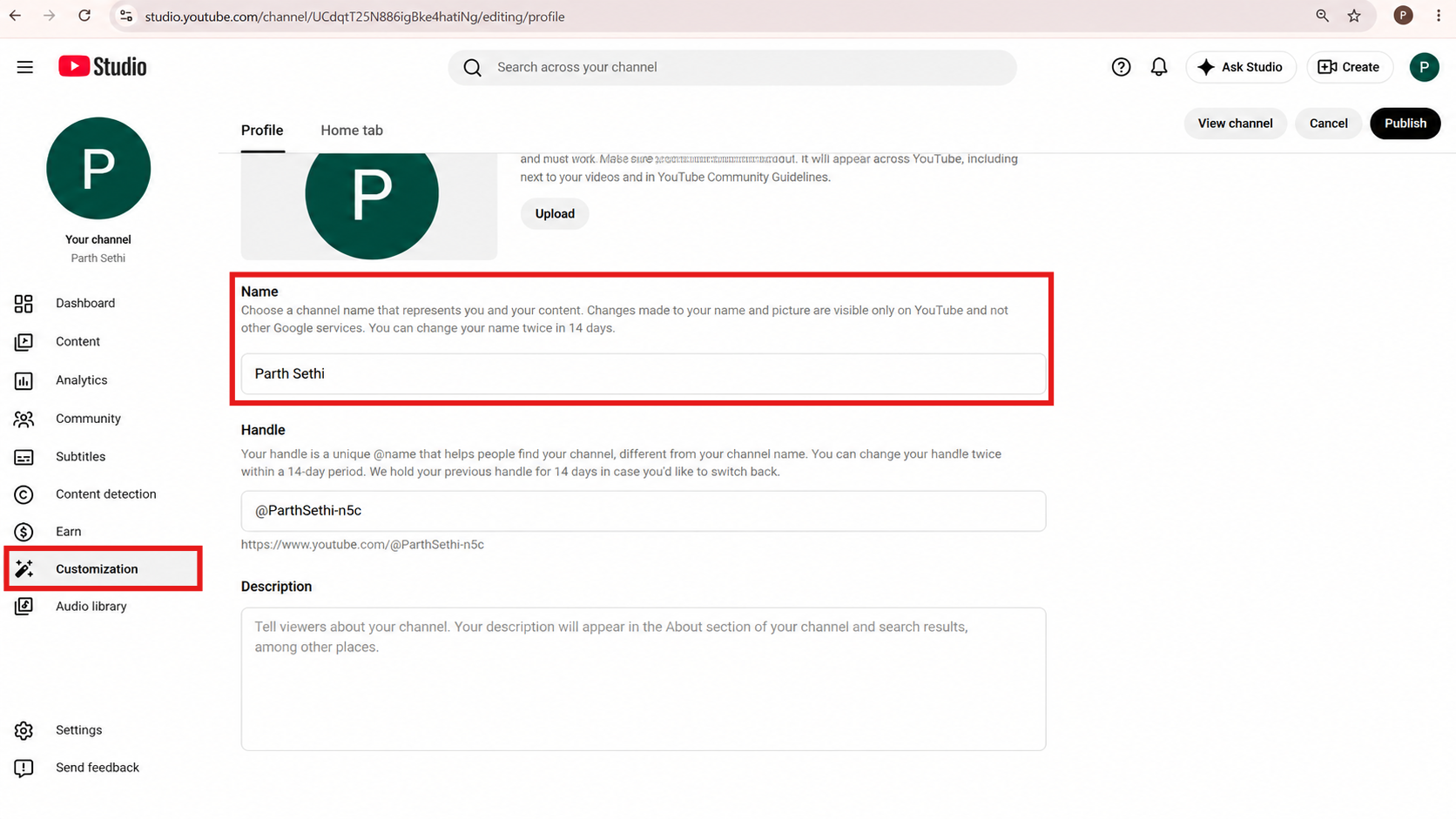
Step 5 – Click Publish in the top-right corner to save your changes.
A quick tip: Desktop can be a little easier if your new name includes unusual spacing, symbols, or capitalization. Having the whole thing laid out on a bigger screen makes it much easier to spot a tiny typo before you hit Publish.
Change YouTube Name on Mobile
Prefer doing everything from your phone? No problem. The process is pretty much the same whether you’re using an iPhone or an Android phone.
Step 1 – Open the app and tap your profile icon in the “You” tab.
Step 2 – Tap your name or “View Channel”.
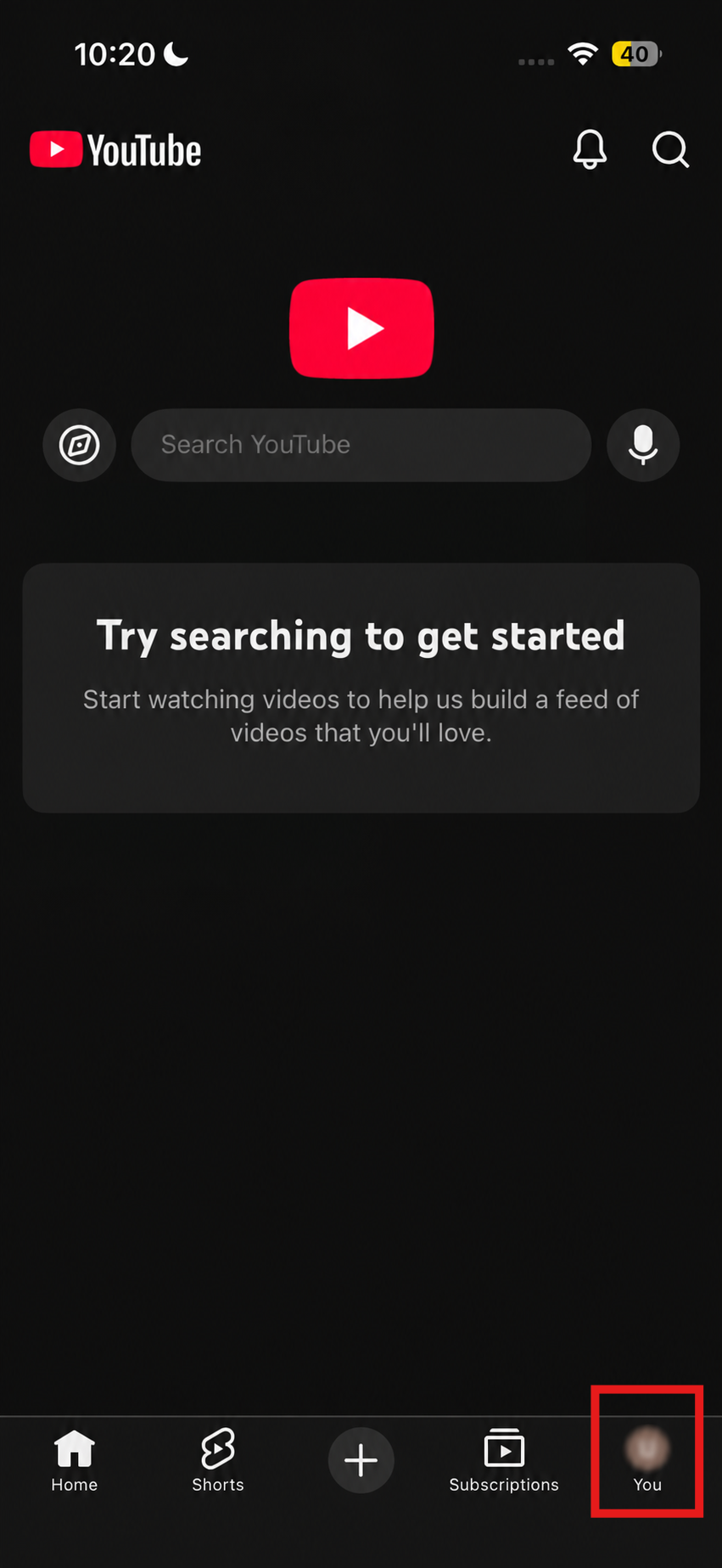
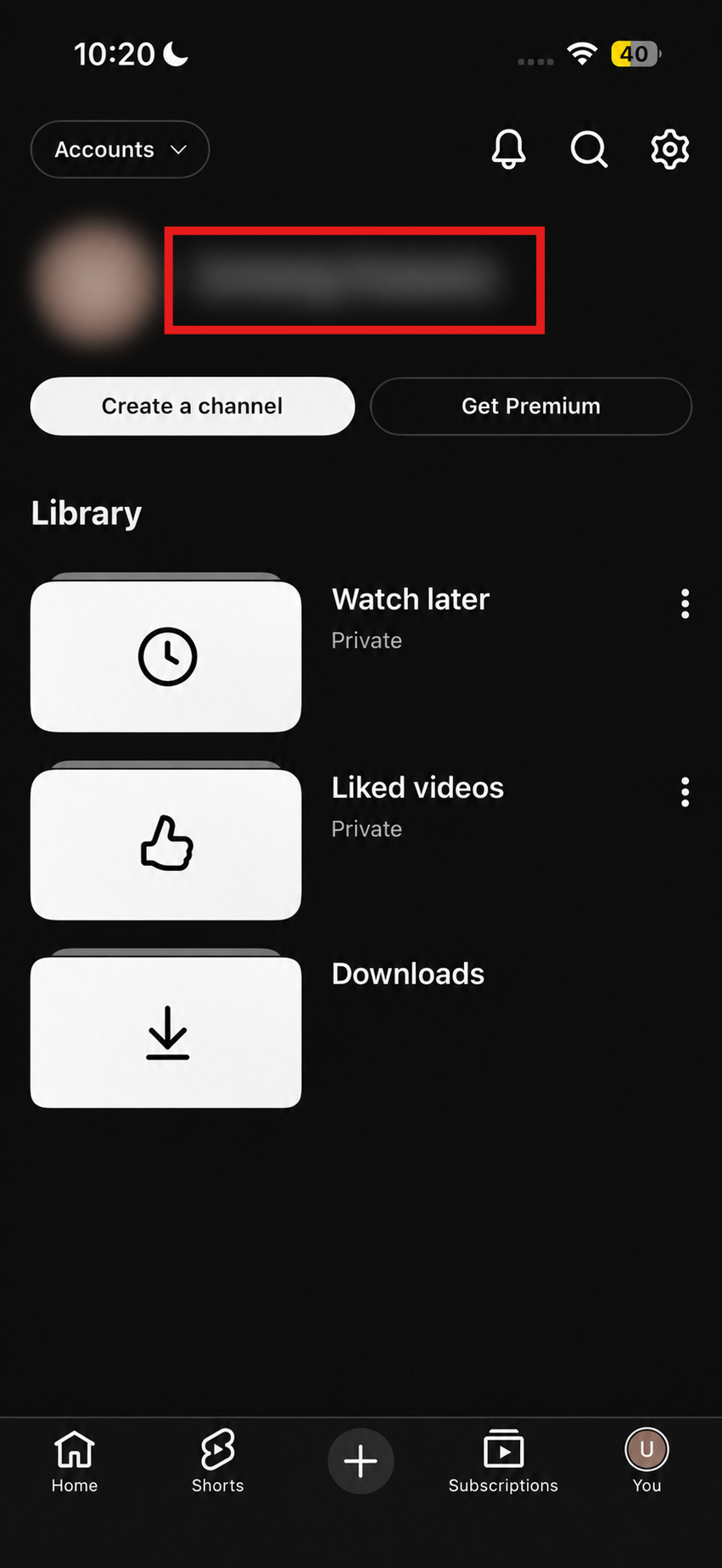
Step 3 – Tap the pencil icon next to your current name.
Step 4 – Clear the old name, type the new one, and save.
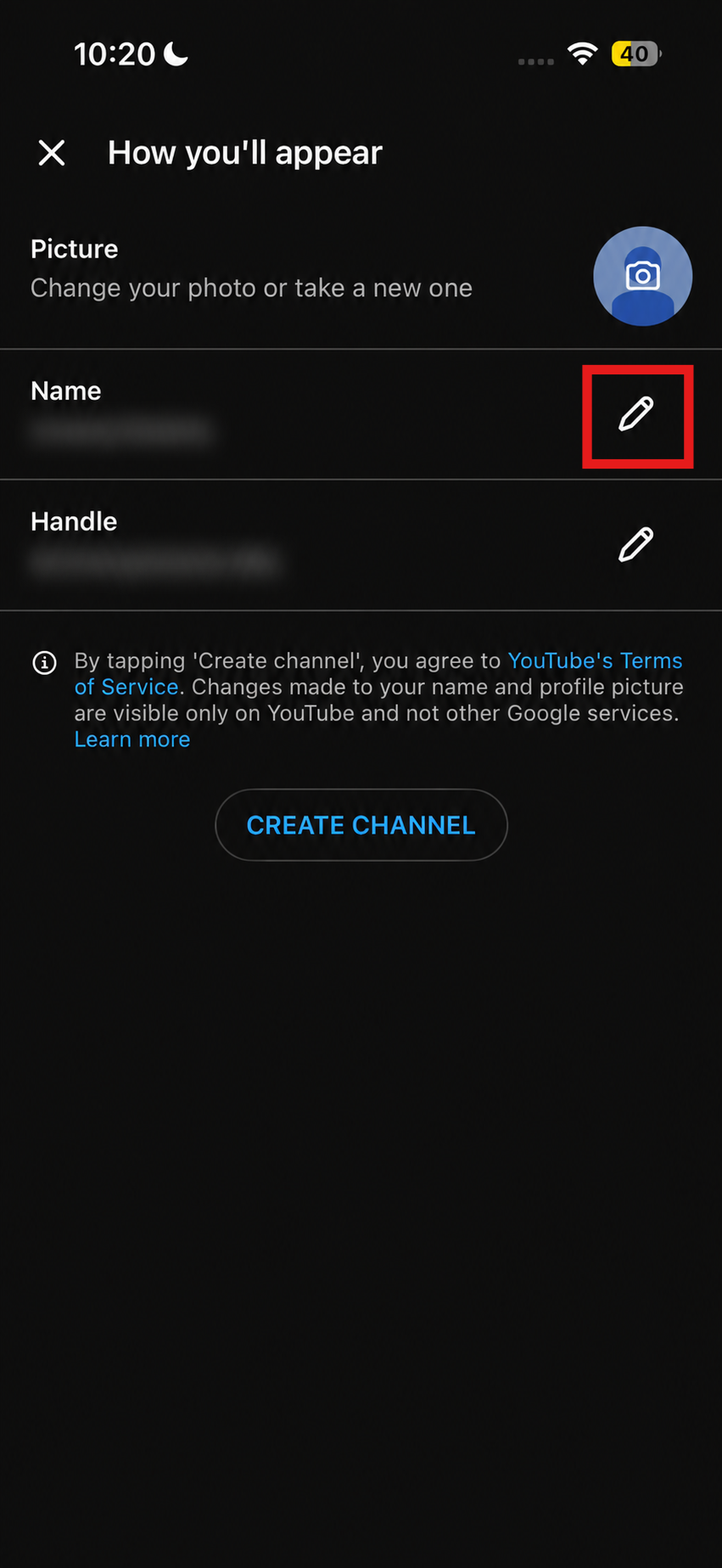
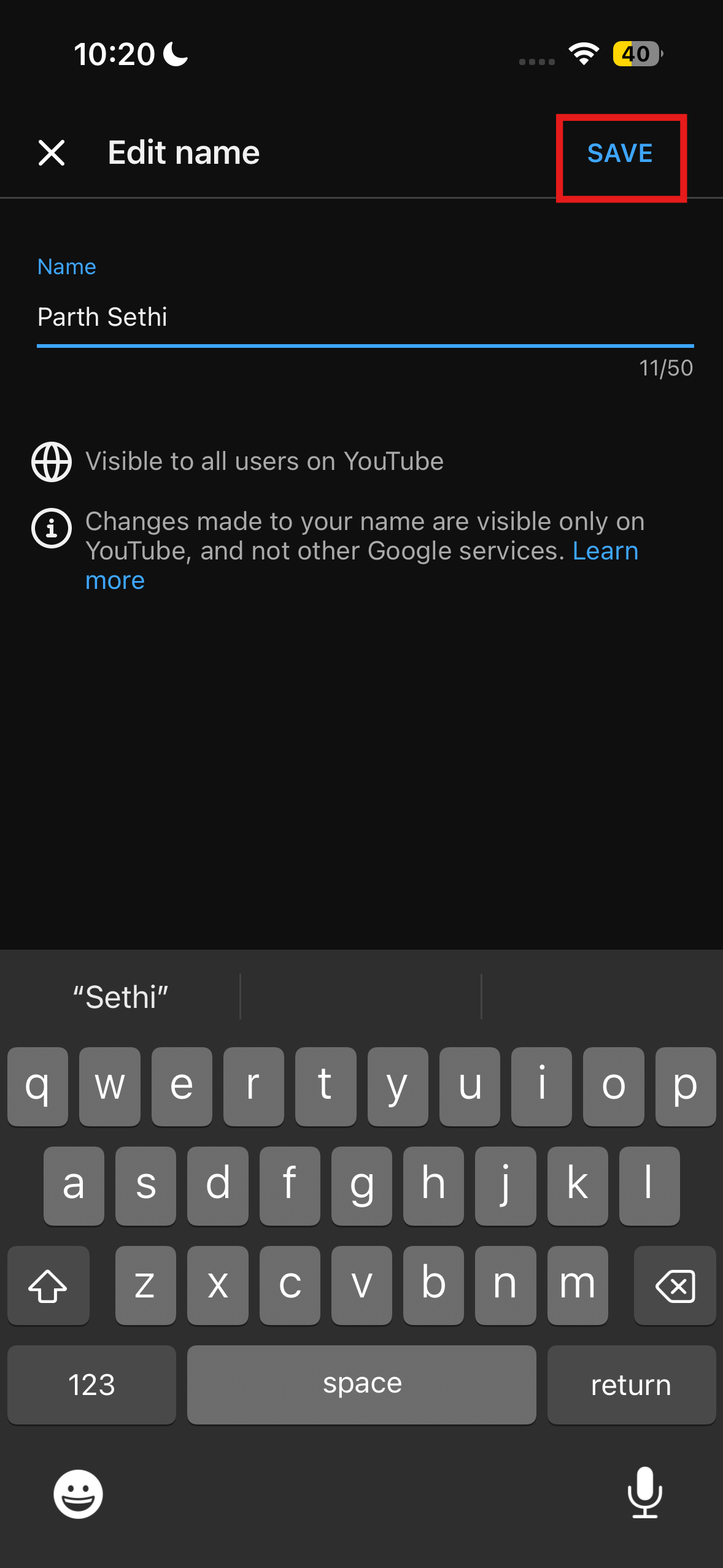
iPhone and Android work identically here. If the new name doesn’t show up right away, that’s cached data, not a failed save. To fix this issue, force-close the app, or on Android, clear its cache.
Read More – SparkNherd 101: How Do You Make a YouTube Channel?
What Actually Changes
Here’s the reassuring part. Renaming doesn’t touch your subscriber count, videos, playlists, or watch history. None of it moves. What does change is your verification badge.
If your channel has the gray verification checkmark, editing your YouTube name can remove it, and you may need to apply for verification again.
That might sound alarming if you’re simply giving your channel a fresh name, but it’s an intentional part of YouTube’s verification system. So if the badge disappears after an otherwise harmless rebrand, it doesn’t mean something went wrong with your channel.
New Name, Same Channel
If you’re just fixing a typo, you’ll probably be done in under a minute. But if you’re actually rebranding your channel, think of the new name as the first domino, not the whole project.
Once you’ve changed it, take a few minutes to update the other pieces of your channel too, including your banner, watermark, and description. That way, someone who lands on your channel isn’t left wondering whether they’ve found the right place.
Your subscribers, videos, and channel history will stay the same. So, once you’ve changed the name, take a quick look at the rest of your channel and update anything that still shows the old branding.
FAQs
Can I change my YouTube channel name?
Yes. Go to YouTube Studio > Customization > Profile and change it anytime.
How long does it take to change YouTube channel name?
Usually, it’s almost instant. If the old name still shows on mobile, give it a few minutes or restart the app.
Does changing YouTube channel name affect subscribers?
No. Your subscribers, videos, playlists, and history stay the same. Your verification badge may be removed, though.
Can I change my YouTube name without changing my Google name?
Yes. Your YouTube name can be different from your Google Account name, especially with a Brand Account.