That sinking feeling when you reach for your phone, and it is just not there – we have all been through it. But worry not. Find Hub might just be the thing that keeps you from losing your mind over it. Read on to find out how to find a lost Android phone using Find Hub!
What Is Google Find Hub?
Google Find Hub is Google’s device-tracking service that lets you locate your Android phone, tablet, earbuds, Wear OS watch, or any accessory with a tracker. You can do all of this straight from a web browser or by borrowing another Android device nearby.
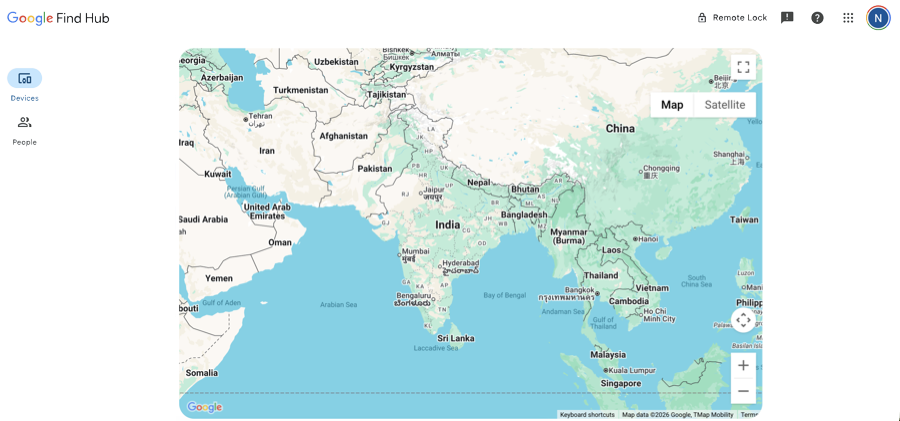
The best part is that Find Hub is usually ready to use by default when an Android phone is connected to a Google account. You do not need to set anything up from scratch.
Before you begin, run a quick check. The missing device needs to be powered on, connected to the internet or mobile data, and have a Google Account active on it with Find Hub enabled.
How to Find a Lost Android Phone Using Find Hub (Via Browser)
No spare Android device? Not a problem. Any browser on any device will do the job.
Step 1: On any browser (laptop, tablet, or someone else’s phone), go to android.com/find.
Step 2: Sign in using the same Google account linked to the phone you’re trying to locate.
Step 3: Tap Continue to proceed with your own account. If you are on someone else’s device, tap Sign in as guest and enter your credentials there.
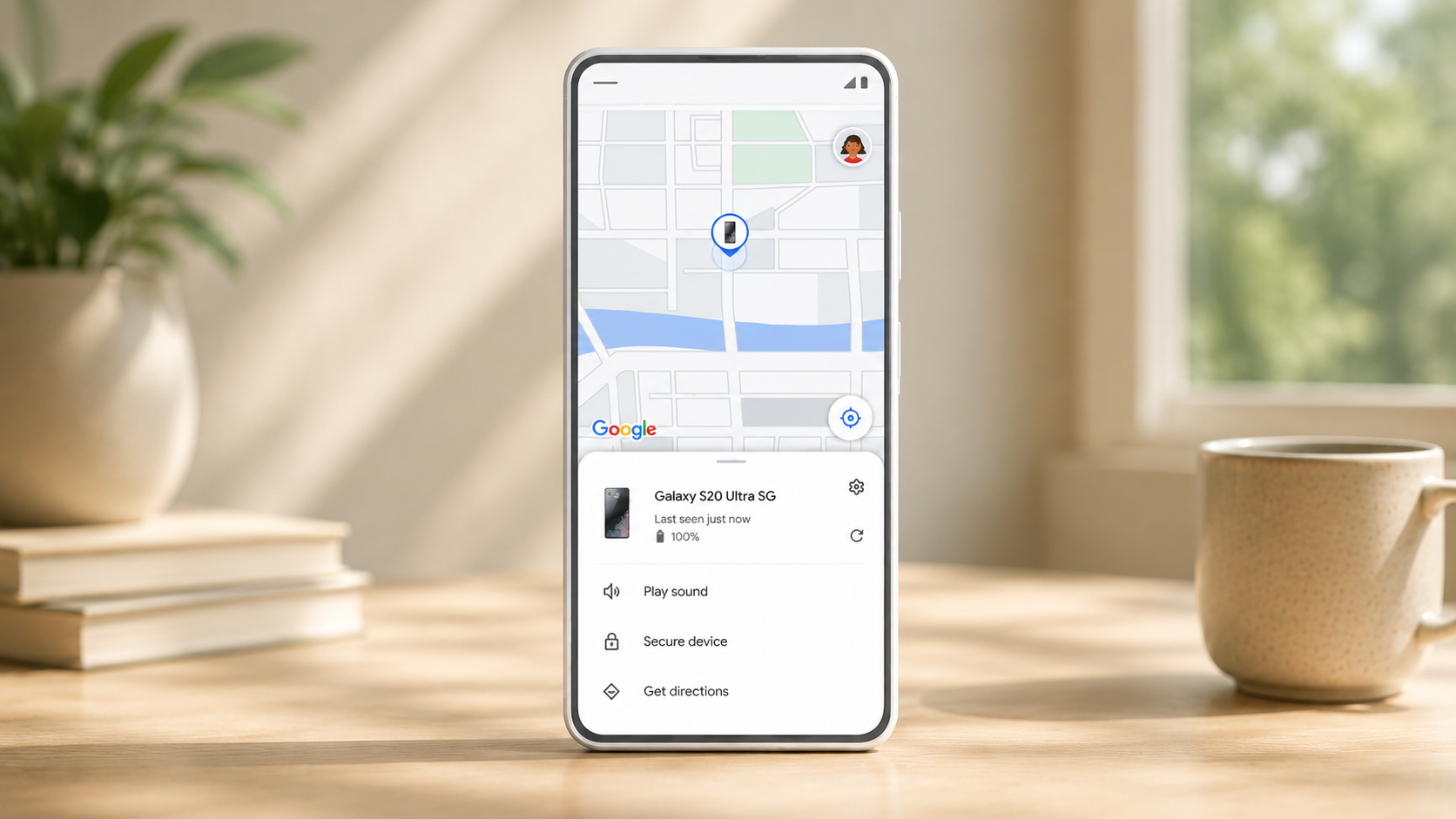
Step 4: From the list of devices shown, select your lost phone. Find Hub will try to pinpoint the phone and display its most recently recorded position on a map.
If you wish to continue, go to the next screen to make the phone ring, lock it, or wipe its data.
How to Secure A Lost Android Device Using Find Hub
If you cannot retrieve your phone immediately and are worried that someone may have access to your data, mark your device as lost in Find Hub.
Step 1: Choose your lost phone in Find Hub (browser or app).
Step 2: Select Secure Device from the options.
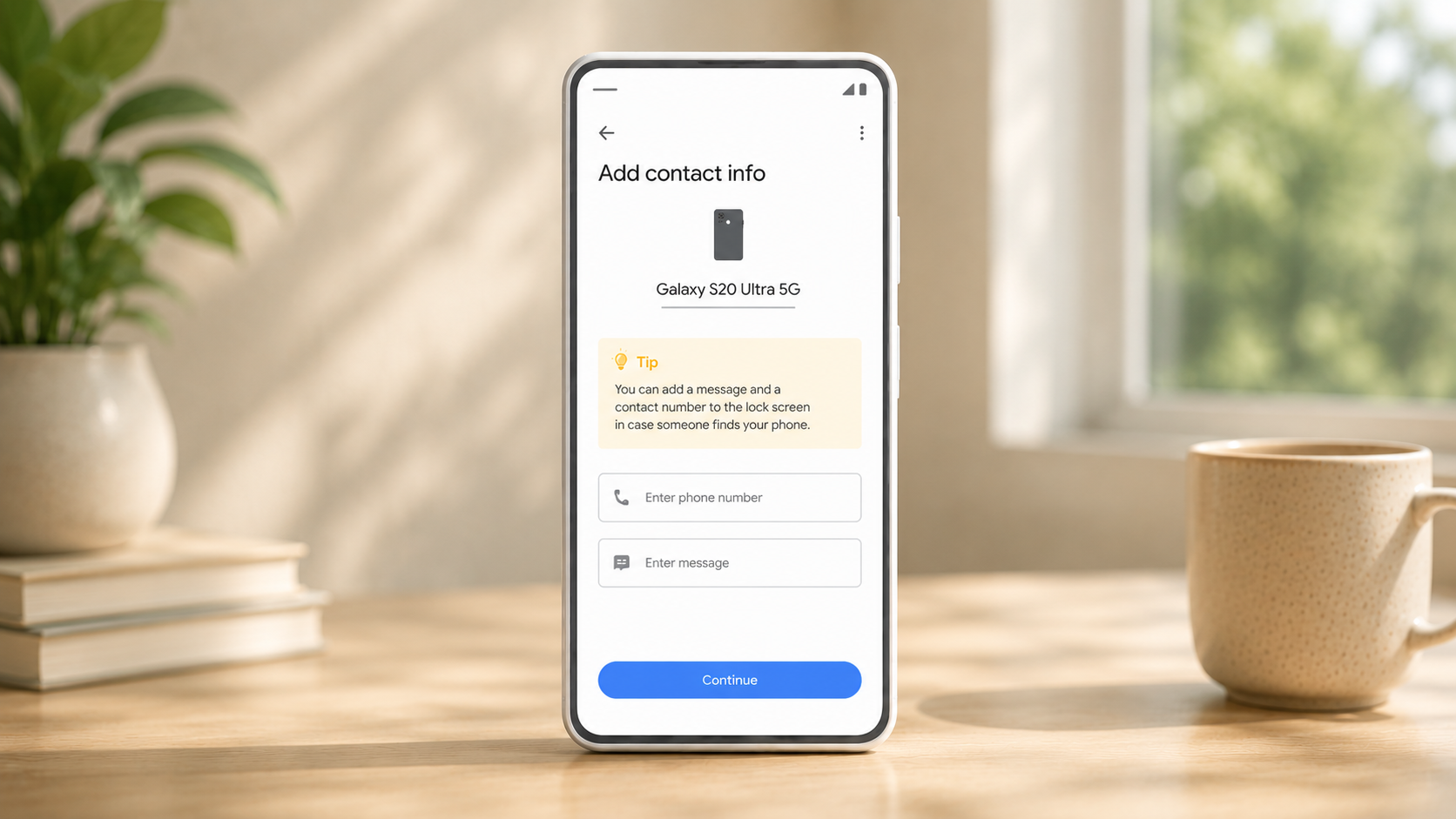
Step 3: Add your email address and a short message. It will appear on the lock screen. So anyone who sees your phone can get in touch with you.
Step 4: Tap Continue.
Once the device is locked, head to your Google Account security settings from another device to review any unusual recent activity.
Bonus Tip: How to Erase Data from a Lost Android Device with Find Hub
If you are certain the phone has been stolen and you know you will not get it back, this is the last resort. Find Hub’s erase feature means all the data will be erased from the phone.
Step 1: In Find Hub (browser or app), select the device you want to reset, tap on Settings.
Step 2: Tap Factory Reset [device name] and confirm your action.
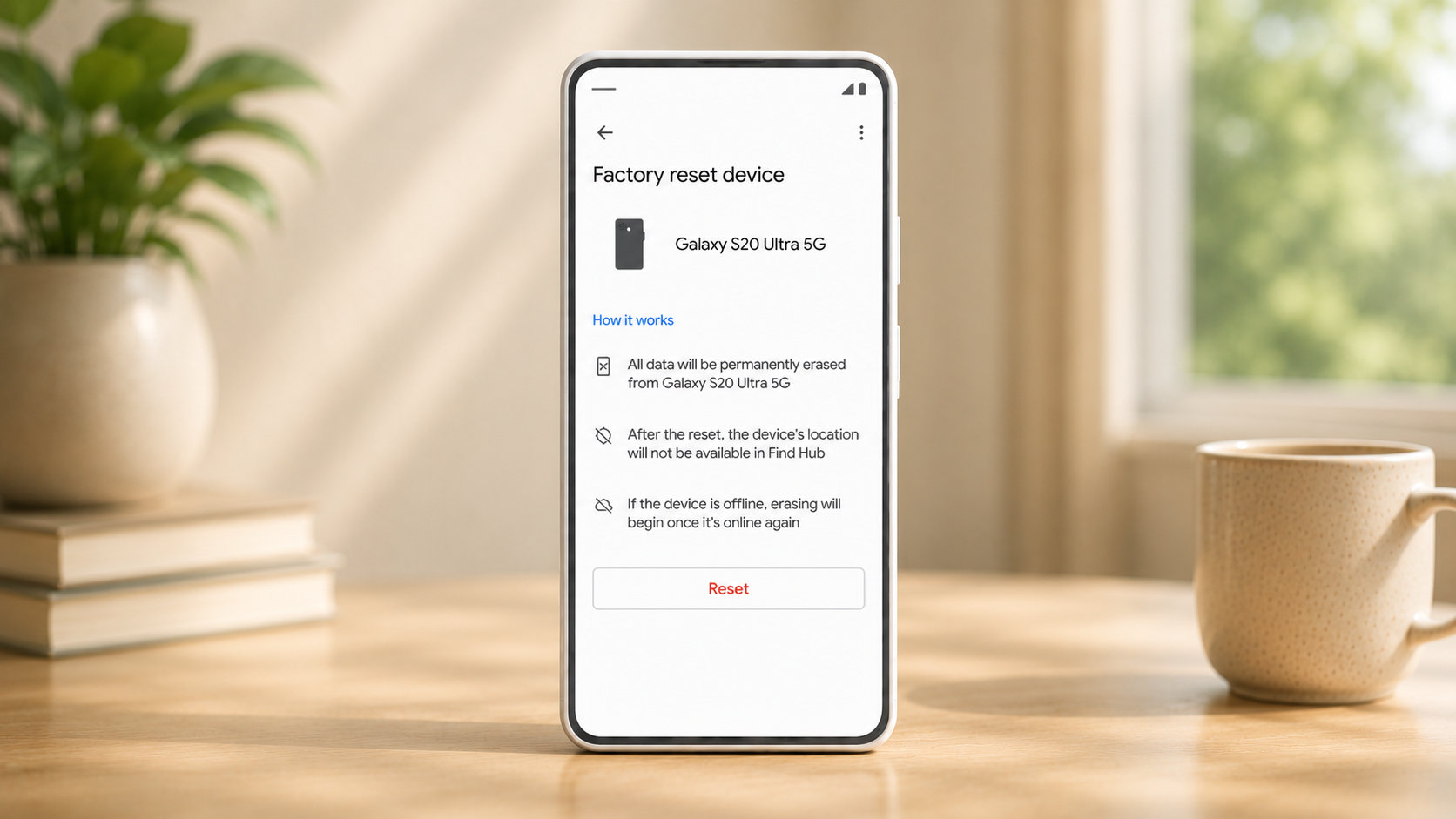
Once erased, Find Hub will no longer be able to track that phone. Use this option only when all else has failed and you are confident the phone is not coming back.
Conclusion
Knowing how to find a lost Android phone using Find Hub takes less than a minute. Once everything is in place, a location usually shows up faster than the panic. The key is making sure Find Hub is set up on your phone before it goes missing.
If you have not already, take two minutes right now to verify that it is on. In the future, you will be glad you did.
FAQs
Will Find Hub work if my Android device isn’t connected to the internet?
Yes, but only partly. Yes, but only partly. Find Hub will show your phone’s last location before it went offline.
Does Find Hub work on all Android phones?
Find Hub works on Android 9 and above. For the full offline-finding experience, you need a Pixel 8 or newer. Older devices will show the last known location before the phone powered off.
What if Find Hub shows the wrong location for my lost Android phone?
Find Hub shows the most recently stored location. This may not always be real-time if your phone is offline or has a weak signal.