Have you accidentally deleted a WhatsApp message only to realize later that you shouldn’t have? Well, we all have been there. The good news is that there are several ways to recover a WhatsApp message after deleting it. But your chances of recovery depend on whether the message was archived by mistake or if you have a backup of the chat.
With that settled, let’s take a look at the options to recover a deleted WhatsApp message.
Archived Instead of Deleted?
Firstly, make sure to check if you actually archived the message rather than deleting it. As we all know, Archive only hides the chat and keeps the chat away from plainsight.
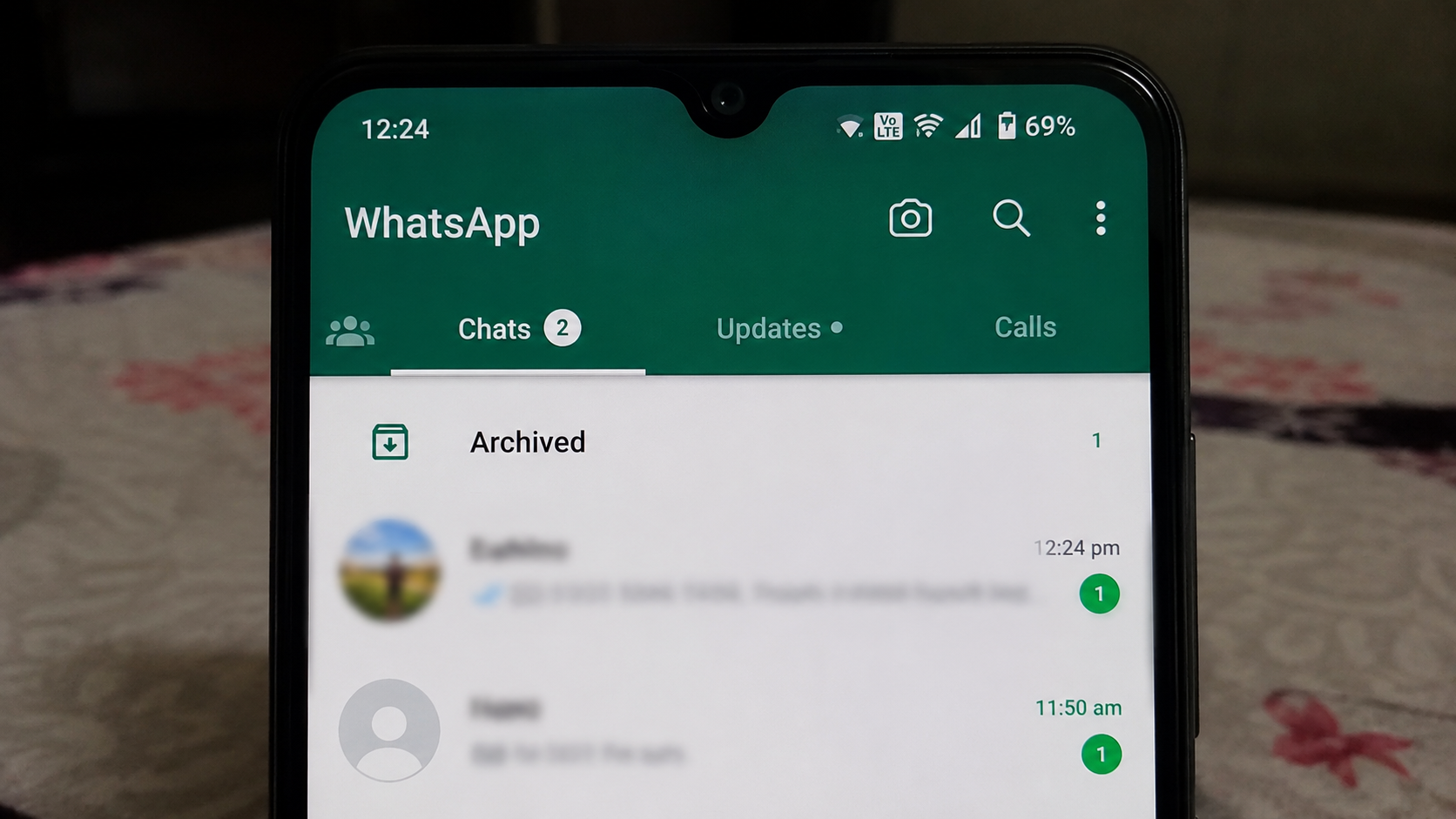
How to Find Archived Chats
Step 1: Open WhatsApp and tap on Archived messages.
Step 2: If you find the message under archive, all you need to do is tap Unarchive. That’s it!
Method 1: Restore from Cloud Backup
WhatsApp automatically backs up your chats to cloud storage. Which means it saves chat backup in iCloud for iPhone users and in Google Drive for Android users. So, if the deleted message was in your recent backup, there’s still a chance that you can restore it easily.
Step 1: First of all, delete WhatsApp, and after that, reinstall it on your phone. After reinstalling, open your WhatsApp and then log in

Step 2: A page will appear with terms and conditions. Tap Agree & Continue. Now, when WhatsApp detects your iCloud backup, tap Restore, and your messages will return.
If you are using an Android phone, WhatsApp will detect your Google Drive backup. Once you see it, tap on Restore to restore the messages.

Note: If you deleted the message before your last backup was created, your messages would not be restored.
Method 2: Use Local Backup (Android)
At times, WhatsApp lets you store backups locally on Android phones. The advantage is that with this you will be able to choose which backup to restore.
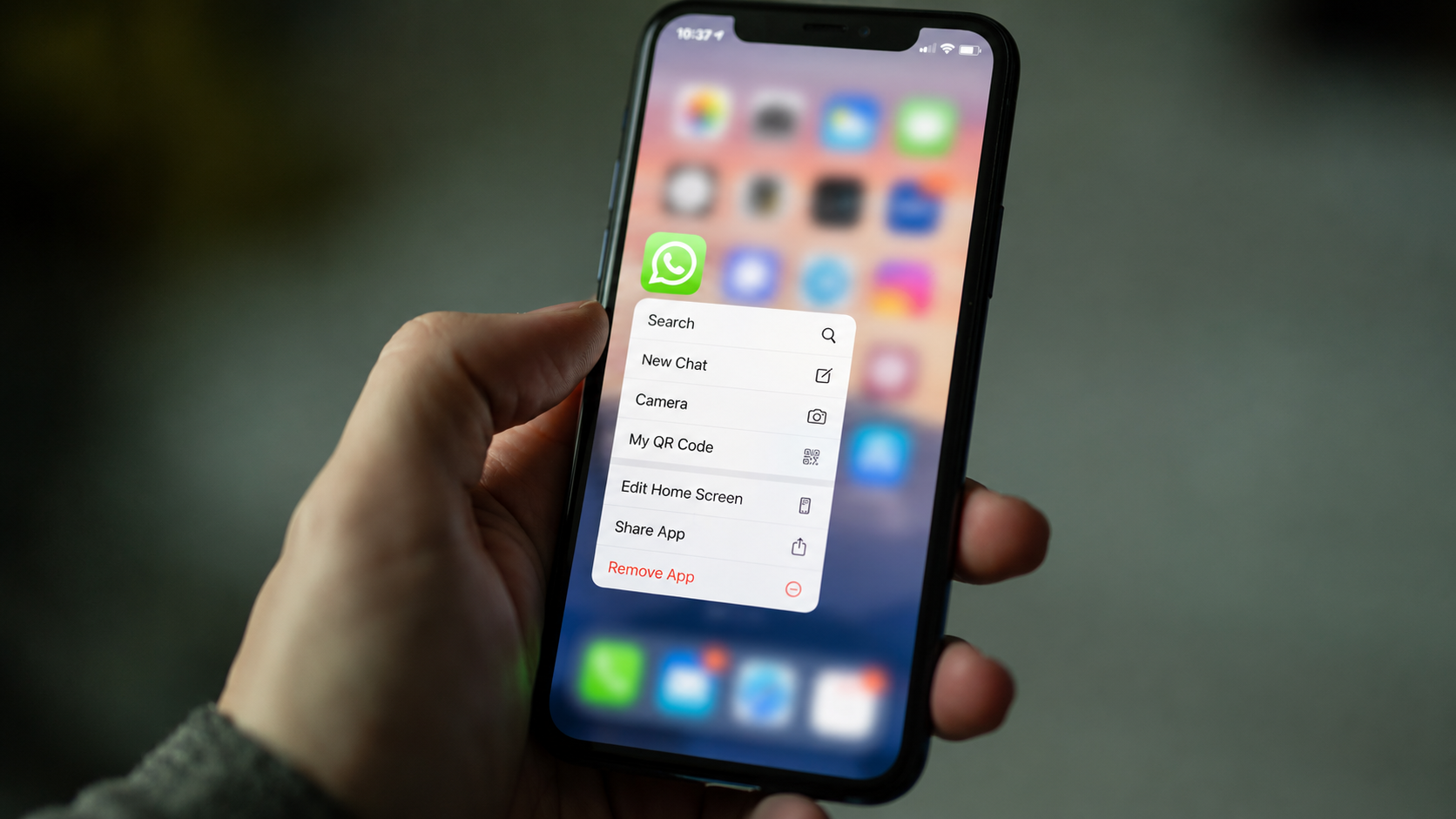
Step 1: Open your phone’s file manager and then navigate to the WhatsApp folder > Databases subfolder.
Step 2: Then you will find the backup file you want (named like msgstore-YYYY-MM-DD.1.db.crypt12).
Step 3: Rename this file to msgstore.db.crypt12 and then uninstall WhatsApp.
Step 4: After some minutes, reinstall WhatsApp, and it will show an option to choose Restore chats from local backup.
Step 5: After you choose, your messages from that backup date will return.
Important Tips to Remember For Avoiding
Backup regularly: Enable automatic backups in WhatsApp Settings to avoid such situations.
Check backup date: Before restoring, ensure the last backup date in WhatsApp Settings to ensure it includes the deleted message
Third-party apps can be a waste: Successful recovery of the messages depends on many factors and is not foolproof.
Why Cloud Backup Matters
Recovering your WhatsApp messages will not be possible every time, these methods can just help you to try your luck.
This is the reason why the cloud backup method works most reliably, while local backups and notification history offer Android-specific alternatives. But cloud backups can help iOS users, too.
So, if you want your WhatsApp messages to be safe, then always back up your chats so they get saved in the cloud to avoid such scenarios.
FAQs
How do I restore deleted WhatsApp chats from Google Drive or iCloud?
Uninstall WhatsApp, reinstall it, verify your phone number, and tap Restore when prompted to recover chats from your Google Drive (Android) or iCloud (iPhone) backup.
How far back can WhatsApp messages be recovered after deletion?
You can only recover messages from a backup that was created before the deletion, and Google Drive automatically deletes WhatsApp backups older than one year that haven’t been updated.