
Are you tired of Google AI Overviews cluttering your search results? These AI-generated summaries often appear at the top of the page, and push the actual links and results further down. While they are meant to provide quick answers, they may not always be useful for everyone. So if you want to hide Google AI Overviews, you are in the right place.
In this post, we will see how to disable Google AI Overviews. Let’s get started.
Also See: Up Your Productivity on Chrome with These Tips
What Is Google AI Overviews & Why You Might Want to Disable it
Google AI overviews are AI-generated summaries that appear on top of Google search results, which help in providing answers pulled from web sources.
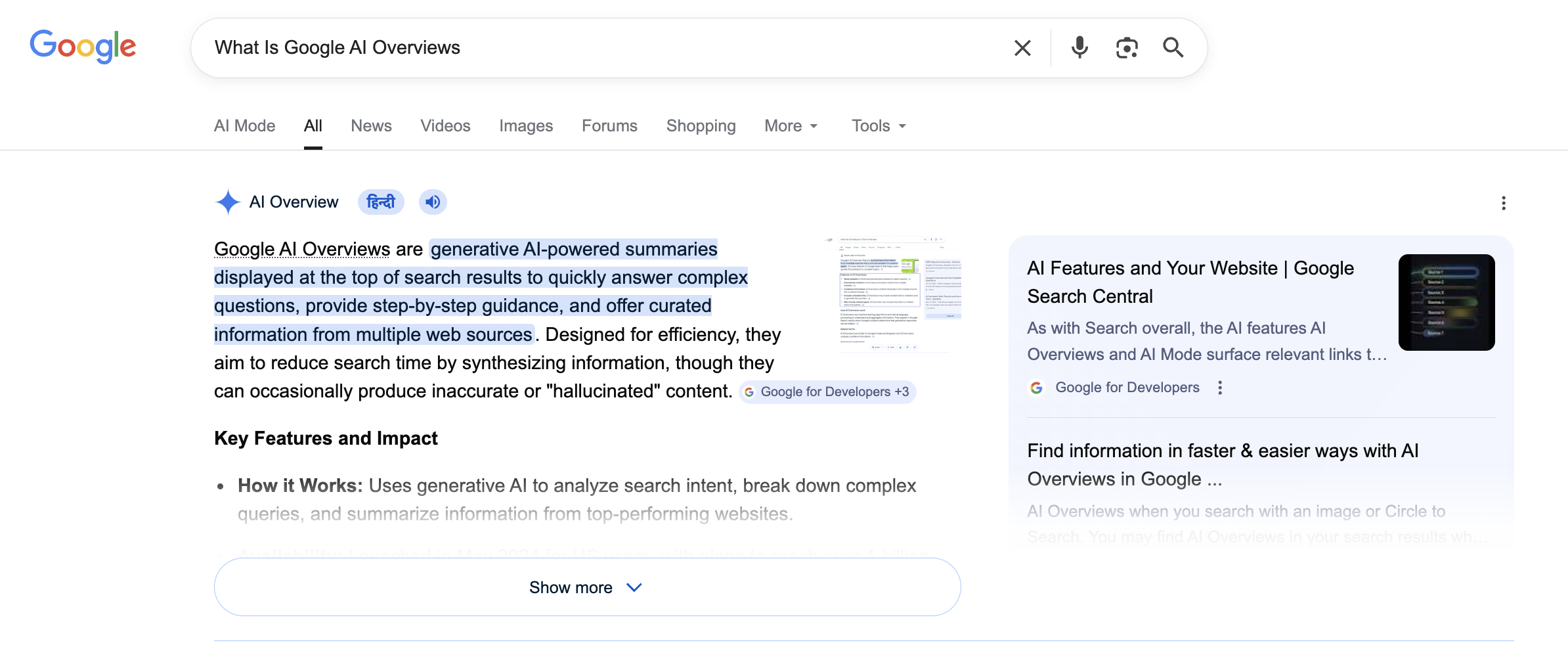
That said, Google’s AI overviews are not always correct. Since the feature relies on AI to generate summaries from multiple sources across the web, it can sometimes misinterpret information, present outdated details, or combine facts in ways that create inaccuracies.
Hence, it becomes cumbersome to double-check the information.
At the same time, AI overviews take up significant screen space, which means it pushes organic results far down the page.
So if you are someone like me who prefers the traditional search results, there are ways to disable AI summaries.
Also See: 6 Best Tools to Make AI Videos
2 Best Chrome Extensions to Hide Google AI Overviews
Hide Google AI Overviews
This extension removes AI-generated summaries from Google search pages and thus provides a cleaner experience focused on organic results.
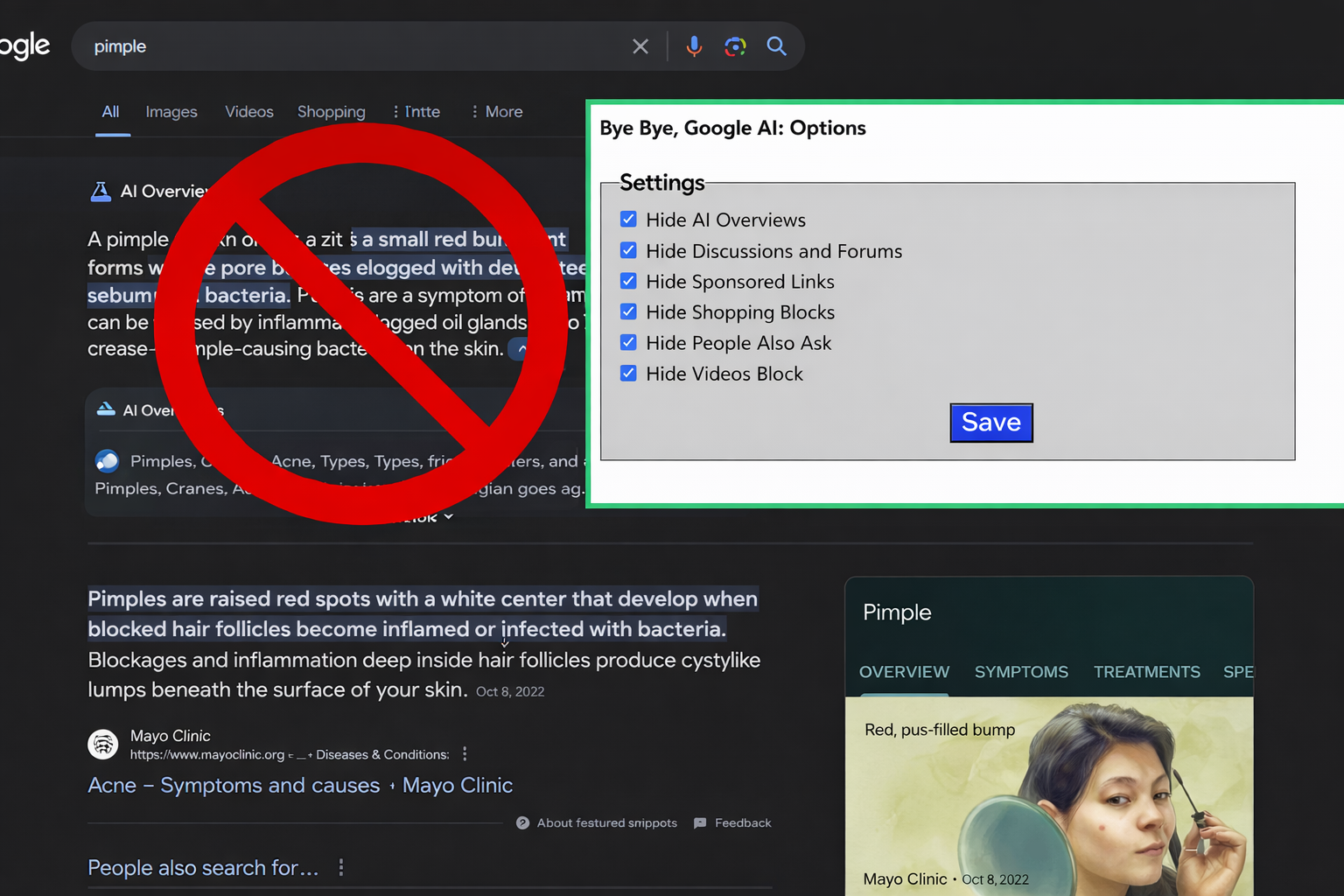
Bye-Bye, Google AI
Bye-Bye, Google AI goes a step ahead and not only hides AI overviews but also gives you the option to remove discussions & forums, sponsored links, and ads. It does so via CSS, and you can change the options any time you want.
How to Install and Use Chrome Extensions to Hide Google AI Overviews
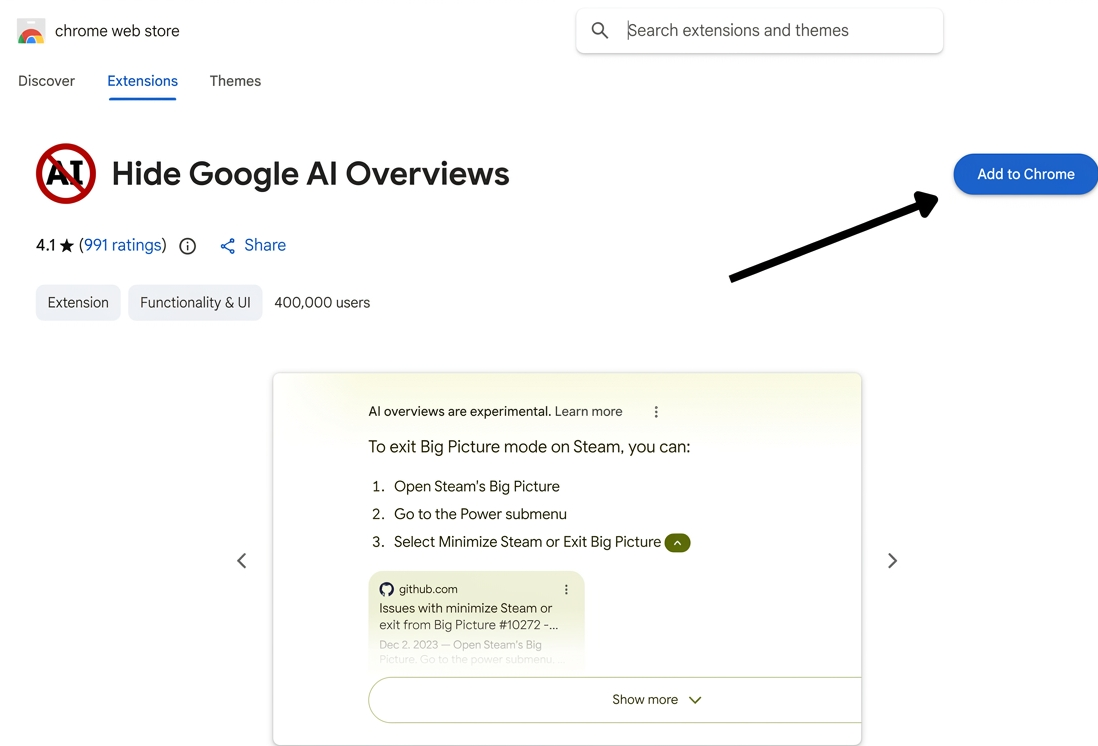
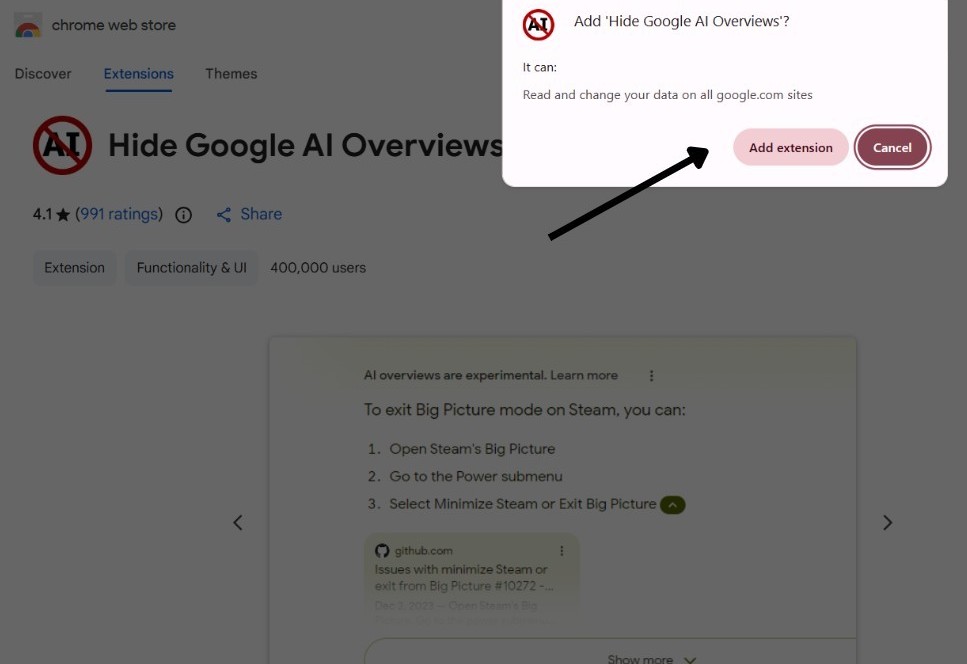
Step 1: Go to the Chrome Web Store and search for Hide Google AI Overviews (or Bye Bye Google AI). Once you locate it, just hit the Add to Chrome button.
Step 2: Next, review the permissions in the pop-up, and select Add extension. For quick access, you can pin the icon to your toolbar via the puzzle piece menu.
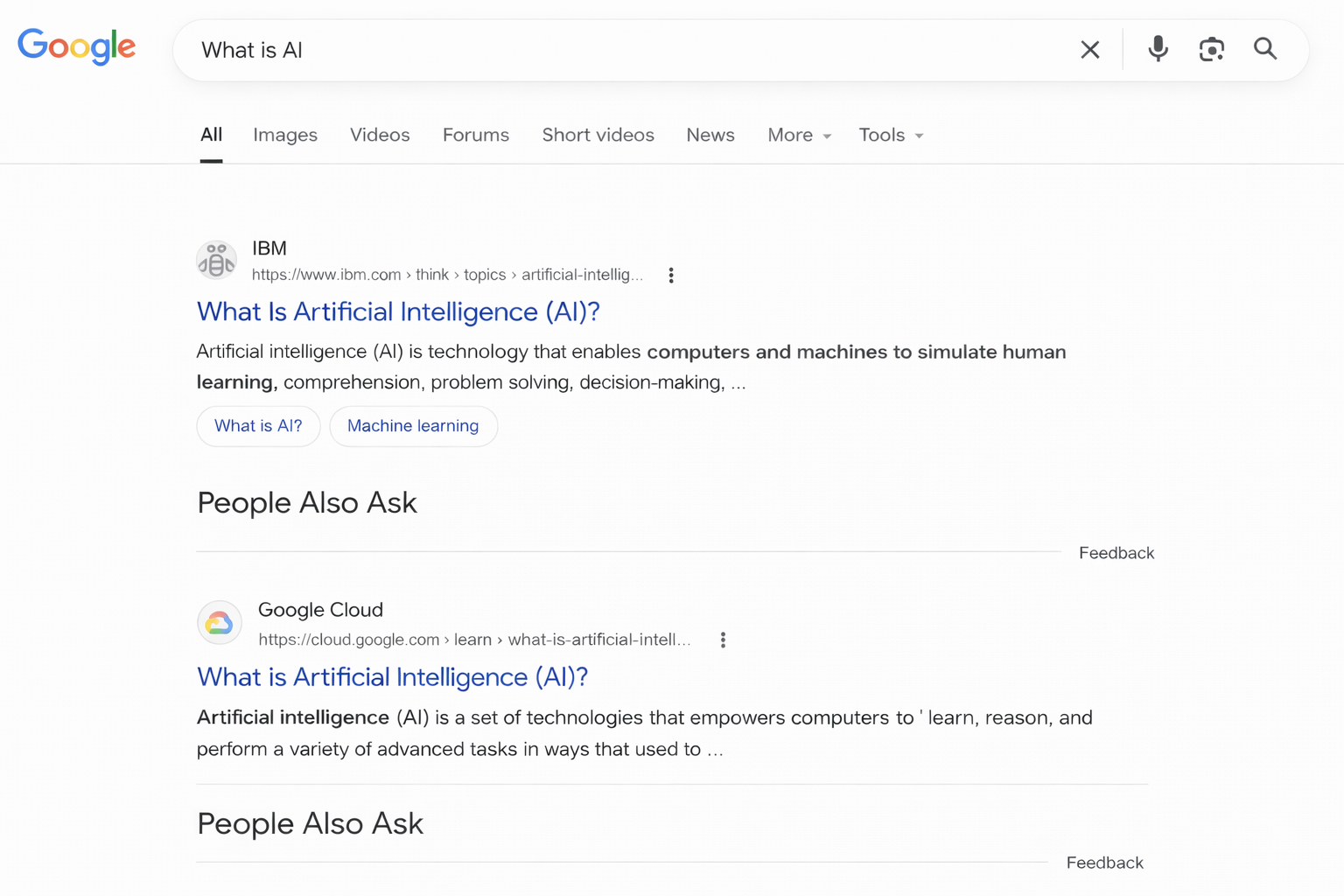
Step 3: Now, all you need to do is open Google and do a quick search. Now, your search will not include AI Overviews and will look like this:
How to Disable Google AI Overviews Without an Extension
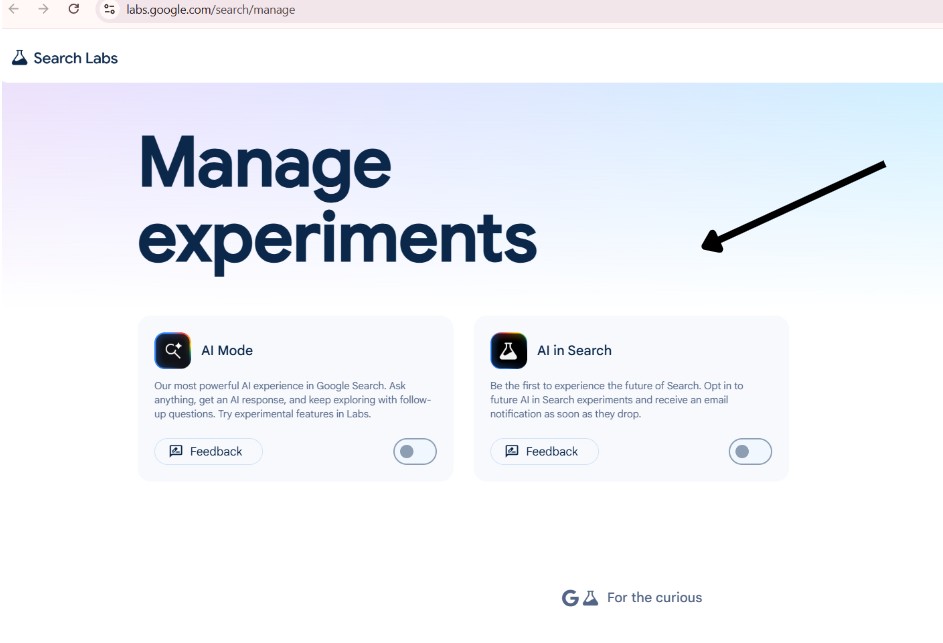
Sadly, Google does not offer a full native toggle to disable AI overviews. While Google Labs’s Search does have two options for AI, it doesn’t remove the AI Overviews in searches.
Mobile users can use tweaks like TenBlueLinks.org for alternatives. This website can help you disable Google AI Overviews.
Does Hiding AI Overviews Affect Search Results?
Basically, hiding AI Overviews works only on the client-side through CSS or filters. It simply changes your view and what you see in your browser. As such, it does not impact Google’s server-side rankings, SEO, FAQ, or the visibility of the People Also Ask section.
In other words, the search results remain unchanged on Google’s servers and for all other users.
Google AI Overviews: FAQs
Is it safe to use a Chrome extension for hiding AI Overviews?
Yes, it is totally safe to use Chrome extensions, since they just block the AI Overview on your search page.
Can I turn AI Overviews back on?
Yes, you can turn AI Overviews back on anytime you want.