If you are someone who uses Google’s NotebookLM like a fancy Google search box instead of a research-grade thinking engine, then we urge you to think again. This pro-research tool is capable of so much more. And when used intentionally, NotebookLM stops being a note reader and starts acting as a strategist, editor, critic, and podcast host (and whatnot). We decided to dive deep into NotebookLM, and well, the results were mind-blowing. On that note, here are the best NotebookLM tips and tricks.
See Also: Google AI Plus And Its Benefits: Everything You Need To Know
Extending the Prompt Limit for Free
NotebookLM was never designed for long instructions inside the chat box. The real control layer lives inside sources. A cool NotebookLM tip is to create a Google Doc for prompts. While the chat interface limits you to roughly 500 characters, you can bypass this by creating a Google Doc titled “notebook LM task”.
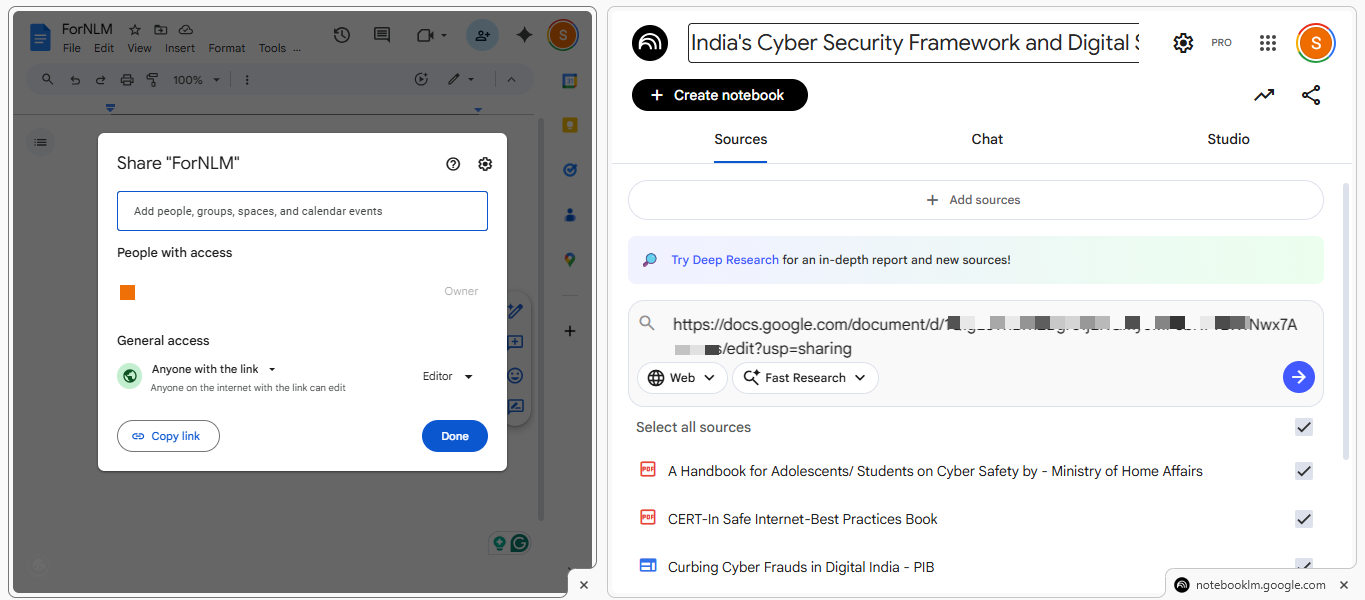
All you need to do is paste your elaborate and detailed instructions into this document, upload it as a source, and then prompt the chat to “review the document notebook LM task and complete the assigned task using all other documents”. Simple, see?
Build a Virtual Expert Panel Instead of Asking for Opinions
If you are looking to create a composite reasoning space, create a “Mastermind Notebook” by uploading books and interviews from specific experts in your field. Once done, you can then query the notebook to ask how that “panel” would solve a specific problem based on their collective writings.
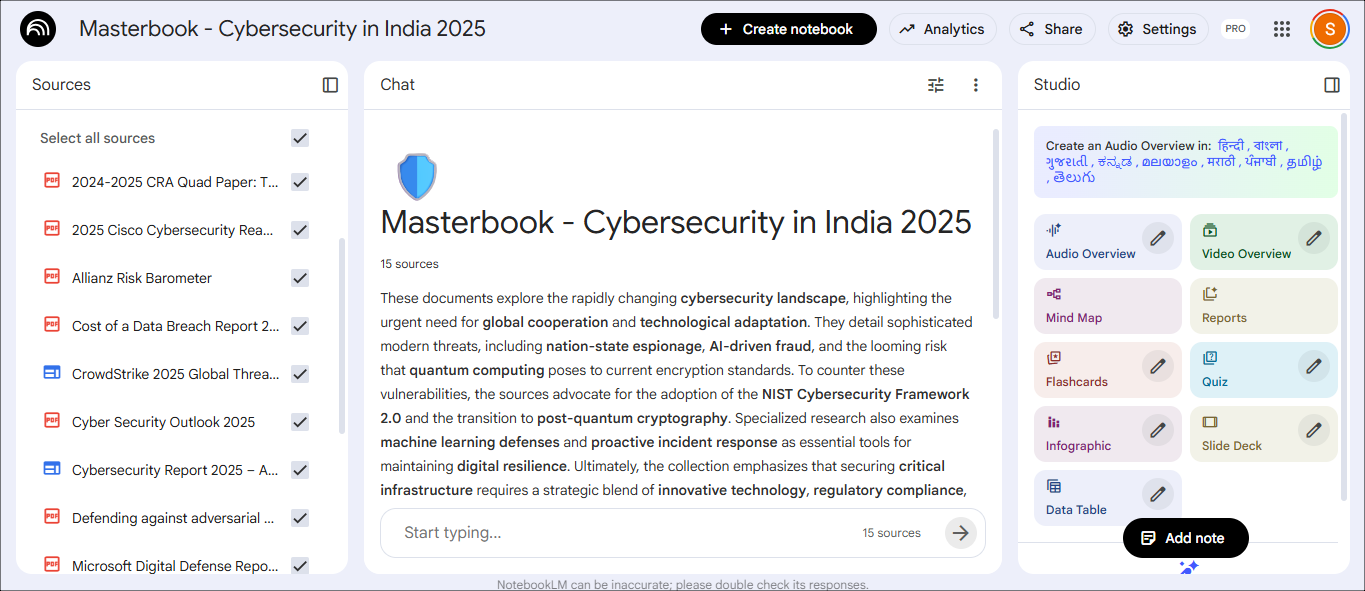
This approach means answers begin to sound more directional, and you will be able to see the patterns and disagreements emerge. And this lets the tool simulate strategic thinking without the signature hallucination that AI is known for.
Source Selection Is the Real Prompt Engineering
Another nifty NotebookLM productivity tip is not to leave all your sources selected. Instead, you can use the checkboxes in the source sidebar to unselect irrelevant documents. This forces the AI to ground its answer only in the specific documents, leading to sharper and more relevant responses.
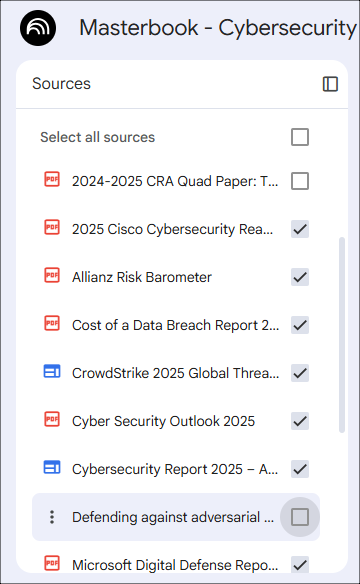
By selectively activating documents, you dictate how you want your answers to be. This is how you move from “technically correct” to decisive responses and avoid generic answers.
See Also: 5 Best AI Tools to Summarize YouTube Videos
Let NotebookLM Undermine You
Most AI models and tools agree with your thinking. And well, that can be frustrating. Thankfully, to use NotebookLM effectively, you can force it into an adversarial role. To use NotebookLM as a critic, specifically ask, “What is missing from this analysis?” or “What important angle have I not considered?” to find gaps in your research or logic.
Since you have already added your sources, the critique is contextual and not not scattered or generic.
The Audio Overview is a Conversation
Most people treat the Audio Overview as a static file to download, but it is actually interactive. The hack is clicking on the Join button during audio playback.
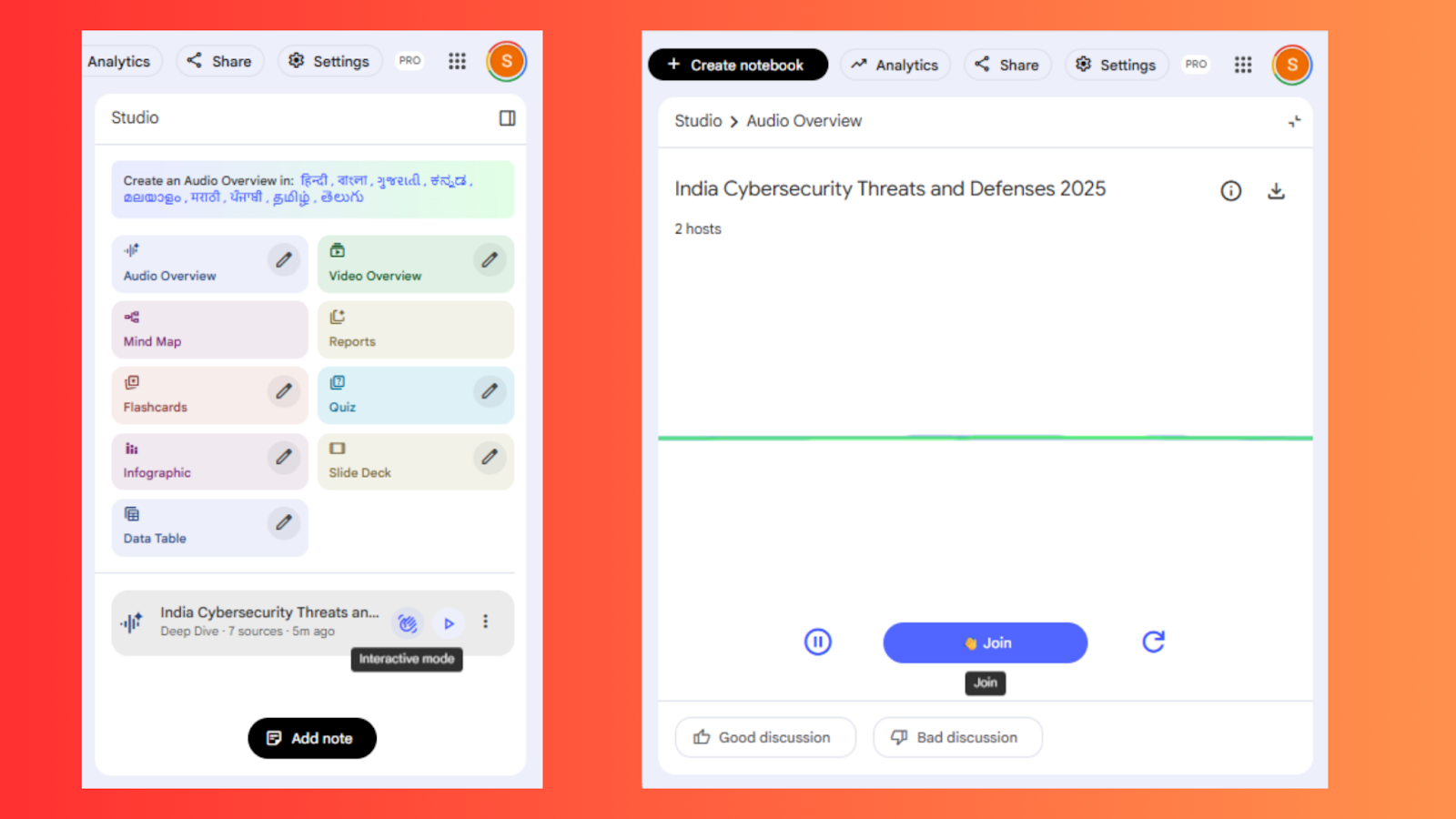
For complex material, this is vastly more powerful than rereading text, since you are basically stress-testing understanding through dialogue.
Visual Sources Are Readable
NotebookLM does not read images directly, but you can bypass this by converting an image or infographic into a PDF before uploading. Yes, you read that right! This NotebookLM workflow hack allows the AI to extract data from visual sources like step-by-step viral guides or dense infographics without the user having to manually transcribe them.
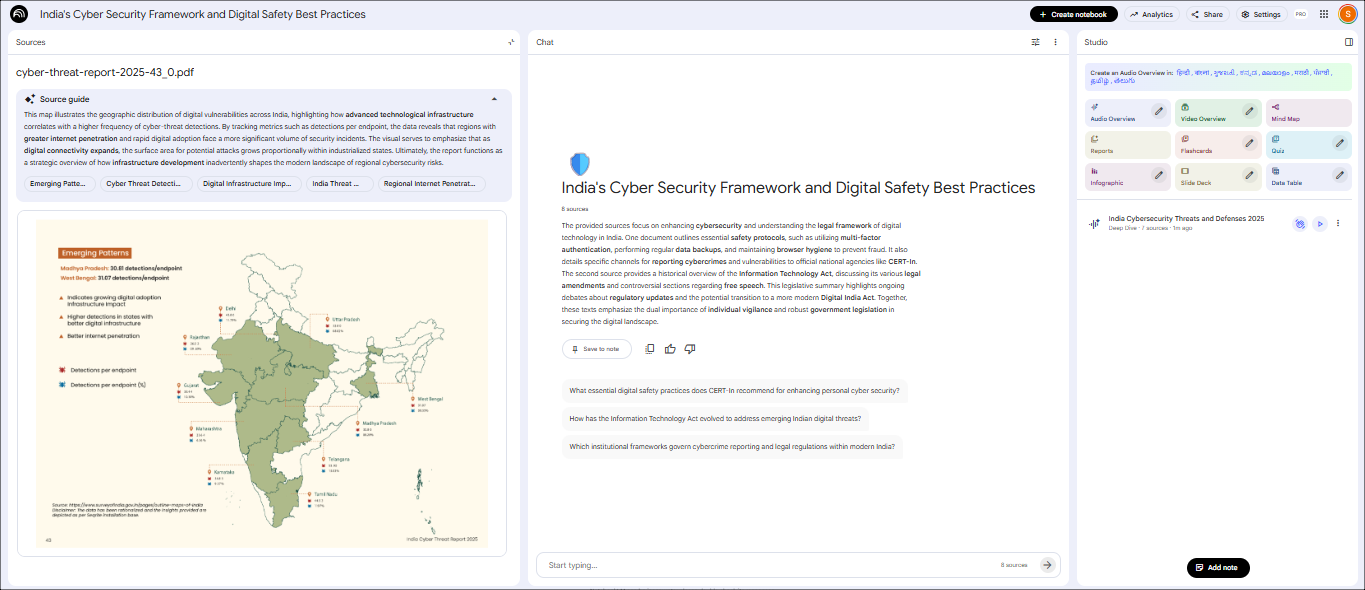
Infographics, frameworks, dense guides – once embedded in PDFs – become analyzable artifacts, thus letting you access a plethora of quality content most people usually ignore.
Conclusion
These were some of the best Google NotebookLM tips and tricks. The real power comes from better structure, smarter source control, asking harder questions, and also letting the AI question the input. So when you treat it like a system instead of a chatbot, it becomes your companion that challenges you, forces you to think, and expands what you are capable of producing.
NotebookLM Tips & Tricks: FAQs
What is NotebookLM?
NotebookLM is a Google AI tool that helps you understand, summarize, and work with your own documents.
Who should use NotebookLM?
Anyone who works with lots of information — researchers, writers, and analysts — should use NotebookLM to turn their docs into easy-to-understand insights.
How can NotebookLM improve productivity?
NotebookLM can boost productivity by letting you quickly digest and act on your own documents.
Is NotebookLM free to use?
Yes, NotebookLM can be used for free.