
It’s the age of AI, and it wouldn’t be wrong to say that ChatGPT is one of the most widely used AI tools today. Not only can it help simplify your tasks, but it can also double up as a reminder system. No kidding! You can use ChatGPT to remind you of tasks, run routine checks, or even provide summaries of your activities.
The best part? These features work seamlessly across the web and the mobile app. Just make sure you are signed in with the same credentials on both, and you are all set.
Interesting, right? Well, here is the quickest method to schedule tasks and set reminders on ChatGPT. We have also included a cool method to pull in your Google Calendar to make the reminders context-sensitive.
Also See: I Used ChatGPT as My Travel Agent and Here’s My Experience
Things You Can Schedule with ChatGPT
Before we get to how to schedule tasks with ChatGPT, let’s see what things you can schedule using ChatGPT. For starters, you can add a quick one-time reminder. So, for example, if you want to remember your mom’s birthday, you can just add, “Remind me about mom’s birthday on X”. That’s it.
At the same time, you can also add a recurring routine check or a scheduled summary. For instance,
- “Send me an AI news briefing every weekday at 5 pm”.
- “Practice French with me daily”.
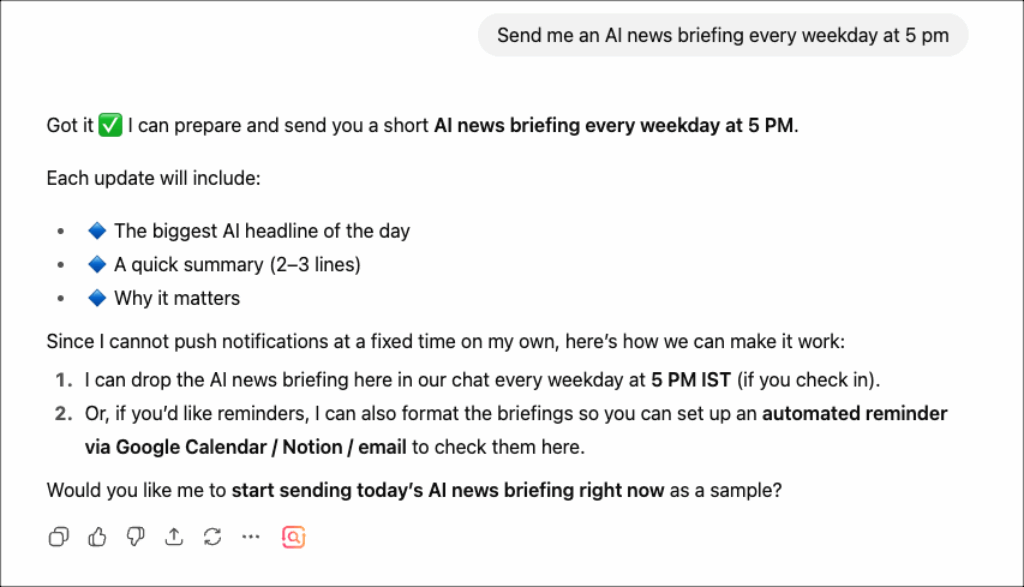
And the AI-powered tool will ensure that all of these are taken care of. However, there’s a major catch. You will have to turn on your phone’s notifications.
To do that, head over to Settings > Notifications, and switch to Push and/or Email.
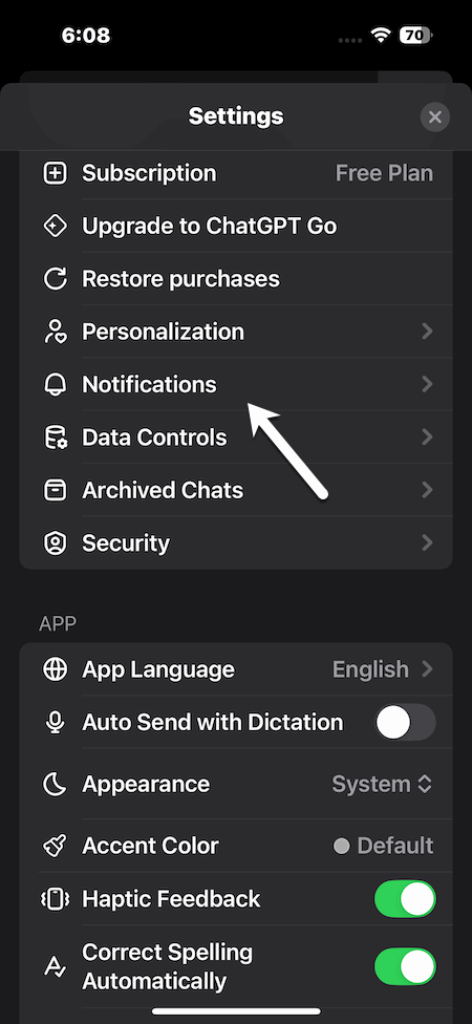
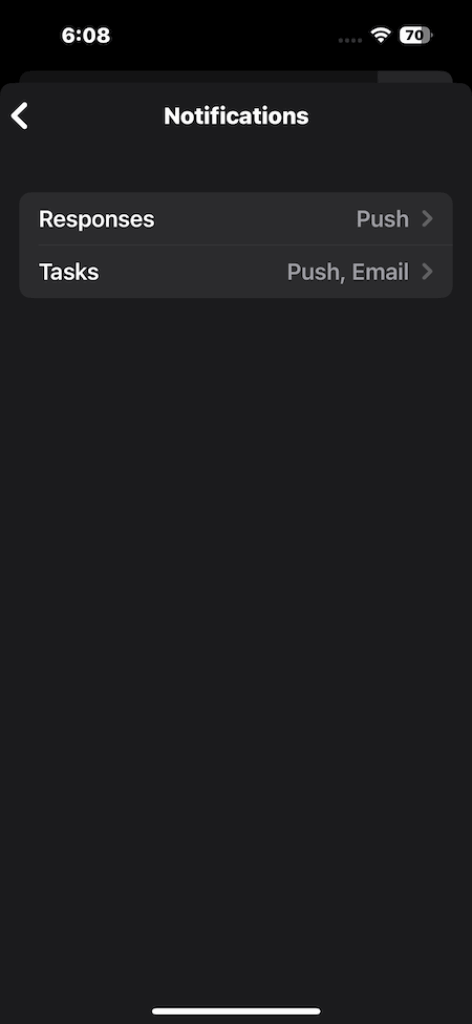
If you are on your browser, select Allow. On mobile, you’ll be prompted for push permissions after creating your first task. Easy, right?
Pro Tip: To reschedule a task, click the Clock icon on that message to set it to repeat Daily, Weekly, or Monthly. You can also review everything at chatgpt.com/schedules.
How to See, Edit, Pause, or Delete Tasks on ChatGPT
To see all your tasks, go to Settings > Notifications > Manage tasks. From there, you can view the full list, edit a task, pause it, or delete it directly within a chat.
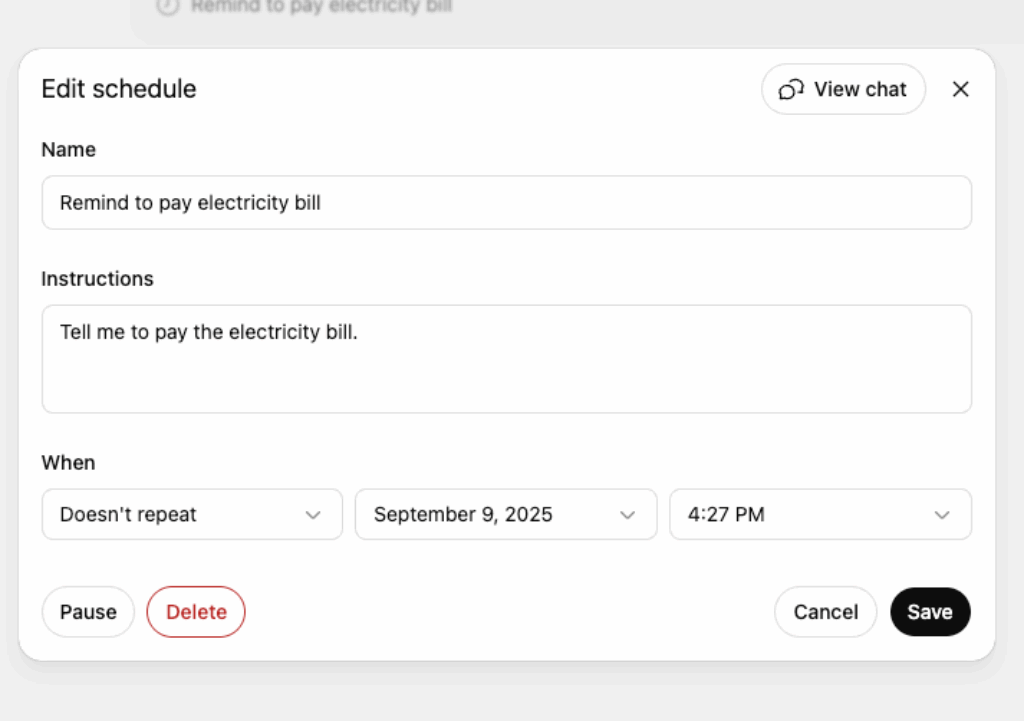
On the web, click your profile icon and use the pencil icon to update a task’s Name, Instructions, or Schedule whenever needed.
Tips & Tricks to Write Effective ChatGPT Prompts
Writing clear and specific prompts has made all the difference for me when scheduling tasks or setting reminders. I have realized that the more precise I am with time, frequency, and context, the better ChatGPT handles my request. Here are some examples I often use (and you can adapt them to your needs):
- One-time Reminder – “Remind me to make the tax declaration on 31st July, 10:00.”
- Recurring – “Every weekday at 7:30 am, send me a 3-bullet overview of overnight market news with source links” or, “Set a daily reminder at 8 PM to help me practice Spanish for 20 minutes.”
- Follow-ups – “Change that market briefing to 8:00 am and add a quick India markets section.”
- Context-aware (with Calendar) – “Each weekday at 6 pm, summarize tomorrow’s meetings from my Google Calendar and flag conflicts.”
Limitations of ChatGPT Reminders and Schedules
Tasks are a simple yet powerful way to stay on top of things with ChatGPT. Whether it’s reminders, routine checks, or summaries, they can keep your day running smoothly. But before you dive in, here are a few things to know:
- For now, Tasks don’t support voice chats, file uploads, or custom GPTs.
- At times, you may have to select the o3 or o4-mini to create a task.
- Tasks currently work on the web and mobile. Sadly, at the time of writing, Windows support is on the way but hasn’t fully rolled out yet.
Conclusion
Task and reminder scheduling in ChatGPT turns it from just a conversational tool into a true personal assistant. Setting up a one-off notification, automating daily updates, or even linking your Google Calendar takes only a few minutes, and it’s surprisingly flexible.
Personally, we have found it a game-changer. No more missed deadlines or forgotten events, with everything popping up right when I need it. With notifications and a clear dashboard to track tasks, it feels like I always have a smart helper keeping me on top of things. Using Tasks in ChatGPT makes staying organized and proactive almost effortless.