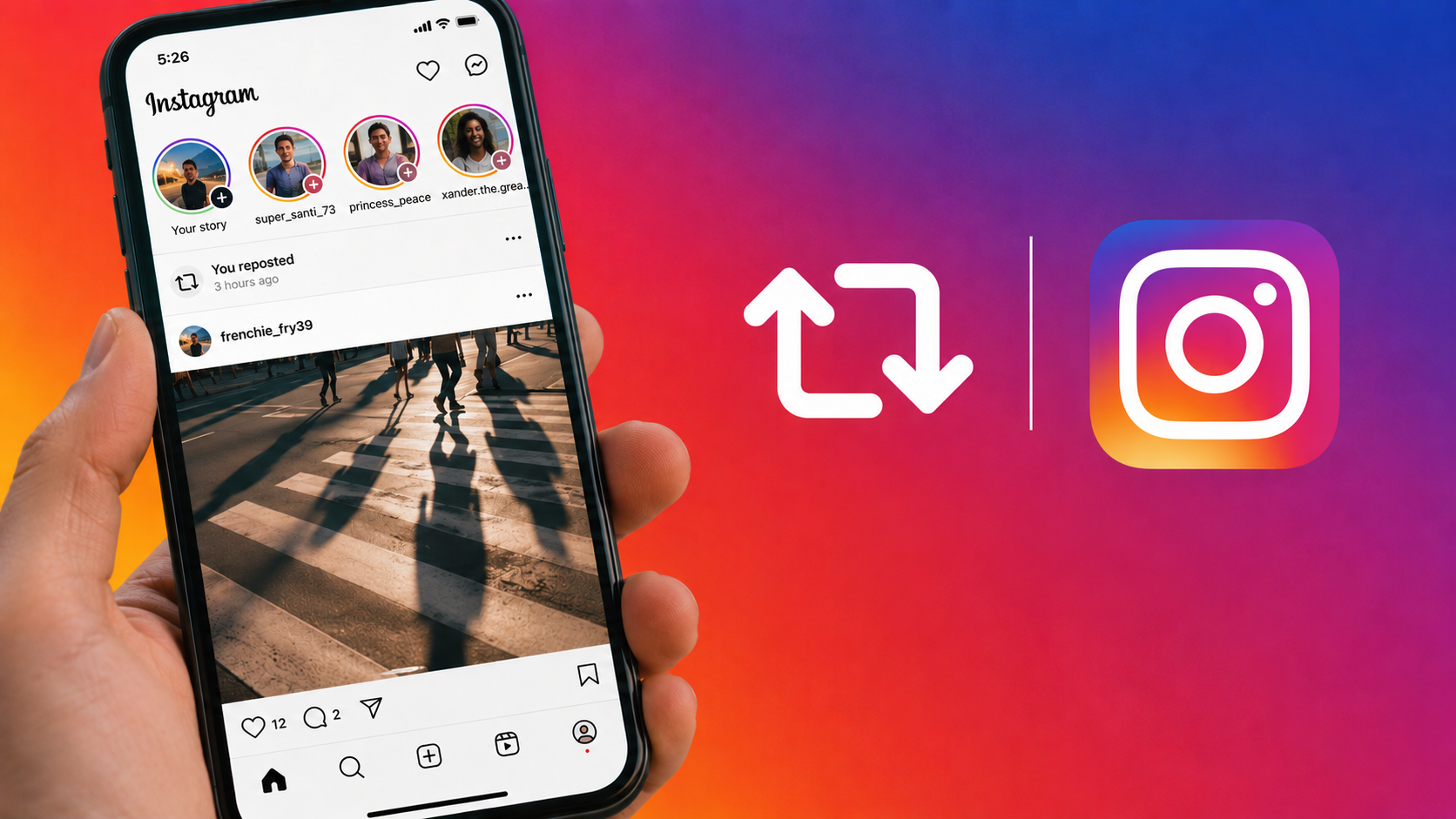
Instagram’s Repost feature lets you share someone else’s public Reel or post directly to your own feed, with credit going to the original creator automatically.
It is convenient, but it is also easy to repost something by accident or change your mind later.
The good news is that Instagram makes it simple to remove reposts, whether you want to delete just one or clear out all of them at once.
Where Your Reposts Live
Every repost you make gets saved in a dedicated tab on your profile. To find it, open your Instagram app, go to your profile, and look for the Reposts tab, usually sitting between Reels and Tagged.
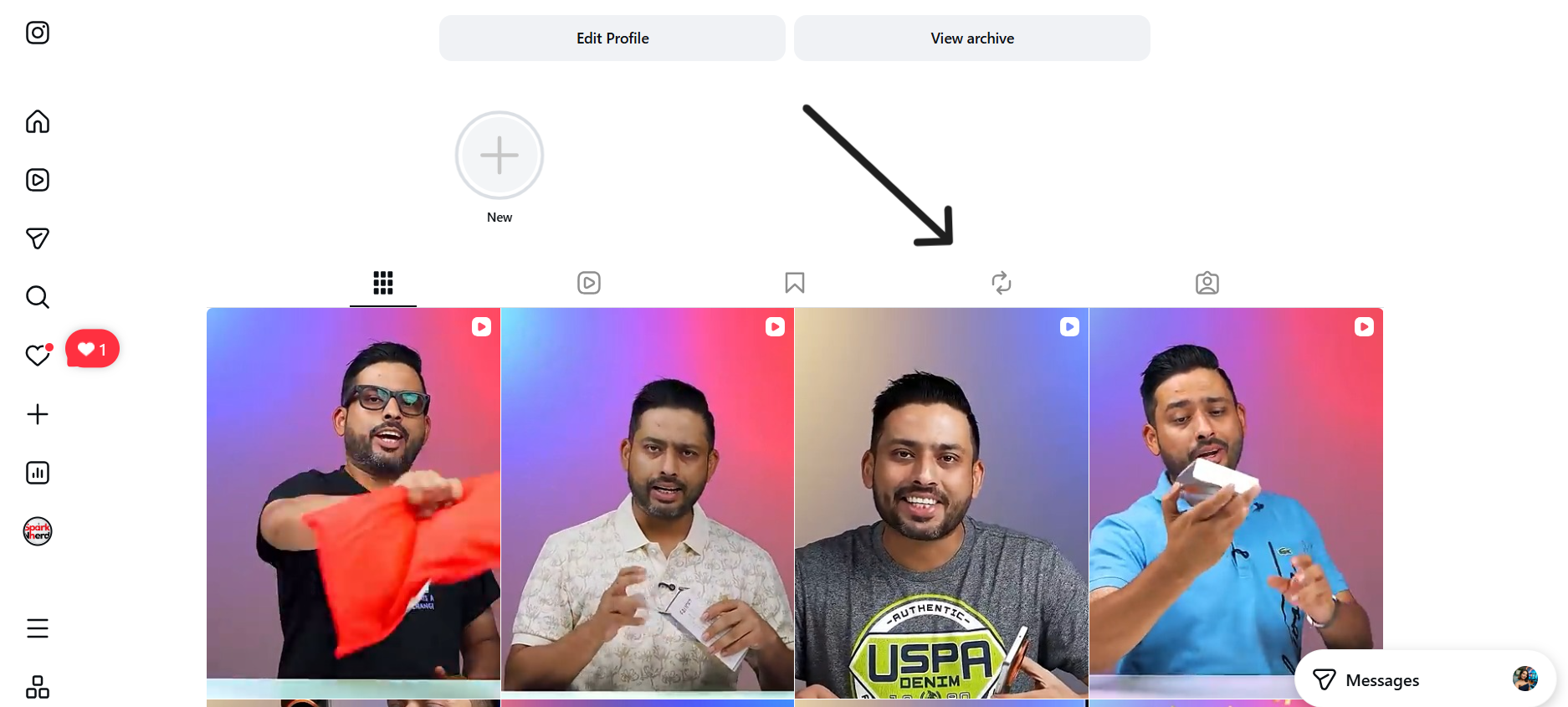
This tab shows every post or Reel you have shared from other accounts. Unlike Story shares, which vanish after 24 hours on their own, feed reposts stay visible until you manually remove them.
How to Remove a Single Repost
If you only want to undo one repost, this is the quickest method.
Step 1: Open the Reposts tab on your profile.
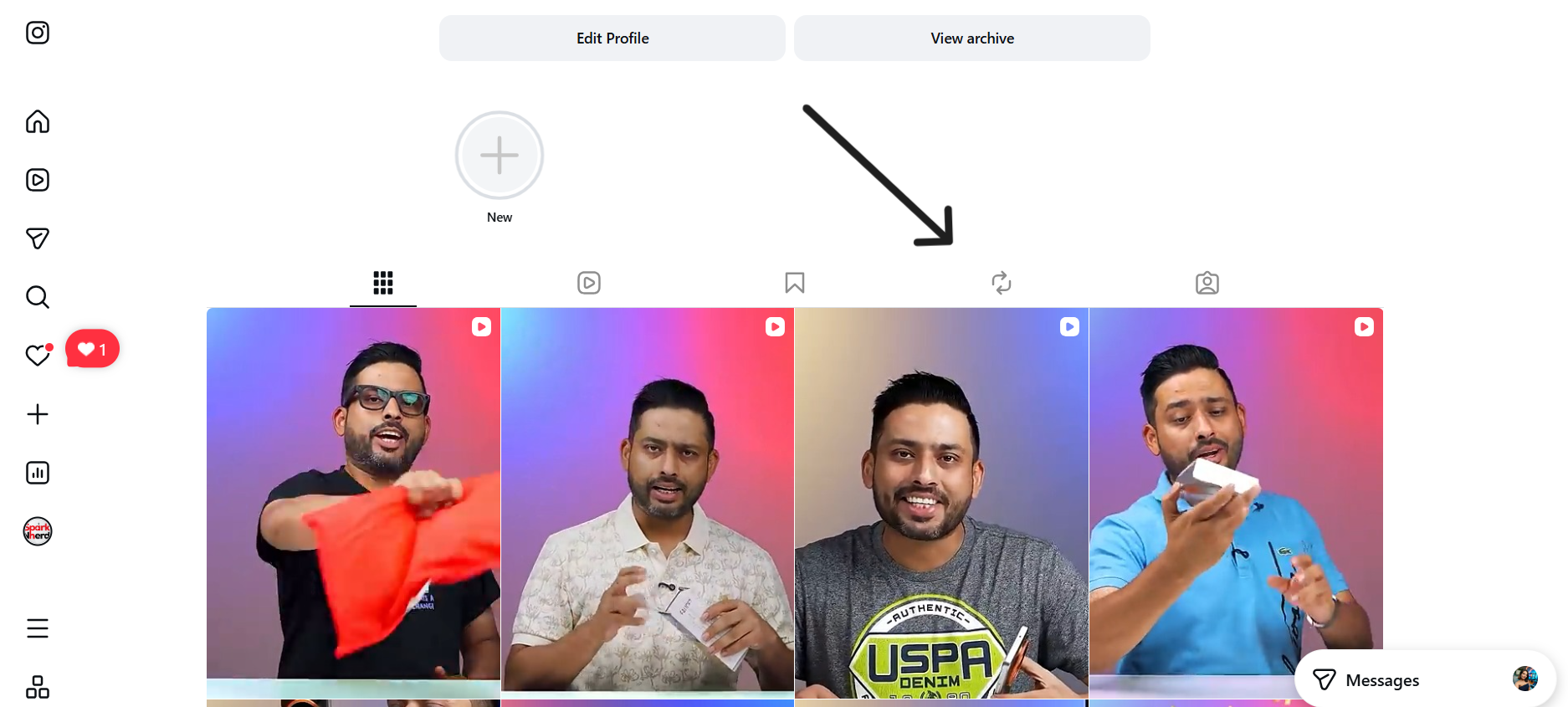
Step 2: Find the post or Reel you want to remove.
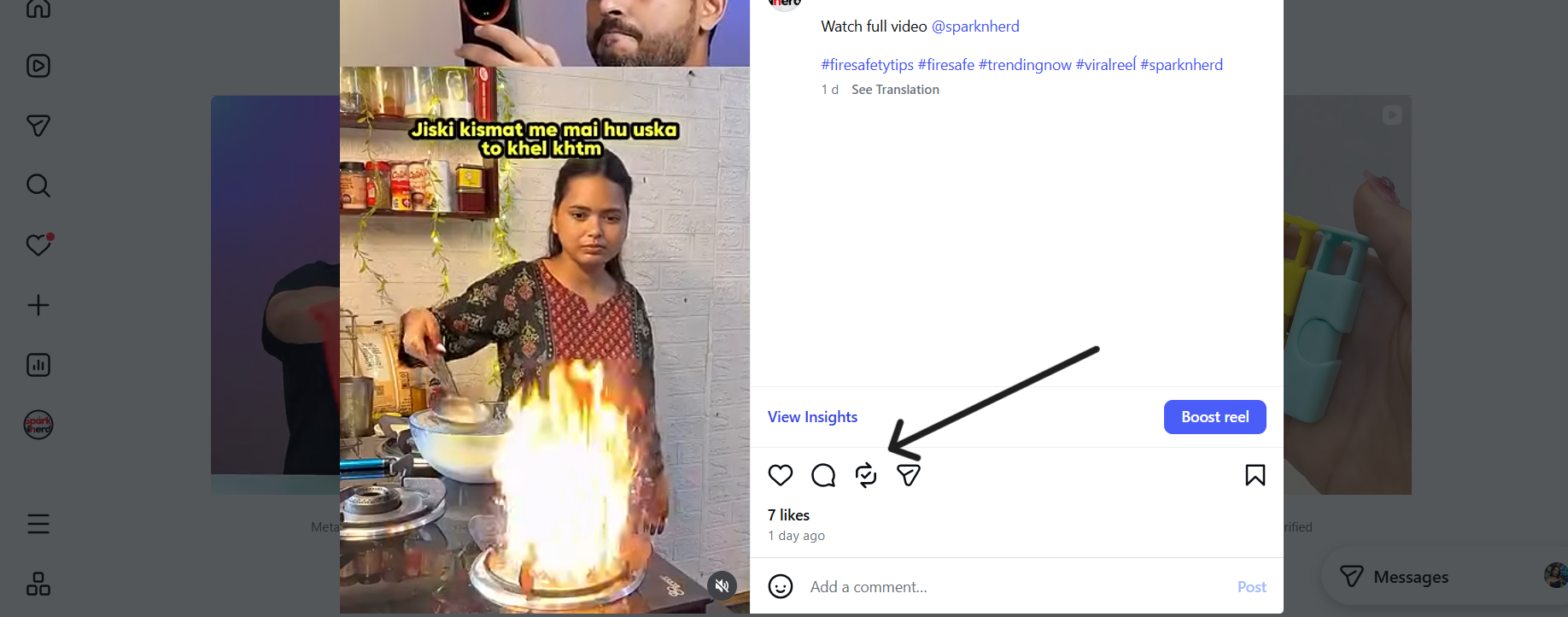
Step 3:Tap the repost icon again, the same two-arrow icon you used to share it in the first place.
This action removes the content from your profile and your followers’ feeds right away. There is no need to dig through settings menus for a single removal.
Turning Off Reposts on Your Own Content
You cannot stop Instagram’s repost feature from existing across the app, but you can prevent others from reposting your own posts and Reels.
Step 1: Open your profile and tap the menu icon.
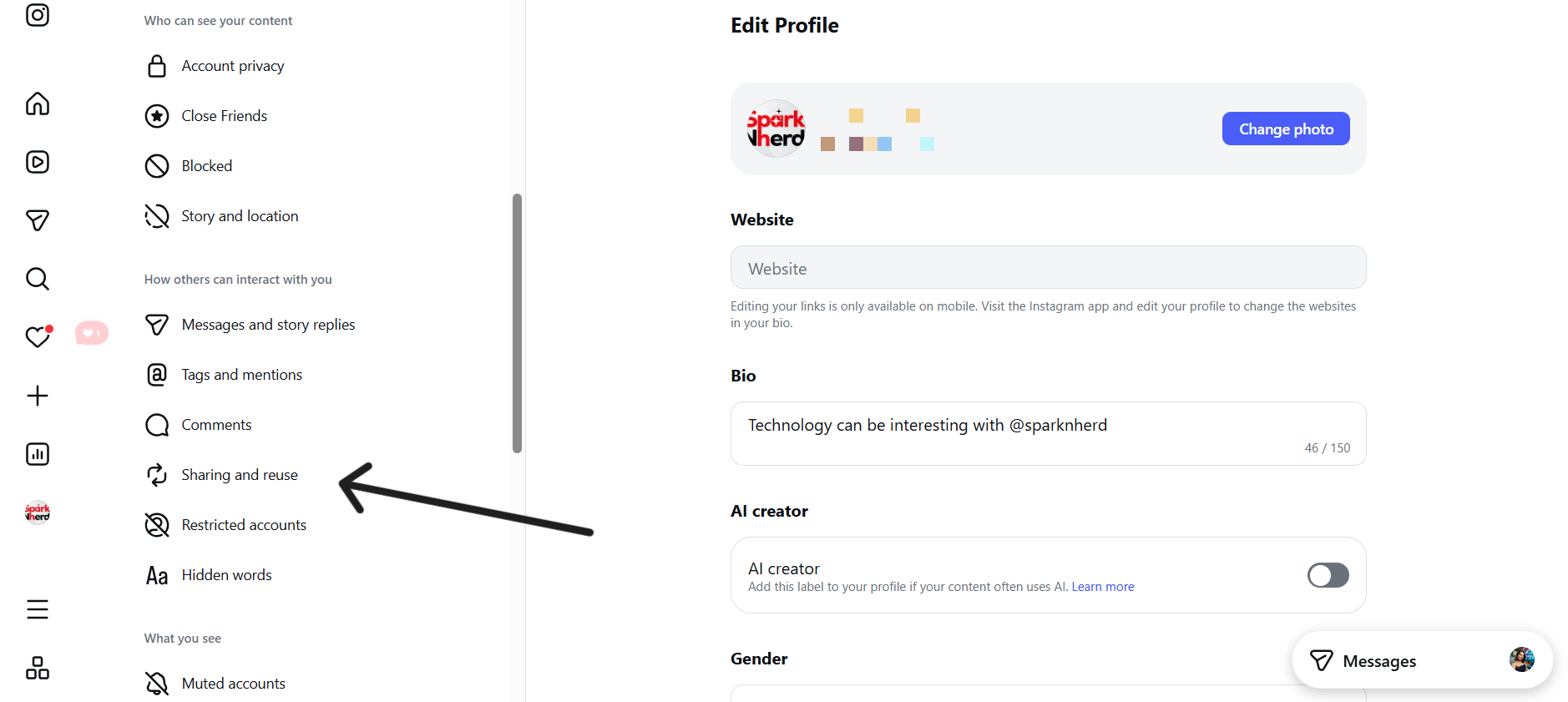
Step 2: Scroll to the section about how others can interact with you.
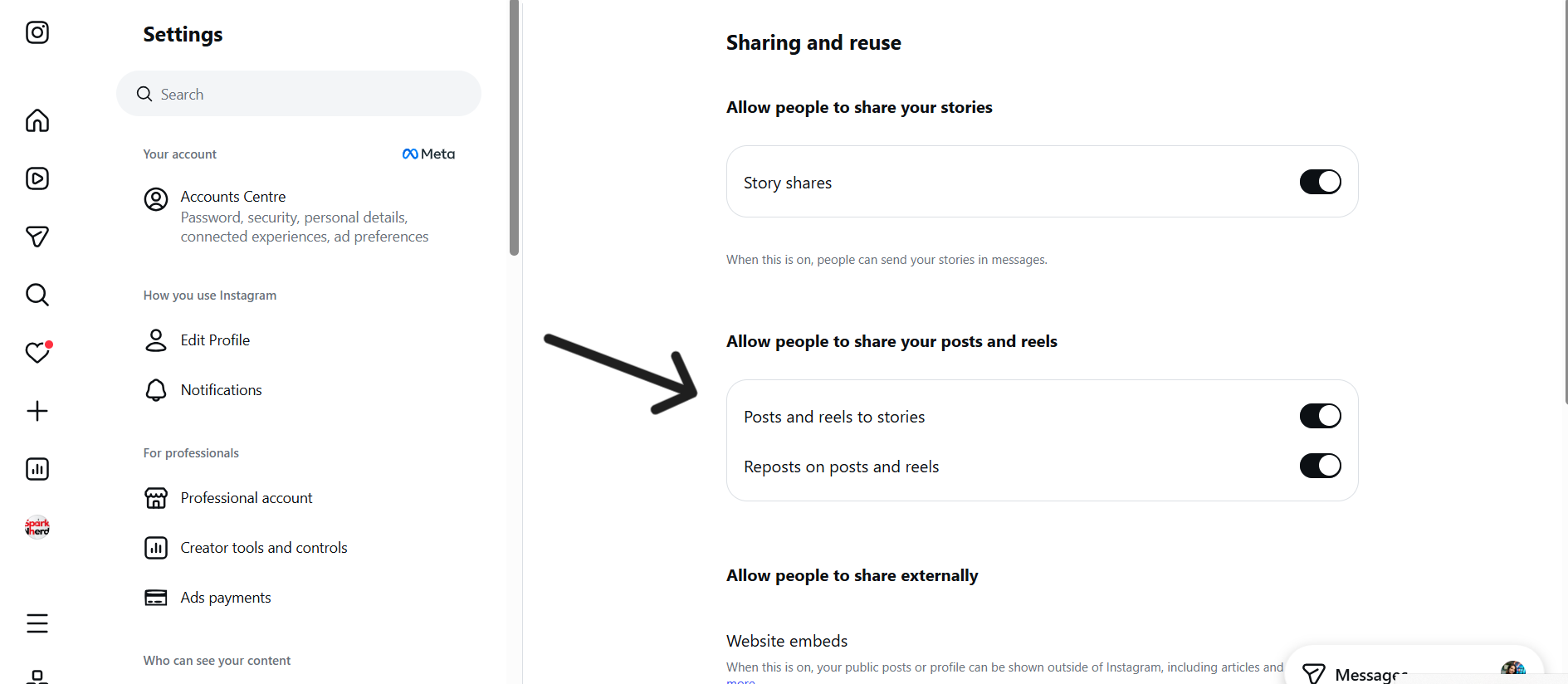
Step 3: Tap Sharing and reuse. Turn off the toggle for allowing reposts on your posts and Reels.
Once this is switched off, the repost button will no longer appear under your content, so nobody, including you, can repost it going forward.
A Few Things to Keep in Mind
Reposting someone’s content usually sends them a notification. Whether removing a repost also notifies them is less clear, so it is safer to assume a repost is never fully private, even after you delete it.
If you used a third-party app to repost content in the past, remember to also check Settings, then Security, then Apps and Websites, to revoke that app’s access if you no longer want it connected to your account.
With these steps, you should be able to keep your Instagram profile exactly the way you want it, whether that means removing one repost by mistake or clearing your account out completely.
FAQs
How do I remove a repost on Instagram?
Open your Reposts tab, find the post, tap the repost icon again, and confirm to remove it from your profile.
How can I remove someone else’s repost of my Instagram post?
You cannot directly delete another person’s repost, but you can turn off reposting for your own content in Settings under Sharing and reuse to stop future reposts and ask them to remove it themselves.
Where can I find my reposts on Instagram?
Go to your profile and tap the Reposts tab, located between Reels and Tagged.