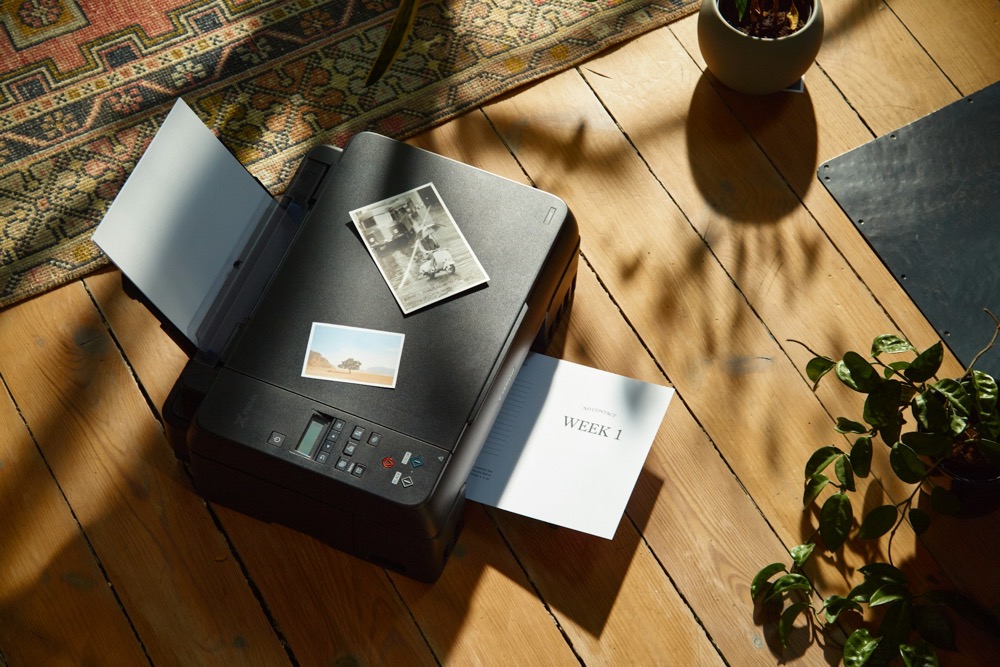
If you’re encountering the frustrating “Printer Not Available” error when trying to print from your Android device, you’re not alone. This issue can stem from various causes, such as connectivity problems, outdated firmware, or corrupted cache data. Fortunately, most of these can be resolved with a few straightforward steps.
So, if your Android has stopped printing, do not worry—this guide will walk you through exactly what to do to get things working again
Step 1: Perform Basic Checks
Make sure your Android device and printer are turned on and not in sleep or power-saving mode.
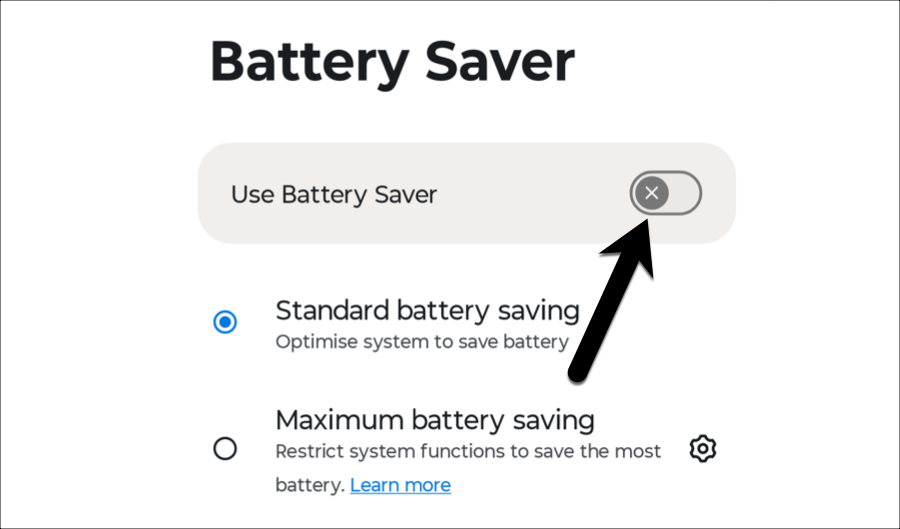
Once done, check that both devices are connected to the same Wi-Fi network. At the same time, check the printer’s screen for any error messages or connection indicators.
Step 2: Restart Both Devices
Now, here’s the universal fix. Turn off your printer, wait about 10 seconds, and then power it back on. Additionally, power off your Android phone or tablet, wait a few seconds, and then turn it back on.
This quick reboot can resolve temporary bugs, refresh system connections, and clear any cache conflicts that might be preventing your device from functioning as expected.
Step 3: Update Printer Firmware
As you may already know, firmware updates matter. Outdated firmware can cause compatibility issues and prevent your Android device from communicating with the printer.
To update firmware, visit the printer manufacturer’s website, search for your printer model, and download the latest firmware.
Once done, follow the provided instructions to complete the update. Alternatively, check the printer’s manual for update procedures.
Step 4: Clear Print Spooler Cache and Data
The Print Spooler is a system service that manages print jobs. Sometimes, corrupted data in the spooler can cause communication failures with your printer.
To clear the print spooler on Android, open the Settings app on your Android device, and tap on Apps or Apps & Notifications.
Next, tap the three-dot menu icon and select Show system apps. Now, scroll through the list and tap on Print Spooler.


Now, all you need to do is select Storage & Cache. Lastly, tap on Clear Data.


Print Your Way
If you have worked through all the steps, checking connections, restarting your devices, updating firmware, and clearing the Print Spooler cache, there is a good chance the “Printer Not Available” error is now out of the way.
But if the issue is still hanging around, do not stress. It happens sometimes. The next best move is to visit your printer’s official support page for tailored advice, or reach out to their tech support team. They can often spot the issue quickly and guide you through a fix that saves you even more time and hassle.
FAQs: “Printer Not Available” Error on Android Devices
1. Do I need an internet connection to print from Android?
Yes, both the Android device and printer should be connected to the same Wi-Fi network.
2. What if the Print Spooler app is missing?
Some devices may hide system apps. Make sure to enable “Show System Apps” in your app settings.
3. Can I use Bluetooth instead of Wi-Fi to print?
Some printers support Bluetooth printing. Check your printer’s manual or app for compatibility.
4. How often should I update my printer firmware?
Check for updates every few months or when you face connectivity or printing issues.
5. What if none of these steps work?
Contact your printer manufacturer’s support or try using a dedicated printing app like Google Cloud Print alternatives.