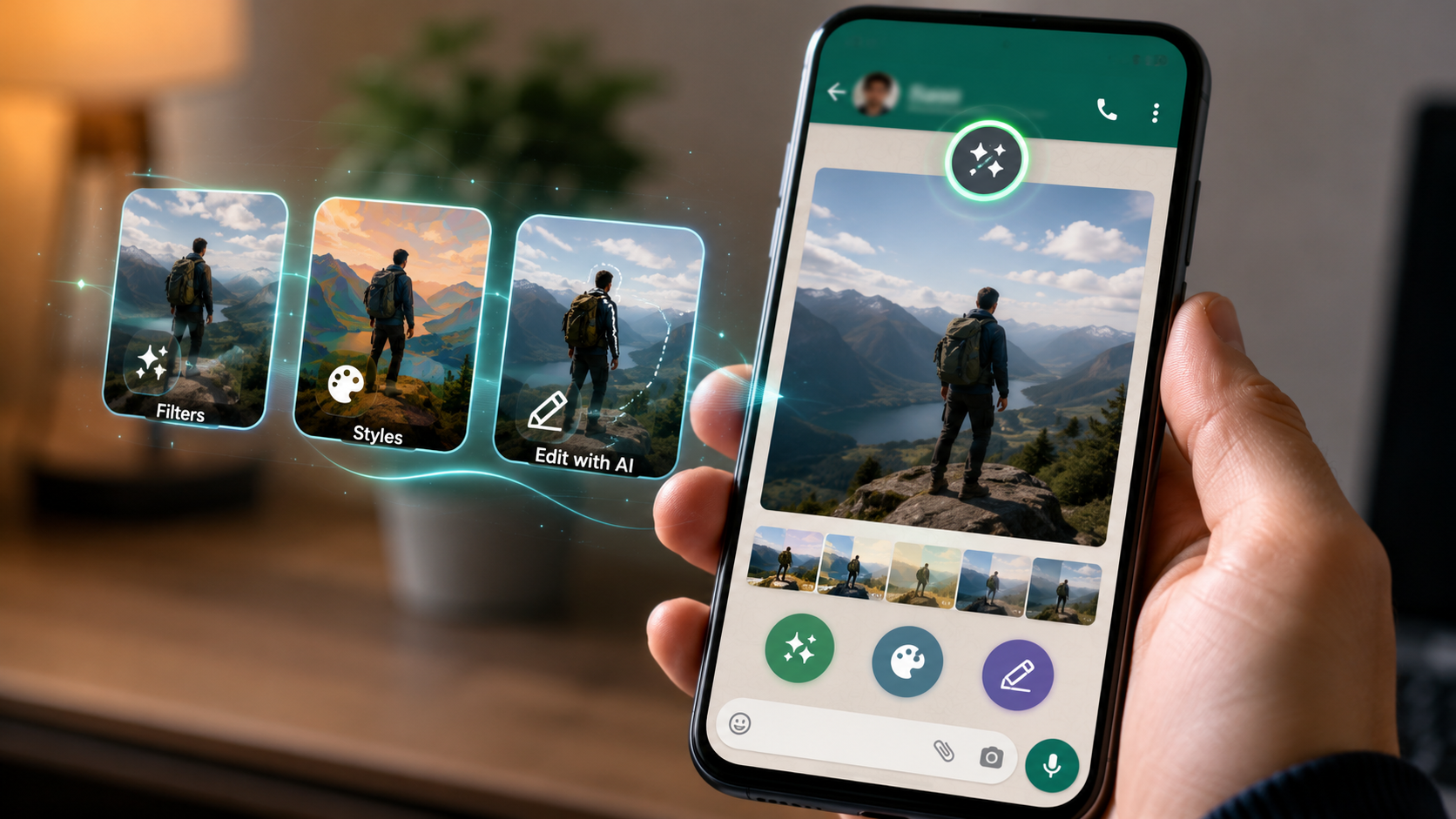
WhatsApp has quietly turned into a photo editing studio. As part of Meta’s 2026 rollout of AI features, WhatsApp now lets you tweak images with Meta AI before hitting send. Yep, you read that right! There’s no need to open a separate photo editing app first.
Sounds convenient, right? And it is. Well, mostly it is.
WhatsApp AI Photo Editing: Features
When you attach a photo in a chat, WhatsApp now shows an option to Restyle with AI. From there, it will show you three paths.
- Filters apply quick AI-powered visual tweaks.
- Styles change the overall artistic look of the photo. And trust me when I say that it can turn a regular snapshot into something more stylized.
- Edit lets you type out what you want changed. For instance, you can remove a background or swap it for something else.
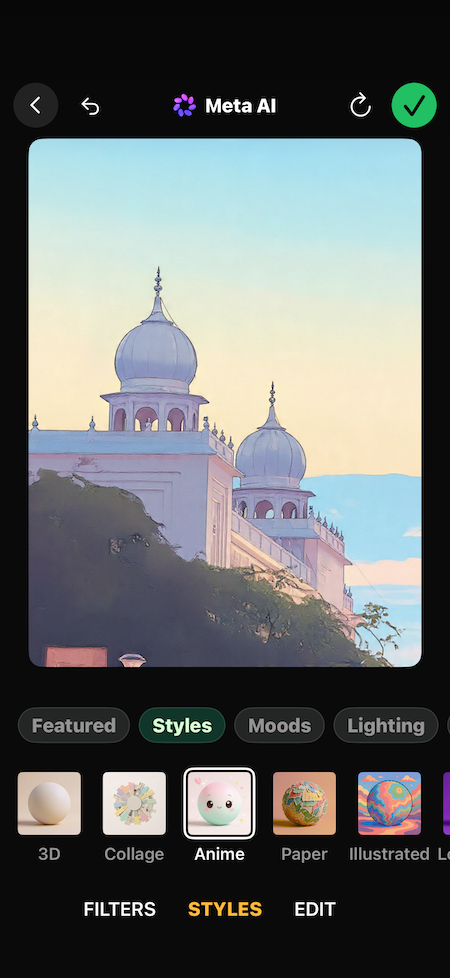
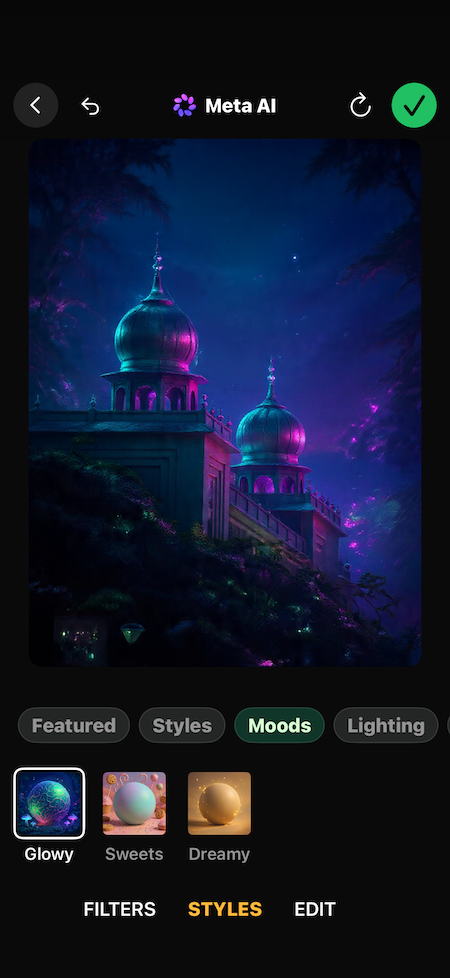
This is powered by Meta AI, the same system behind WhatsApp’s other new additions like AI-generated reply suggestions and voice message transcripts.
The idea is to keep users inside the app instead of bouncing between WhatsApp and tools like Pixlr or Snapseed just to clean up a photo before sharing it. And, well, I liked it more than the native object removal feature of iPhone.
How to Use WhatsApp AI Photo Editing Before Sending
The process is simple by design.
Step 1: All you need to do is select your photo in a chat window. Tap on the little AI editing icon that appears in the media preview screen.
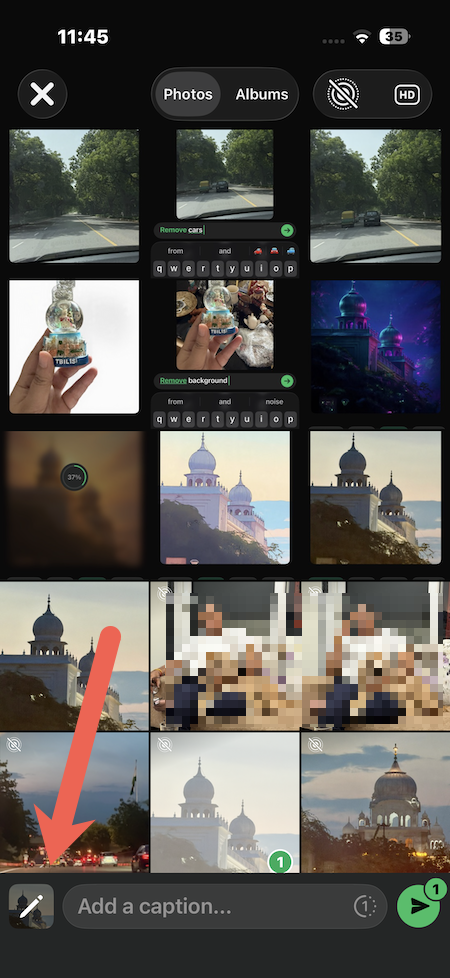
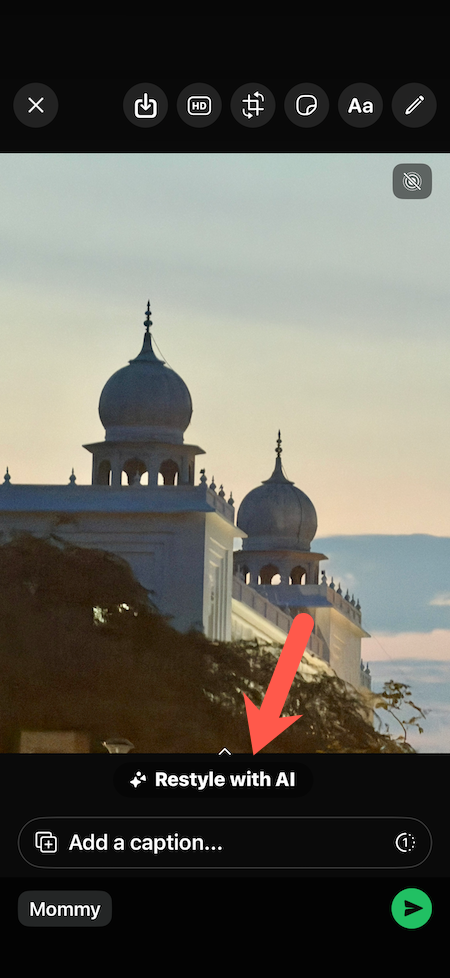
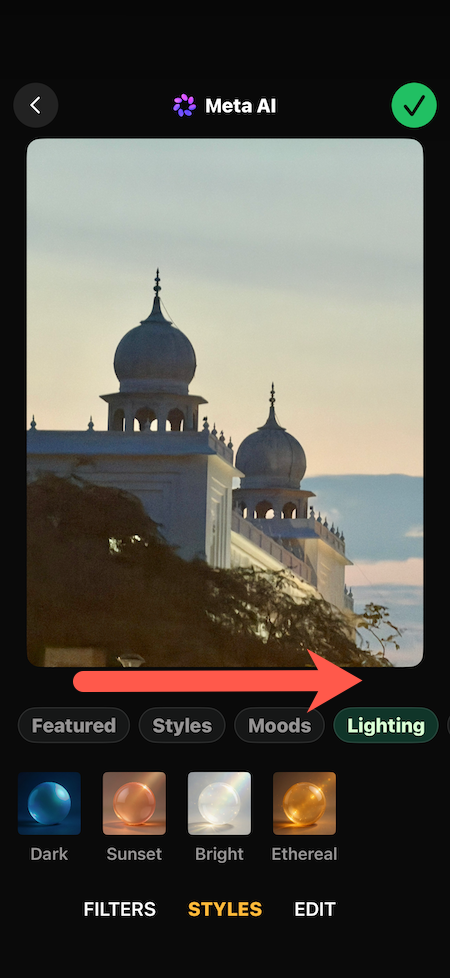
Step 2: Tap on the Restyle with AI button, and WhatsApp will present you with Filters, Styles, or Edit.
Simply pick a preset.
Step 3: If you want to remove an object from the image, just describe your change in plain language.
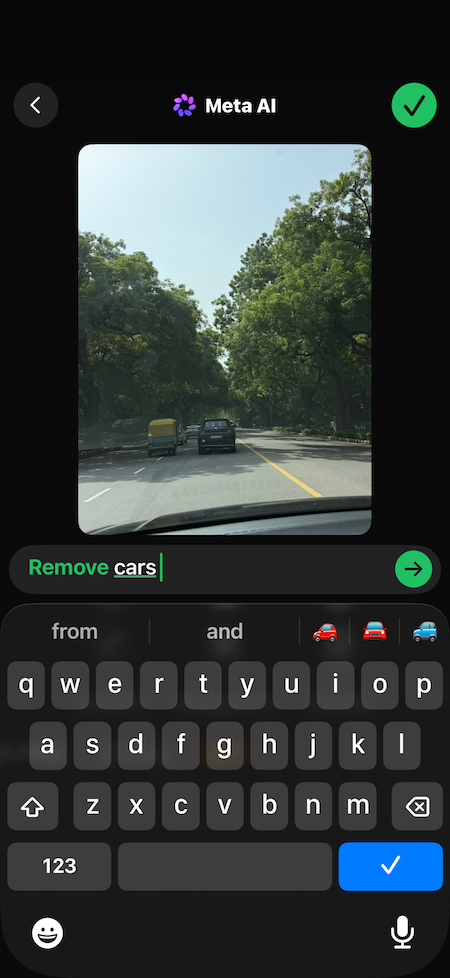
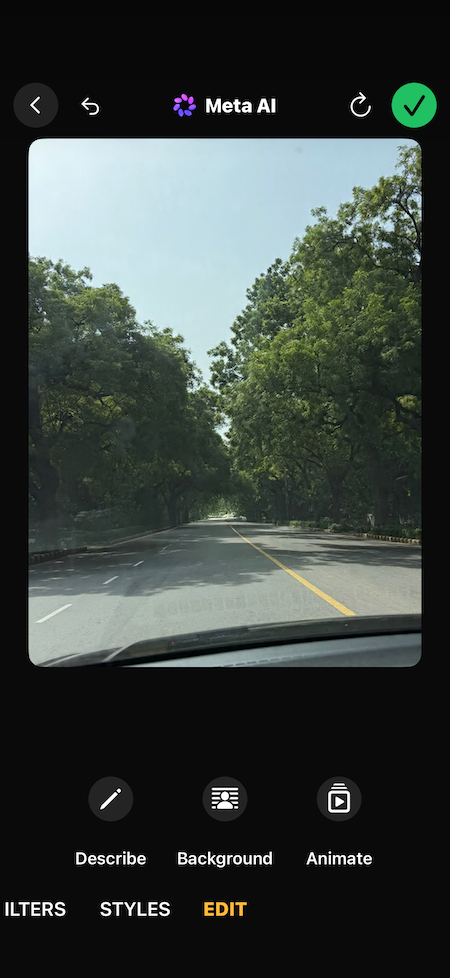
For the image above, I simply asked it to remove the cars. And within a minute I had the image ready to be sent to my WhatsApp contacts.
And not only for removing objects and persons, but you can also use WhatsApp’s AI features to remove a stranger who wandered into a beach photo, brighten a dim indoor shot, or give a picture a specific mood before posting it to a group chat.
When Not to Use It
Since WhatsApp’s built-in editing suite can alter backgrounds, remove people, or change the style of an image entirely, it becomes easy to send something that no longer reflects what actually happened. As such, a few situations call for caution.
Avoid using AI editing on photos meant to serve as proof, such as images shared for insurance claims, workplace documentation, or resolving a dispute with someone.
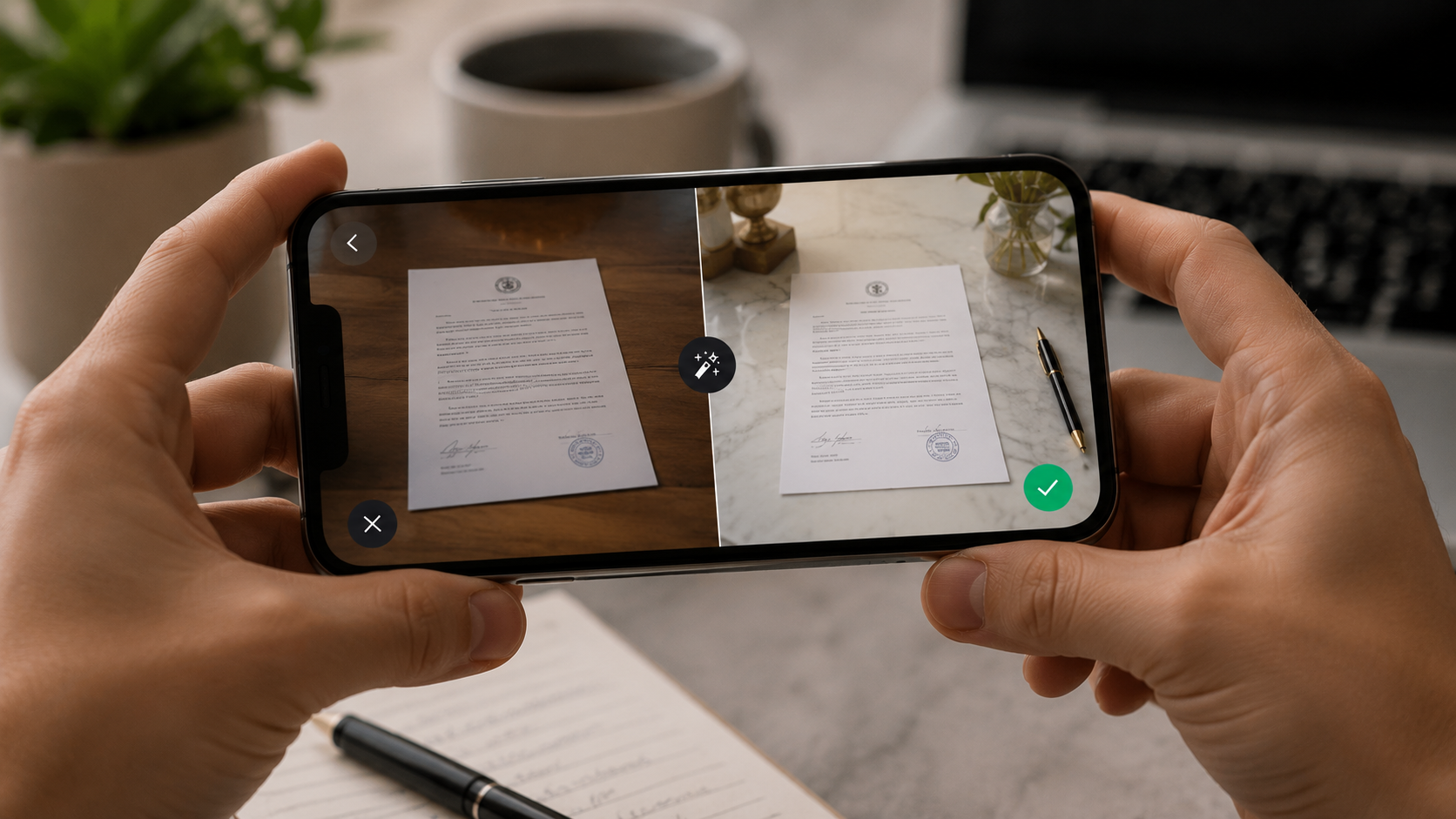
Altering these images, even slightly, can undermine their credibility or mislead the person receiving them. Hence, we recommend being careful in professional or semi-formal settings where authenticity matters, especially in ways that change their appearance or surroundings. What feels like a harmless filter to one person can feel invasive to another.
Privacy Considerations
Meta has stated that these AI tools are built with user privacy in mind, and edits are meant to happen without exposing chat content beyond the conversation itself.
Still, any AI feature that processes personal images is worth using with a basic level of awareness about what data it touches, particularly for anyone who shares sensitive or identifiable photos frequently.
Have You Used the WhatsApp Editing Tool?
This was how you can use WhatsApp AI photo editing features. It is a genuinely useful addition for casual and everyday sharing and removes the friction of switching apps.
FAQs
What is WhatsApp’s AI photo editing feature?
It is a Meta AI-powered tool that lets users edit photos directly inside a WhatsApp chat before sending them, using options like Filters, Styles, or a text-based Edit function.
How do I access AI photo editing on WhatsApp?
Attach or select a photo in a chat, tap the AI editing icon labeled Restyle with AI in the media preview screen, then choose Filters, Styles, or Edit to make changes.
Is WhatsApp AI photo editing free to use?
Yes, it is included as part of the WhatsApp app update and does not require a separate subscription or third-party app.