Brief Overview
- Learn how to add your Aadhaar Card to Google Wallet in just a few simple steps.
- Understand where you can use it, how it protects your privacy, and what to keep in mind before getting started.
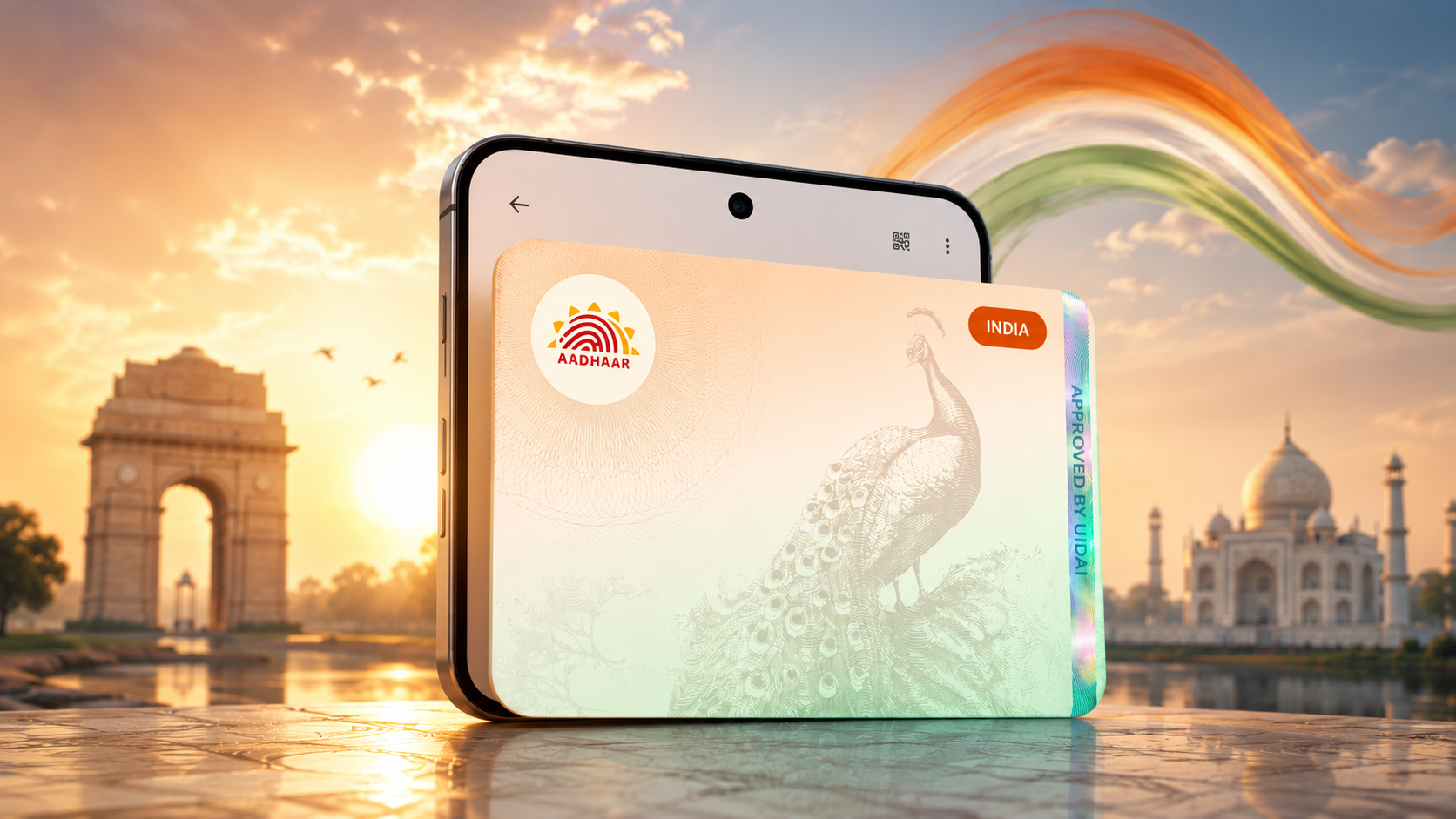
We have all been there. You’re standing at a verification counter when someone asks for your Aadhaar, only to realise you left it at home. Thankfully, Google has a fix for this now. In partnership with UIDAI, you can now add your Aadhaar card to Google Wallet and directly on your phone.
There is no scanning, no PDF downloads, and no WhatsApp forwards of your card from now on. You just need to open the app and show it. But how?
This Aadhaar card digital wallet guide will walk you through exactly how to do it, without any confusion.
Before You Begin
So, before you start, just run through a quick checklist.
Your phone needs to be on Android 9 or higher, screen lock should be enabled, and the mAadhaar app should be installed and signed in. Also, keep your registered mobile number handy as you will be receiving an OTP for verification purposes.
One thing worth noting is that you can only add one Aadhaar per device, the one linked to your own account. Hence, you cannot add your spouse’s or parents’ Aadhaar on your phone.
Once that is all sorted, you are good to go.
Method 1: Through the mAadhaar App
This is the easiest way if you already have the mAadhaar app installed.
Step 1: Open the mAadhaar app and sign in with your Aadhaar number and OTP. Once you are in, verify your identity when prompted.
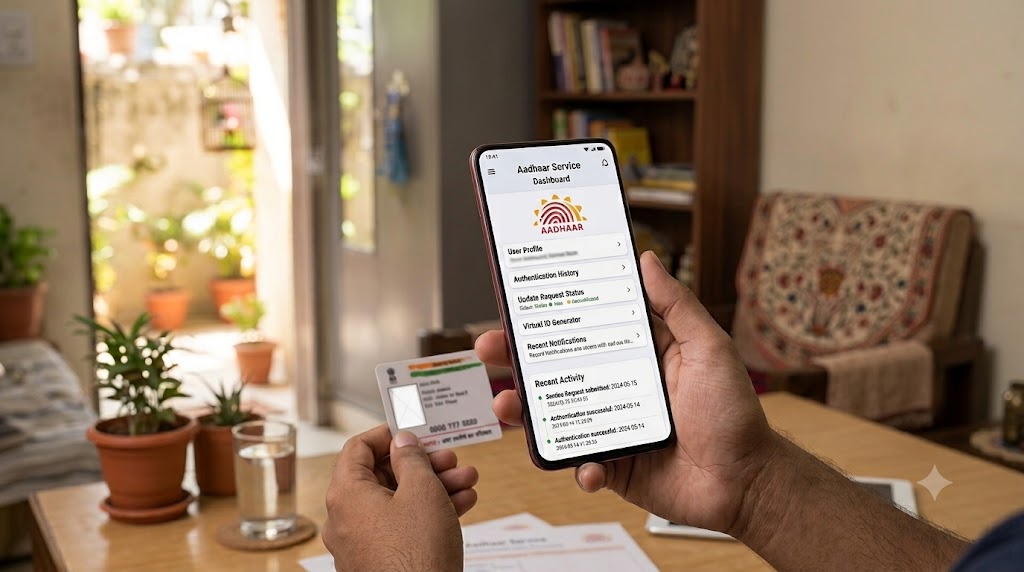
Step 2: Now, look for the Add to Wallet option, tap it, and select Google Wallet from the list.
Step 3: Click on Continue, follow the on-screen steps, and that’ i’s it. Your Aadhaar will now appear in Google Wallet once it is done.
Method 2: Directly From Google Wallet
You can also start adding Aadhaar card from Google Wallet itself.
Step 1: Open Google Wallet and tap the + button at the bottom. You will see an option to add an ID card or Aadhaar card. Tap on it.
Step 2: Now, type your Aadhaar number, and an OTP will be sent to your registered mobile number. Enter the OTP to confirm, and your Aadhaar will get added as a verifiable credential right inside your Wallet.
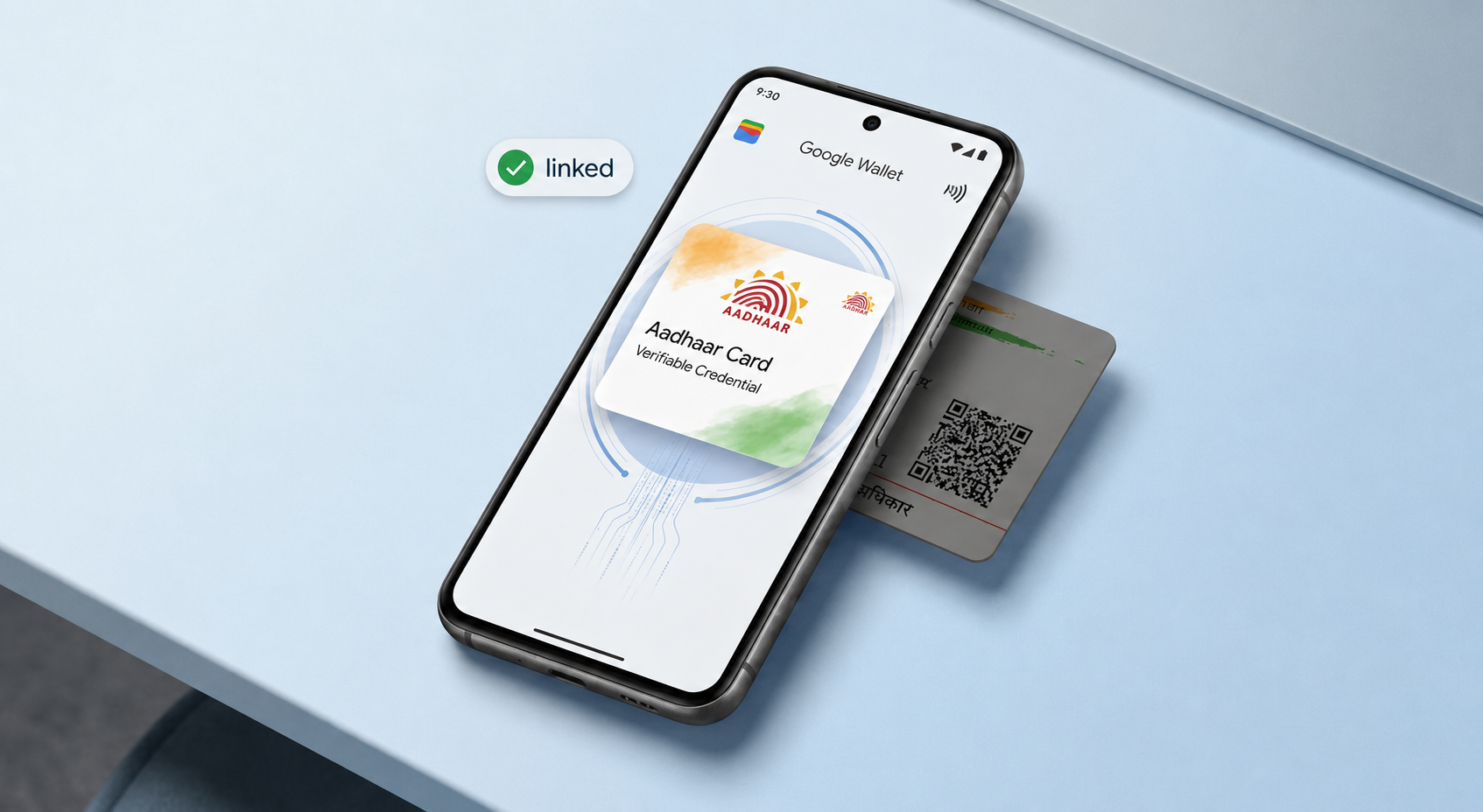
If you do not have the mAadhaar app on your phone yet, do not worry. Tapping Aadhaar inside Google Wallet will redirect you to the Play Store to download it first.
Install it, sign in, and then come back to finish the setup from where you left off.
Why Storing Aadhaar in Google Wallet is Important
When you store Aadhaar in Google Wallet, it is not just a photo or a PDF of your card in an app with the full information for everyone to see. This process uses something called selective disclosure, where only the specific details needed for verification are shared. Hence, the full Aadhaar number and home address stay hidden.
So if someone just needs to confirm your age, only that gets shared, and nothing extra.
Moreover, your digital ID is encrypted and saved locally on your device instead of your Google account. That is a meaningful difference from just uploading a scan somewhere.
Where You Can Use It
Right now, the Google Wallet Aadhaar card setup works with a limited number of partner services. For instance, you can use it for age verification at PVR INOX, for verified profiles on BharatMatrimony, and for identity verification through select online services.
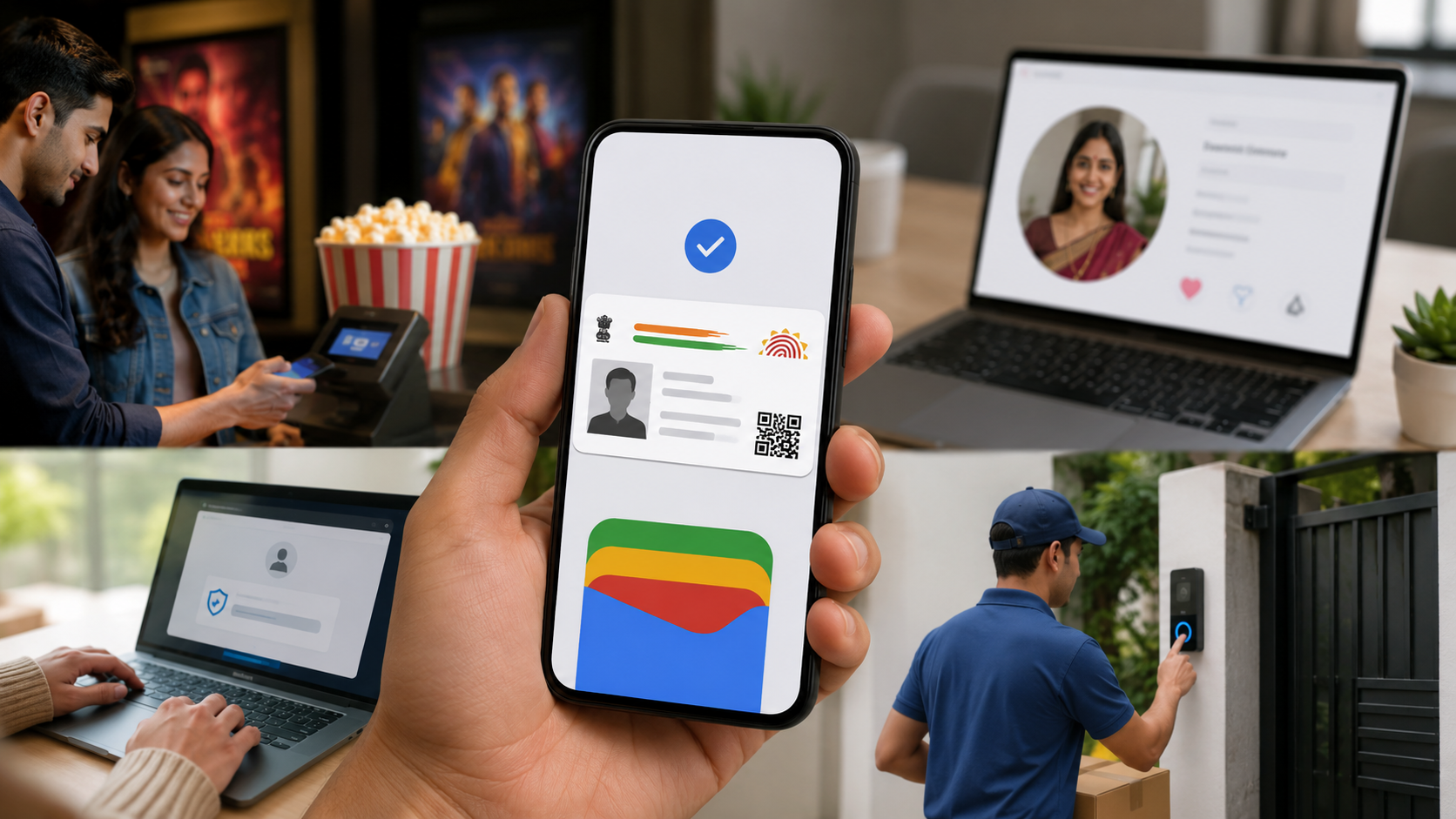
More platforms are on the way, including Mygate and Snabbit, so the list will keep growing.
One thing to keep in mind is that your digital Aadhaar in Google Wallet does not replace the physical card. For places that specifically ask for the physical document, you will still need to carry it. That said, for everyday situations, knowing that your Aadhaar card on Google Wallet is ready on your phone is genuinely reassuring.
If You Update Your Aadhaar Details
One important thing many people are not aware of is that if you update any information on the mAadhaar app, it will not automatically reflect in Google Wallet.
You will need to delete the card from Wallet and re-add it to get the updated details.
Should You Set This Up Right Now?
Absolutely. Your details are encrypted, stored locally on your device, and shared only when you choose to share them. So, the next time someone asks for your Aadhaar, you will not be digging through your bag or calling someone at home to send you a photo of the card.
It is just there, right on your phone, and ready when you need it.
FAQs
Can I add my Aadhaar Card to Google Wallet in India?
Yes, Google Wallet supports Aadhaar Verifiable Credentials in India on any Android 9 or above device.
Is it safe to store an Aadhaar Card in Google Wallet?
Yes. Your Aadhaar is encrypted, stored locally on your device, and nothing is shared without your consent.
What should I do if my Aadhaar Card is not showing in Google Wallet after adding it?
If you see a “Reviewing your request” message, the system is still verifying your details and will notify you once ready.