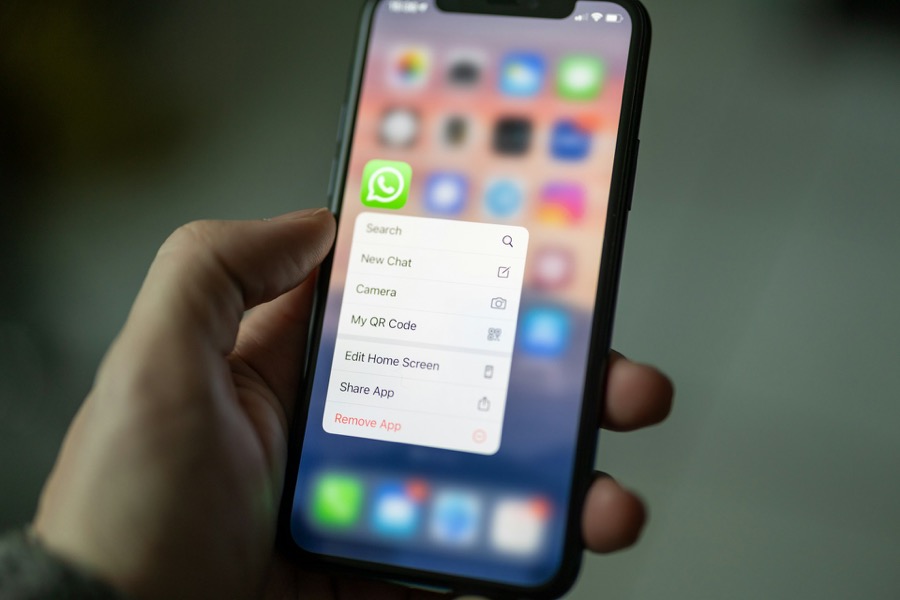
Your friend sends you a bevy of pictures over WhatsApp. You open your iPhone’s gallery to see the photos, but they’re nowhere to be found, and, well, it can be annoying. Unlike Android phones, iPhones do not automatically save WhatsApp photos to your phone’s gallery.
Here’s exactly why this happens and how to resolve it for good.
Fix 1: Check Save to Camera Roll Setting
WhatsApp on iOS has a dedicated toggle called Save to Camera Roll. When it’s switched off, photos and videos you receive stay inside WhatsApp’s own chat storage. So they will be visible when you open the app, however, they do not get copied over to your iPhone’s Photos app.
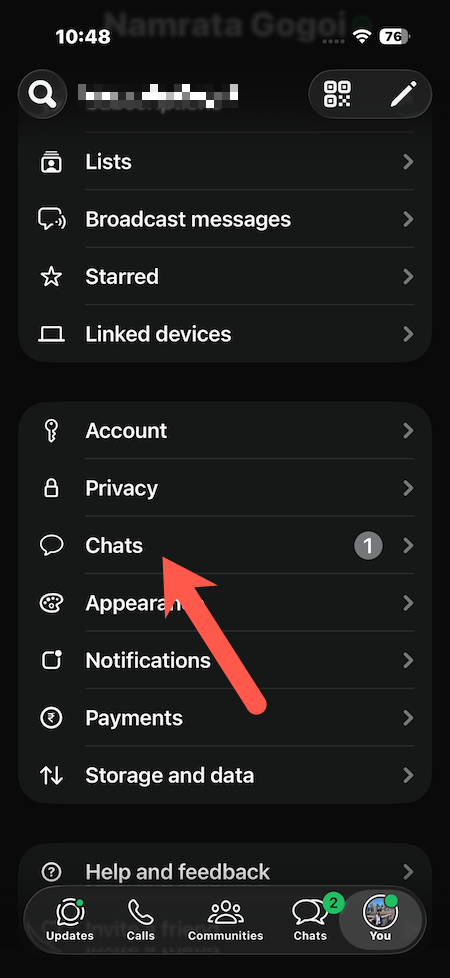
Step 1: Open WhatsApp, tap Settings on the bottom right corner.
Step 2: Now, go to Chats, scroll down, and tap on the Save to Camera Roll.
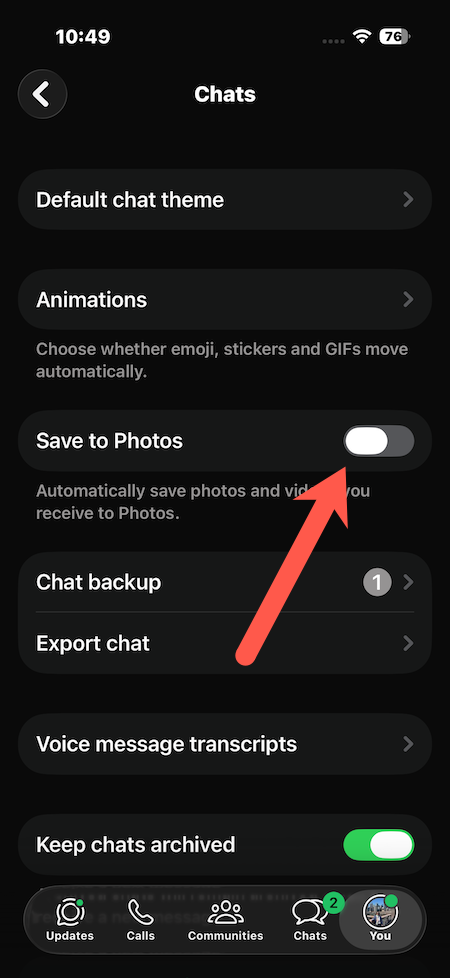
From now on, if your contacts send you photos, then they will be visible on your iPhone’s Photos app. But it won’t retroactively pull older WhatsApp images into your gallery. So for those, you will need to save them manually.
Fix 2: Check Permissions
On iPhones, WhatsApp needs iOS-level permission to actually write files into your Photos library. If you had previously selected Selected Photos Only, WhatsApp is technically locked out of saving new images.
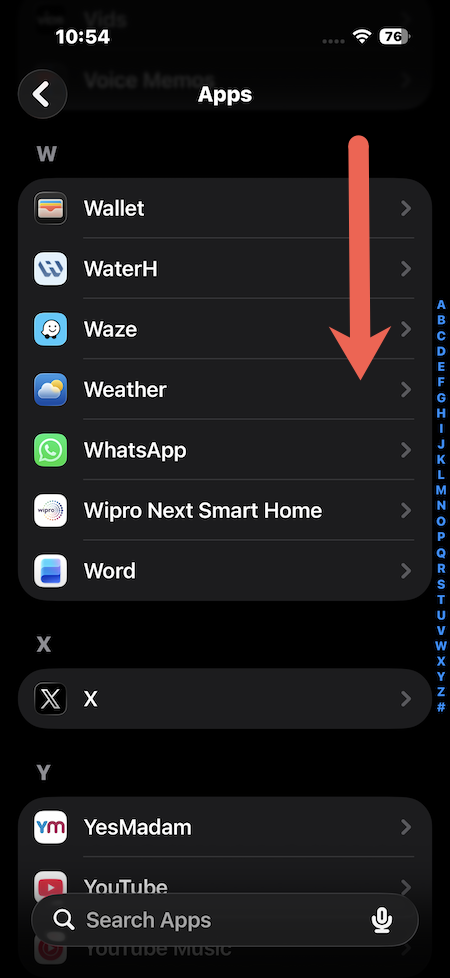
Step 1: Open Settings on your iPhone and head over to Apps.
Step 2: Next, find WhatsApp in the app list and select All Photos.

Other Reasons Photos Might Still Be Missing
If both settings above are already correct and WhatsApp’s photos are still not appearing in iPhone Gallery, it’s worth checking out the following,
1. Low Storage: Go to your phone’s Settings, head over to General > iPhone Storage, and confirm you have free space. WhatsApp won’t be able to write new photos if the storage is full
2. Checking the right Album. Saved WhatsApp images sometimes land in a separate WhatsApp album under Albums in the Photos app rather than immediately syncing into Recents.
Why This Design Exists in the First Place
iPhone’s WhatsApp image handling is different from Android’s. Apple’s Photos framework treats every app’s write access as an explicit, revocable permission, preventing every messaging app from flooding your camera roll with unnecessary clutter. Instead, it puts the control in your hands and lets you decide which photos to save.
Want more iPhone and WhatsApp troubleshooting guides? Check out our complete WhatsApp tips library, browse our iPhone archive, and explore our smartphone how-to hub for more fixes like this one.