
If you are someone like me who works in Google Chrome, you must have also been bothered by Google’s insistent Save Password prompts. While being helpful for people like me who forget passwords like 1-2-3, it can be irritating to encounter the prompt every time you have to sign in to a new page. Worry not, there’s an easy-peasy way to stop Google Password Manager pop-ups.
In this post, we will cover how to permanently stop the Google Password Manager pop-up in Chrome on a desktop, an Android phone, or an iPhone.
Why Does Google Password Manager Keep Popping Up?
Google Password Manager is built directly into Chrome and your Google Account. Its job is to offer to save login credentials every time it detects a username and password field being submitted.
While useful for some, it becomes a nuisance when you already use a third-party password manager or simply do not want to store the password in Google.
How to Stop Google Password Manager Pop Up on Chrome (Desktop)
This is the most common scenario and the easiest fix.
Step 1: Open Google Chrome on your Windows or Mac computer, and click the three-dot menu in the top-right corner.
Step 2: Now, go to Settings > Autofill and passwords > Google Password Manager under Related Google Services.
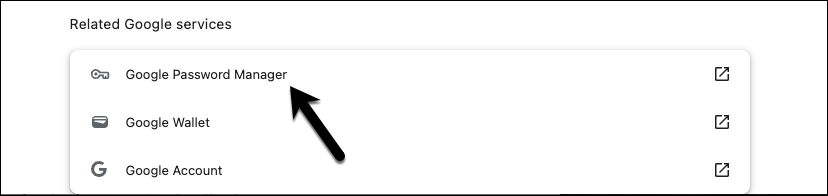
Step 3: Next, click on Settings inside the Password Manager panel. Now, all you need to do is toggle the switch for Offer to save passwords.
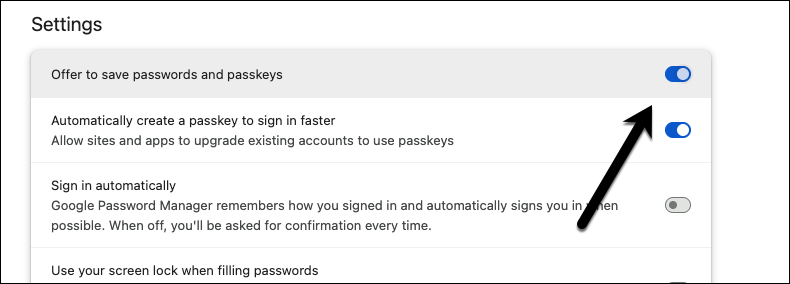
Once disabled, Chrome will stop the password prompt entirely.
Pro Tip: If you’re signed into a Google Account, this setting syncs across all devices logged into the same account. Disable it once, and it stays off everywhere.
How to Disable the Pop Up on Android, iPhone & iPad
Google Password Manager is tightly integrated with Android as well, and this is how you can stop Google Password Manager on Android.
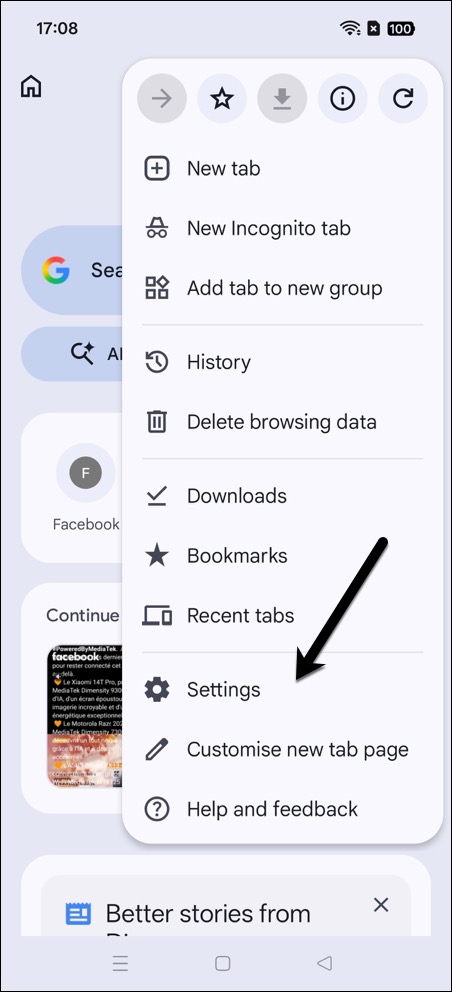
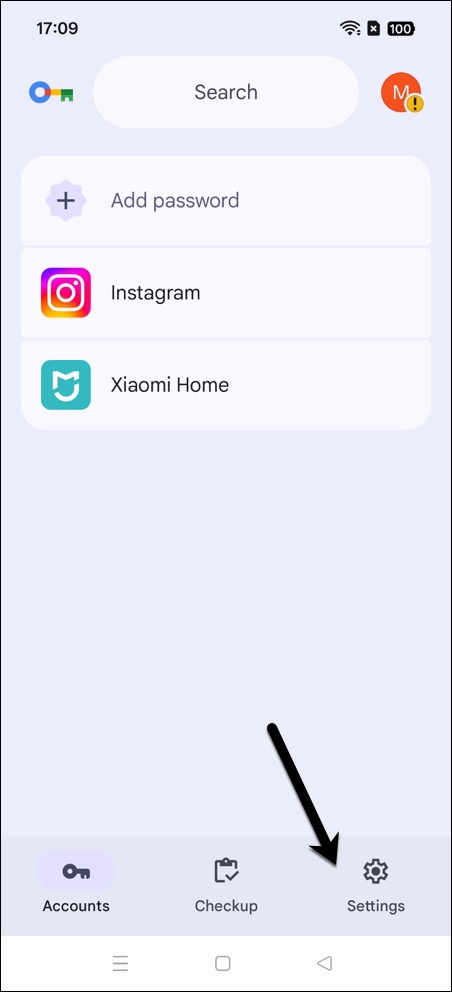
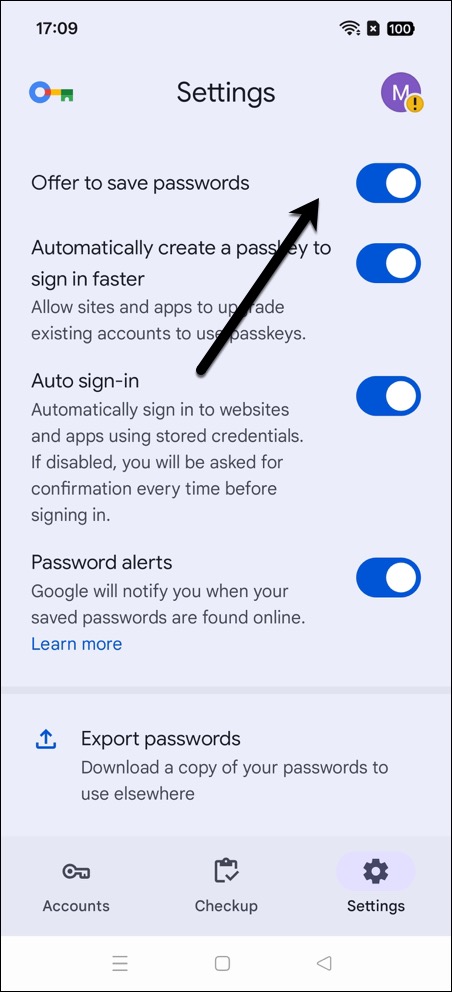
Step 1: Open the Chrome app, tap the three-dot menu in the top-right corner. Once in, tap on Settings > Password Manager and then on the Settings icon.
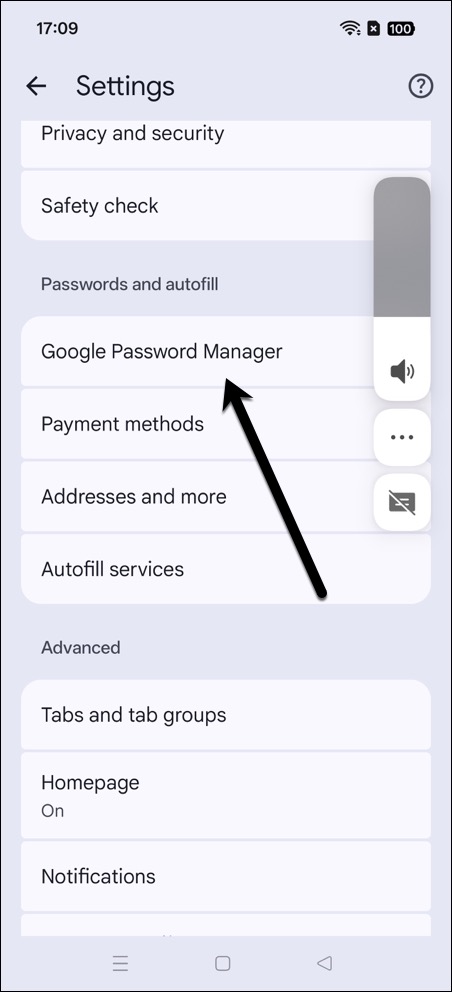
Step 2: Now, all you need to do is toggle the switch next to Offer to save passwords.
But…Should You Use Google Password Manager at All?
Google Password Manager is free and secure for most everyday users. It uses AES-256 encryption and ties into your Google Account’s two-factor authentication, which renders a seamless experience.
But if you use a dedicated password manager, disabling Google’s version is the right call. Have a question? Drop it in the comments below.
FAQs
Will disabling the pop-up delete my saved password?
No, disabling the Google Password Manager pop-up only stops Chrome from asking to save new passwords. All passwords already stored in Google Password Manager will remain as it is.
Does this setting sync across all my connected devices?
Yes, if you are signed into Chrome with the same Google Account and have enabled sync, the password offer setting syncs across all devices using the same profile.
Is it safe to disable Google Password Manager pop-up?
Yes, it is completely safe to disable. Do note that disabling the prompt does not affect your browser’s security features.