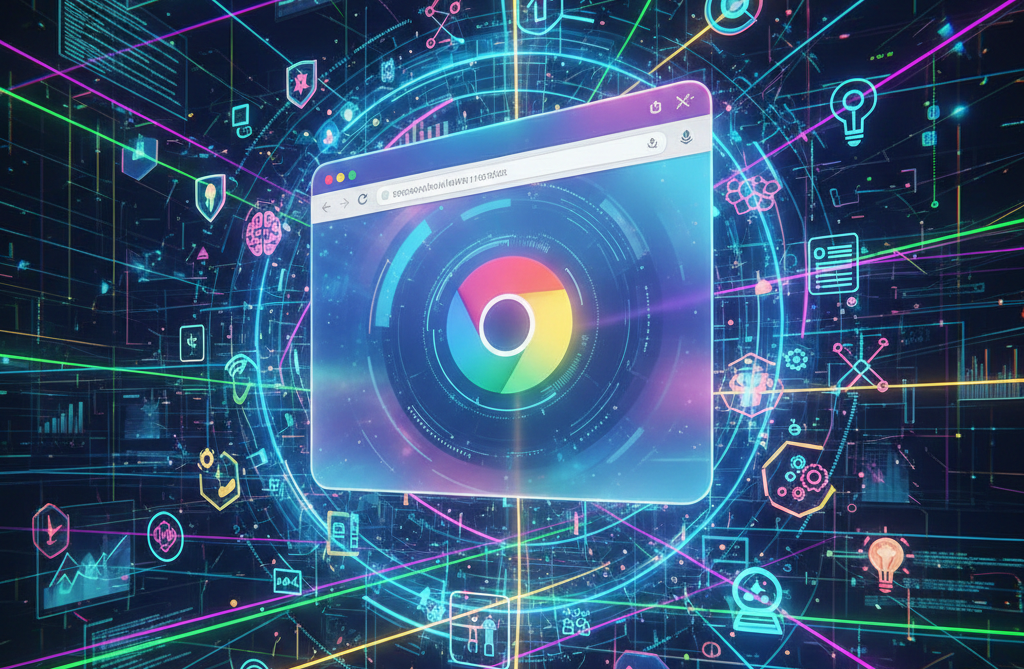
If you are tired of juggling multiple open tabs, managing countless bookmarks, and losing track of important links, it is time to streamline your workflow. Gone are the days when Google Chrome was just a browser. Today, it is a powerful productivity hub. And if, like me, your work and daily tasks also center around Chrome, these Chrome productivity tips will help you work smarter, faster, and more efficiently.
Also See: Best iOS Apps for Productivity
Split View Smart Multitasking
Have you ever had to multitask and have a plethora of windows or been constantly toggling between two browsers in Chrome? It not only frustrates you but also distracts your attention. But thankfully, a new feature of Chrome lets you up your productivity.
Split View lets you open two tabs side by side within Chrome, so you do not need to switch between tabs anymore. You can use split view in creative ways when writing notes while watching tutorials or comparing research pages without losing focus.
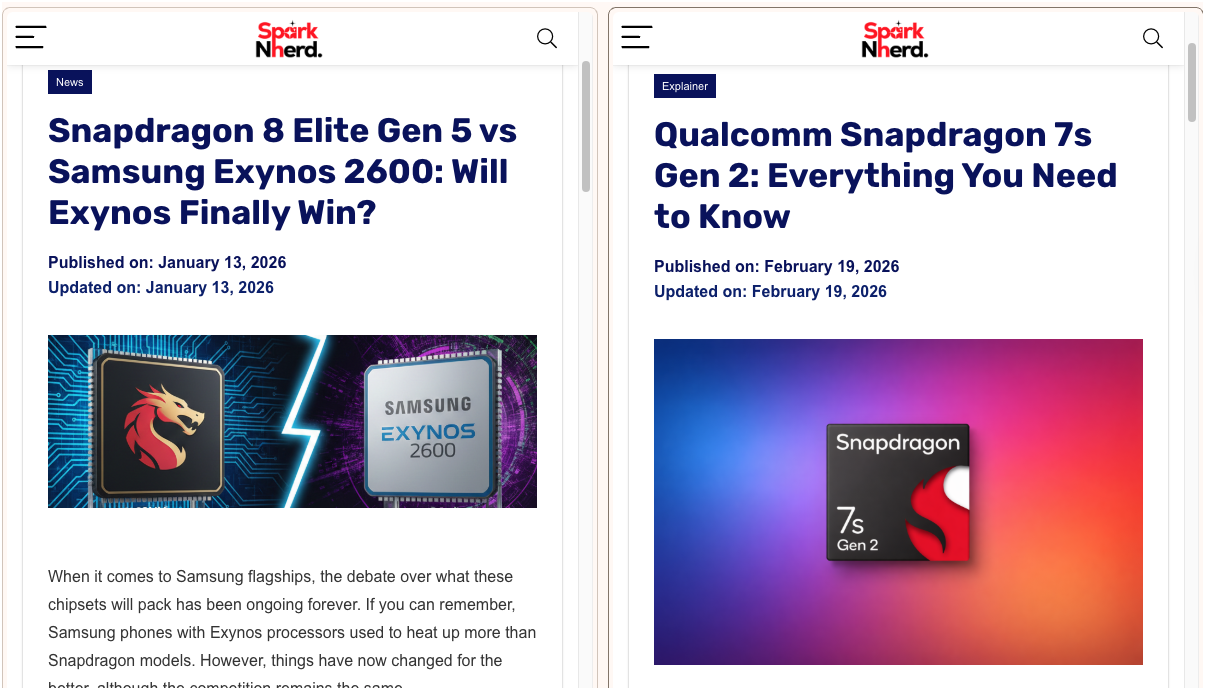
The good thing is that you can also open a new link in one of the panes. If you ask me, this is a core Chrome productivity hack since it helps in reducing distractions and increasing productivity without the mental drag of constant tab switching.
Annotate in-House
The Chrome PDF viewer has long been a favorite for quickly opening PDFs, and now, with annotation support, you no longer have to download a file and then upload it into another online PDF tool. You can now annotate directly on PDFs.
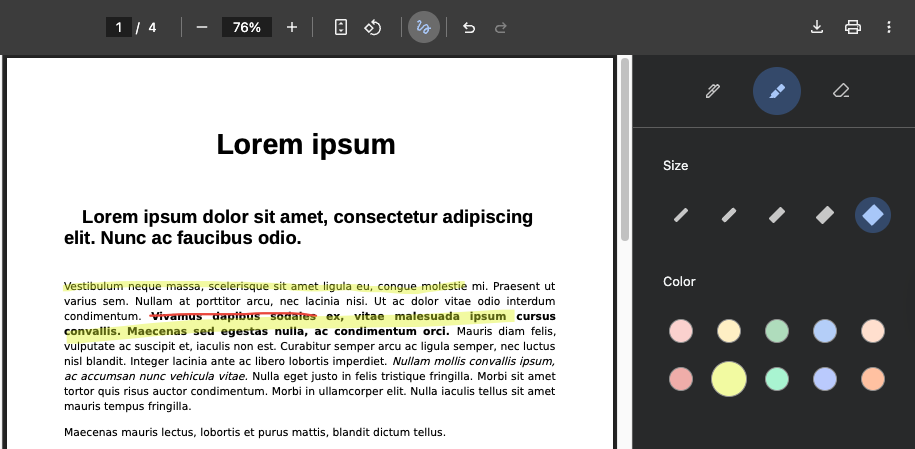
To do so, open the PDF and click on the Annotate icon at the top, then pick from the range of tools and colors. Compared to most PDF tools, these tools are basic; however, at least you can get started.
Use Toggl Track to Track Your Time
If you want to improve your efficiency, you need to know how you are spending your time, and that’s exactly why I recommend Toggl Track. This extension tracks how much time you spend on tasks, giving you real data instead of guesswork, and is the one for you if you use apps like Asana, Jira, or Notion.
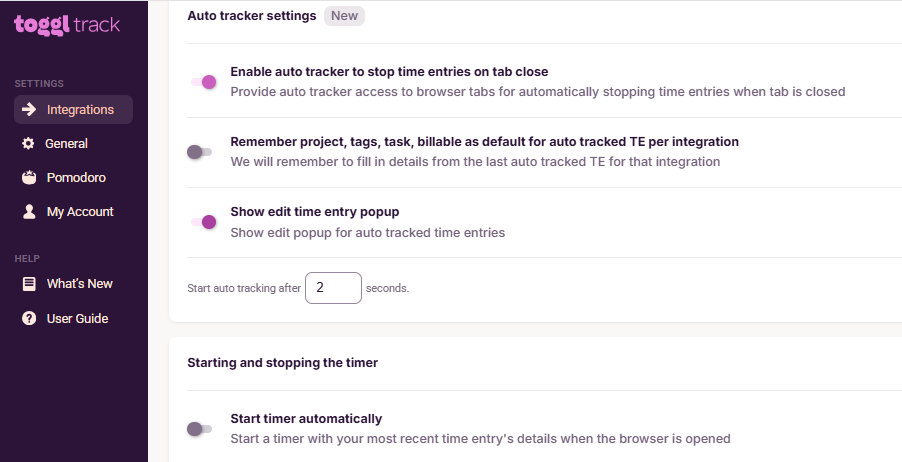
Toggl supports over 120 tools, and you can start your tracking without opening a new tab. This enables you to analyze your productivity patterns across the many platforms so that you can identify where you can improve.
Notion to Keep Your Work Organised
Research can easily turn into chaos if you are not careful, and constantly opening tabs, bookmarking pages, and shuffling through browser windows is a time drain. Notion Web Clipper changes that and brings one of the best Google Chrome productivity tips straight to you.
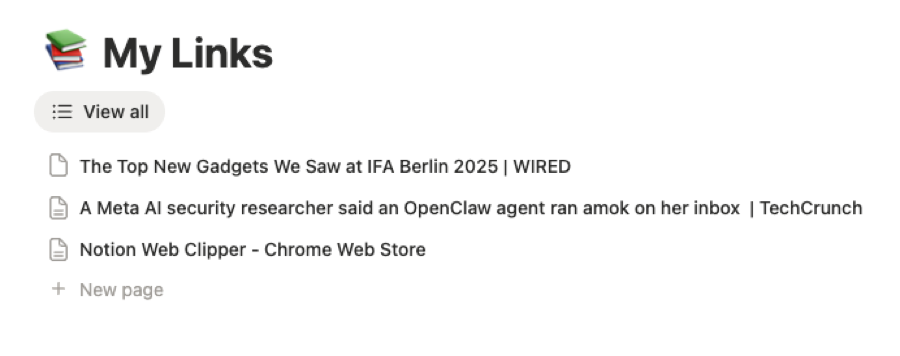
Instead of saving dozens of bookmarks you never revisit, the Notion Web Clipper lets you save articles directly into Notion as organized, searchable, and tagged entries.
So, whenever you need to jot down something, click on the extension icon and select your option. Trust me when I say, you will thank me when you see all your tabs, links, and bookmarks properly organized.
Grammarly Extension for Error-free Writing
If you are someone who often has to write emails, make reports, or make social media captions in Chrome, then Grammarly has to be one of the core Chrome productivity tools you should use if you want clearer and mistake-free writing.
In addition to correcting typing errors, Grammarly also provides more complex grammar corrections, clarity suggestions, and even tone identifications. No time wasted in second-guessing, anymore.
Chrome Productivity Tips: FAQs
1. How can I increase productivity on Google Chrome?
You can improve your productivity on Google Chrome by using a mix of built-in features (like split view) and thirdparty extensions.
How do I manage multiple tabs efficiently in Chrome?
You can manage multiple tabs efficiently in Chrome by using built-in features like split view and tab grouping.
How do I reduce distractions while using Chrome?
To reduce distractions when browsing through Chrome, use focus extensions and check your time with tools such as Toggl Track.