The Google Play Store is usually the first place you visit if you want to download and install apps on your Android smartphone. However, at times, you tap on Install, and nothing happens, or the download gets stuck midway. As such, things can be confusing, especially when your phone has sufficient storage space and a stable internet connection.
But worry not if apps are not installing on your Android, you are not alone. It can be resolved by following a few simple troubleshooting steps.
Also See: How to Add Google Gemini Extensions on Android
Fix 1: Clear the Cache of the Google Play Store
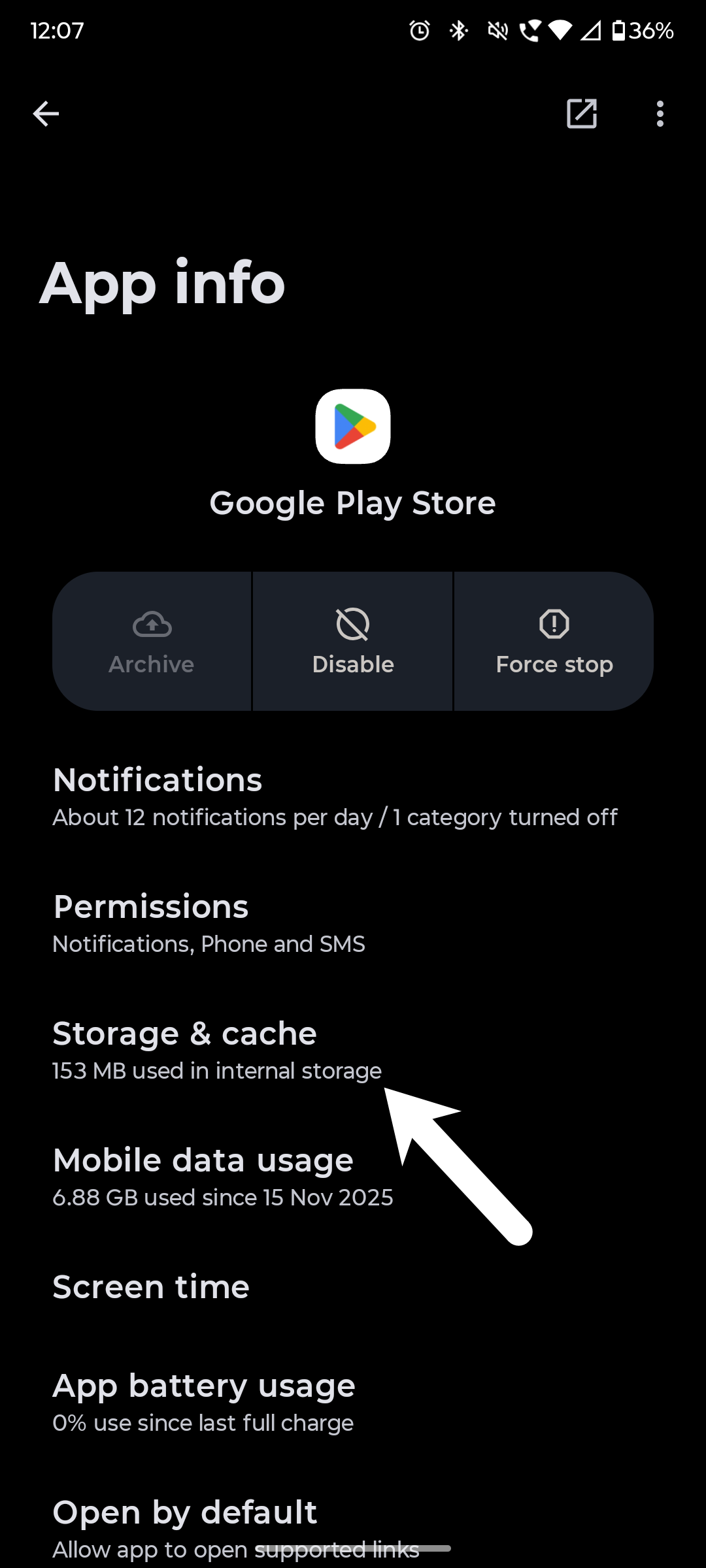
Sometimes, temporary files stored by the app become corrupted. When this happens, you may face issues with the Google Play Store not installing apps properly. Hence, the very first thing you should do is clear the cache of the Google Play Store.
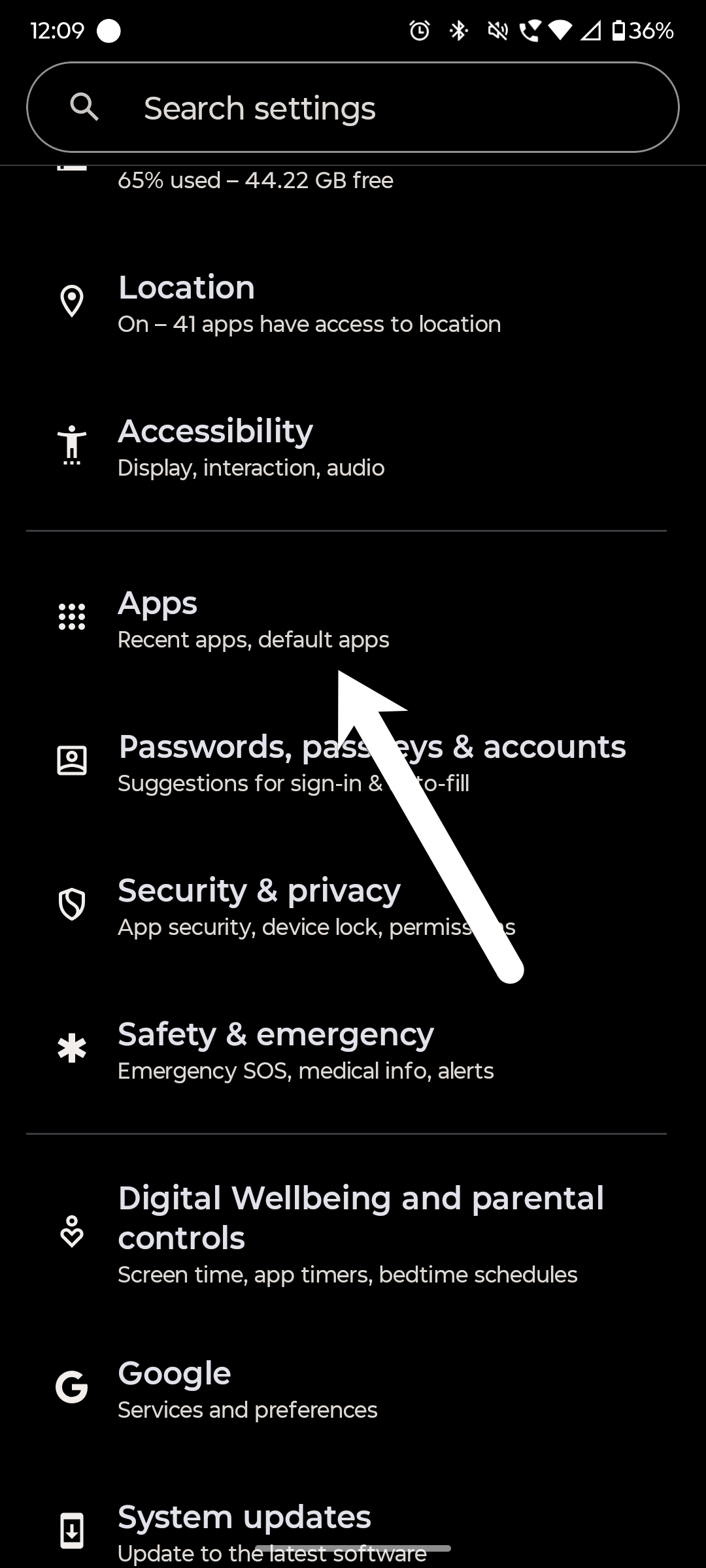
Step 1: To do this, open the Settings menu on your phone. After that, navigate to Apps or the App Management section, depending on your device and open the complete app list
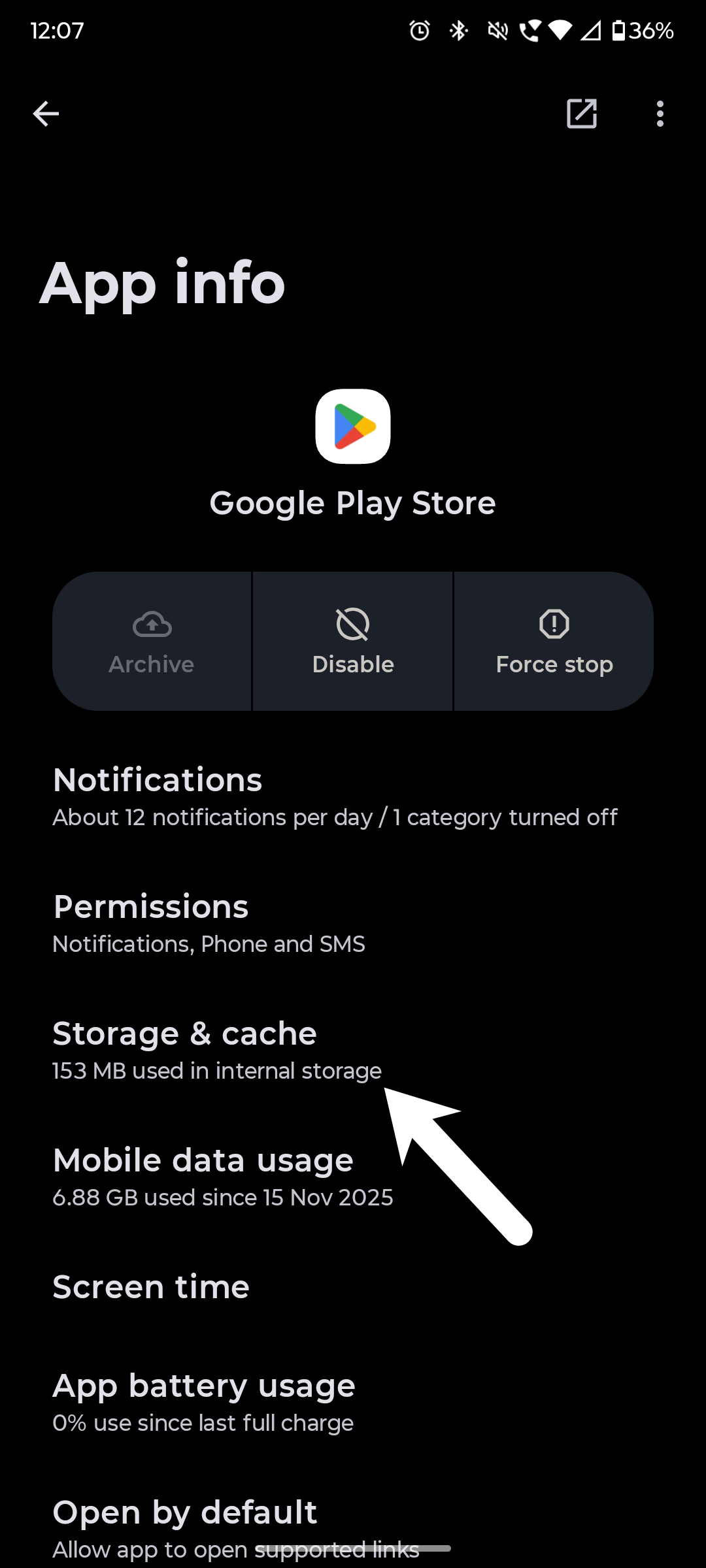
Step 2: Now, locate the Google Play Store from the list, tap on it, and then select Storage & Cache. Next, press Clear Cache.
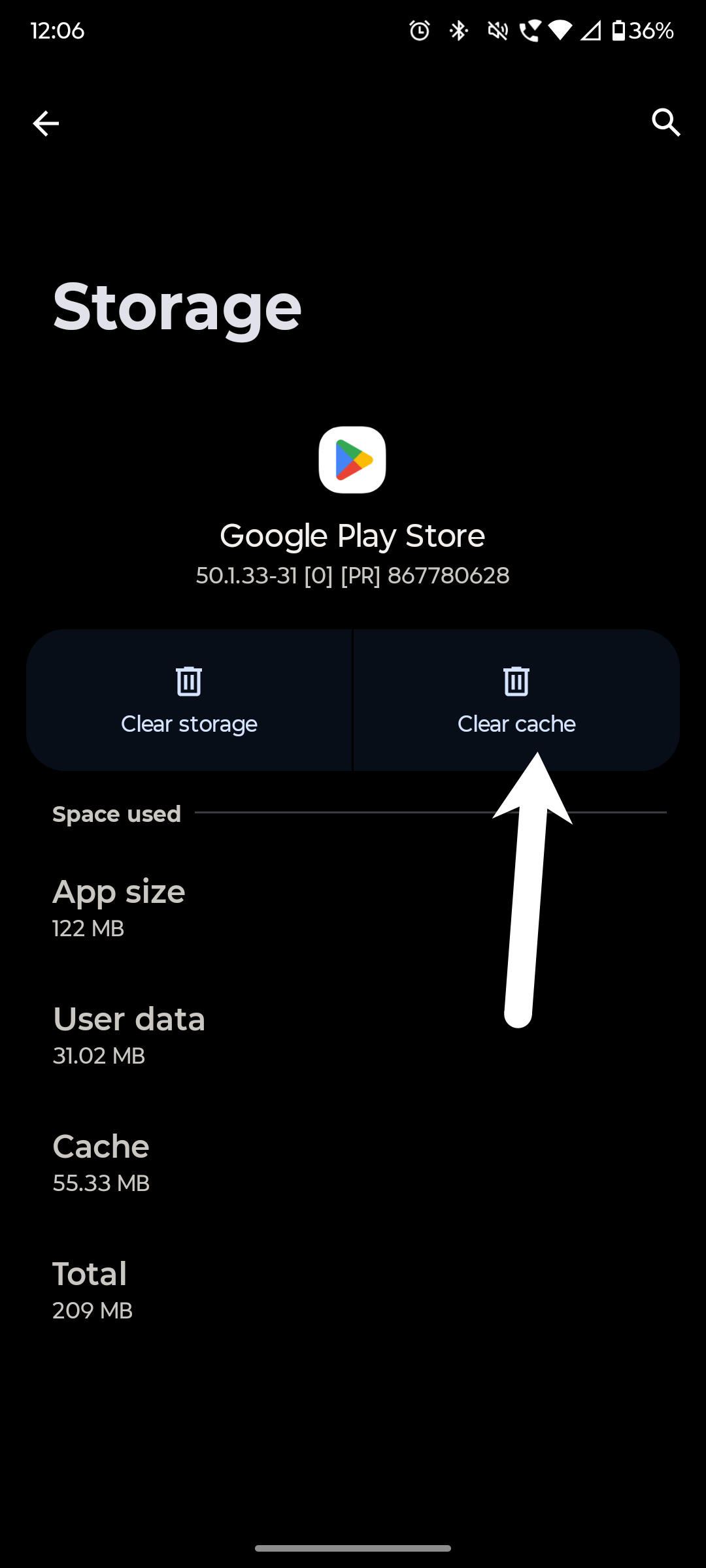
Once done, return to the home screen and try downloading the app again. In many cases, this simple step resolves the problem of Android apps not downloading.
Fix 2: Clear the Cache of Google Play Services
In case clearing the Play Store cache does not work, then clear the Google Play Services cache as well. The Play Store works with the help of Google Play Services, which works in the background. If there is a problem with it, you may face android app installation error.
Step 1 – Return to your app list on your phone, open Google Play Services, enter Storage Usage, and tap Clear Cache.
Step 2 – After clearing the cache, reboot the Play Store and check whether you can install apps without any problem.
Fix 3: Checking the Permissions
Most of the time, Android apps not downloading is often fixed by clearing the cache. Despite that, we would suggest adjusting the permissions in the Google Play Store would work.
All you need to do is ensure that all the permissions necessary have been enabled, such as storage, contacts, SMS, and so on. You can give access to other permissions too, like location.
Also See: Should You Close or Clear Recent Apps on Android?
Fix 4: The Last Resort: APK Download
In case you are in urgent need of an application, and the Google Play Store is still not installing apps, then
you can sideload it with an APK or XAPK. That said, never download Android apps from suspicious sites.
Fix Apps not Installing on Android
These were some of the ways that should fix apps not installing on Android, and you should be able to download & install apps on your Android phone without complications. Do note that the menu or settings may look slightly different depending on your phone brand, but the steps remain almost the same.
Android App Installation Error: FAQs
Why are my Android apps not installing on Android?
Apps may fail to install due to insufficient storage, an outdated Android version, or Google Play Store errors.
What to do if Google Play Store is not installing apps?
For starters, make sure your phone has a stable internet connection, sufficient storage, and the Play Store is updated to the latest version. Then follow the steps mentioned above.
Will uninstalling and reinstalling Google Play Store help?
Yes, at times, uninstalling and reinstalling the Google Play Store fixes installation errors and app download problems.