
Your iPhone’s always busy, be it switching between apps, loading websites, and handling tasks in the background. Along the way, it piles up temporary data you don’t really see, but it adds up over time. That hidden clutter can slow things down, eat up storage, and even make some apps misbehave. A quick cache clear is like giving your phone a tune-up. And it helps things run faster, frees up space, and keeps everything working smoothly.
In this guide, we will walk through easy, step-by-step ways to clear the cache on iPhone.
Also See: How to Create and Manage Polls in iMessage
How to Clear Browser Cache on iPhone (iOS 26)
iPhones don’t actually come with a single “clear cache” button. Instead, iOS quietly takes care of most cached files in the background, so you don’t usually have to think about it. That’s great for simplicity, but it also means you can’t manually sweep everything away in one go. Worry not, we have lined up some pretty useful tricks to clear out cache here and there, free up storage, and help your iPhone run at its best.
How to Clear Chrome Cache on iPhone
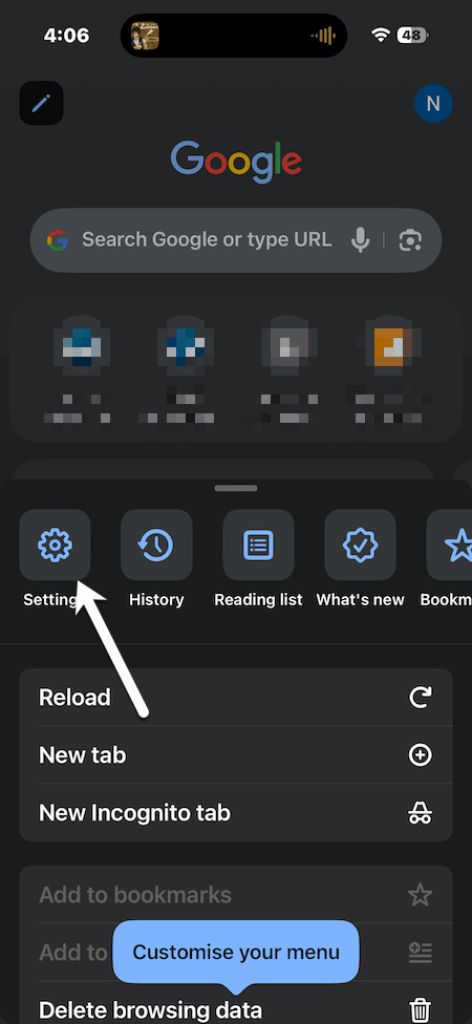
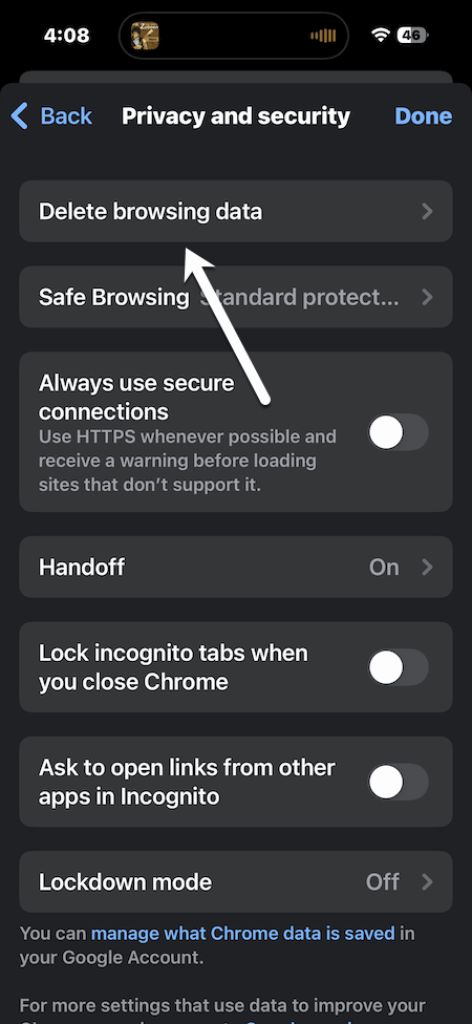
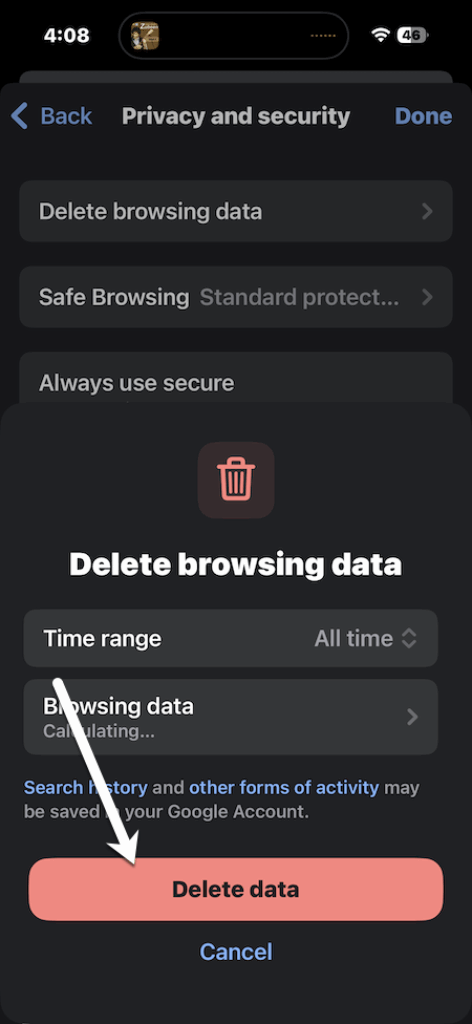
Step 1: Open Chrome, tap the three dot menu at the bottom-right, and select Settings > Privacy and Security > Delete Browsing Data.
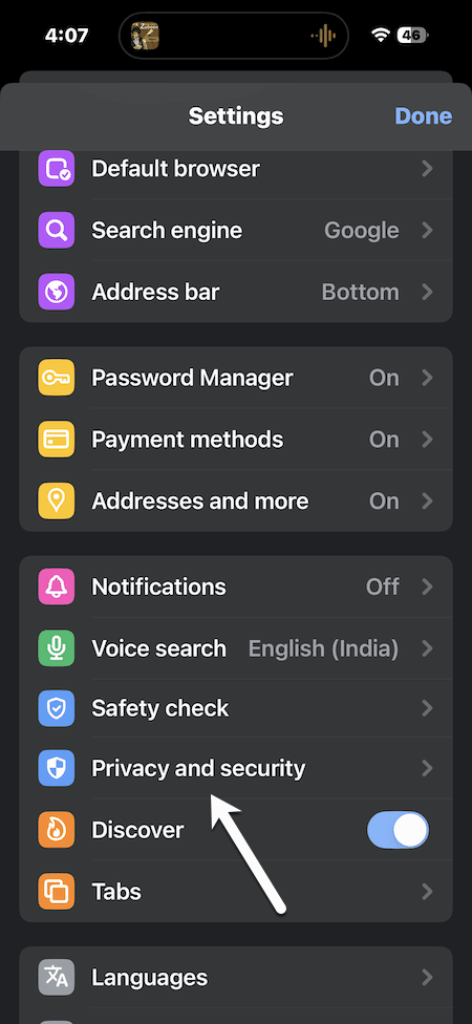
Step 2: Check Cached Images and Files (and any other data you want to remove), then tap Clear Browsing Data to confirm.
How to Clear Safari Cache on iPhone
Step 1: Head to Settings > Apps on your iPhone, scroll down, and tap Safari to access its settings menu.
Step 2: Now, choose Clear History and Website Data. Confirm by tapping Clear History and Data again to wipe cached files, cookies, and your browsing history.
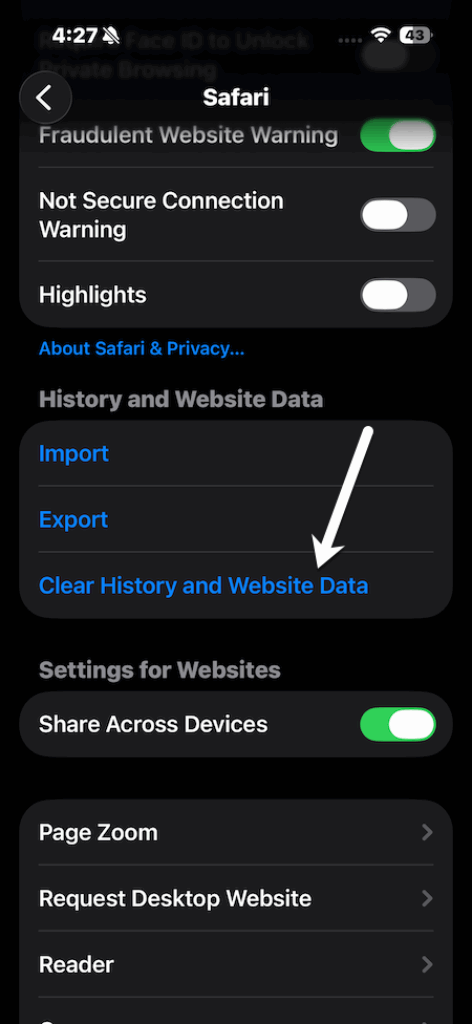
Do note that if you use iCloud, this process will also sync across other Apple devices, maintaining a consistent and updated browsing experience.
How to Delete App Cache on iPhone
If you want to free up storage and keep your iPhone running smoothly, clearing out app cache is a simple way to reclaim space (and to speed things up).
The good thing is that some apps, like Facebook, Instagram, or Spotify, let you clear their cache directly. No need to delete or reinstall anything. Just open the app, head into Settings (sometimes under Privacy), look for the Clear Cache option, and follow the prompts. In a few taps, you can wipe out the stored data and give the app a quick refresh.
That said, here are some easy methods that actually work.
1. Delete and Reinstall the App
If you want to completely wipe out an app’s cached data, the surest way is to delete and reinstall it.
Just press and hold the app icon, choose Remove App > Delete App, and then download it again from the App Store. This gives the app a fresh start and clears out all those temporary files in one go.
2. Offload Unused Apps
Instead of deleting everything, offloading removes the app itself but keeps all your needed info, like docs and settings, safe. That way, when you reinstall the app later, it feels just like you never left off.
To offload an app, head to Settings > General > iPhone Storage, pick the app you want to free up space from, and tap Offload App.
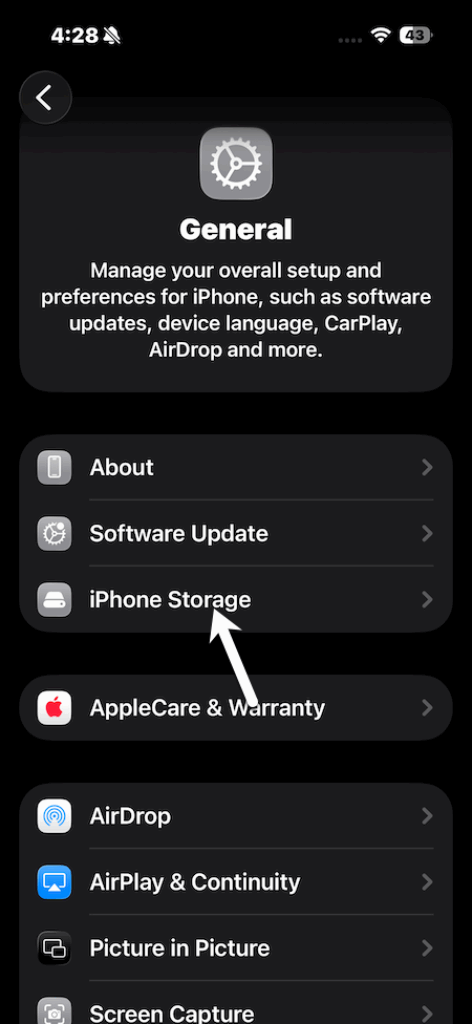
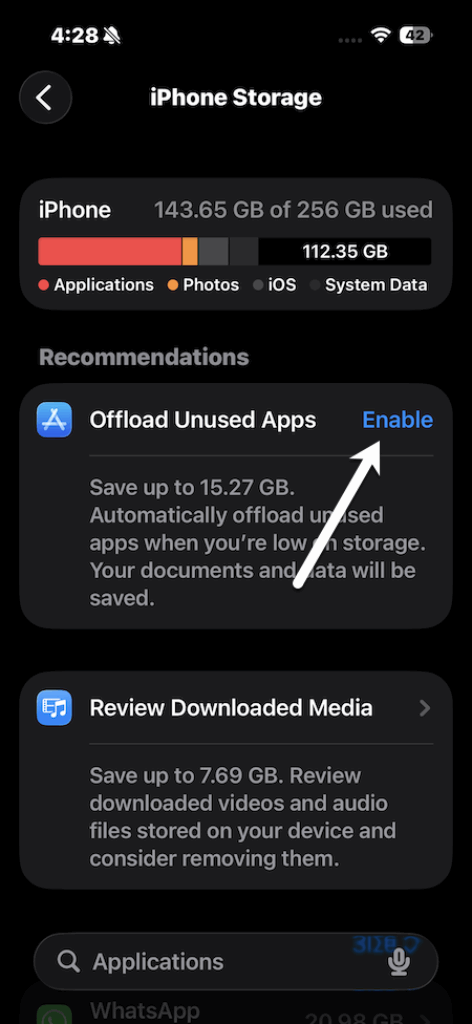
When you reinstall it, your data will be right there waiting for you.
Cache Cleaning: How Often Is Enough
So, how often should you clear your iPhone’s cache? Ideally, cache clearing should be part of your monthly routine to keep your device running smoothly. Regular maintenance helps prevent slowdowns and keeps the system clutter-free.

That said, if you notice an app or website malfunctioning, clearing the cache can often resolve loading issues or errors caused by outdated files.
Also, make it a habit to clear your browser cache before submitting personal or financial details. This reduces the risk of sensitive data being stored or accessed.
Things to Keep in Mind Before Clearing Cache
While clearing cache can help improve your iPhone’s performance, it is important to be aware of a few considerations. Your personalized settings—such as themes, languages, or layouts—may reset to their defaults, meaning you might need to reconfigure them.
Important data like photos, contacts, and files should be backed up using cloud storage or an external solution to prevent any loss. Additionally, clearing cookies and cache can log you out of websites and apps, so make sure your login details are easily accessible.
On the plus side, it adds a layer of protection for your personal information, since temporary data and browsing history can sometimes expose private details. So, will you make it into a daily habit?