Content creation in 2026 is evolving fast, and creators are constantly looking for tools that can simplify production while maintaining creative control. One platform that has been gaining attention recently is Google Flow, an AI-powered video creation workspace designed to create engaging content.
With Google Flow’s content workflow tools, you can get more done in less time, and you can finally say goodbye to those repetitive, time-draining tasks.
What is Google Flow?
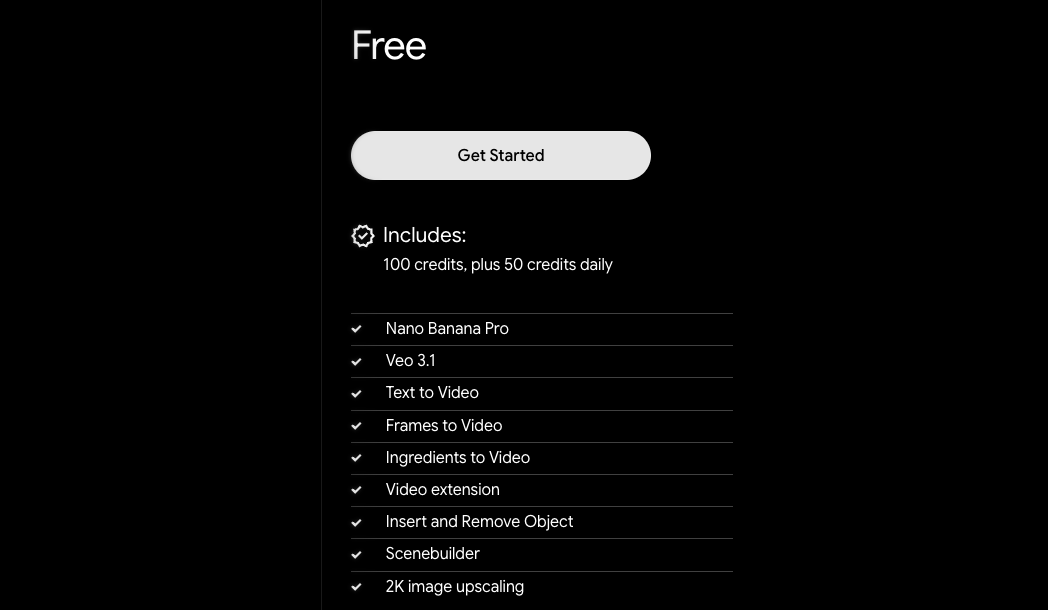
Google Flow is an AI video editor powered by models like Veo and Gemini. Unlike tools that just generate random clips from prompts, Flow works as a creative workspace where you build and refine videos step by step. While Flow has a free tier, the Ai Pro and Ultra tier will unlock premium features.
You can start with a text prompt or image, then adjust things like lighting, camera movement, and weather by adding new prompts. The result is a more interactive and flexible editing experience than most AI video tools offer today.
How to Use Google Flow?
If you are new to the platform, getting started with Google Flow is relatively simple. Here’s a quick step-by-step overview:
Step 1: Open Flow in your web browser and sign in using your Google account.
Step 2: Once you reach the dashboard, click New Project and give your project a clear name so you can easily organize your videos, prompts, and creative assets.
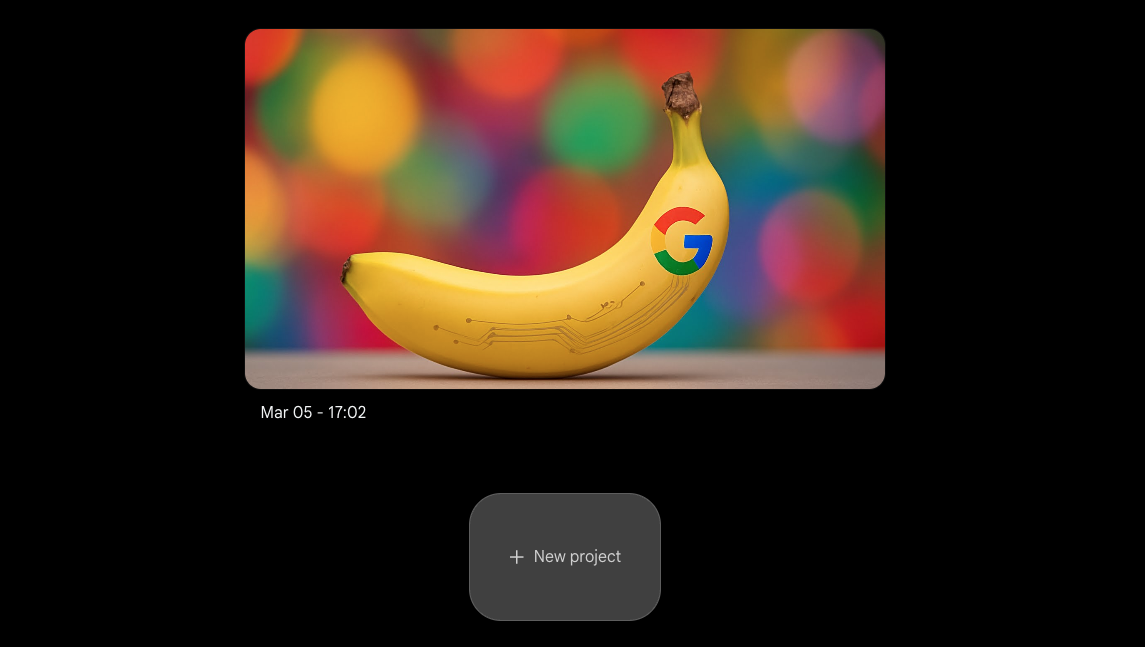
Flow also has integrated Nano Banana 2, so image and video generation is faster and smarter.
Step 3: Now, in the prompt box, describe the scene you want to create. Be as detailed as possible.
In my case, I used, “A cinematic close-up shot of a futuristic robot walking through a neon-lit rainy street in Tokyo at night, camera slowly panning.”
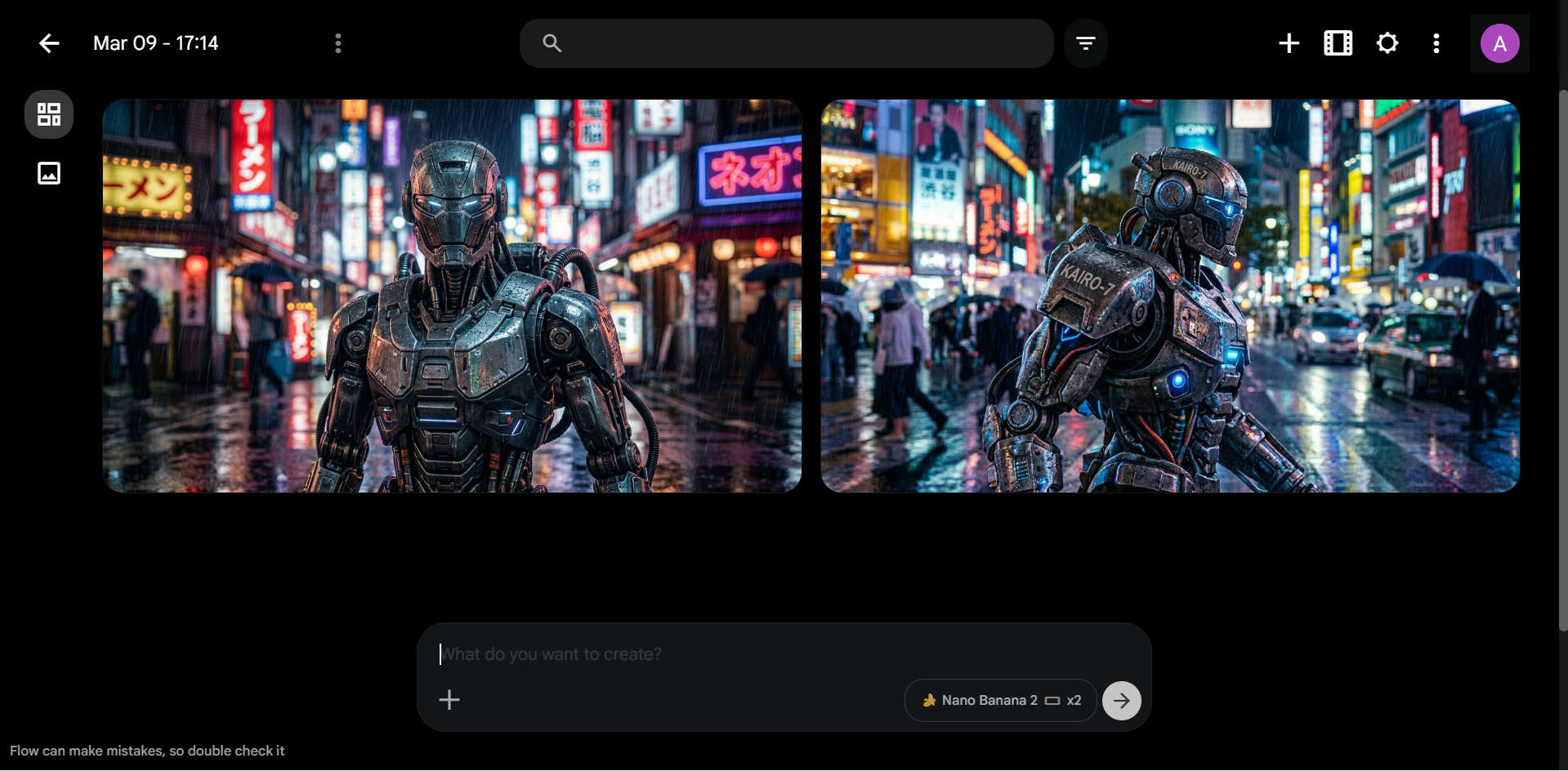
As you may already know, adding details like lighting, camera angle, and style helps the AI generate better results.
Step 4: Now, select the AI model you want to use, such as Veo or other available models in Flow. Then select your preferred aspect ratio, like 16:9 for landscape or 9:16 for vertical content.
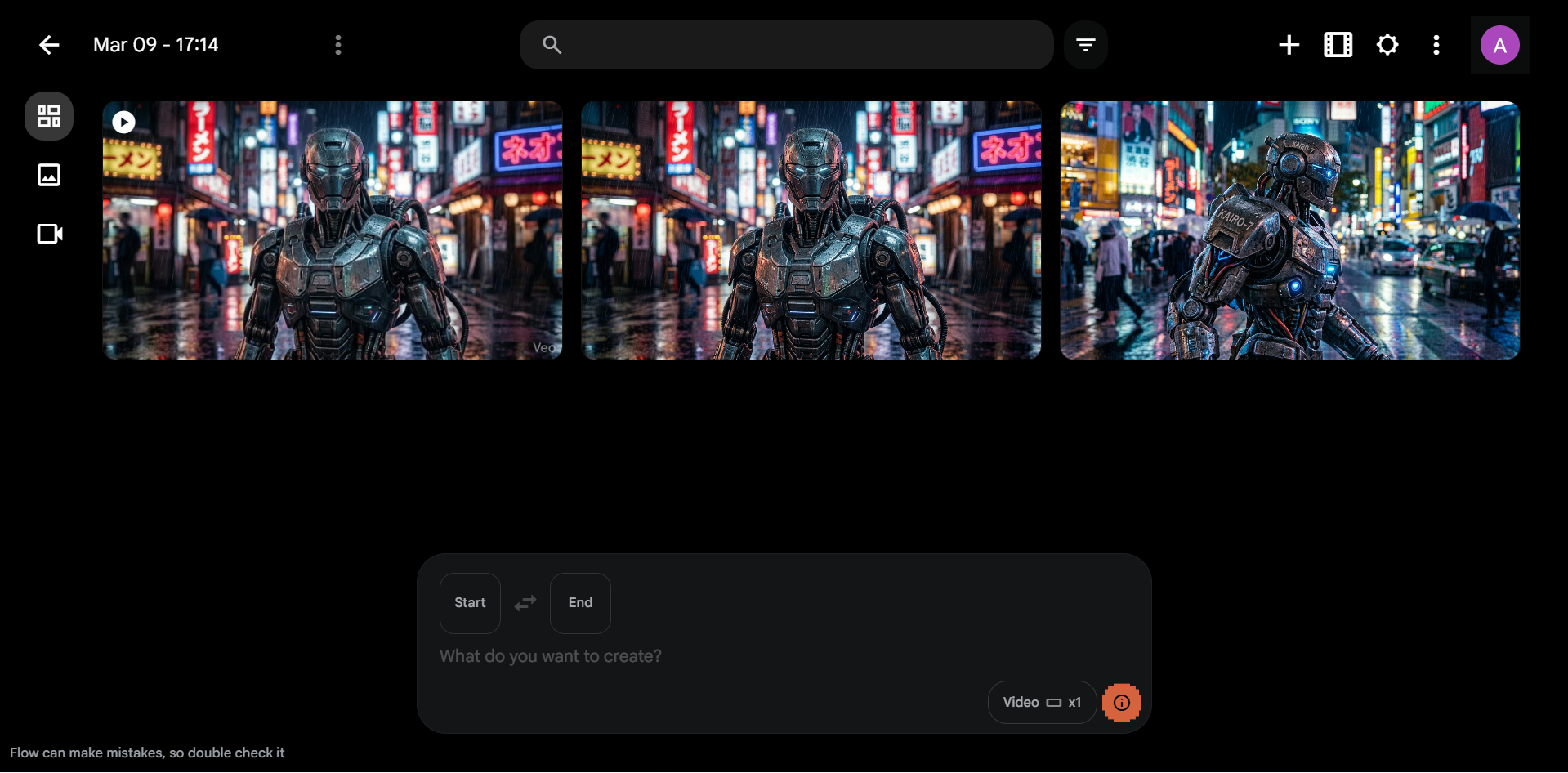
You can also upload references, such as reference images, to keep characters and objects consistent.
Step 5: Now, all you need to do is click Generate to create your video. After the clip is ready, you can use the Scene Builder tool to refine the result. You can extend the clip, adjust camera movement, or modify objects within the scene.
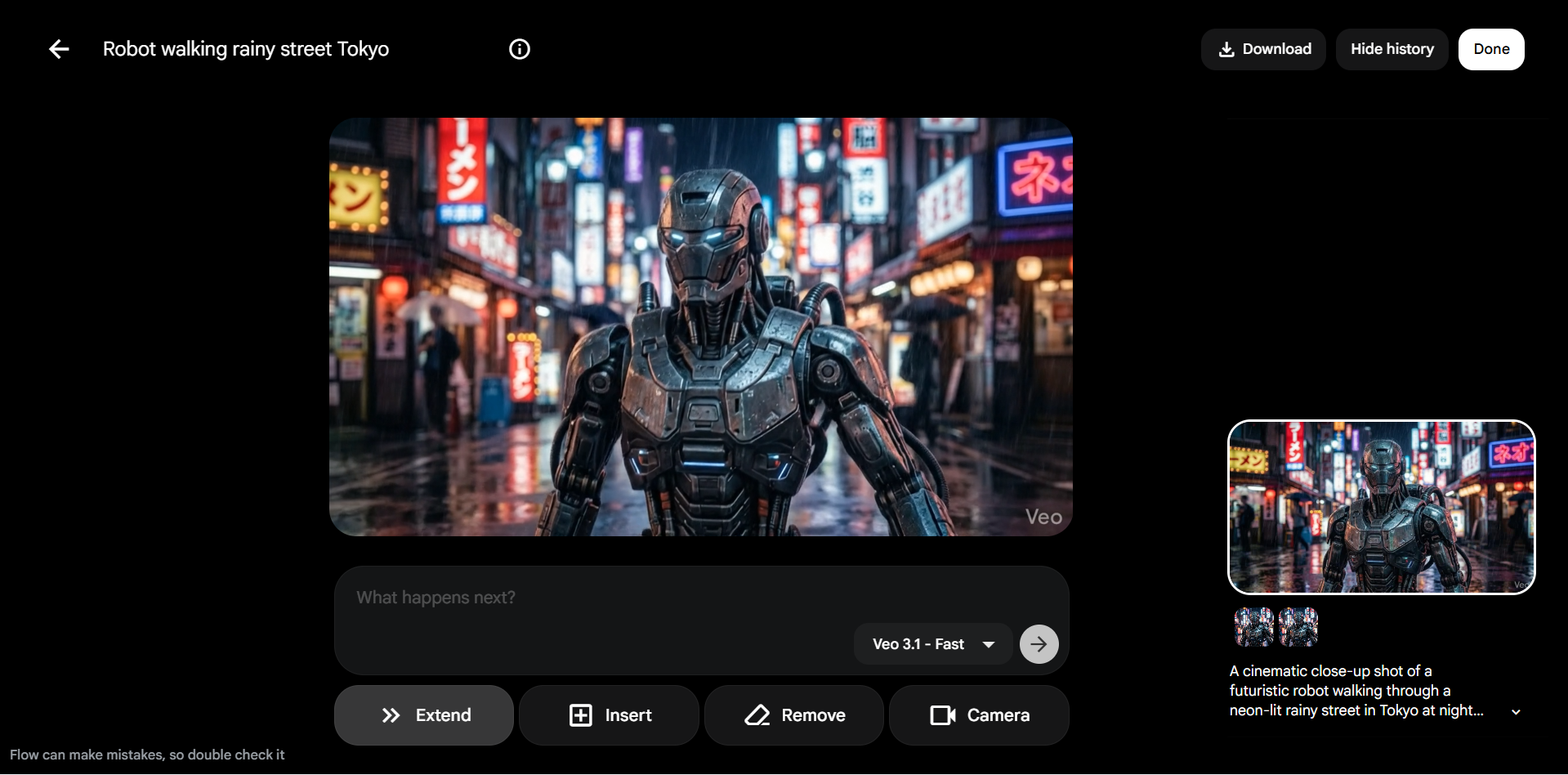
Step 6: Lastly, if you are satisfied with the result, hover over the generated clip, click More, and select Download. Choose the format and resolution you prefer to export the video.
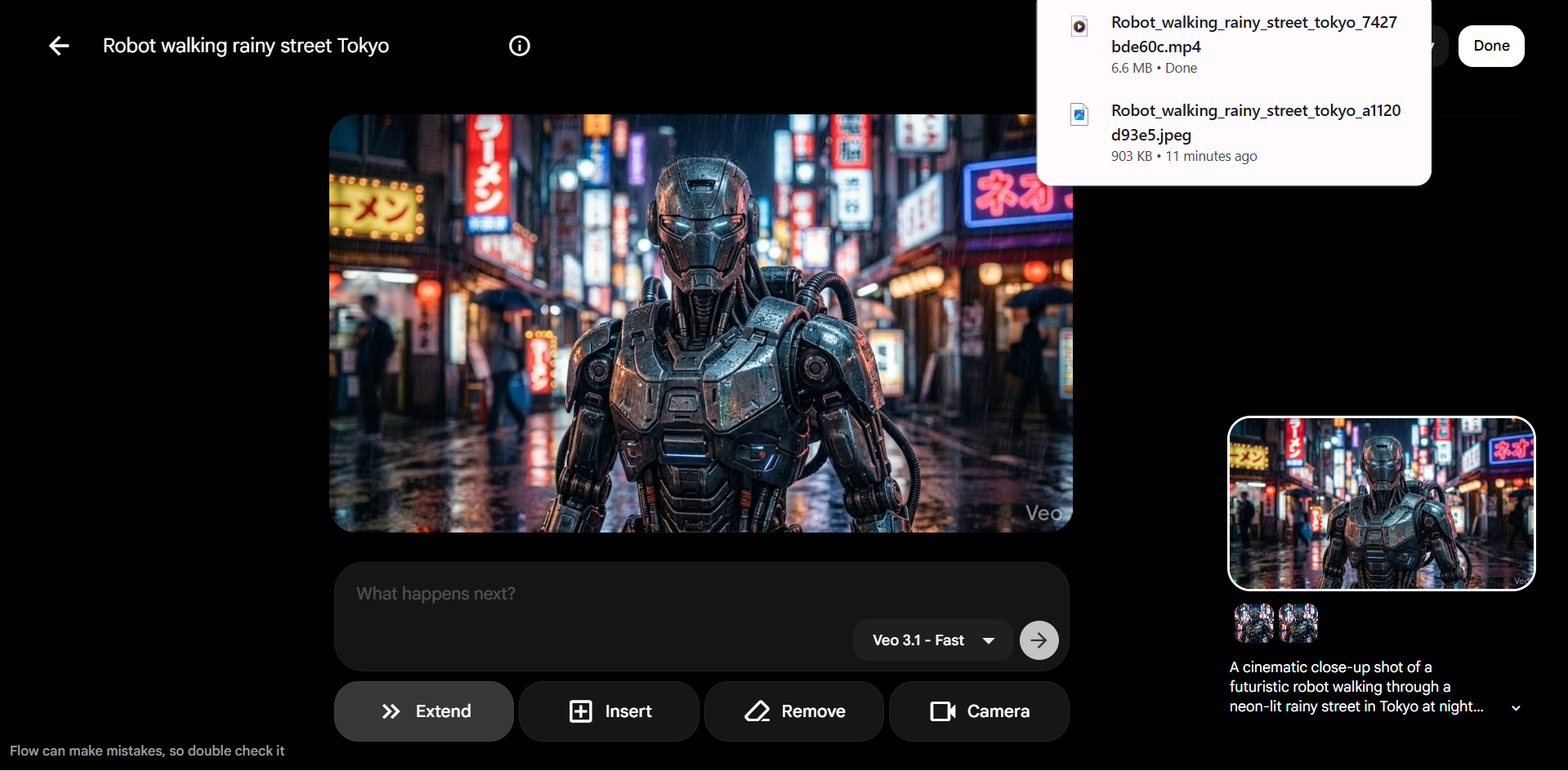
Following these steps makes it easy to turn creative ideas into an AI-generated video using Google Flow.
Also See: How Pairing Google Docs and Gemini Completely Rewired My Productivity
Key Features That Improve Your Workflow
1. Frames to Video
One of the standout features of Google Flow is Frames to Video. By adding a starting frame and an ending frame, Flow automatically generates the transition between them. This way, it reduces one of the most common issues in AI video generation — character morphing.
2. Ingredients & Presets for Faster Production
Flow introduces a helpful concept called Ingredients. Think of it as an asset manager where you upload characters, props, or objects that should appear in your scene.
By defining these elements beforehand, the AI understands exactly what to include when generating clips. This is especially useful for creators who want consistent characters across multiple shots.
Flow also includes visual presets such as,
- Cinematic
- Film Noir
- Action Figure style
These presets act like instant color-grading tools, which allow creators to experiment with different visual moods within seconds.
3. Flow TV: Learning from Real Examples
Another interesting feature is Flow TV, which works like a learning hub inside the platform.
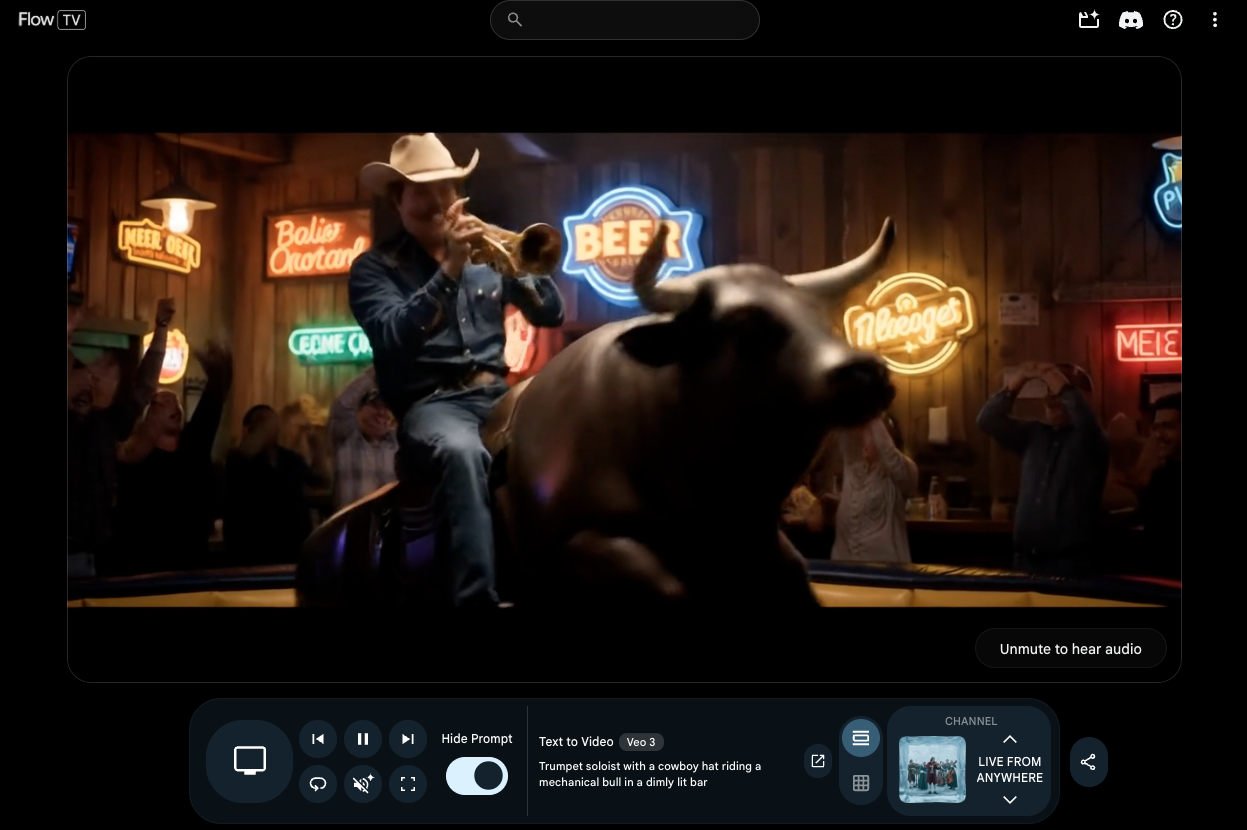
It showcases videos created by other users and reveals the prompts and settings used to generate them, thus letting you understand how different prompts affect the final result.
4. Expand & Scene Builder
Flow’s Expand allows you to extend a video clip by predicting what happens next in the scene. If a shot ends too early, the AI can generate additional frames to continue the action smoothly. On the other hand, Scene Builder helps connect clips on a timeline.
Create Engaging Content With AI Power
Google Flow is an exciting step forward in AI-powered video creation and will undoubtedly help you in elevating your content creation game. While it’s not yet a full replacement for professional editing software, it offers a new way to experiment with ideas and speed up early-stage production.
For creators who want to stay ahead of the curve, exploring tools like Google Flow can help build faster, smarter, and more efficient content workflows.
Google Flow: FAQs
What is Google Flow?
Google Flow is an AI video editor that generates and edits cinematic clips using prompts, images, and assets.
How do I start using Google Flow for content creation?
Sign in with your Google account, create a new project, enter a detailed prompt, add ingredients or presets, generate your video, refine it with Scene Builder, and download the final clip.