
Android Developer Options are perhaps some of the biggest settings that are overlooked. And if you have already enabled developer settings, you must know that it hides a plethora of advanced settings and cool options required for tweaking your Android device. From USB Debugging to limiting background processes, these let you do a lot.
See Also: Should You Close or Clear Recent Apps on Android?
However, if you are looking to disable developer options on your Android smartphone, worry not, it can be done in a few steps. But first,
Should we Change Android Developer Options
Developer Options are not intended for everyday changes, as it is not something that you should play with. Leaving them enabled can, at times, lead to unexpected issues, such as several applications not working properly, increased battery drain, or system instability.
How to Disable Developer Options
The menu names might differ in certain models and Android versions, but the overall method is the same. Below, you will find how to disable them successfully.
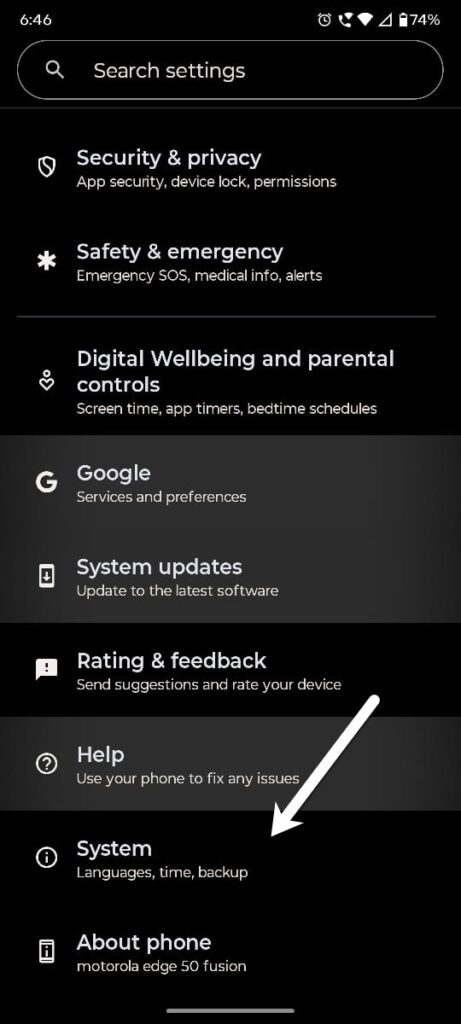
Step 1: Open Settings on your smartphone, and scroll down until you see the option for System.
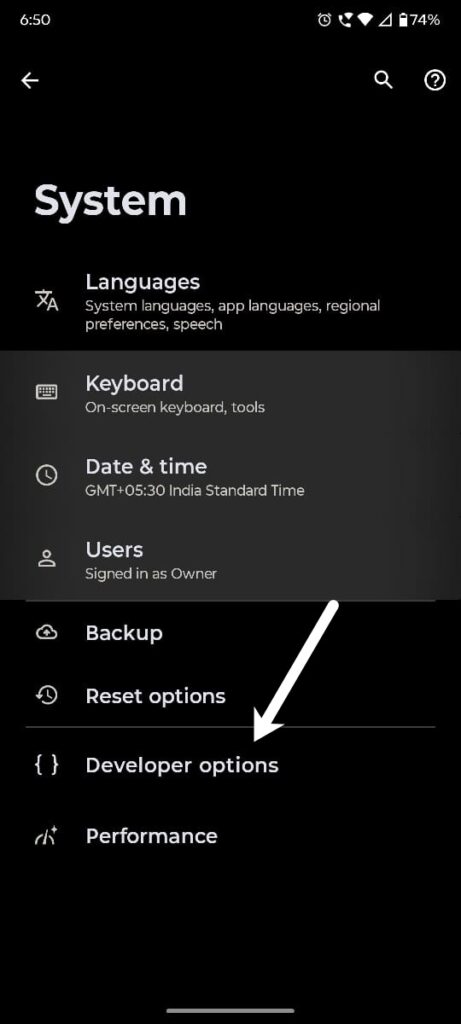
Step 2: Inside the System menu, you will find the Developer Options section. Once opened, toggle the switch that is displayed at the top of the screen.
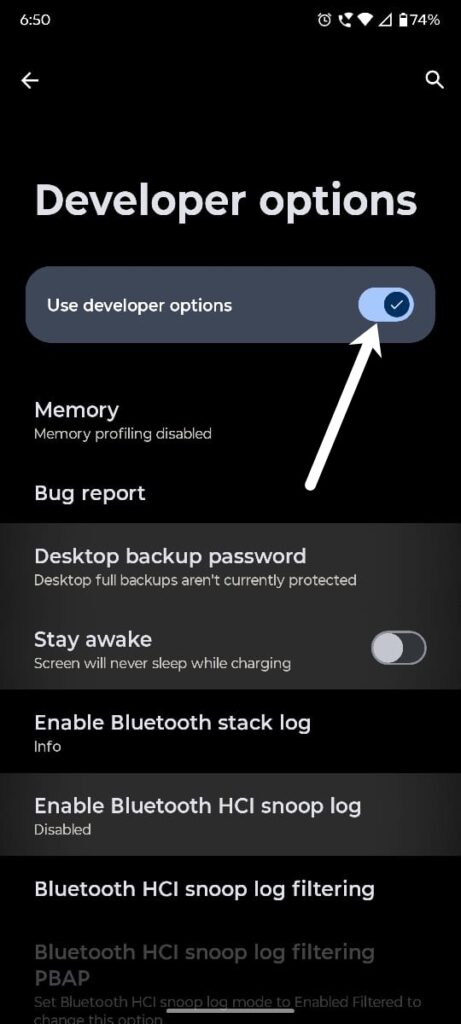
Step 3: All you need to do is toggle the switch, and that’s it. The Developer Options will be disabled immediately.
Depending on the make of your phone, you may need to restart your smartphone.
Android Developer Options: What it Means
Data Security
Disabling Developer Options does not involve deletion of your data, so you do not have to worry about that. It does not require resetting the device or navigating complex menus. Once it gets disabled, it is no longer active in the background.
Consistency
This process is largely consistent across Android smartphones. However, the names may differ across different OEMs.
The process mentioned is ideal for users who are facing app issues, performance glitches, or simply want to return their phone to default settings without any risk.
Turn Off Developer Options Without Worry
Disabling Developer Options on your Android is easier than you might think. If your phone is acting up, apps are misbehaving, or you just want to go back to the default settings, this method gets the job done without touching your data or making things complicated. The menu names might look a bit different depending on your phone brand, but the steps are pretty much the same. Once turned off, Developer Options stops running in the background, helping your phone stay stable and efficient.